.png)
Creating a Certificate Usage Alert
To create a new Certificate usage alert, navigate to the Alerts section of the Admin Web Console with the Signum Administrator or another role with alerts permissions.

To configure Alerts in Signum, an SMTP server must be configured. Contact Keyfactor Support for assistance with configuring your SMTP server.
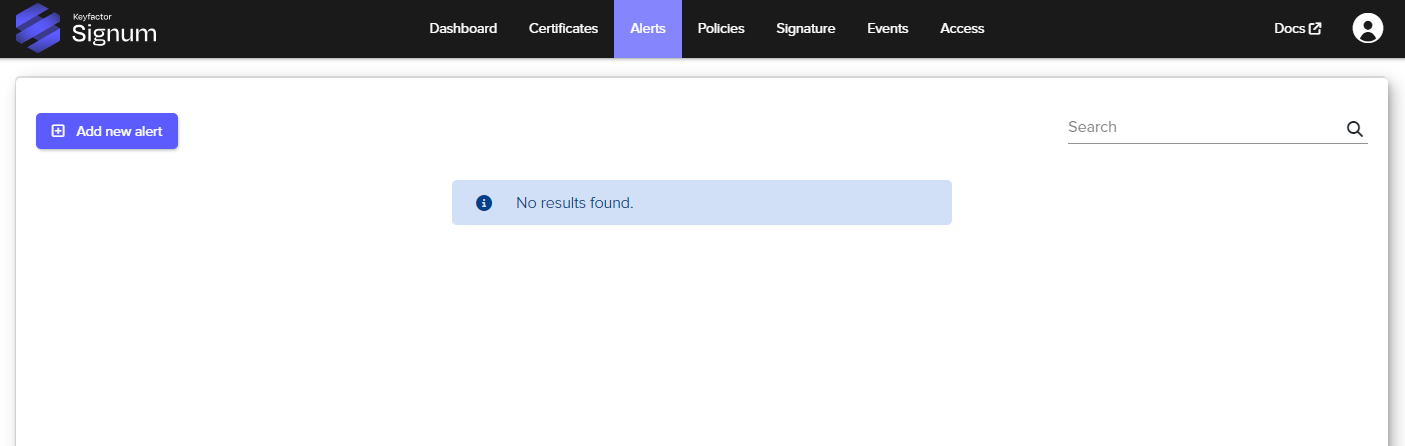
Select Add new alert. This brings up the alerts creation wizard.
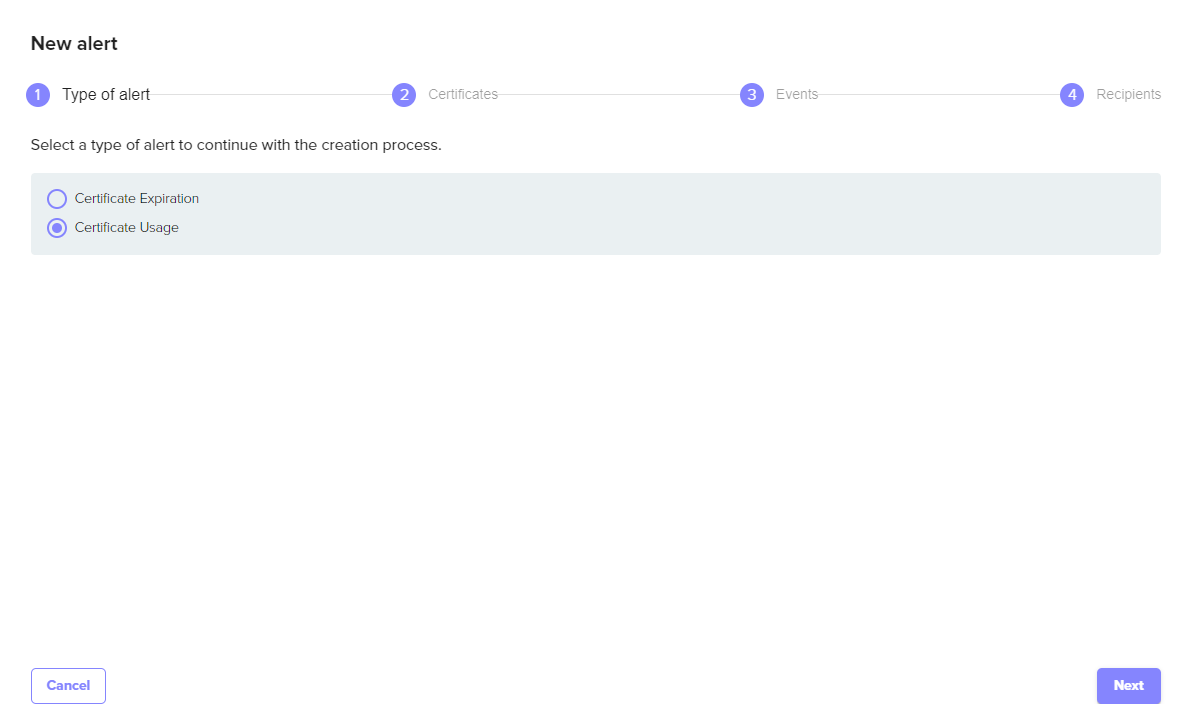
Select Certificate Usage and then select Next.
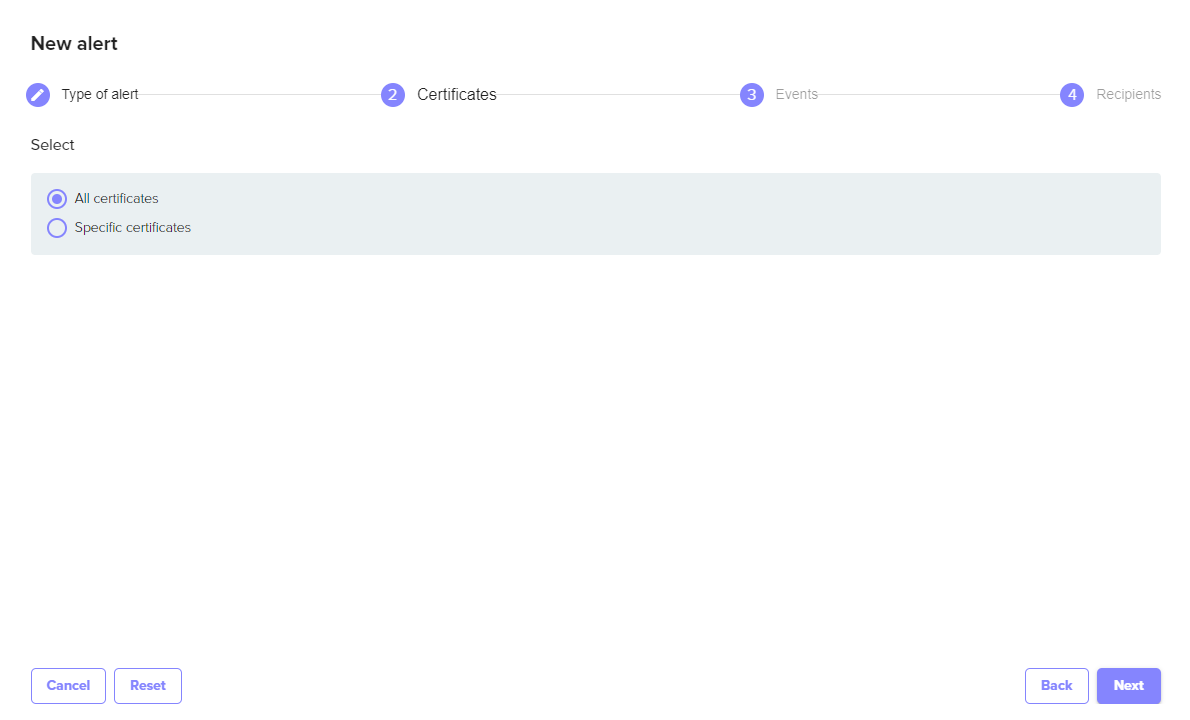
Select which certificates you want to create the usage alert for, either all certificates or specific certificates or groups of certificates.
Select Next.
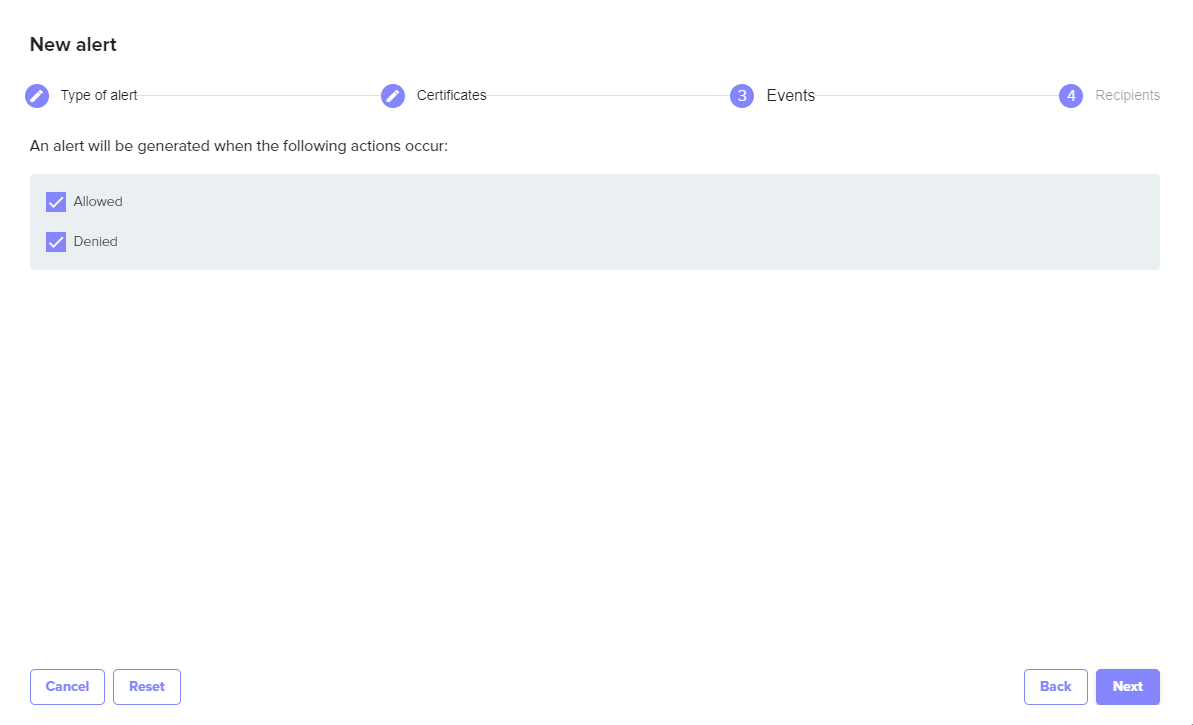
With the certificates selected, you are then able to configure the types of certificate usage events to alert on based on configured policies that allow or deny certificate usage.
Choose Allowed, Denied, or both.
Click Next.
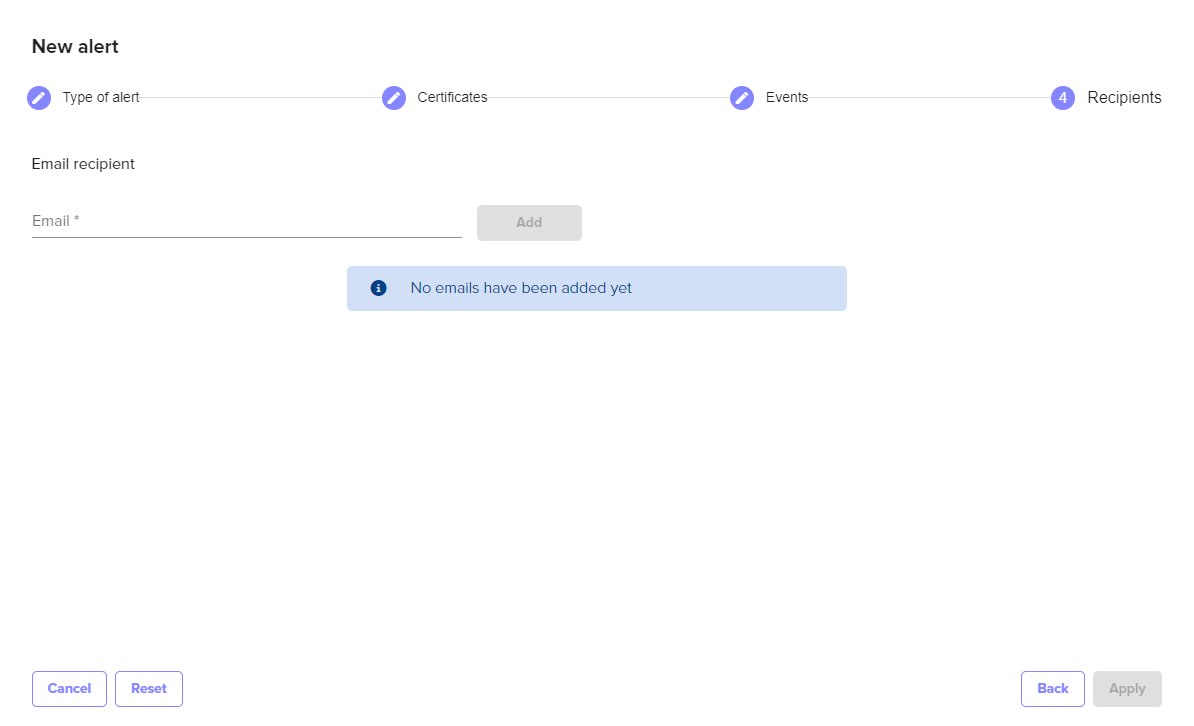
Enter the email address of the users that will receive the alerts.
Select Apply to complete the wizard and create the alert.
The alert can then be modified or deleted by selecting from the list of configured alerts.