.png)
OAuth2 Domains
You can use OAuth2 as the authentication method for a new Domain.
Create a new Domain in the Access tab, and select OAuth2 as the Domain Type.
Set the domain configuration options:
OAuth Domain Configuration
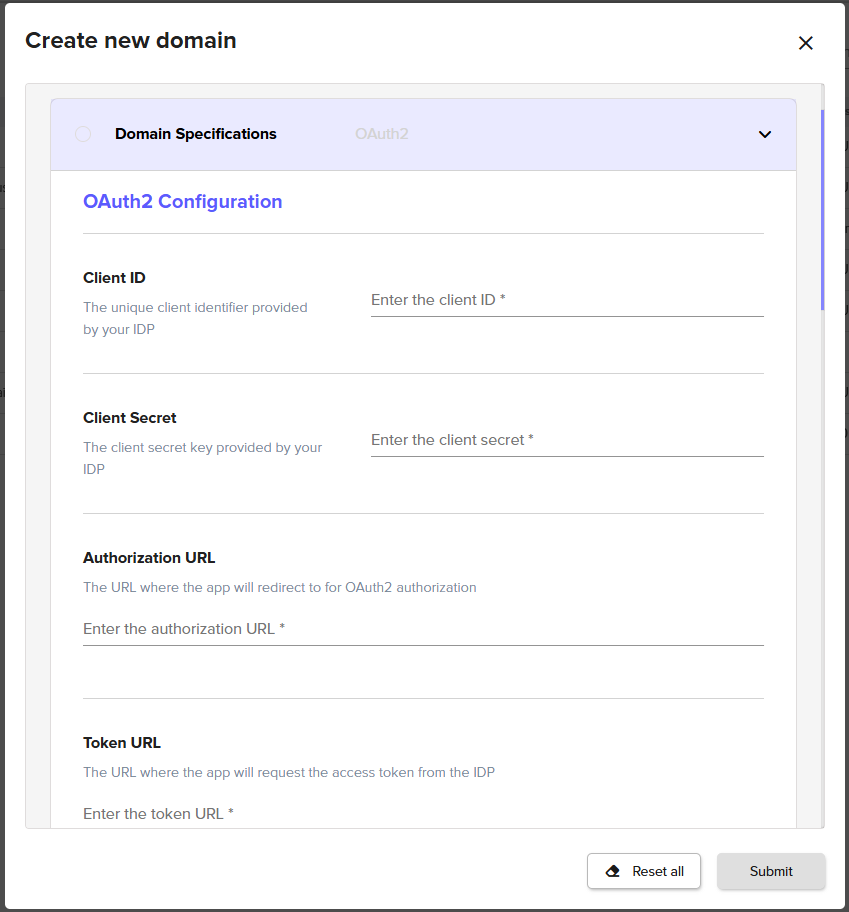
OAuth 2 Configuration Option | Description |
|---|---|
Client ID | This is provided by your IDP. |
Secret Client | This is provided by your IDP. |
Authorization URL | This is provided by your IDP. |
Token URL | This is provided by your IDP. |
User Information URL | This is provided by your IDP. |
Scope | The OAuth scopes that the application requests. |
Claims | Additional claims needed for the application. This should be provided in JSON format. |
Token Log |
Enable this option only for debugging. It may log sensitive user information on the server. |

IDP Configuration | Description |
|---|---|
Sign-In redirect URI | Configured at your IDP. This value will be https://the-url-of-your-signum-deployment.com:443/Auth/OAuth2Consumer. For example, if the URL of your Signum deployment is signumdemo, this value would be https://signumdemo.com:443/Auth/OAuth2Consumer. |
User Provisioning & Identity Mapping
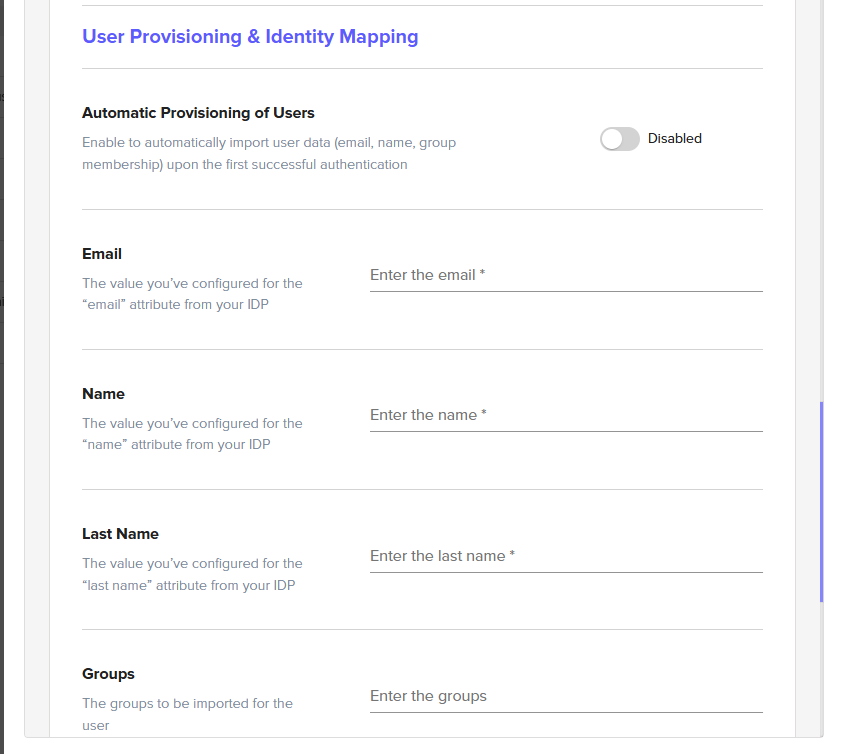
User Provisioning & Identity Mapping Option | Description |
|---|---|
Automatic Provisioning of Users | If enabled, this setting imports a user's email, name, and group membership in Signum the first time the user authenticates against the IDP. If this setting is not enabled, you need to manually populate these data fields for users. Troubleshooting Tip When attempting to login to Signum after authenticating with the IDP, an error may appear: “User found, but does not belong to any roles”. This error occurs because every user accessing the Admin Web Console must be assigned a Role in Signum, and the authenticating user has not yet been assigned a role by the Signum Administrator. To solve the error, the admin can assign a role to the user. Alternatively, use IDP Groups to assign an entire group of users to a particular role, which allows the group members to automatically log in. |
The value you have configured for the “email” attribute from your IDP. | |
Name | The value you have configured for the “name” attribute from your IDP. |
Last Name | The value you have configured for the “last name” attribute from your IDP. |
Groups | The groups to import. |
Use Groups | Enable to have Signum use a user's group membership in the claim. |
Use email as User Identifier | Enable this option if your organization uses the email attribute as the identifier for users instead of the username. Note, this option needs to be configured at the time of domain creation. It is not possible to edit this property once a domain has been created. |
Username | The value you have configured for the “username” attribute from your IDP. This option is only available if you do not enable Use email as user identifier. |

IDP URL Configuration
Users can be directed directly to the IDP login page, skipping the Signum login page by navigating directly to a URL with the below configuration. After authenticating, the user will be sent back to the Signum Admin Web Console.
URL |
|---|
https://Your-Signum-URL/login?domain=The-Domain-Alias |
Audience
Needs to be activated by the support team and currently is only supported by Auth0.
Defining the audience for the OAuth2 requests ensures that the authorization token is only used for the intended use inside of Signum. You will need to configure on your IDP two audiences with the values https://Your-Signum-URL/api/admin and https://Your-Signum-URL/api/agent, allowing users to use the administration console or the agents respectively.