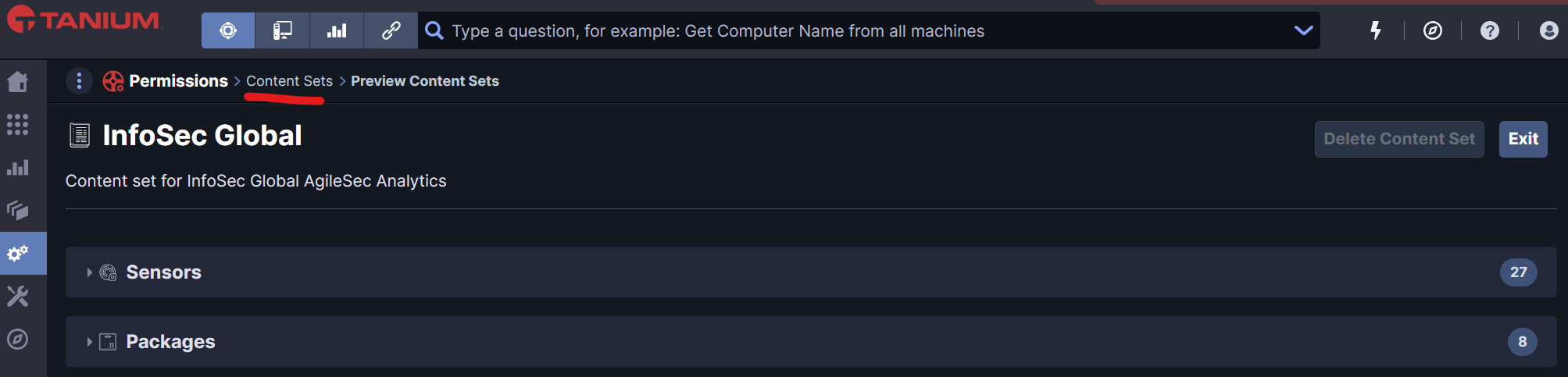
.png)
Load AgileSec Tanium module components to Tanium Appliance with Tanium’s UI or Tanium SaaS with Tanium’s API.
Overview
AgileSec has created Tanium components to leverage the capabilities of Tanium and perform cryptographic inventory at scale. Once loaded to Tanium, these components provide full integration with AgileSec functionality.
Note: All AgileSec Tanium module component files are included in ISG-Sensor-<version>-Tanium.zip, which is provided by AgileSec separately through a secure download link.
Depending on Tanium infrastructure type, there are two ways to upload packages to Tanium:
-
Tanium Appliance (on-prem infrastructure): Package loading via UI
-
Tanium SaaS (cloud infrastructure): Package loading via API Script
Compatible Product Versions
This guide is designed for the following product versions:
-
Tanium Version Build: 7.5.x
-
Tanium Version Console: 3.4.x
-
AgileSec Tanium Sensor Package: 3.6.x
Note: Other Tanium versions may have a different import process. Besides differences in import processes, this guide should work for other Tanium versions.
Tanium Appliance: Load with Tanium UI
If using Tanium Appliance, manually import AgileSec Tanium components to Tanium via the UI.
The Tanium AgileSec module includes the following components to load into Tanium:
-
ISG-Tanium-Packages: AgileSec Tanium Actions to deploy or undeploy AgileSec Host Sensors and execute Discovery and Run jobs on end-points through Tanium Agent.
-
ISG-Tanium-Sensors: Scripts to query cryptographic findings from Discovery jobs on deployed AgileSec Host Sensors.
-
ISG-Tanium-Saved-Questions: AgileSec Tanium Saved Questions to retrieve cryptographic findings from Discover jobs with pre-built, specific parameters.
-
ISG-Tanium-Connect Jobs: AgileSec Tanium Connect jobs to export cryptographic findings to AgileSec platform.
Step 1: Create Roles in Tanium
The following two roles should be created in Tanium:
1. Tanium Admin Role
The Tanium Admin role will load the components from AgileSec into Tanium and provide access to the Crypto Operational Role. Ensure the Tanium Admin role has permissions to do the following tasks:
-
Download AgileSec Tanium packages from the link provided by AgileSec
-
Create AgileSec Content Set
-
Load AgileSec Actions and Packages
-
Load AgileSec Sensors
-
Load AgileSec Saved Questions
-
Assign a set of Hosts to Crypto Operational Role
-
Assign a set of rights to Crypto Operation Role
2. Crypto Operational Role
The Crypto Operational role will manually trigger Actions and Sensors for cryptographic scans on hosts permitted by the Tanium Admin role. Provide the following rights to the Crypto Operational role:
-
Right to Run (execute) objects available in AgileSec Tanium Packages
-
Right to Run (execute) AgileSec Actions on authorized hosts
-
Right to Create New Saved Questions
-
Right to Run (execute) Saved Questions
Step 2: Create AgileSec Content Set
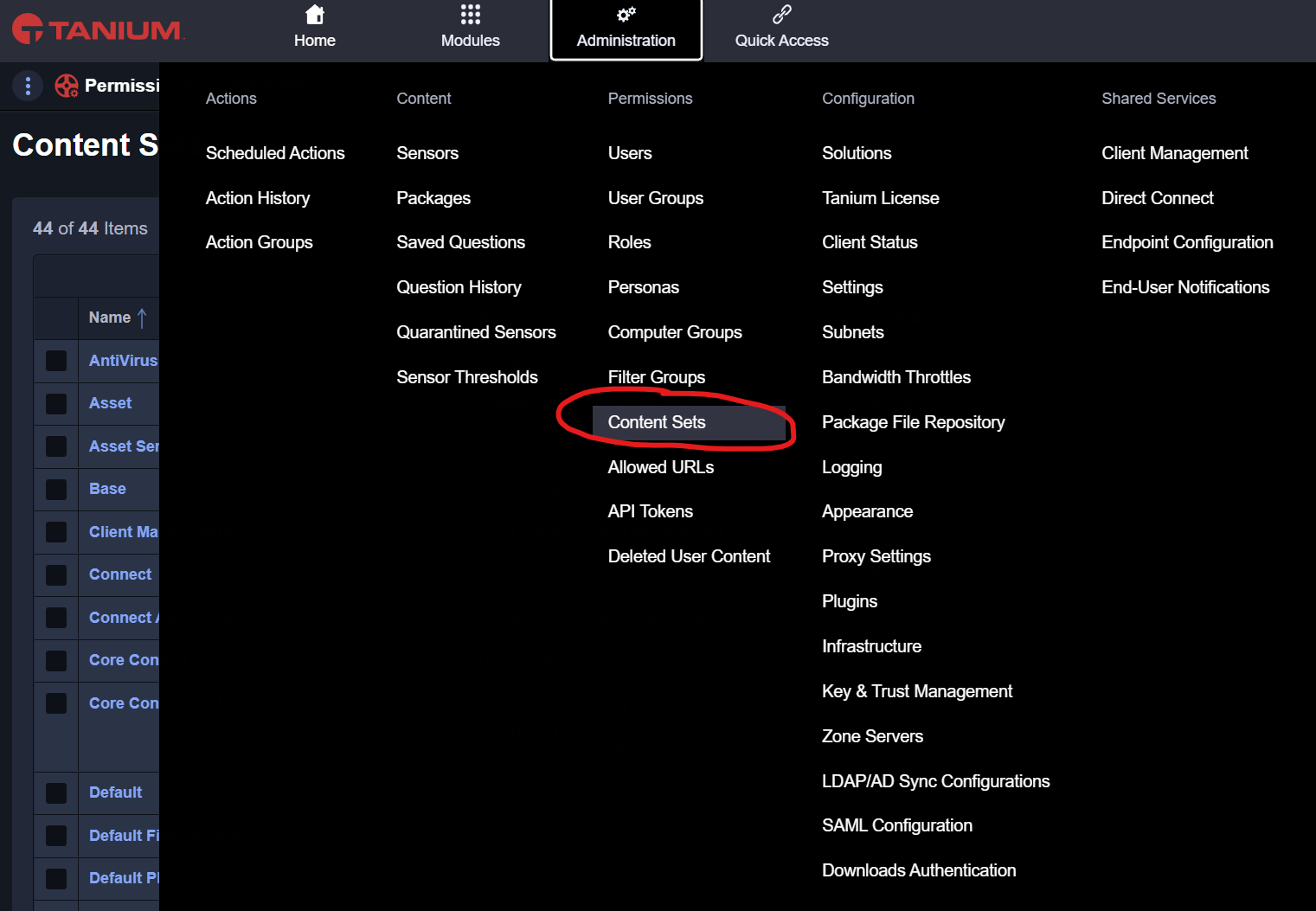
Go to Content Sets
Navigate to Administration > Content Sets in Tanium.
Create Content Set
Create a new content set. You must use the following name: InfoSec Global.
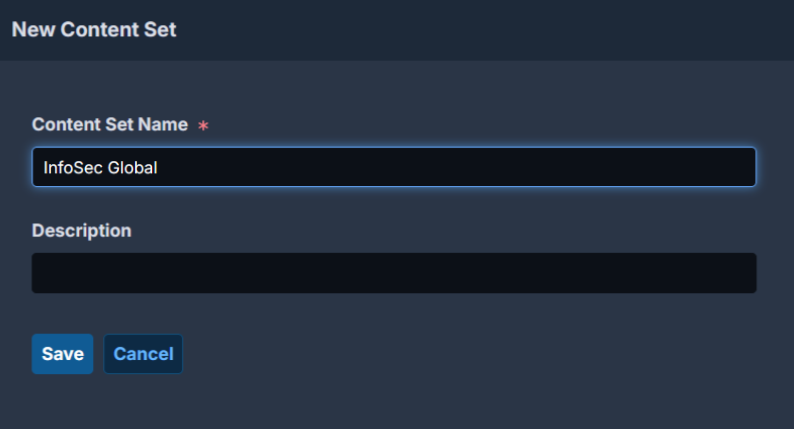
IMPORTANT: The Content Set Name must exactly (key sensitive) match the name InfoSec Global.
To use a different name, replace the JSON attribute content_set.name in the Tanium Packages to match your content set name.
Save Content Set Changes
Confirm your changes then click the Save button before moving forward. Saving is mandatory.
Step 3: Load ISG-Tanium-Packages in Tanium
AgileSec Tanium packages include Actions such as Deploy, Undeploy, Discovery, and Run.
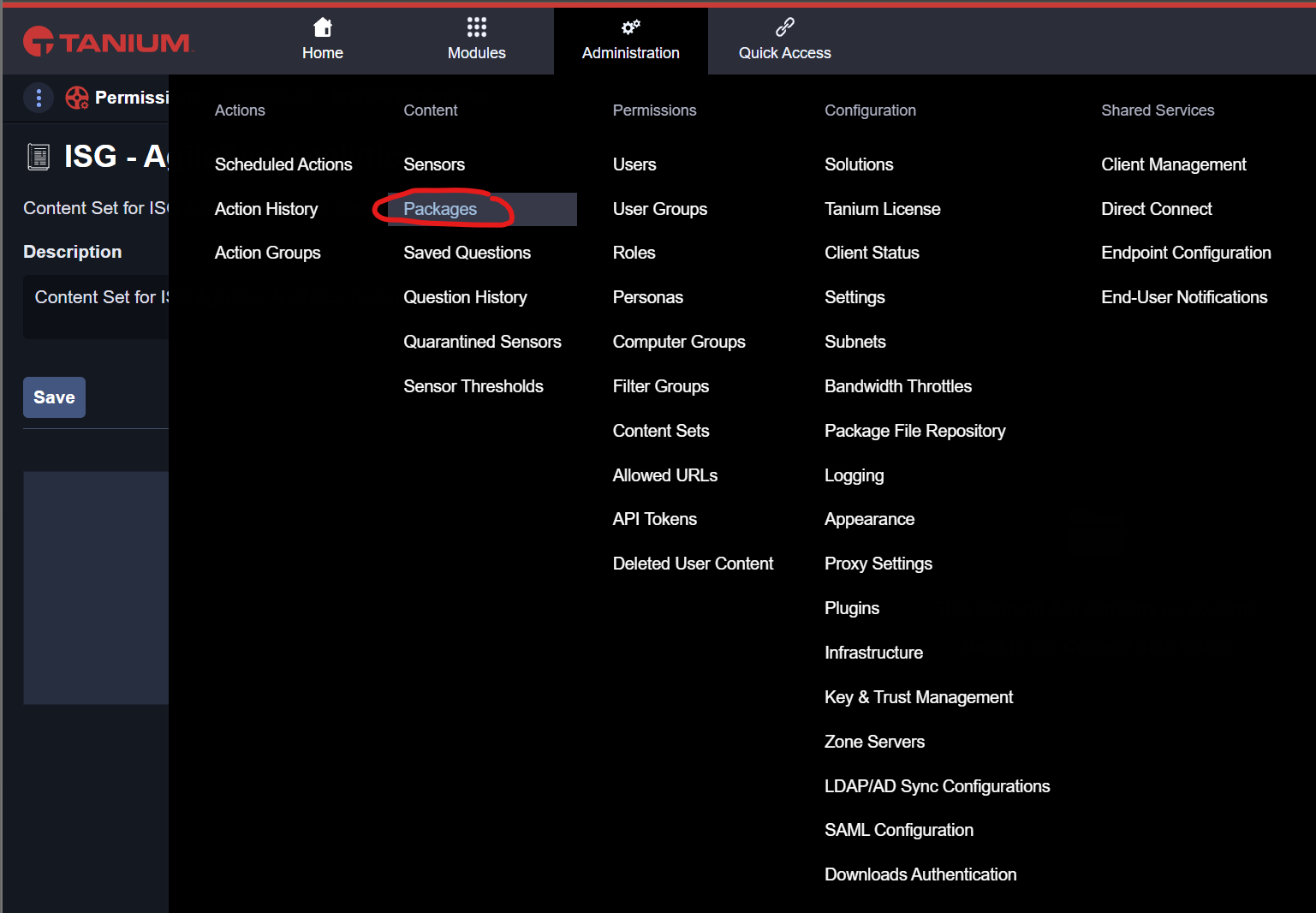
Navigate to Packages
To load new packages, navigate to Administration > Packages in Tanium.
Import AgileSec Tanium packages
In the package menu, click on Import new content and select the file ISG-Tanium-Packages-version.json provided by AgileSec.

Click Begin Import.
After successful import, the AgileSec Tanium Packages shall be available.
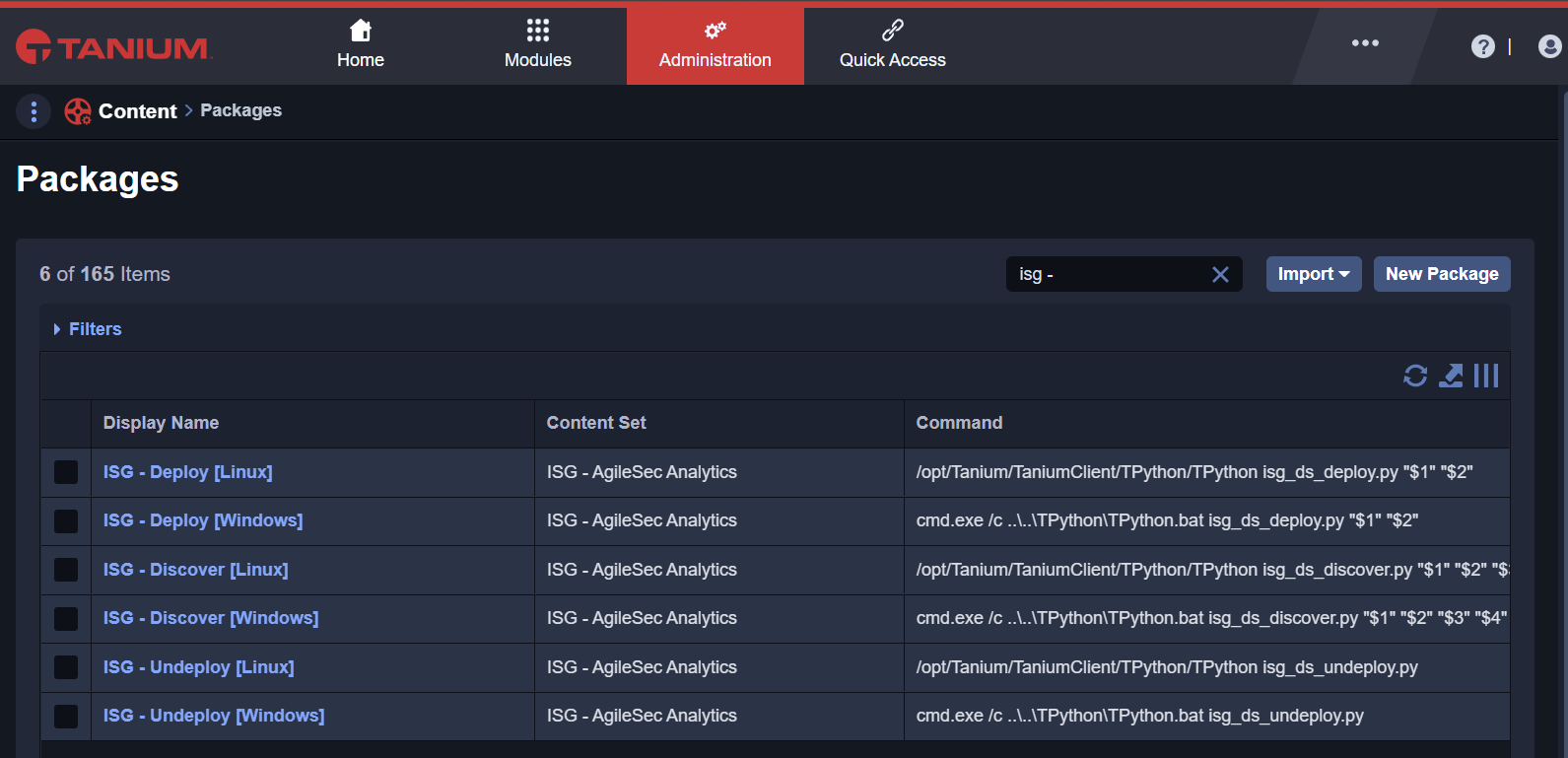
Note: The loaded packages do not include AgileSec executables and other files. These must be loaded separately as defined in the next step.
Additionally, if you are upgrading to a newer version of AgileSec Tanium Content, update the Executables in the AgileSec Packages manually following the next steps.
Load AgileSec Executables to Packages
For each package, load the appropriate AgileSec executables.
-
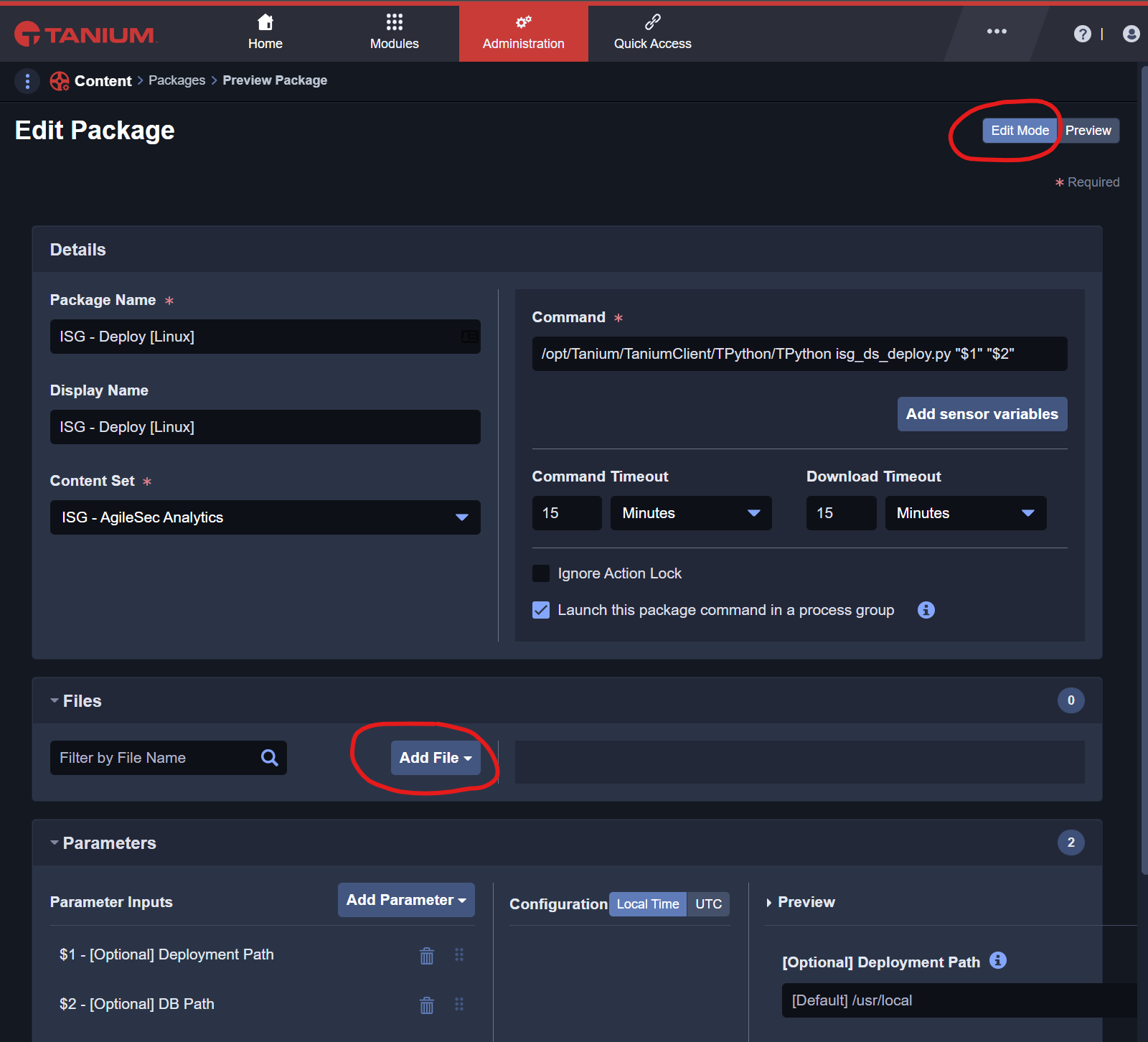
Click on the Package to access the edit and preview modes of the package. Click on Edit Mode.
-
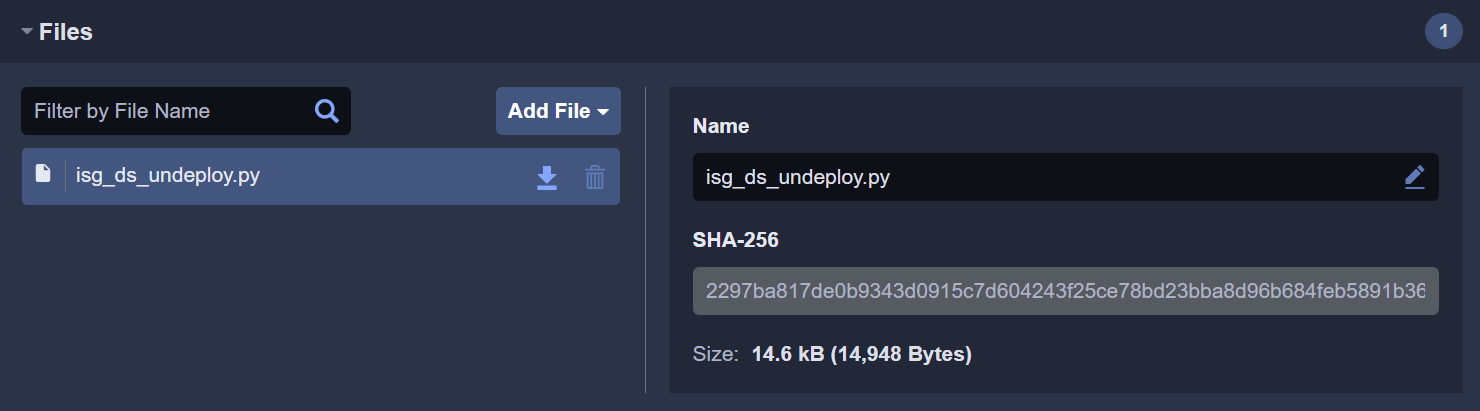
Click Add File and manually add the package’s Executable Files (in table below) to the package.
-
Save the updated package and click Yes to continue.

-
Repeat for each package.
|
AgileSec Tanium Package |
Executable Files |
Description |
|---|---|---|
|
ISG - Deploy [Linux] |
|
Deploy AgileSec Host Sensors on targeted Linux Machines. |
|
ISG - Deploy [Windows] |
|
Deploy AgileSec Host Sensors on targeted Windows Machines. |
|
ISG - Discover [Linux] |
|
Run AgileSec host scans locally on targeted Linux Machines and save findings locally. |
|
ISG - Discover [Windows] |
|
Run AgileSec host scans locally on targeted Windows Machines and save findings locally. |
|
ISG - Run [Linux] |
|
Run AgileSec host scans locally on targeted Linux Machines and send findings to AgileSec platform. |
|
ISG - Run [Windows] |
|
Run AgileSec host scans locally targeted Windows Machines and send findings to AgileSec platform. |
|
ISG - Undeploy [Linux] |
|
Undeploy (remove) AgileSec Host Sensors on targeted Linux Machines. |
|
ISG - Undeploy [Windows] |
|
Undeploy (remove) AgileSec Host Sensors on targeted Windows Machines. |
Verify AgileSec Tanium Packages
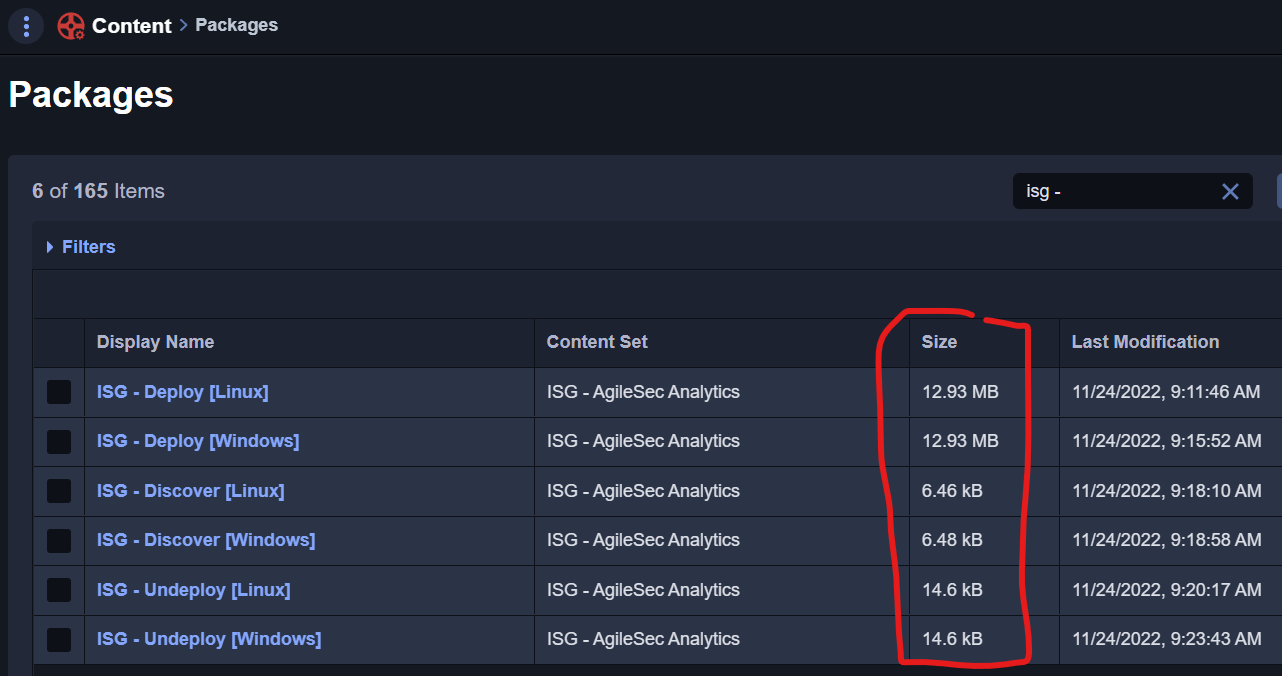
Verify all executables have been correctly imported by searching for ISG - and verifying the list has a valid size for each package.
Step 4: Load ISG-Tanium-Sensors Within Tanium
Tanium limits the number of events returned by Tanium Sensors on hosts. AgileSec Tanium Sensors allow parameterized queries to filter locally saved cryptographic findings from Discover jobs.
Tanium Sensors are usually divided into 2 groups:
-
File-level: return information about the location and metadata of the associated cryptographic object.
-
Object-level: return detailed information about the cryptographic object.
The following AgileSec Tanium Sensors are available to filter queries for cryptographic findings:
|
AgileSec Tanium Sensor |
Details |
|---|---|
|
ISG - Algorithm Files |
Get files containing cryptographic algorithms |
|
ISG - Algorithm Summary |
Get the summary of cryptographic algorithms |
|
ISG - Certificate Algorithms |
Get algorithms used by Certificates |
|
ISG - Certificate Files |
Get files containing certificates. |
|
ISG - Certificate Info |
Get files and certificate metadata |
|
ISG - Certificate Summary |
Get the summary of certificates |
|
ISG - JCA Files |
Get files containing Java cryptographic calls |
|
ISG - JCA Summary |
Get the summary of Java cryptographic calls |
|
ISG - Key Files |
Get files containing cryptographic keys |
|
ISG - Key Summary |
Get the summary of cryptographic keys |
|
ISG - Keystore Files |
Get files containing keystores |
|
ISG - Keystore Summary |
Get the summary of keystores |
|
ISG - Library Files |
Get files containing cryptographic libraries |
|
ISG - Library Summary |
Get the summary of cryptographic libraries |
|
ISG - Status Deploy |
Get status of the ISG sensor deployment |
|
ISG - SSH Protocol Event |
Get SSH protocol used by running processes |
|
ISG - SSH Key Event |
Get keys used by running processes |
|
ISG - SSH Key Summary |
Get keys used by running processes |
|
ISG - TLS Protocol Event |
Get TLS protocol used by running processes |
|
ISG - TLS Certificate Event |
Get TLS certificates used by running processes |
|
ISG - TLS Certificate Summary |
Get TLS certificates used by running processes |
Go to Sensors
To load new sensors, navigate to Administration > Sensors menu in Tanium.
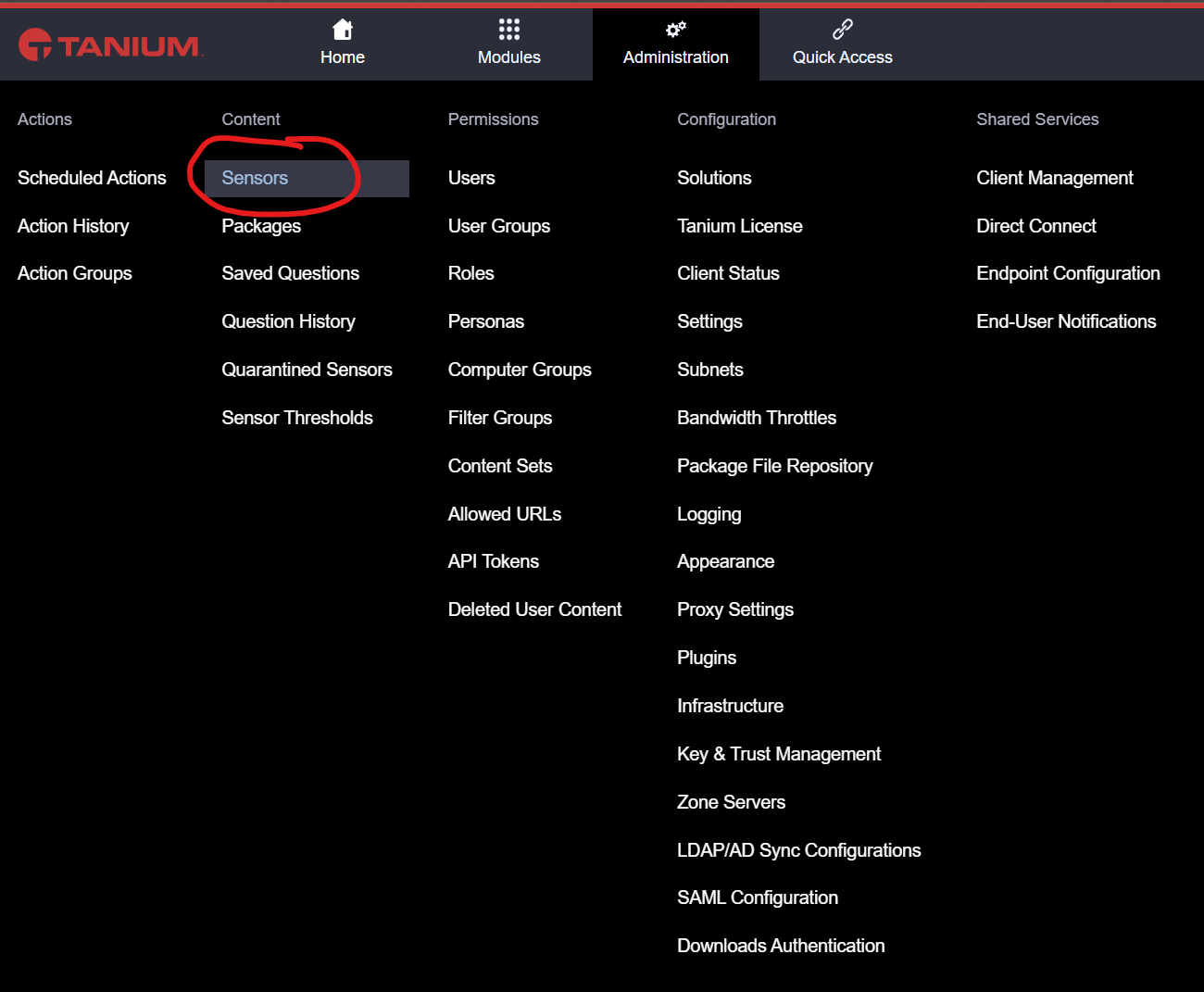
Import AgileSec Tanium Sensors
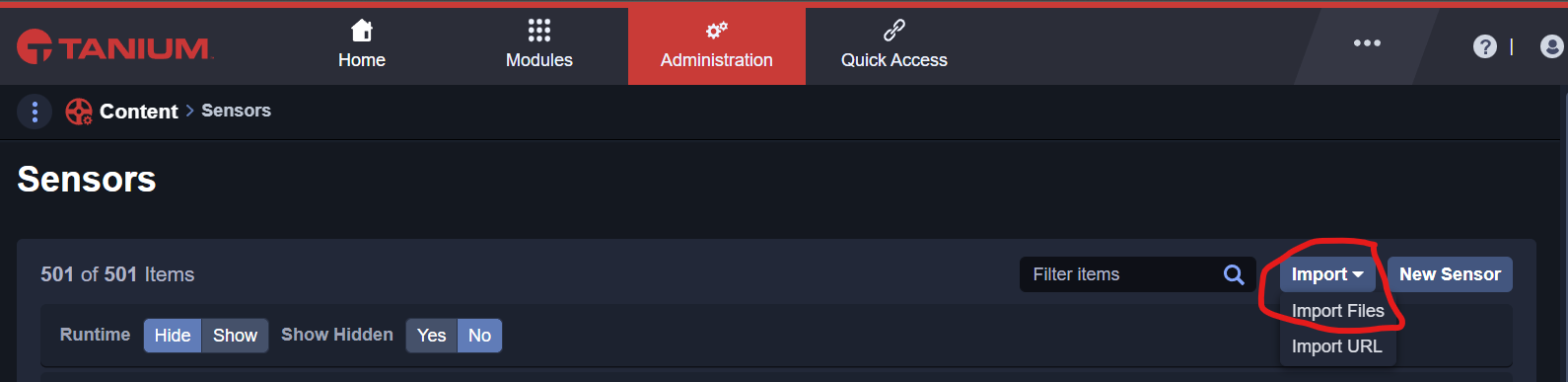
In the Sensors menu, click on Import and select the file ISG-Tanium-Sensors-<version>.json provided by AgileSec to load.
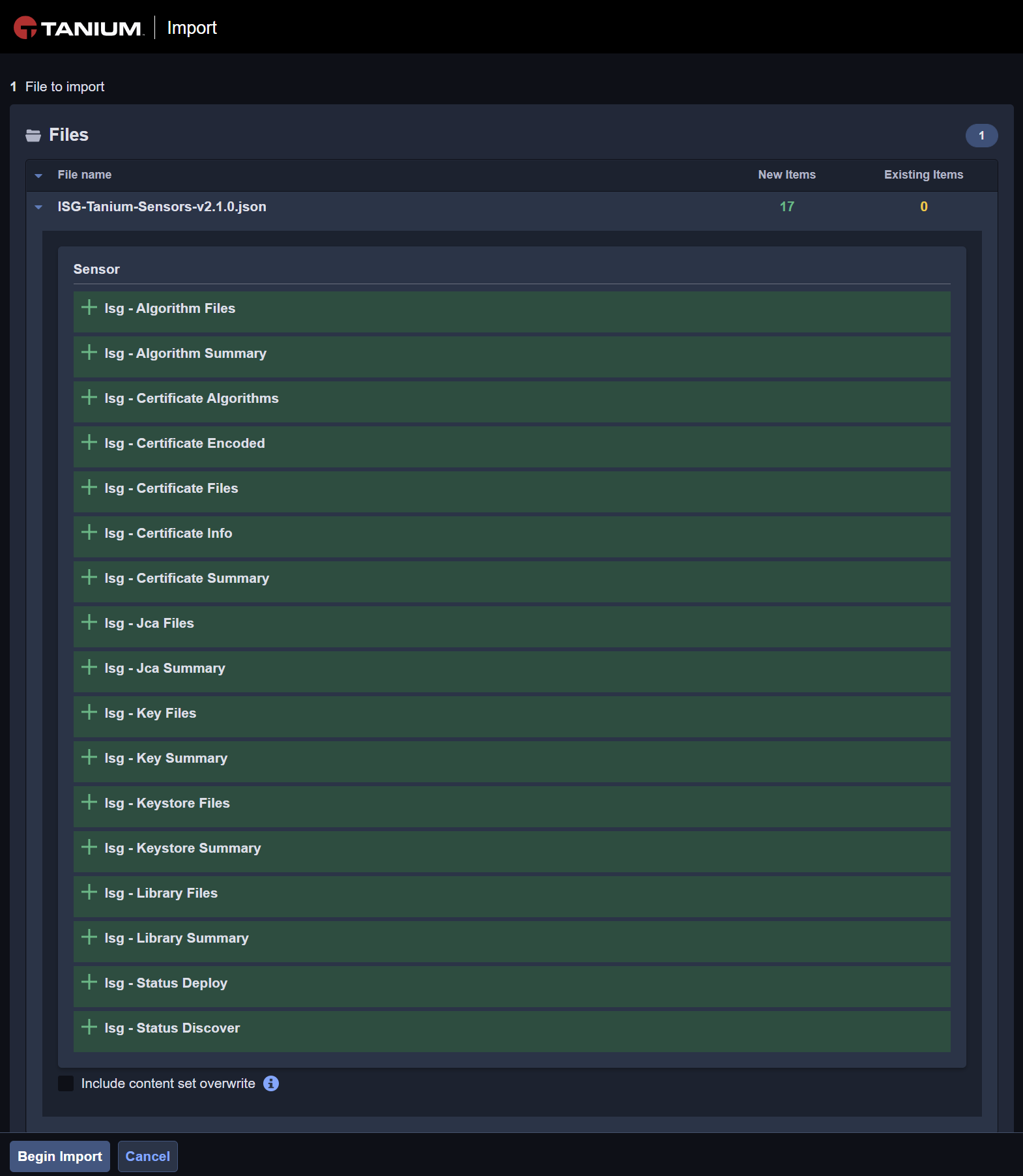
The following Sensors shall become available for import. Click Begin Import.
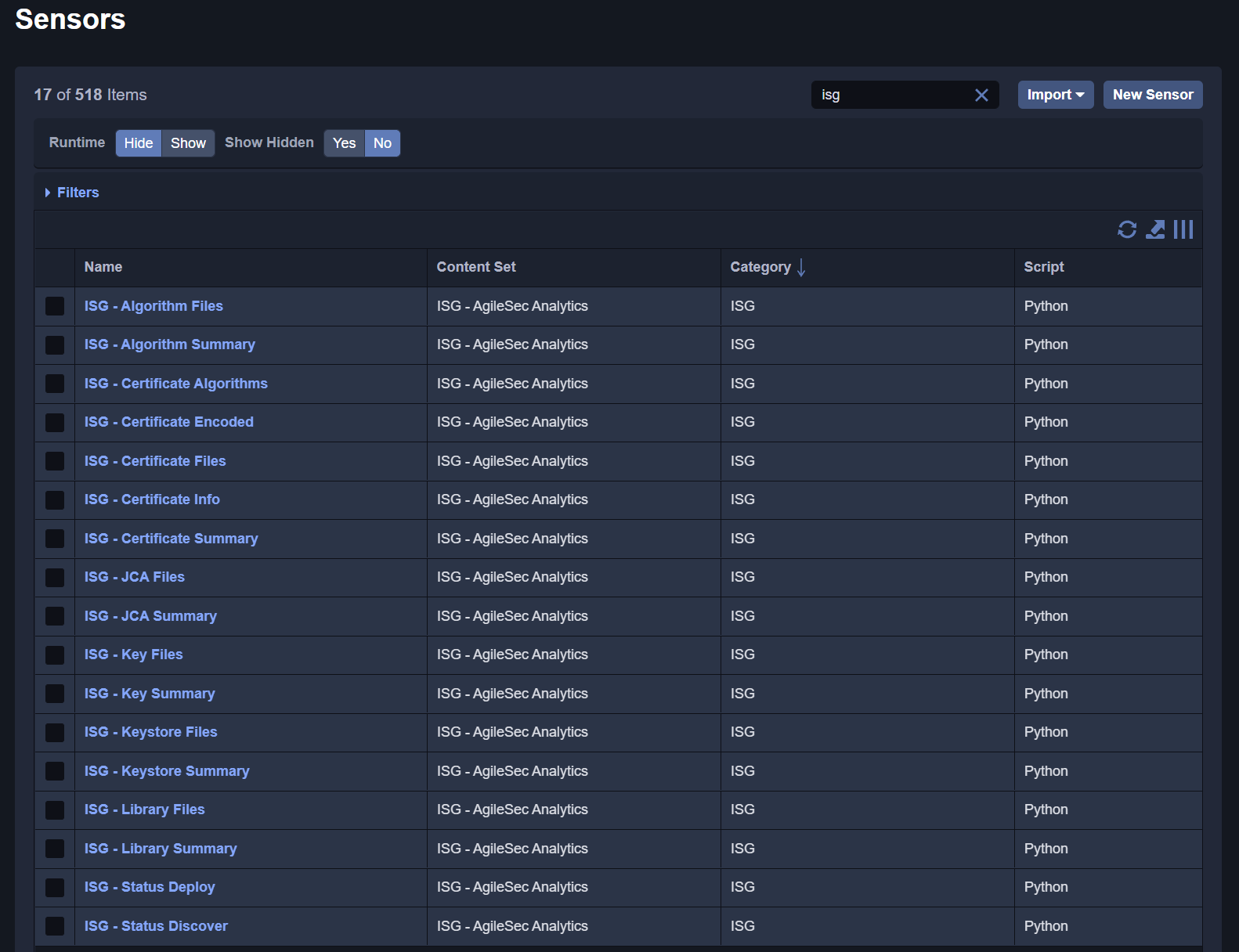
After successful import, the AgileSec Tanium Sensors shall be available.
Note: After running, Tanium Sensors can be saved as custom Saved Questions.
Step 5: Load ISG-Saved-Questions Within Tanium
AgileSec Tanium Saved Questions are provided by AgileSec with pre-configured parameters to filter and retrieve specific cryptographic findings from Discover jobs.
-
Event Saved Questions return the full cryptographic object, including all metadata.
-
Objects Saved Questions return critical information about the cryptographic objects (such as X.509 certificate data). Objects Saved Questions return more compact data than Event Saved Questions.
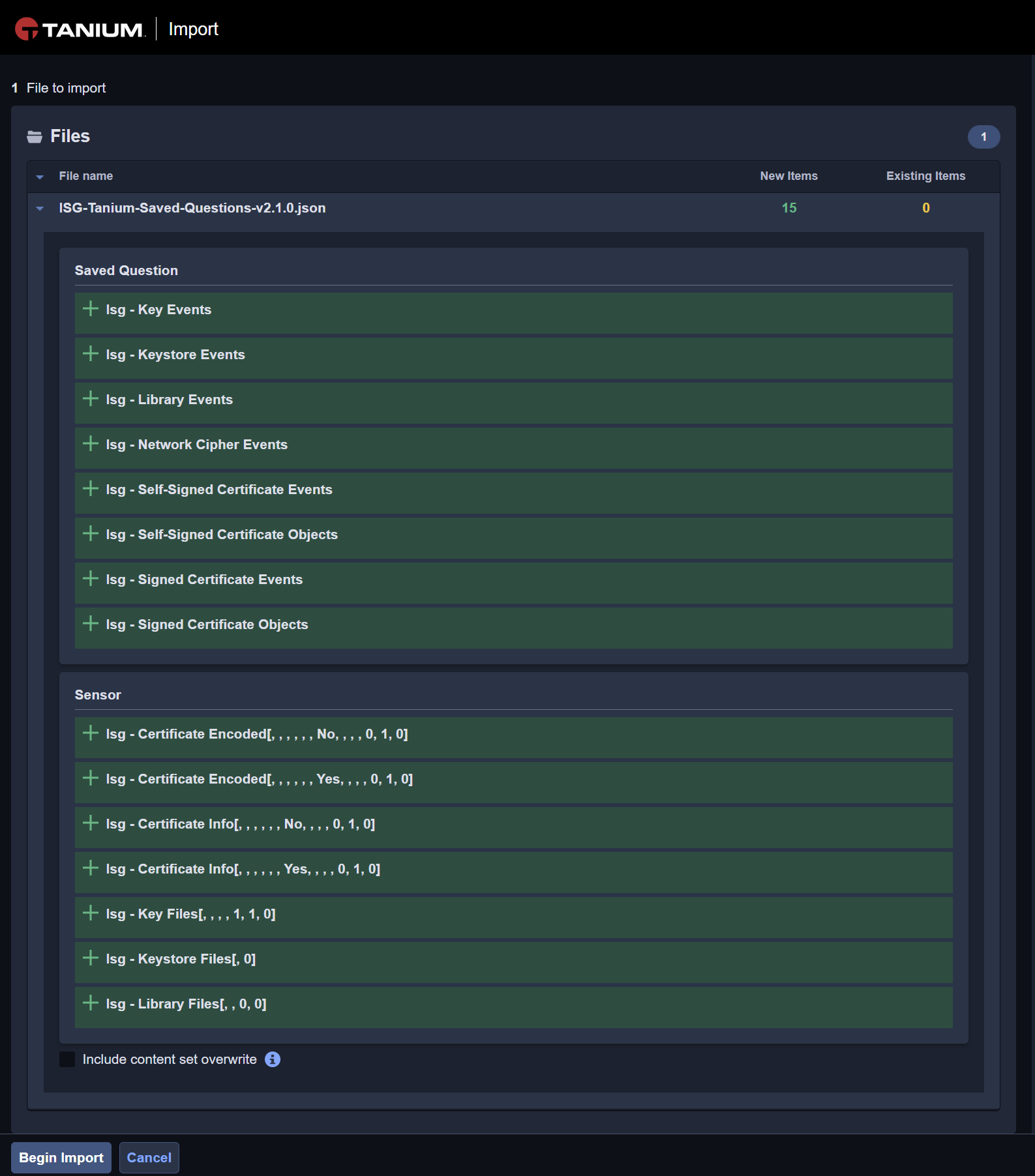
The following AgileSec Tanium Saved Questions are available in this module:
|
AgileSec Tanium Saved Question |
Comment |
|---|---|
|
ISG - Key Events |
Query key events |
|
ISG - Keystore Events |
Query keystore events |
|
ISG - Library Events |
Query cryptographic library events |
|
ISG - Network Cipher Events |
Query network cipher events |
|
ISG - Self-Signed Certificate Events |
Query self-signed certificate events |
|
ISG - Self-Signed Certificate Objects |
Query self-signed certificate objects |
|
ISG - Signed Certificate Events |
Query signed certificate events |
|
ISG - Signed Certificate Objects |
Query signed certificate objects |
|
ISG - TLS Certificates Events |
Query Certificates used by Network Interfaces |
|
ISG - SSH Key Events |
Query SSH Keys used by Network interfaces |
Go to Saved Questions
To load new Saved Questions, navigate to Administration > Saved Questions in Tanium.
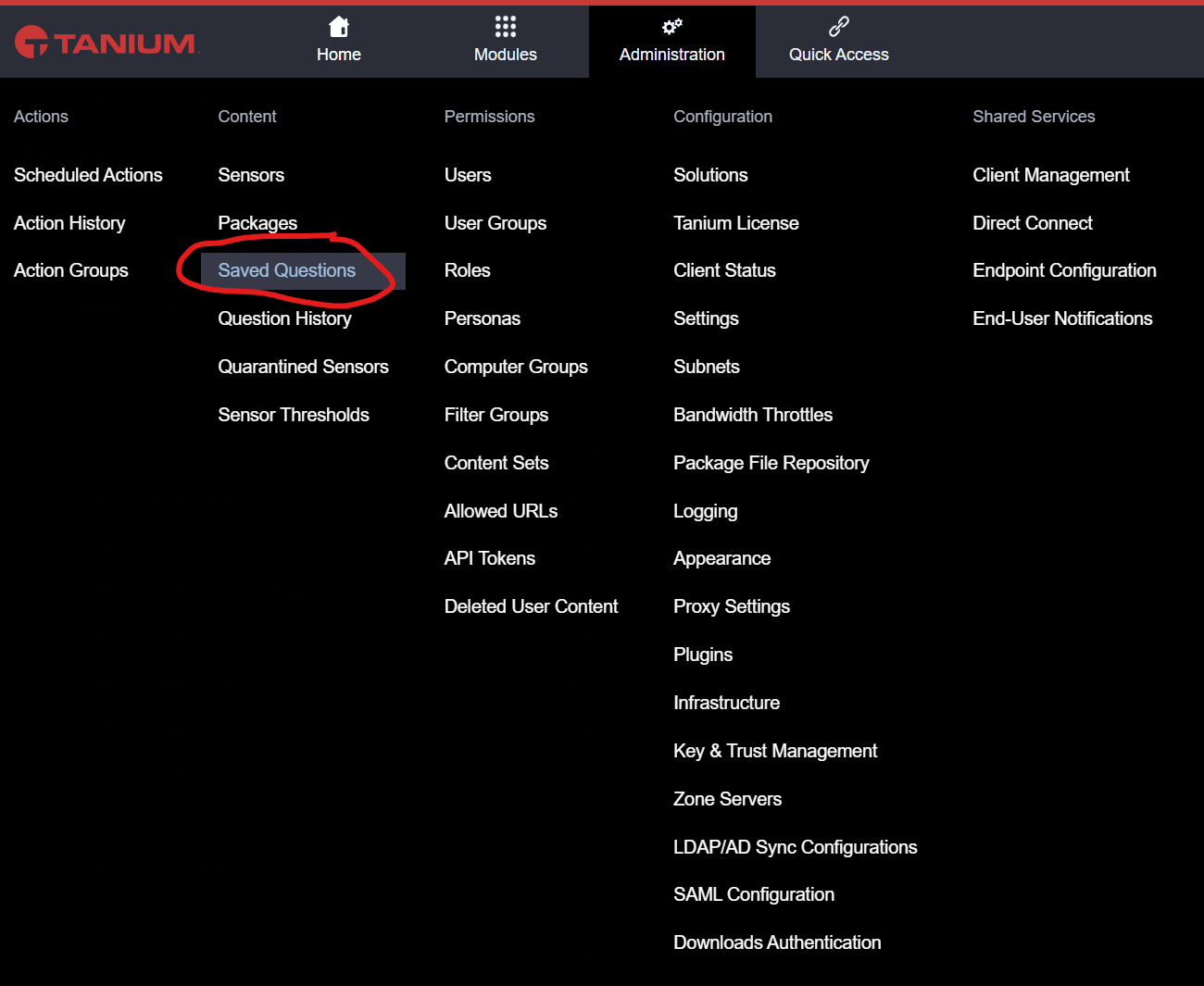
Import AgileSec Saved Questions
In the Saved Question menu, click on Import and select the file ISG-Tanium-Saved-Questions-<version>.json provided by AgileSec.
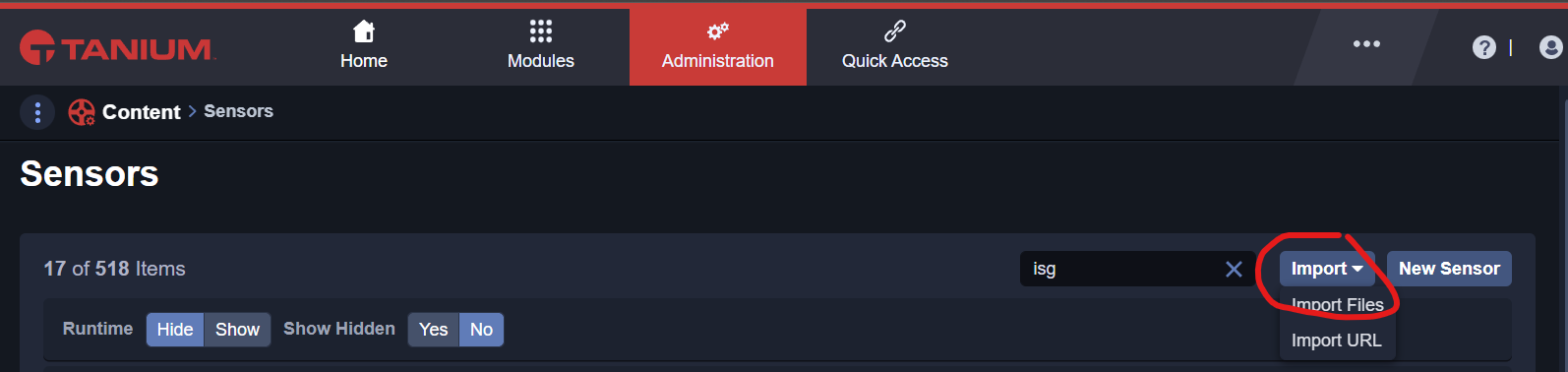
The following Saved Questions shall become available for import. Click Begin Import.
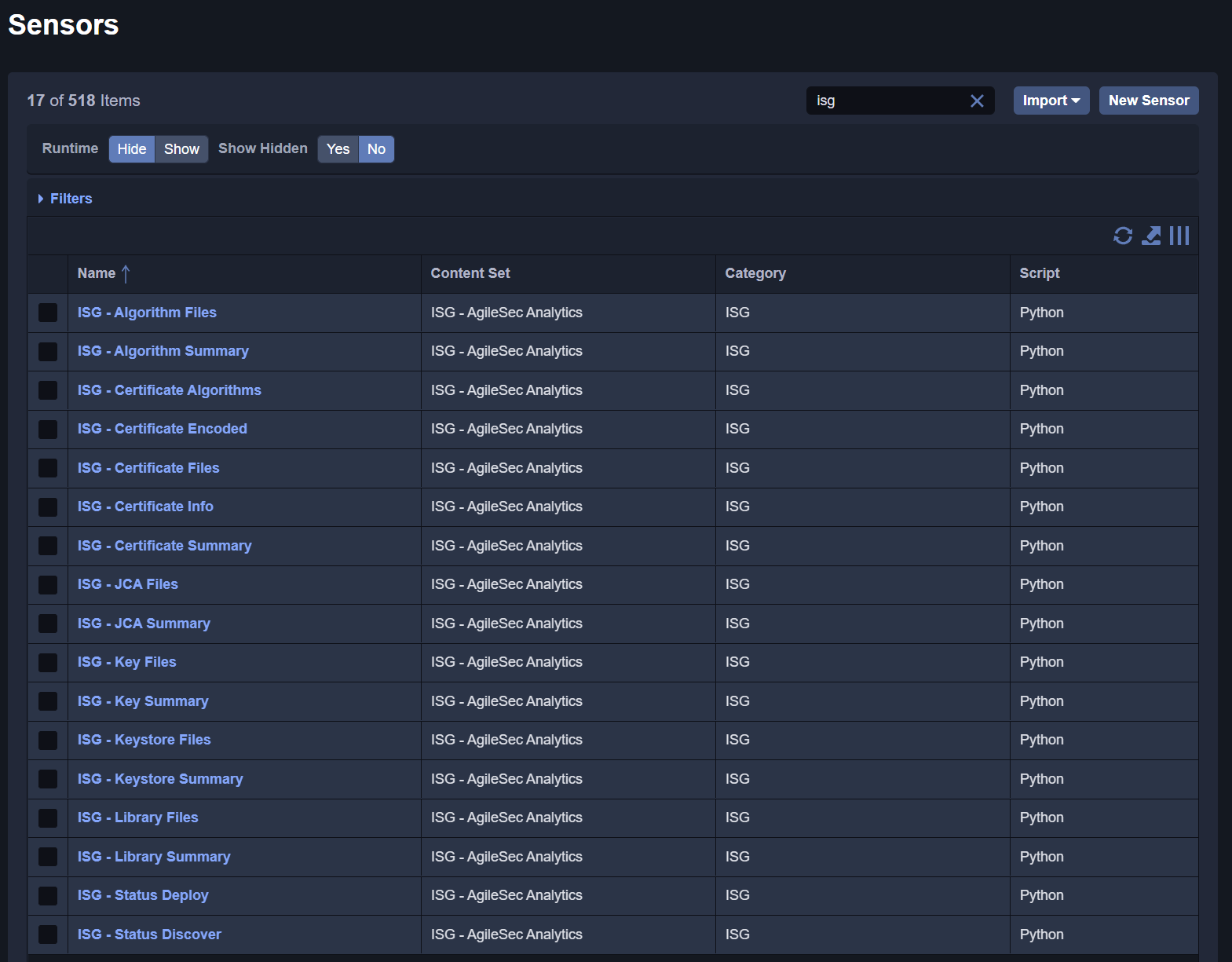
After successful import, the AgileSec Tanium Saved Questions shall be available.
Step 6: Load ISG-Tanium-Connect Within Tanium
Tanium Connect Jobs send cryptographic findings from Saved Questions to the AgileSec platform.
The following Tanium Connect jobs are provided (matching AgileSec Tanium Saved Questions):
|
Name |
Details |
|---|---|
|
Export Key Events |
Export key events to AgileSec platform |
|
Export Keystore Events |
Export keystore events to AgileSec platform |
|
Export Library Events |
Export cryptographic library events to AgileSec platform |
|
Export Network Cipher Events |
Export network cipher events to AgileSec platform |
|
Export Self-Signed Certificate Events |
Export self-signed certificate events to AgileSec platform |
|
Export Self-Signed Certificate Objects |
Export self-signed certificate objects to AgileSec platform |
|
Export Signed Certificate Events |
Export signed certificate events to AgileSec platform |
|
Export Signed Certificate Objects |
Export signed certificate objects to AgileSec platform |
|
Export TLS Certificates Events |
Export TLS Certificates found in network to AgileSec platform |
|
Export SSH Key Events |
Export SSH keys found in network to AgileSec platform |
Configure AgileSec Server Authentication via JWT Token
Generate a remote AgileSec JWT token:
-
Open your browser and navigate to the AgileSec Platform UI.
-
Log in with your Keyfactor credentials.
-
Click "Access Tokens" in the main navigation menu.
-
Click "Generate Token".
-
Set Token Type to Remote Sensor Token and provide the required details.
-
Click "Generate" and copy the generated token.
Edit ISG-Tanium-Connect-<version>.json to replace the default HTTPS authorization header. Search for the Authorization header and replace the value “Bearer AABBCCDDEEFF” with “Bearer <your AgileSec Authentication token>”.
Configure Tanium Connect HTTPS destination
Edit ISG-Tanium-Connect-<version>.json to replace the default HTTPS destination your_server_url. Replace all instances of your_server_url with your AgileSec ingestion endpoint. There are a total of 18 instances to replace.
Examples:
-
https://www.my-agilesec-server.local/
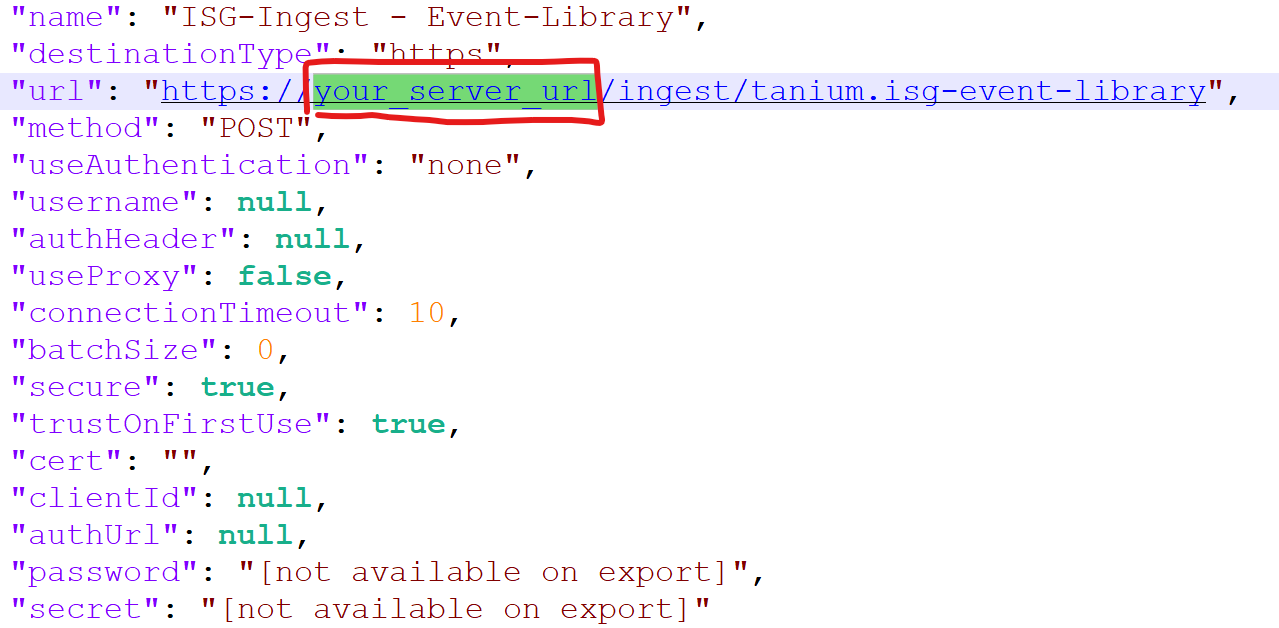
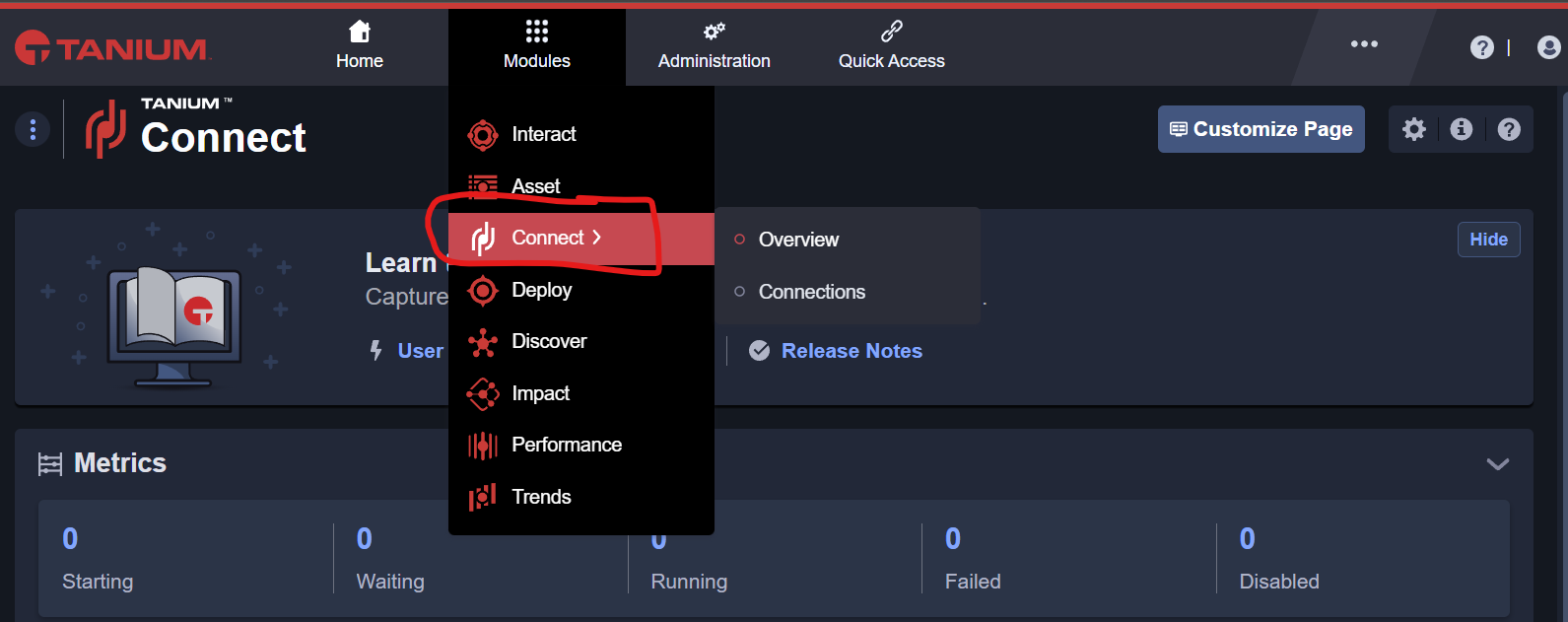
Go to Connect
To Load new packages, navigate to Modules>Connect menu in Tanium.
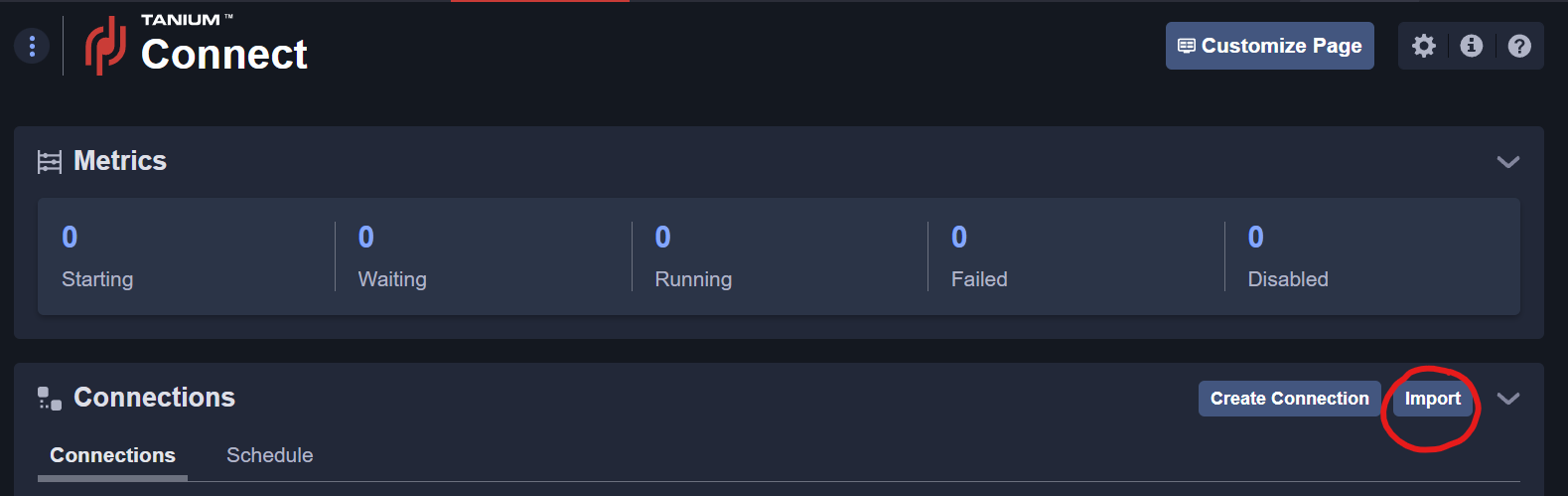
Import AgileSec Tanium Connect Jobs
In the Packages menu, click on Import new content and select the modified ISG-Tanium-Connect-<version>.json file.
The following Packages shall become available for import. You must select each AgileSec Tanium Connect Job then Save. The error status is not relevant. Ignore the error status and proceed with saving.
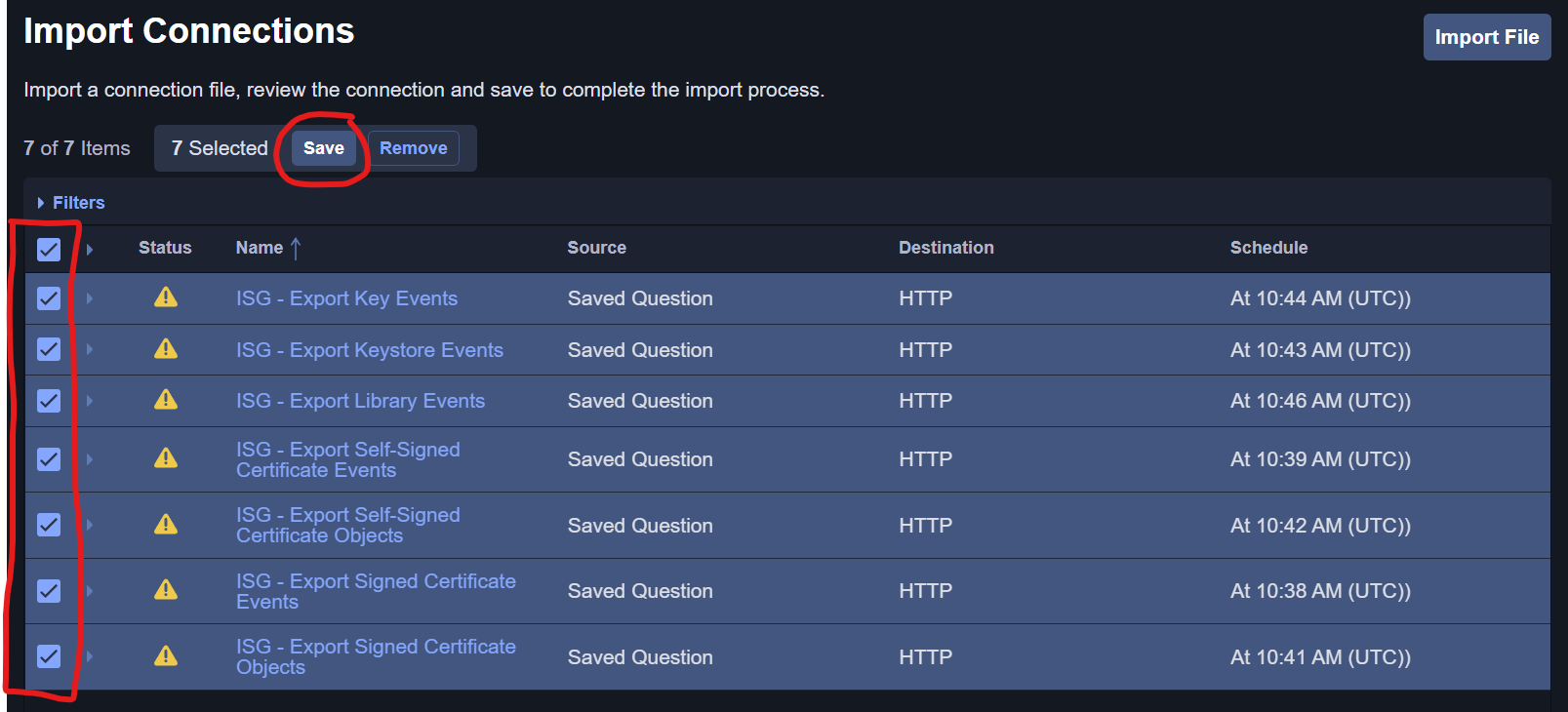
The AgileSec Connect jobs will be imported after you click Save.
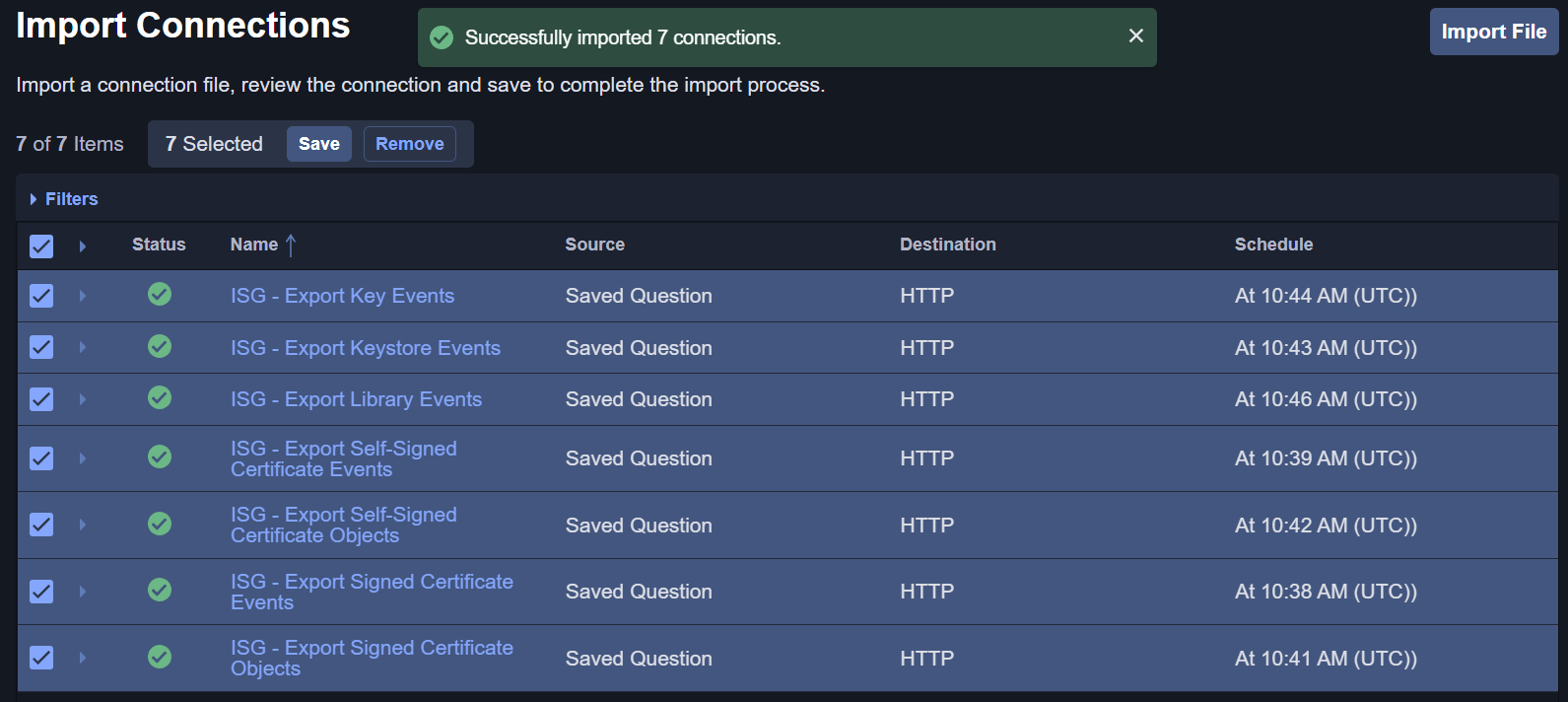
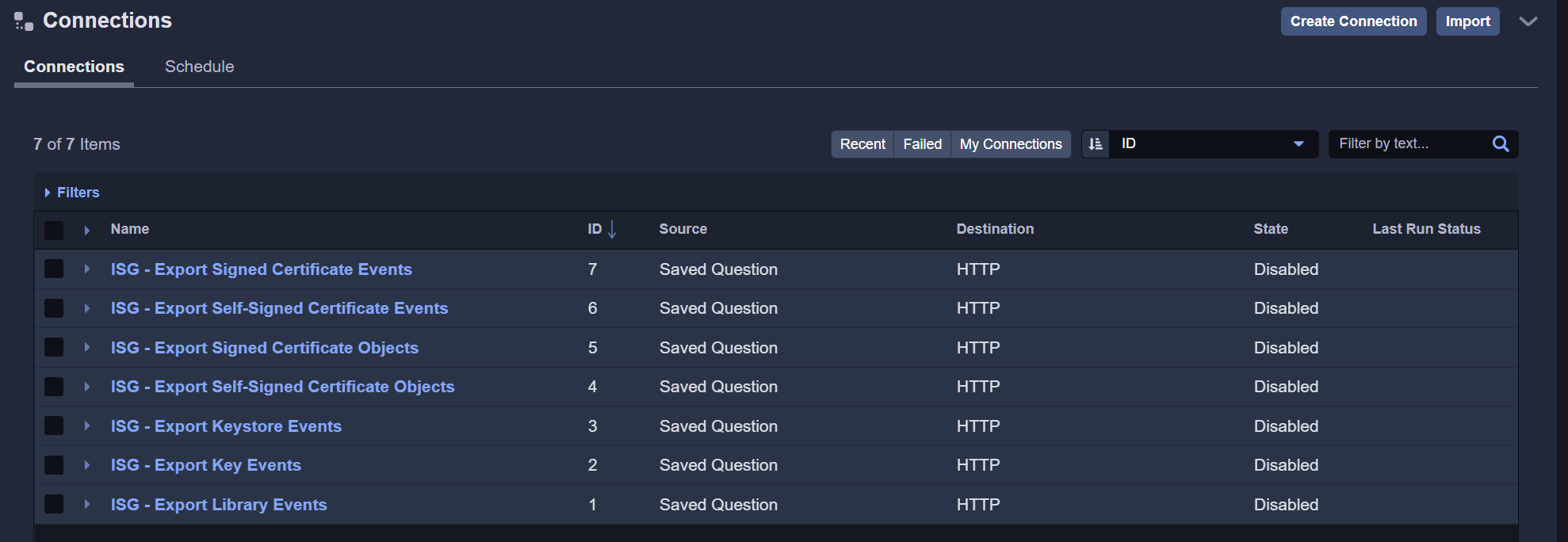
After successful import, return to the Tanium Connect Menu to see available AgileSec Tanium Connect Jobs.
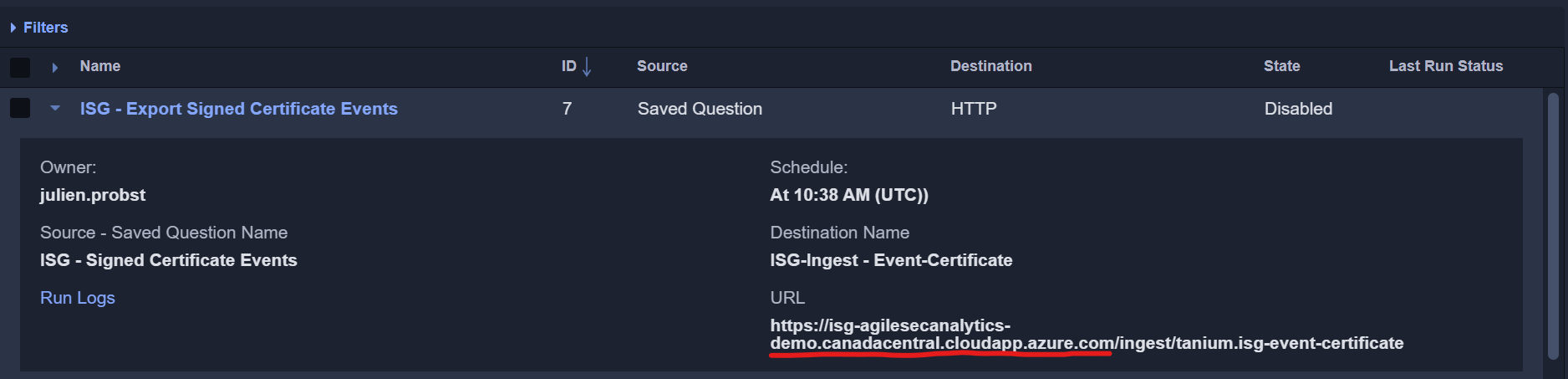
Verify Tanium Connect Job URL
Verify all Tanium Connect jobs are correctly pointing to your AgileSec platform. If there is a mistake, you can still edit the connection manually to reset the appropriate URL.
Tanium SaaS: Load with API
If using Tanium SaaS, import components for actions and sensors to Tanium via API scripts.
AgileSec provides the following scripts in the API-Loader folder to enable loading via API to Tanium SaaS:
-
verify.sh: Verifies connectivity to the Tanium API and checks the provided token and URL are valid with a test request. -
deploy.sh: Loads the ISG Tanium integration components to Tanium via API. -
shared.sh: Contains common functions used by other scripts.
Note: Tanium SaaS API does not allow loading Saved Questions or Connect jobs. AgileSec Tanium Saved Questions and Connect jobs are only available for Tanium Appliance.
Networking and Security
The following security and network aspects should be considered:
|
Connection |
Protocol |
Authentication |
|---|---|---|
|
AgileSec Load Script -> Tanium SaaS |
HTTPS |
Token Created in Tanium
|
|
Tanium SaaS -> Hosts |
Managed by Tanium |
Managed by Tanium |
|
AgileSec Sensor -> AgileSec Server |
Managed by AgileSec Analytics |
Managed by AgileSec Analytics |
Tanium SaaS APIs
The following key API are used by deploy.sh via API.
-
GET /api/v2/content_sets/by-name/ -
POST /api/v2/content_sets -
GET /api/v2/sensors/by-name/ -
POST /api/v2/sensors/ -
GET /api/v2/packages/by-name/ -
POST /api/v2/packages/ -
POST /api/v2/upload_file_stream -
POST /api/v2/upload_file
Step 1: Obtain Tanium Variables for Scripts
-
TANIUM_TOKEN: Create a new token in the Tanium UI under Administration → Permissions → API Tokens → New API Token. -
TANIUM_API_URL: In Tanium SaaS, the API URL is the base URL of the client’s Tanium instance. Typically, it is<instance>-api.domain.name. For example, if your URL ishttps://example.comand your instance name isexample-agilesec, then the API URL ishttps://example-agilesec-api.example.com.
Step 2: Configure and Execute Load Script
The following scripts verify configuration and load module components via API.
-
verify.shverifies connectivity to the Tanium API and checks the provided token and URL are valid with a test request. -
deploy.shloads the AgileSec Tanium module Package and Sensor components to Tanium via API.
Before executing the verify.sh and deploy.sh scripts, ensure TANIUM_TOKEN and TANIUM_API_URL are defined in your Environment.
Export the variables and run the scripts:
# Export Token
export TANIUM_TOKEN=XXXXXXX-MYTOKEN-XXXXXXX
# Export URL
export TANIUM_API_URL=https://xxxx-api.your-tanium-saas-instance.com/
# Run Verify Script
./verify.sh
# Check Results
InfoSec Global - verify Tanium Integration ...
10:44:58.802547336 validating session (https://...
OK
# Run Load Script
./deploy.sh
# Check Results
11:22:43.467834797 InfoSec Global - deploy Tanium Integration ...
11:22:43.469422883 data: ./cloud/, executables: ./Packages-Executables/
..
Step 3: Verify Loading
To verify everything loaded correctly, review the InfoSec Global Content Set in Tanium and verify the packages and sensors are available.