.png)
This page describes how to configure EJBCA to use separate RA keys for SCEP issuance when AWS CloudHSM instances are upgraded to FIPS 140-3.
Background
By December 1, 2025, AWS will upgrade all FIPS-enabled CloudHSMs to FIPS 140-3 Level 3 compliance level.
One of the effects of this forced upgrade is that CloudHSMs can no longer decrypt data encrypted with RSA keys that use the PKCS 1.5 encryption padding scheme. This is due to the PKCS 1.5 algorithm being deprecated in these HSMs running this new FIPS standard. As a result of removing support for this encryption mode, many SCEP clients can no longer communicate with CAs that store keys on AWS CloudHSMs. This includes major products like Azure Intune and Jamf. Once a CloudHSM has been upgraded, Azure Intune, Jamf and many other clients will no longer be able to successfully send certificate enrollment requests to EJBCA and enrollment will fail. The usage of the PKCS 1.5 encryption padding is chosen by the client (Intune, Jamf, etc.) and not one that can be altered by EJBCA.
This is because, as currently implemented in EJBCA (per the RFC), the SCEP protocol uses the CA's signing key to also decrypt and sign SCEP messages. Because the CA's key is stored on an AWS CloudHSM, they can no longer decrypt messages encrypted using PKCS 1.5 padding.
To continue to be able to integrate EJBCA instances using CloudHSM with SCEP clients using the deprecated PKCS padding scheme, EJBCA 9.3.4 has added the ability to use separate keys, on non-CloudHSM crypto tokens, for the SCEP communication protocol. These keys are separate from the CA's keys used to issue certificates. The CA's keys are still stored on a CloudHSM, but keys used to encrypt and sign messages during SCEP issuance are stored on a separate crypto token which does not have any limitations on which RSA padding schemes are used.
Customers that have integrated their EJBCA instances with SCEP clients that use the deprecated padding scheme should follow the steps outlined in this document to ensure that their integrations continue to work after AWS CloudHSM updates have completed.
How to Enable Separate RA Keys for SCEP Issuance
Once your EJBCA deployment is upgraded to EJBCA 9.3.4 or later, complete the following steps to enable separate RA keys for SCEP issuance:
-
Create a soft crypto token to hold the SCEP RA keys.
-
Generate RA signing and encryption keys for SCEP.
-
Change the SCEP configuration to use the keys created during SCEP issuance.
-
Enable the Return full chain in GetCACert responses setting in the SCEP configuration.
Intune users must also update their “SCEP Certificate” Device Profile.
Create a Soft Crypto Token for SCEP RA keys
-
In the EJBCA menu, under CA Functions, click Crypto Tokens.
-
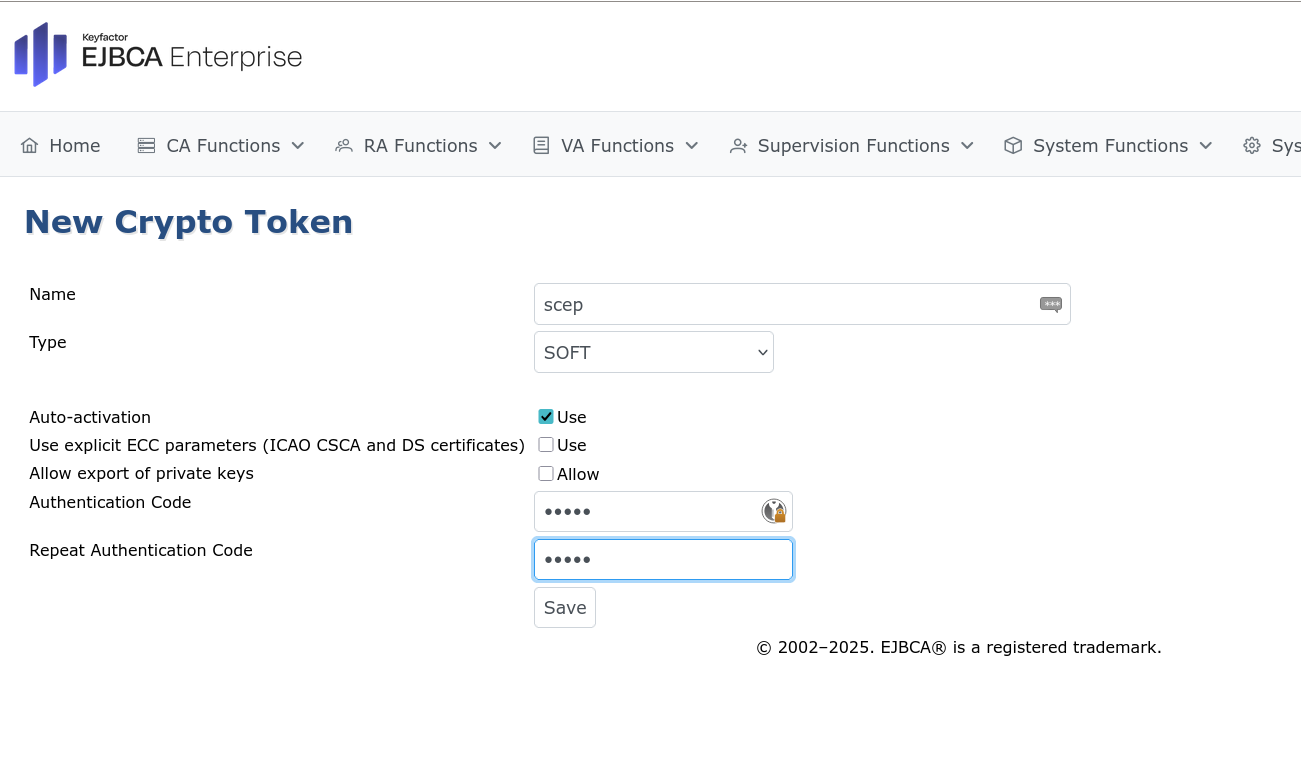
Click Create new and specify the following on the New Crypto Token page:
-
Name: Specify a name for the token. In this example, “scep”.
-
For Type, select SOFT.
-
Enable Auto-activation.
-
Authentication Code: Specify a strong password.
-
-
Click Save to create the crypto token.
Generate RA Signing and Encryption Keys
-
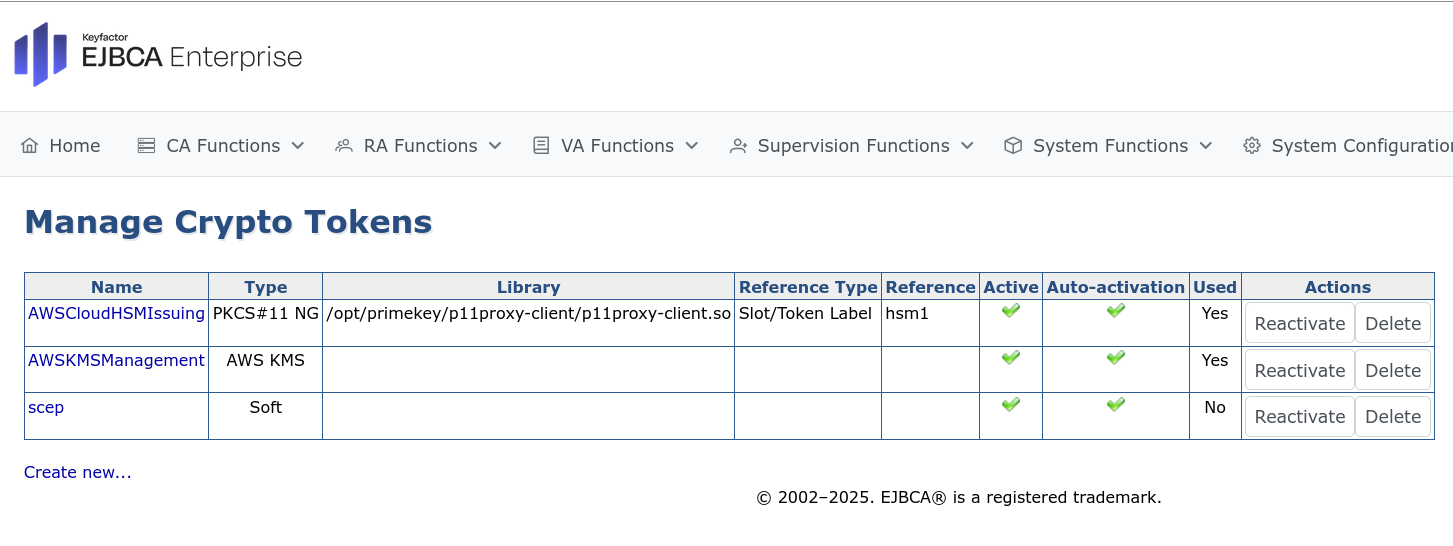
In the EJBCA menu, under CA Functions, click Crypto Tokens.
-
Select the newly created crypto token, in this example, “scep”.
-
Specify a name for the SCEP encryption and signing keys (such as encKey and signKey), select a key length of RSA 2048 and click Generate new key pair.
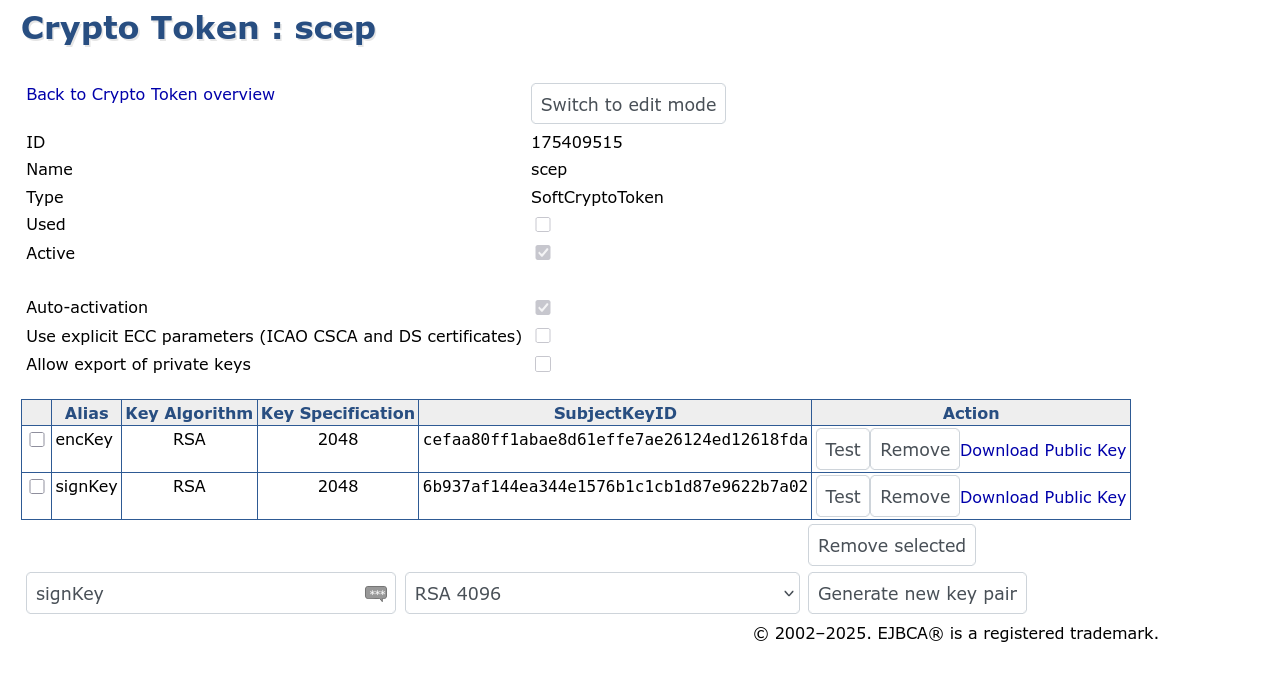
You have now created the crypto token and keys.
Change SCEP configuration to use separate keys for SCEP messages
-
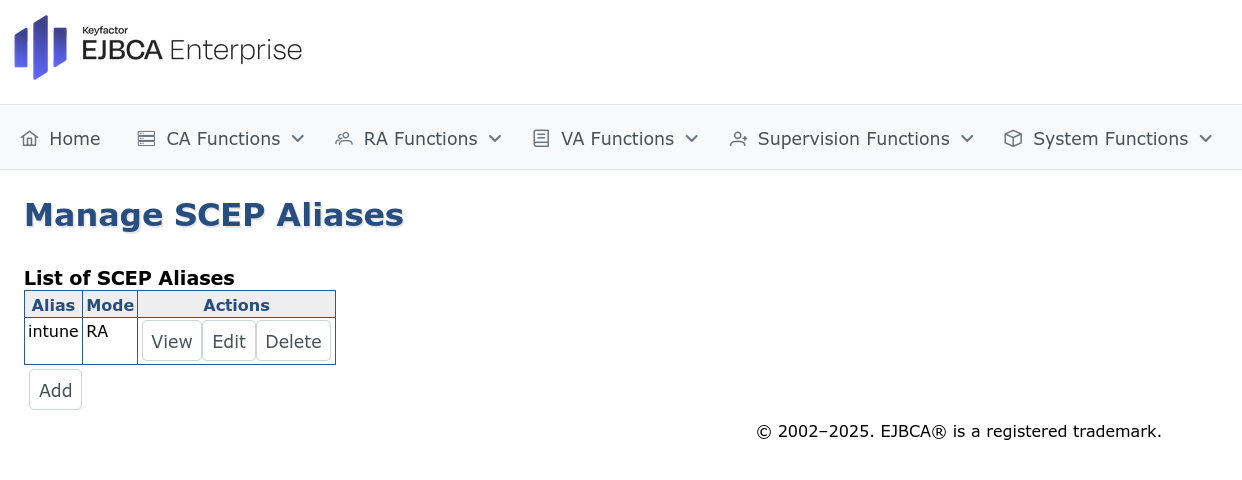
In the EJBCA menu, under System Configuration, select SCEP configuration.
-
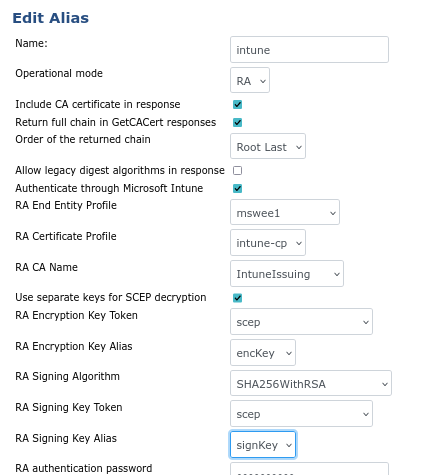
Select the SCEP configuration to change and update the following:
-
Enable Return full chain in GetCACert responses.
-
Enable Use separate keys for SCEP decryption.
-
For RA Encryption Key Token, select the crypto token created above.
-
For RA Encryption Key Alias, select the encryption key created above.
-
For RA Signing Algorithm, leave the default SHA256WithRSA.
-
For RA Signing Key Token, select the crypto token created above.
-
For RA Signing Key Alias, select the encryption key created above.
-
-
Click Save to store the changes.
EJBCA should now work with SCEP clients that encrypt messages using PKCS 1.5.
Optional: Changes to Intune
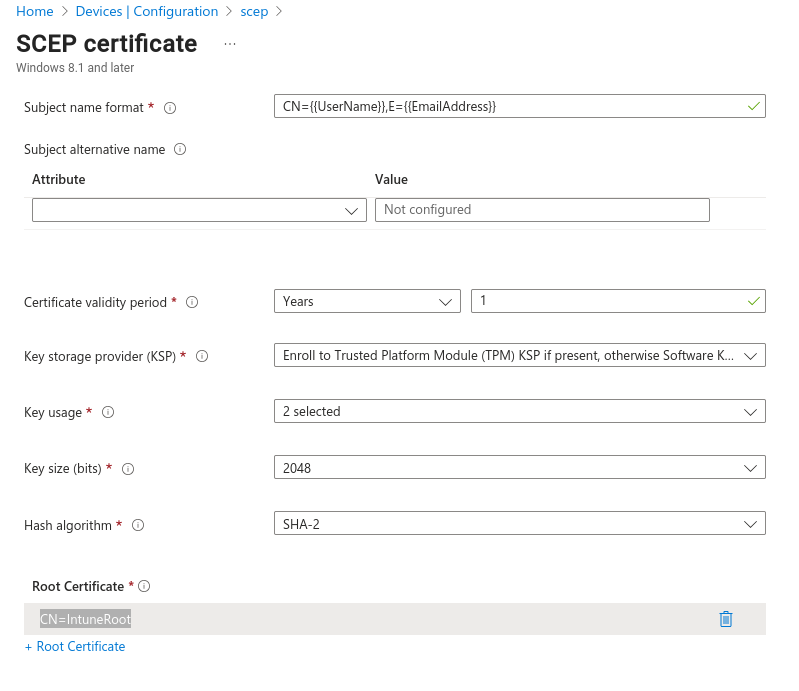
When using separate RA keys to encrypt and sign SCEP messages, your “SCEP Certificate Profile” may be configured with your root CA in the Root Certificate field.
Previously, the Root Certificate field in the Intune SCEP profile was set to the Sub CA certificate. However, when using separate RA keys, Intune clients correctly interpret chains of trust and can understand if a proper trust root is configured.
While this change is not strictly required, it is recommended. If the Sub CA changes in the future, it will also need to be updated in Intune. If the Root CA is configured correctly, however, future changes to Sub CAs will not require additional updates to the Intune SCEP certificate profile.
To update the Intune configuration:
-
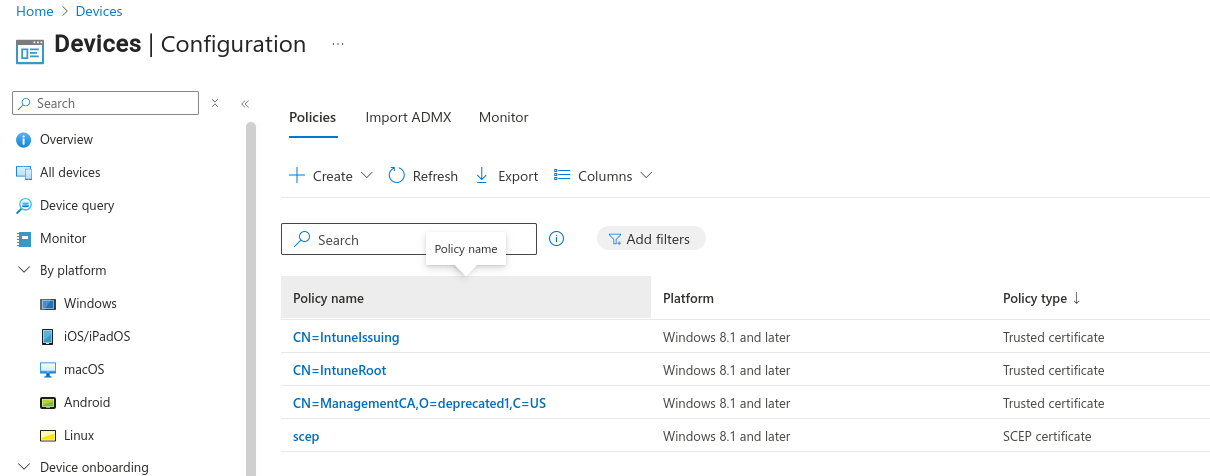
In Intune, navigate to Devices > Manage Devices > Configuration.
-
Select the SCEP certificate policy.
-
Select Configuration Settings > Edit.
-
Change the Root Certificate setting to the previously configured Root Certificate Trusted certificate policy.