.png)
This guide shows how to sign up for and manage Keyfactor Test Drives. At the end of a successful signup process, a Test Drive is provided in Azure.
You can only have one active Test Drive instance running at a time.
Sign up to Keyfactor Test Drive
-
Go to testdrive.az.keyfactorsaas.com (Ctrl/⌘ + click to open in a new tab)
-
Click Create one here.
-
In the registration form, enter the required details: name, business email, business phone number, job title, company, and country.
-
Accept the License Agreement and Privacy Policy, and then click Sign up.
You will receive an email with a link to sign in. -
Open the email and click the link to access the Test Drive Management Portal.
Note: This video uses the PQC Lab Test Drive as an example. The sign-up and initial setup steps are similar for other Keyfactor Test Drives. Refer to your Test Drive documentation for details.
Select a Test Drive
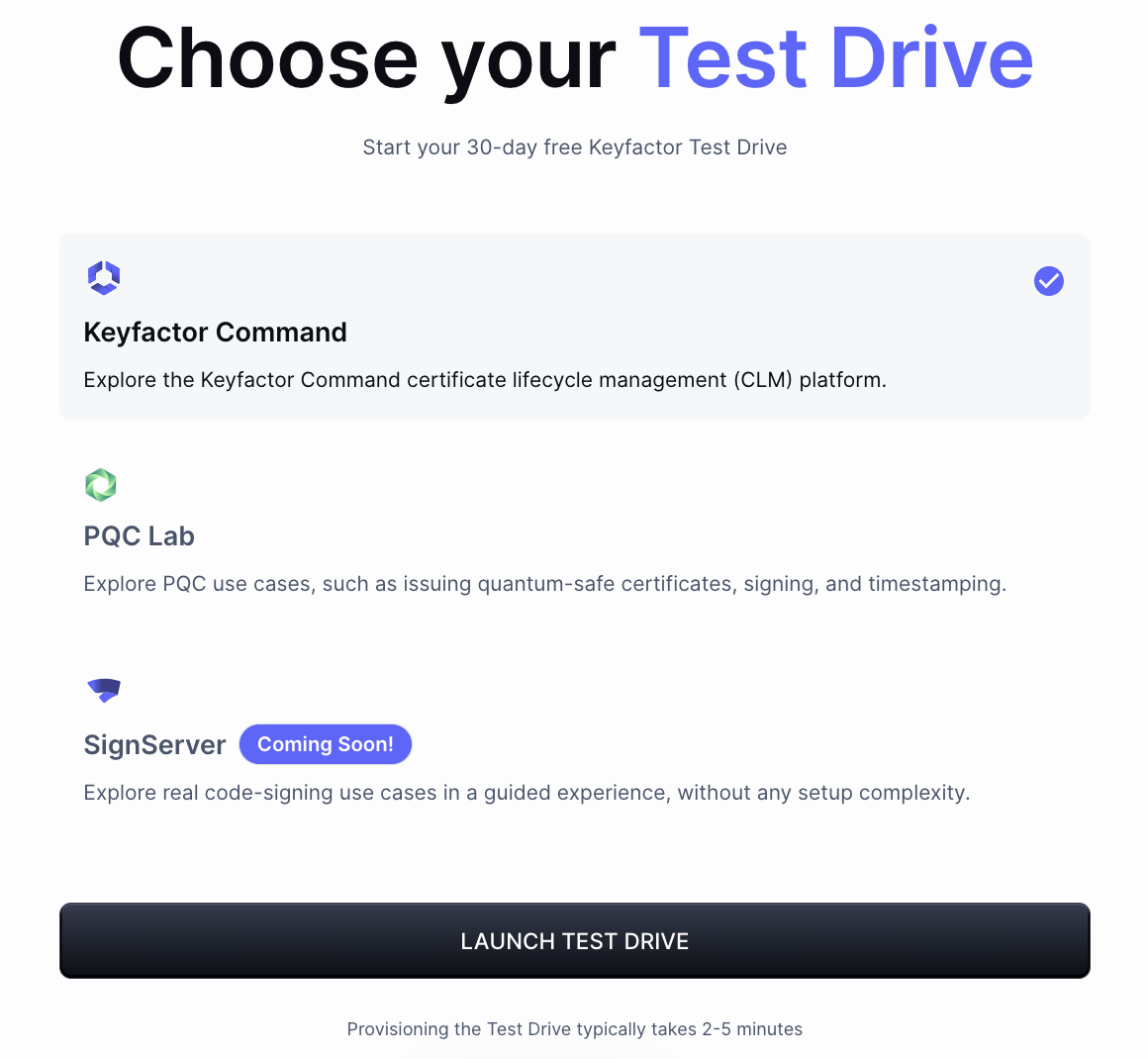
On your first login to the Test Drive Management Portal, or when you want to switch between Test Drives, you will see a list of available Test Drives. Depending on where you navigated from, a specific Test Drive may already be pre-selected.
-
In the list of Test Drives, select the one you want to test and click Launch Test Drive.
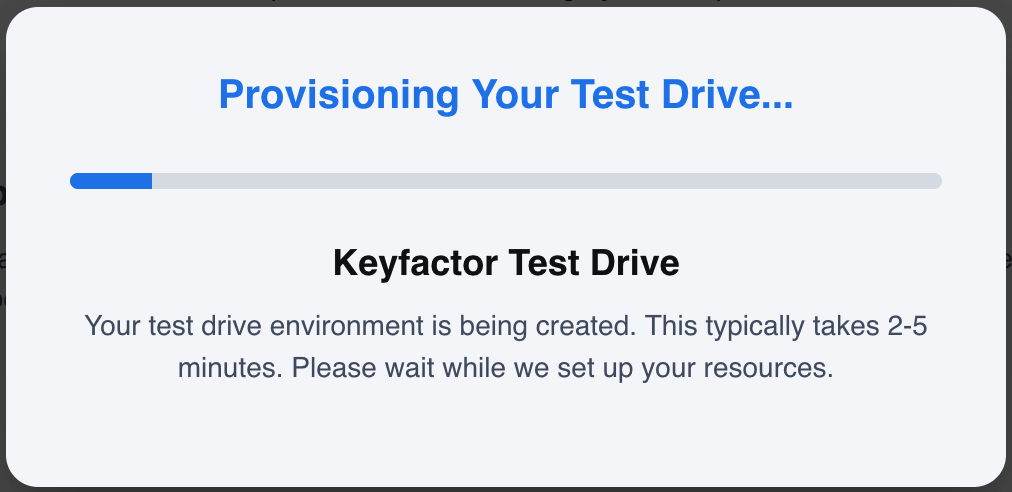
The provisioning of the Test Drive might take 2-5 minutes.
About the Test Drive Management Portal
Once provisioned to the Test Drive Management Portal, you will see a dashboard with details about the active Test Drive:
-
Current active Test Drive
-
Link and login credentials for Test Drive access
-
Time Remaining: Number of days left on your current Test Drive before it expires
-
Next steps with links to initial setup and use cases
From the Management Portal, you can access your current Test Drive or terminate it and start another. You can log in and out of the Test Drive Management Portal when you want. See below.
Access Test Drive
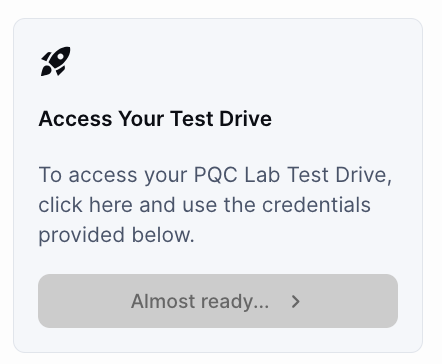
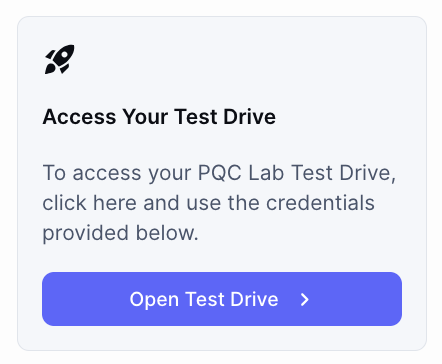
When a new Test Drive is started, it will take a few minutes for it to become active. Before that, the button to access the Test Drive is greyed out. When the button says Open Test Drive, it is ready for you to access.
To access your Test Drive:
-
In the Management Portal, click the link to Open Test Drive.
-
The first time you access the Test Drive, you will get a warning due to the self-signed certificate: Your connection is not private.
To continue, click Advanced and then Proceed to … (unsafe).
-
While the Test Drive is deploying, you will see a temporary Landing page.
-
Once completed, after about 15-20 minutes, the Test Drive Landing Page will appear.
Manage Test Drives from the Management Portal
Log in to the Keyfactor Test Drive Management Portal
-
Go to testdrive.az.keyfactorsaas.com (Ctrl/⌘ + click to open in a new tab)
-
Enter your email address and click Submit.
You will receive an email with a link to sign in. -
Open the email and click the link to access the Test Drive Management Portal.
Log out of Keyfactor Test Drive Management Portal
-
Click the icon with your initials on the top right, and then Logout.
Change to Another Test Drive
In the Test Drive Management Portal:
-
Stop the current Test Drive by clicking Start New Test Drive.
-
Select a new Test Drive, see above.
Next Steps
Once you are signed up, you can proceed with the initial setup and explore test use cases for your selected Test Drive. Learn more here:
Contact us
Schedule a live demo with one of our experts to discuss your environment, integration options, and how we can help you move from test drive to production.