.png)
Configure OpenSearch Document-Level Security (DLS) via Advanced Group Mappings.
Overview
This guide walks through configuring Document-Level Security (DLS) and tenant permissions on OpenSearch using SAML Advanced Group Mappings.
Supported Deployments and Protocols
This feature is currently available for On-Premise AgileSec deployments with SAML 2.0 Identity Providers.
Limitations
DLS constraints and limitations include the following:
-
SAML Only: RBAC and DLS is not available for local (username/password) users or non-SAML SSO methods.
-
Standard Role Mapping groups override DLS: A user in an advanced group and in a group from the standard Role Mapping also gets the built-in org role, which can read all organization data. Because OpenSearch adds up roles, multiple-group users see everything.
-
Solution: Create dedicated IdP groups for restricted users and map them only under Advanced Group Mappings.
-
-
Only Org User access can be restricted. Root users are never restricted.
-
AgileSec UI does not manage the OpenSearch side: User-created roles, DLS queries, tenant permissions, and role mappings all have to be created in AgileSec and OpenSearch. Default AgileSec roles do not need to be manually added to OpenSearch.
-
Group changes take effect at the next user login.
Glossary of Terms
The following key concepts are used throughout this guide.
|
Term |
Description |
|---|---|
|
Identity Provider (IdP) |
The external service managing your organization's user credentials and profiles (e.g., Okta, Azure AD, Ping Identity). |
|
SAML 2.0 |
The XML-based open standard authentication protocol used to securely exchange identity and authorization data between your IdP and AgileSec. |
|
Document-Level Security (DLS) |
A security feature in OpenSearch to restrict which individual database records (documents) a user can view, based on matching query criteria. |
|
Role Assignment Claim Key |
AgileSec setting to specify which attribute inside the SAML assertion contains the user's groups (e.g., |
|
AgileSec User Type |
Supported AgileSec user roles: |
|
Advanced Group Mappings |
AgileSec configuration rules mapping specific IdP group values to custom OpenSearch backend roles for DLS isolation. |
|
OpenSearch Backend Role |
A string identifier representing group membership passed from AgileSec to OpenSearch (e.g., |
|
OpenSearch Role |
A collection of permissions defined in OpenSearch containing index access, tenant mappings, and DLS filters. |
|
OpenSearch Role Mapping |
The association in OpenSearch connecting an OpenSearch Role to a Backend Role. |
|
Tenant Permission |
Controls access to isolated workspaces (tenants) inside OpenSearch Dashboards. |
Configuration Flow
Advanced Group Mappings allow you to dynamically restrict user access to specific dashboard visualizations and data records based on IdP user groups.
The configuration flow involves three main steps:
-
Configure IdP: Configure your SAML 2.0 Identity Provider to release group attributes.
-
Configure AgileSec Advanced Group Mappings: Link the IdP group to the OpenSearch backend role.
-
Under Advanced Group Mappings, only IdP groups explicitly mapped in AgileSec can grant custom OpenSearch backend roles. Unmapped IdP groups do not grant any DLS-scoped access or backend roles.
-
-
Configure OpenSearch Security: Define the security roles and map them to backend roles directly inside OpenSearch settings.
-
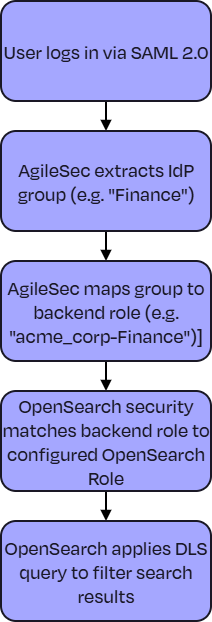
Runtime Enforcement: Upon SAML login, AgileSec extracts the user's groups, maps them, and communicates the active backend roles to OpenSearch. OpenSearch then natively filters data before rendering it to the user.
Step 1: IdP Configuration (SAML 2.0)
Configure your SAML 2.0 Identity Provider to release group attributes:
-
Locate Attribute Statements:
In your SAML IdP application setup, locate settings for Attribute Statements. -
Add/Verify Group Claim:
Ensure a claim is configured to emit the user's group memberships. Take note of the exact Name of the attribute (e.g.,memberOforroles). -
Verify Group Values:
Record the exact spelling and casing of the group values sent by the IdP (e.g.,Finance,Security).
Step 2: AgileSec Configuration
Navigate to Role Mapping Configuration inside the AgileSec Web UI.
Set the Claim Key
In the Role Assignment Claim Key field, enter the exact attribute name from your SAML provider (e.g., roles).
Configure Advanced Group Mappings (For DLS)
-
Expand the Advanced Group Mappings section.
-
Click + Add Role.
-
In IDP Role, enter the group name as sent by your IdP (e.g.,
Finance). -
The AgileSec User Type displays as
Org User(standard viewer access) to ensure standard users do not gain administrative rights. -
Review the AgileSec Backend Role preview. The platform automatically prefixes your organization identifier.
-
The organization identifier comes from your organization’s email top-level domain with
.replaced by_. Example:acme.combecomesacme_com.
-
Important: Backend Role Name must match in AgileSec and OpenSearch configuration.
The AgileSec backend role name
-
Is case-sensitive
-
Trims extra spaces from beginning and end of IdP group string
(.trim()) -
Keeps inner spaces
-
Uses the organization identifier (not the display name).
Any mismatch means users will not get access. In the next step, ensure the backend role configuration on OpenSearch matches this preview name exactly.
Step 3: OpenSearch Configuration (On-Premise Only)
Prerequisite: These steps require an OpenSearch account with security-admin privileges.
For self-hosted installations, configure the roles and mappings directly in OpenSearch.
Create the OpenSearch Role & Configure DLS
Create a role (e.g., opensearch-acme_corp-Finance) and define index permissions along with a DLS query to restrict query results.
For example, to restrict visibility only to objects where the type is Algorithm:
{
  "index_permissions": [
    {
      "index_patterns": ["analytics-*"],
      "dls": "{\"term\":{\"object.type\":\"Algorithm\"}}",
      "allowed_actions": ["read"]
    }
  ],
  "tenant_permissions": [
    {
      "tenant_patterns": ["acme_corp_tenant"],
      "allowed_actions": ["kibana_all_read"]
    }
  ]
}
Map to the AgileSec Backend Role
Create a Role Mapping in OpenSearch linking the OpenSearch Role you created (opensearch-acme_corp-Finance) to the exact Backend Role generated in your AgileSec Advanced Mappings (acme_corp-Finance):
{
  "backend_roles": [
    "acme_corp-Finance"
  ]
}
Step 4: Verification Checklist
After completing the configuration, verify the setup:
- Data Restriction Test: Log in with a user only belonging to the mapped group. Open an analytics page and verify they only see records where
object.typeisAlgorithm.
- Multi-Group Check: If a user belongs to multiple groups, verify their dashboard combines access to the respective documents.