.png)
End-to-end instructions for integrating host scan with CrowdStrike Falcon platform, including configuring the EDR ID, setting up host groups, and automating sensor package deployment using CrowdStrike Fusion workflows.
Prerequisites
The following prerequisites must be met.
CrowdStrike RTR
The AgileSec sensor is deployed and run through CrowdStrike RTR (Real Time Response). Host groups must have a policy that allows custom scripts, and allows the get, put, put-and-run, and run commands.
Optional: Host Group
While this step is optional, it is recommended to create host groups to organize your hosts. This allows you to selectively target only the hosts where you want to run scans when configuring workflows, rather than scanning all hosts in your environment.
-
Add your Linux hosts to a new host group, or to an existing host group to use in the Linux workflow.
-
Add your Windows hosts to a new host group, or to an existing host group to use in the Windows workflow.
-
Add your Mac hosts to a new host group, or to an existing host group to use in the Mac workflow.
Set up EDR ID
An EDR ID is used to obtain an access token for communicating with the AgileSec platform. This process is automatic: when a Scan runs, the configured EDR ID is presented to the Ingestion Service, which returns a Remote Sensor Token. The token is stored locally and used for subsequent authenticated communication with the Ingestion Service.
EDR IDs provide an implicit trust mechanism allowing approved endpoints to obtain a Remote Sensor Token without embedding long-lived credentials on the host. EDR IDs can be revoked at any time to immediately block token issuance for endpoints using that ID.
You can generate multiple EDR IDs and assign them to specific deployments (for example, by environment, business unit, or endpoint group) rather than using a single EDR ID across all endpoints. This segmented approach is recommended to limit blast radius and simplify revocation and rotation when access needs to be restricted.
-
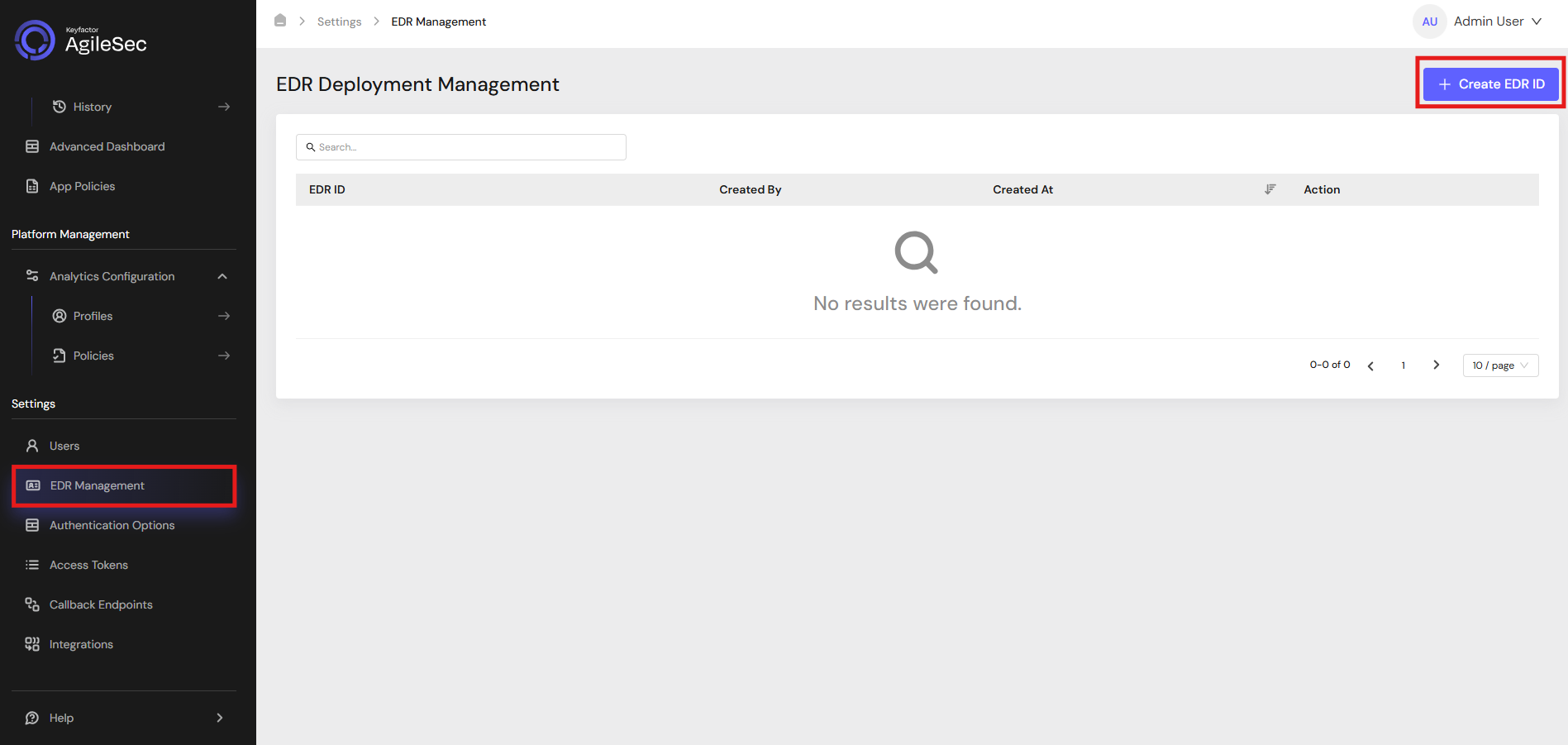
Log in to the AgileSec Platform UI, navigate to EDR Management, then click + Create EDR ID.
-
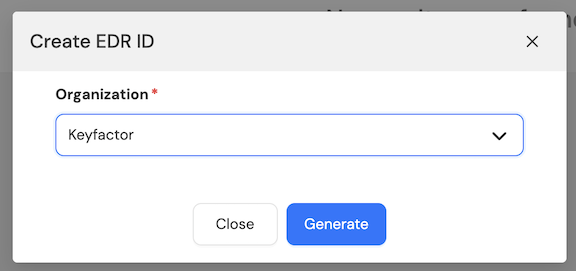
In the Create EDR ID dialog, select your organization and click Generate.
-
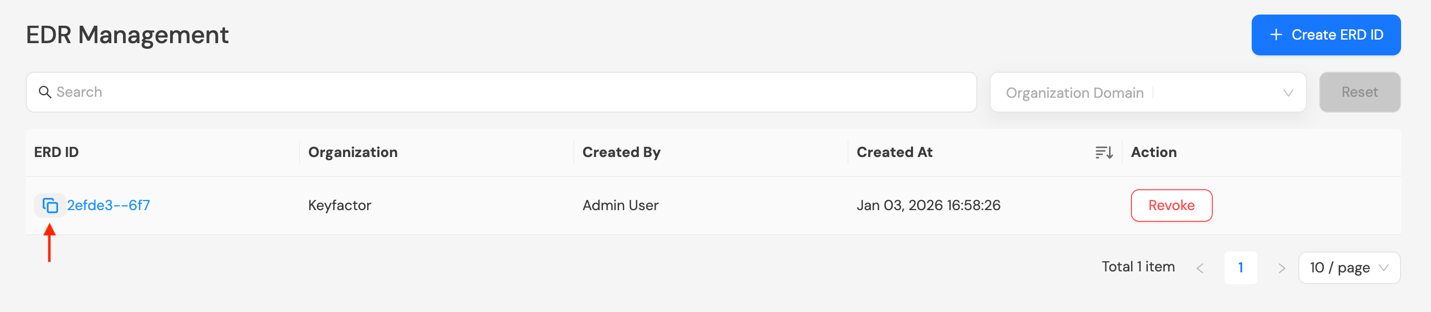
Copy the newly generated EDR ID by clicking the copy icon before the EDR ID.
Step 1: Download Remote Sensor Package from Keyfactor
Download the latest Remote Sensor package from AgileSec.
Note: If available, use the newest patch.
-
Open your browser and navigate to the Keyfactor AgileSec Platform Web URL
-
Log in with your credentials
-
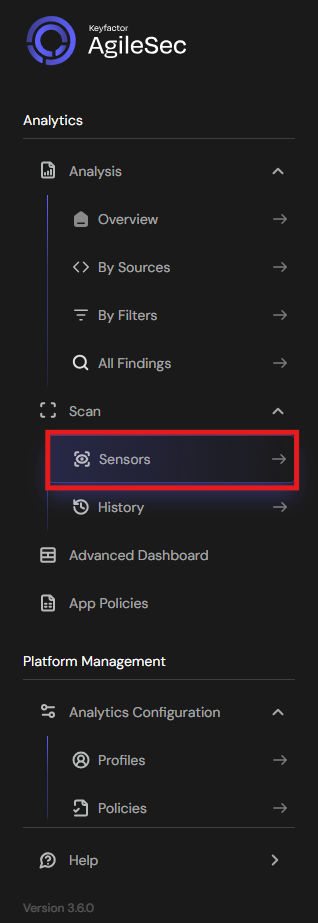
Click on "Sensors" in the left navigation menu under Scan
-
Click Remote Scan.
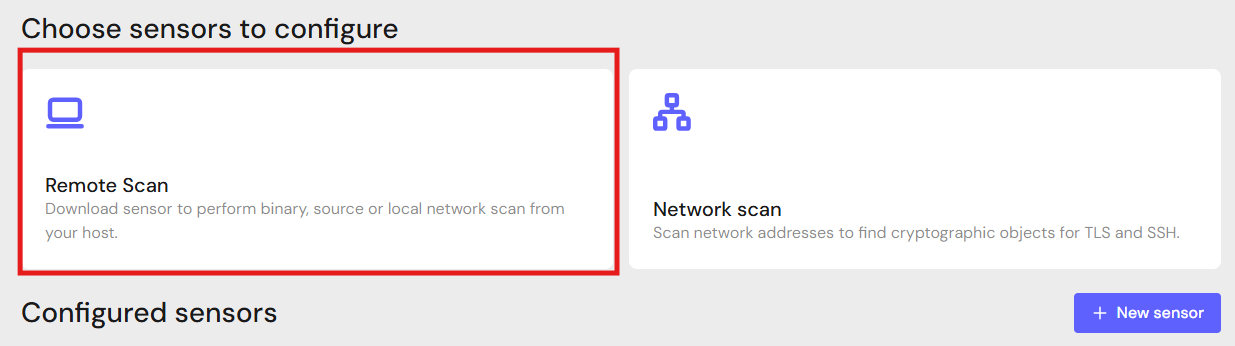
-
Click + Download Remote Sensor.

-
Download the sensor binary for your remote machine’s operating system
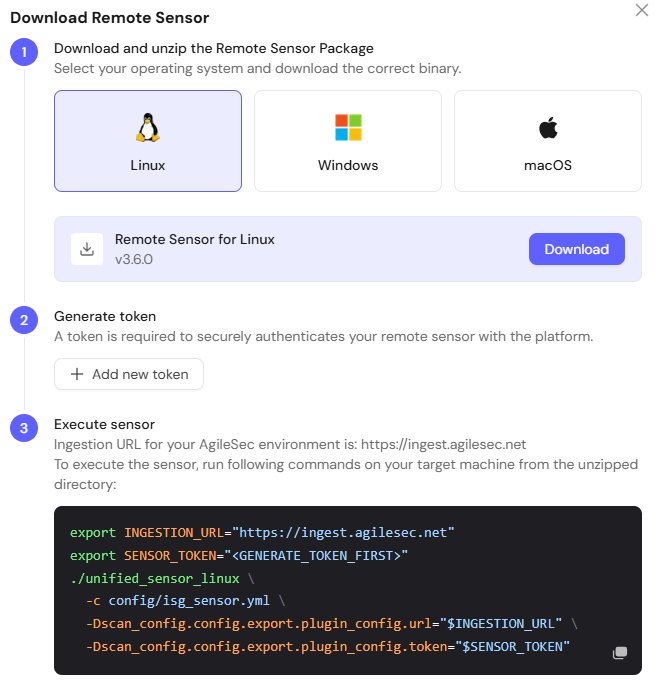
-
Unzip the Remote Sensor package. The folder
isg_agilescan_<platform>_sensorcontains acrowdstrikedirectory with the scripts and configuration files required to create the CrowdStrike workflow.
Step 2: Upload Sensor Package to CrowdStrike
-
Log in to CrowdStrike and navigate to Host setup and management → Response scripts and files.
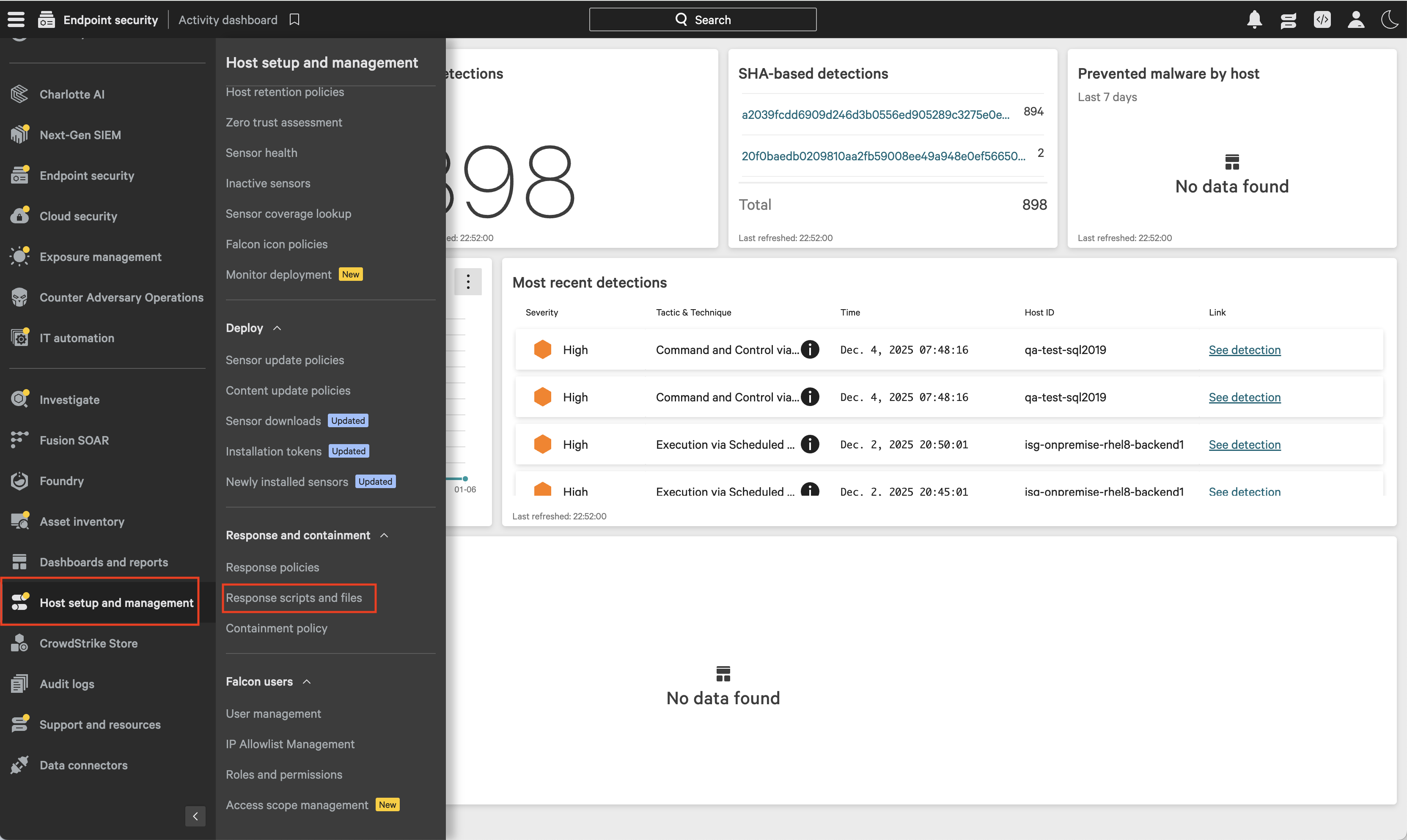
-
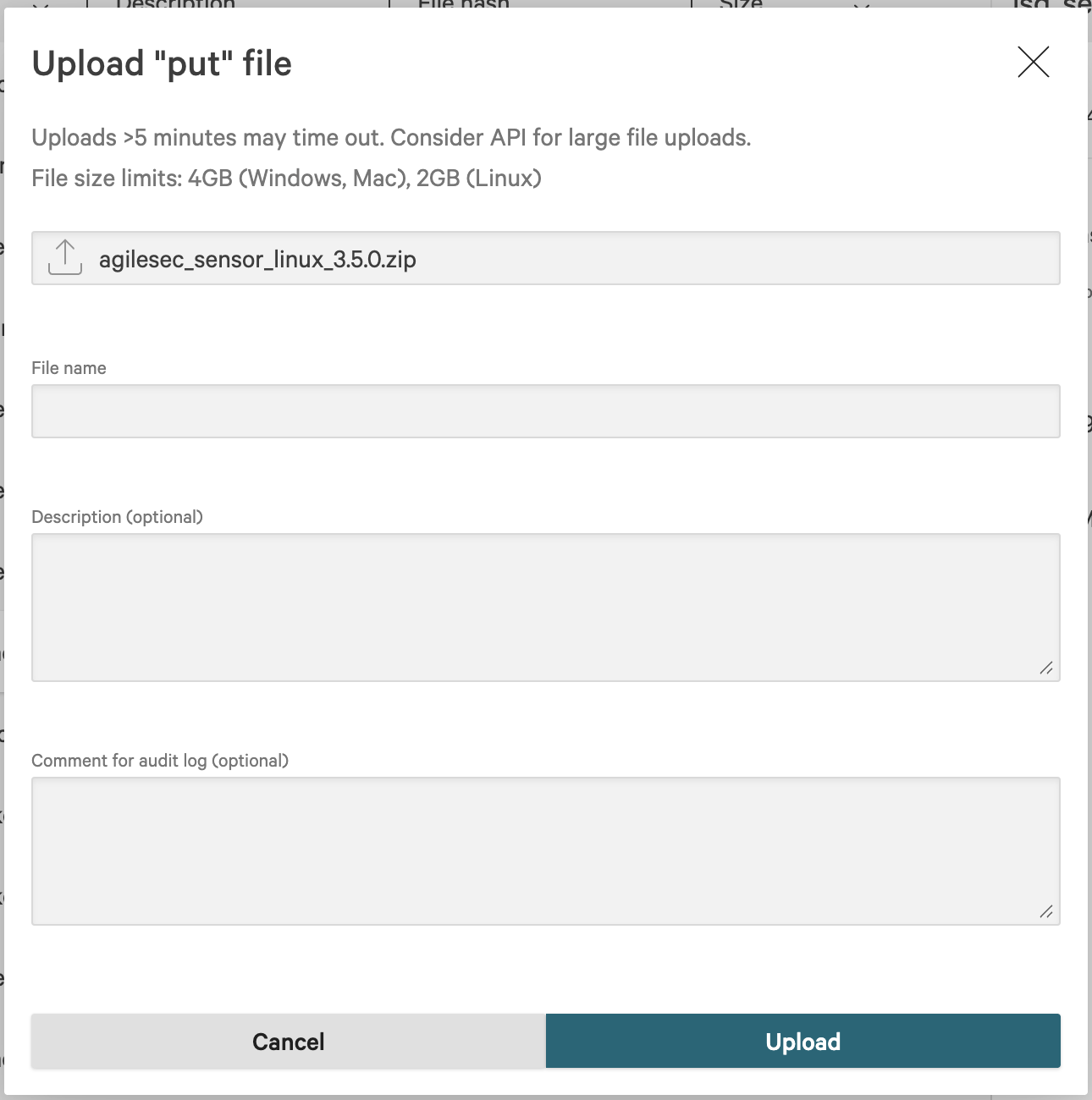
Select the "put" files tab and click Upload file. In the dialog, choose
agilesec_sensor_<platform>_<version>.zip|pkg, then click Upload-
For Linux:
agilesec_sensor_linux_<version>.zip -
For Windows:
agilesec_sensor_windows_<version>.zip -
For Mac:
agilesec_sensor_osx_<version>.pkg
-
Step 3: Create Scripts
Create scripts to perform the following tasks:
-
Check Sensor: Check whether the Sensor Zip|Pkg Exists
-
Run the Sensor: Deploy the Sensor and execute scans
-
Un-deploy the Sensor: Remove the Sensor
Check Sensor Script
-
On the Response scripts and files screen, select the Custom scripts tab, then click Create script.
-
In the Create script dialog, complete the following fields:
|
Field |
Linux |
Windows |
Mac |
|---|---|---|---|
|
Name |
|
|
|
|
Shell type |
|
|
|
|
Script access |
Users with the role of RTR Administrator |
Users with the role of RTR Administrator |
Users with the role of RTR Administrator |
|
Share scripts with workflows |
Enabled |
Enabled |
Enabled |
|
Script Copy the contents of following Remote Sensor package file. |
|
|
|
|
Input schema Copy the contents of the following Remote Sensor Package file. |
|
|
|
|
Output schema Copy the contents of the following Remote Sensor Package file. |
|
|
|
-
Click Create.
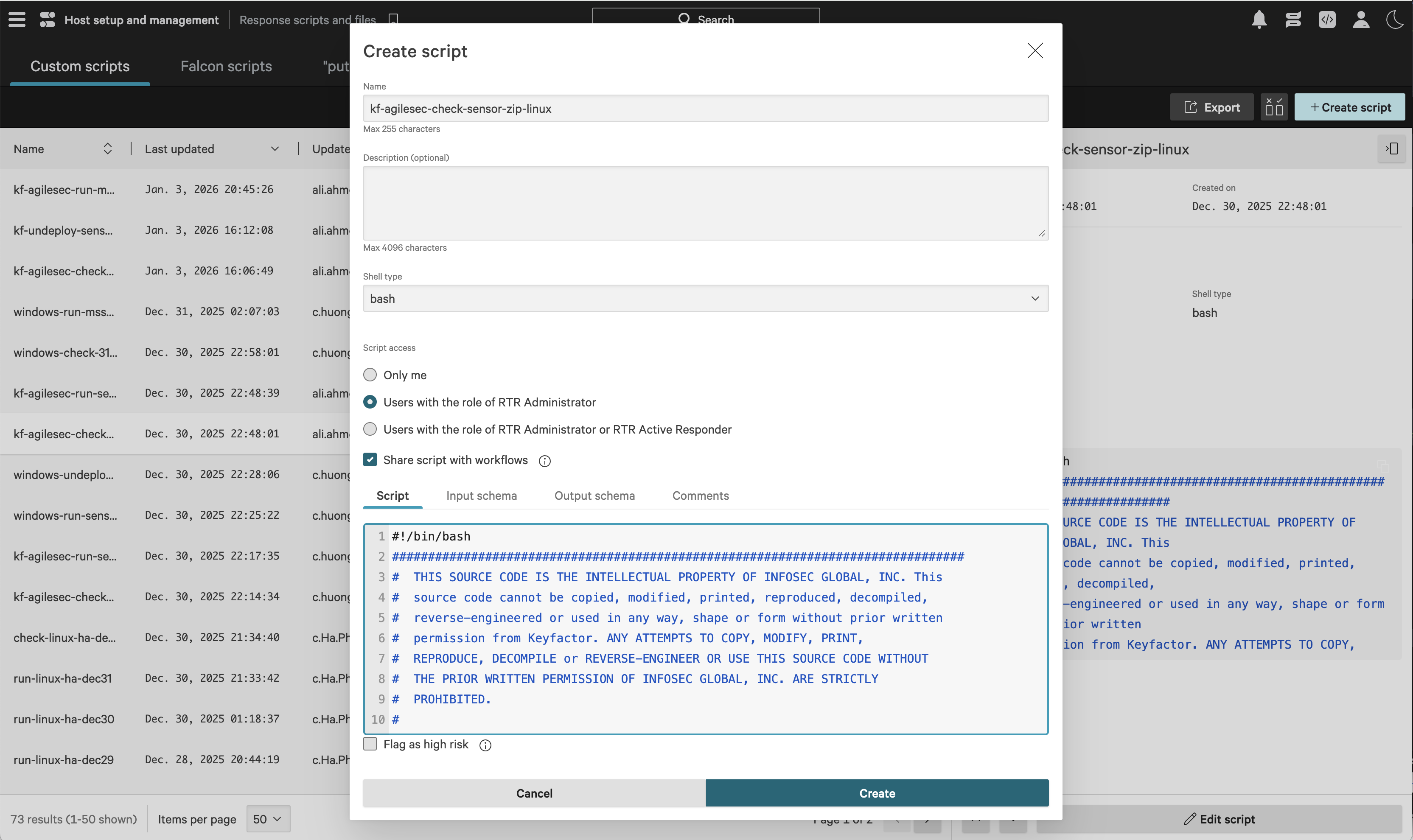
Run Sensor Script
-
On the Response scripts and files screen, select the Custom scripts tab, then click Create script.
-
In the Create script dialog, complete the following fields:
|
Field |
Linux |
Windows |
Mac |
|---|---|---|---|
|
Name |
|
|
|
|
Shell type |
|
|
|
|
Script access |
Users with the role of RTR Administrator |
Users with the role of RTR Administrator |
Users with the role of RTR Administrator |
|
Share scripts with workflows |
Enabled |
Enabled |
Enabled |
|
Script Copy the contents of following Remote Sensor package file. |
|
|
|
|
Input schema Copy the contents of the following Remote Sensor Package file. |
|
|
|
-
Click Create
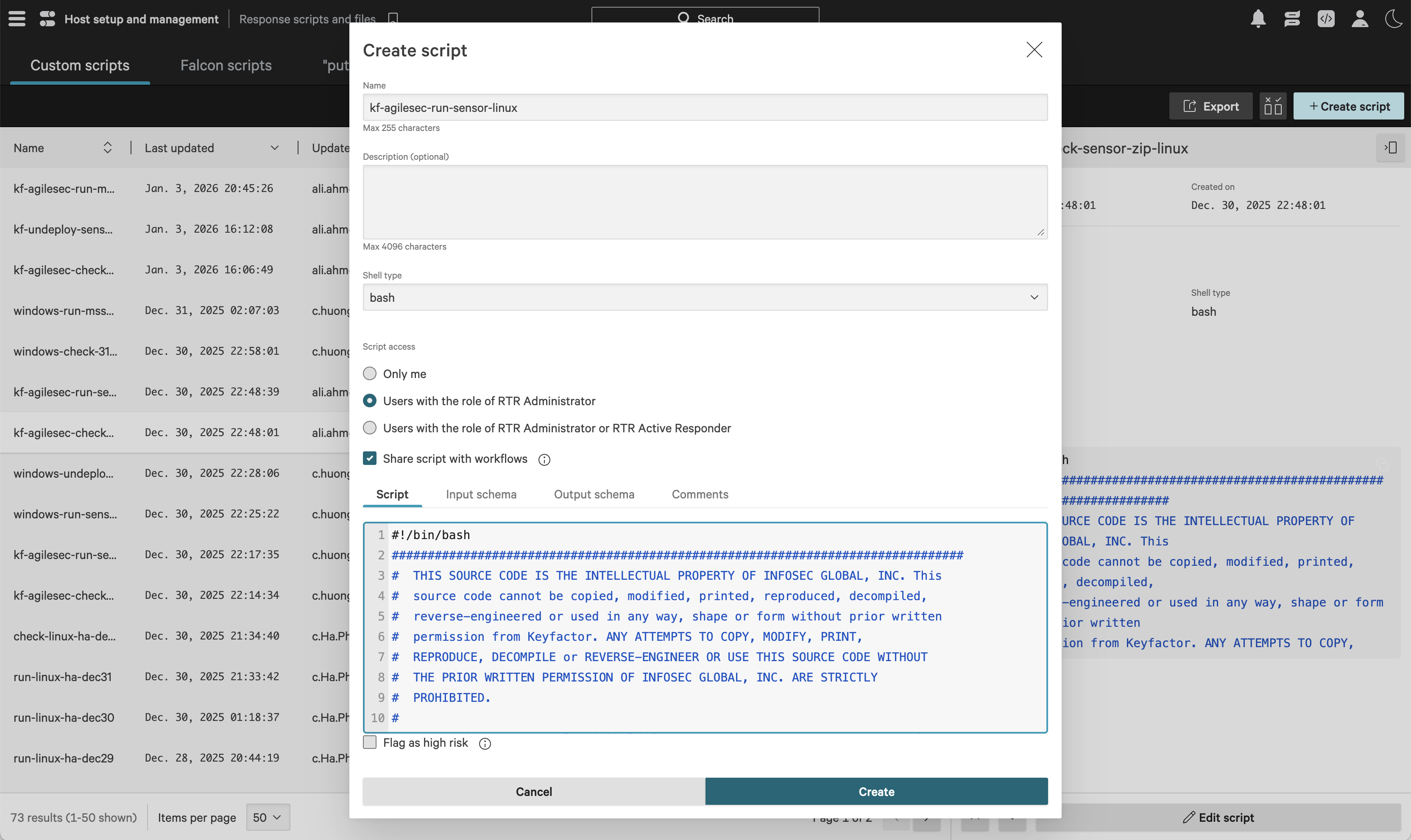
Undeploy Sensor Script
-
On the Response scripts and files screen, select the Custom scripts tab, then click Create script.
-
In the Create script dialog, complete the following fields:
|
Field |
Linux |
Windows |
Mac |
|---|---|---|---|
|
Name |
|
|
|
|
Shell type |
|
|
|
|
Script access |
Users with the role of RTR Administrator |
Users with the role of RTR Administrator |
Users with the role of RTR Administrator |
|
Share scripts with workflows |
Enabled |
Enabled |
Enabled |
|
Script Copy the contents of following Remote Sensor package file. |
|
|
|
|
Input schema Copy the contents of the following Remote Sensor Package file. |
|
|
|
-
Click Create.
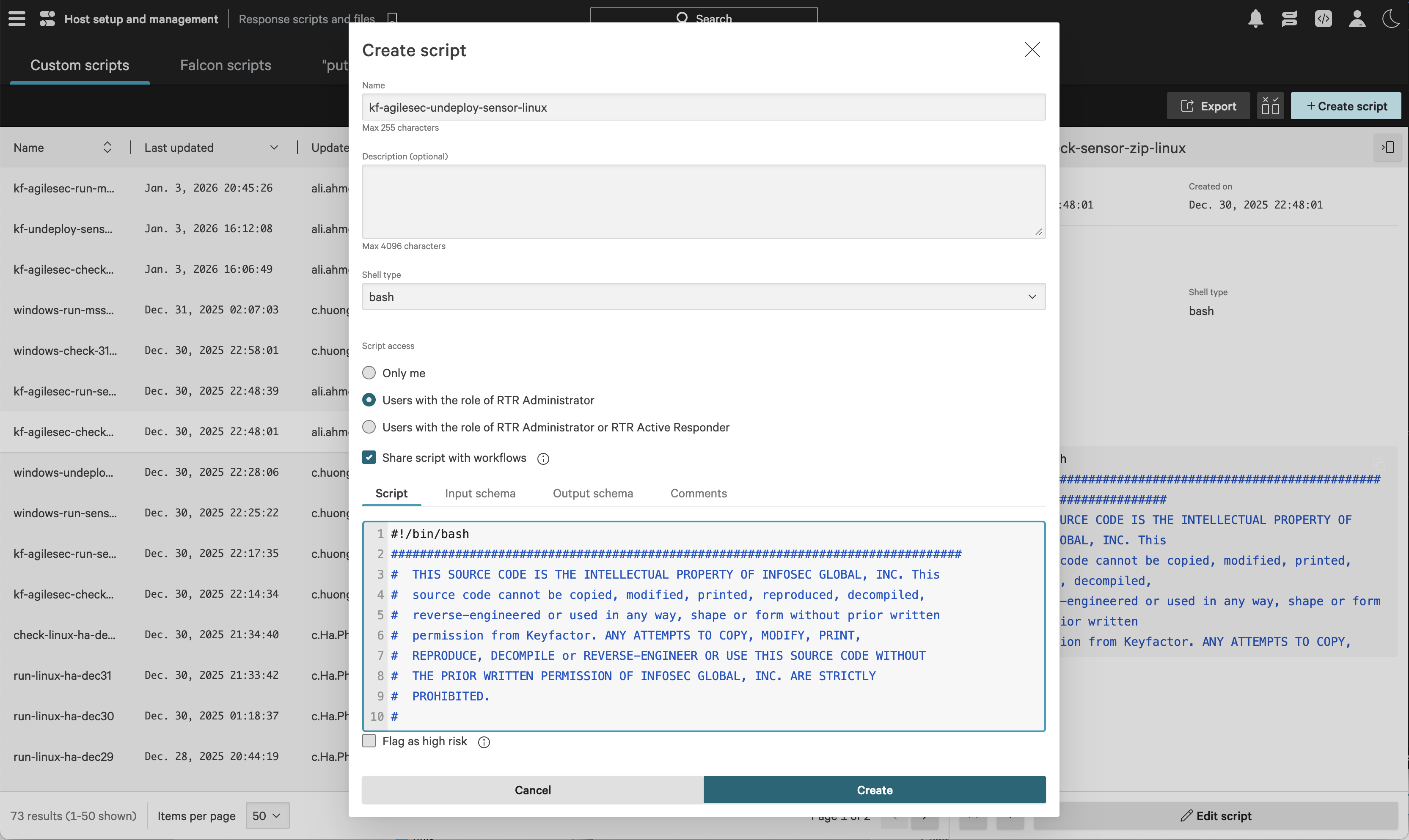
Step 4: Create Workflow To Run Host Scan Sensor
Use this workflow to scan an endpoint host using Keyfactor Agilesec Host sensor.
-
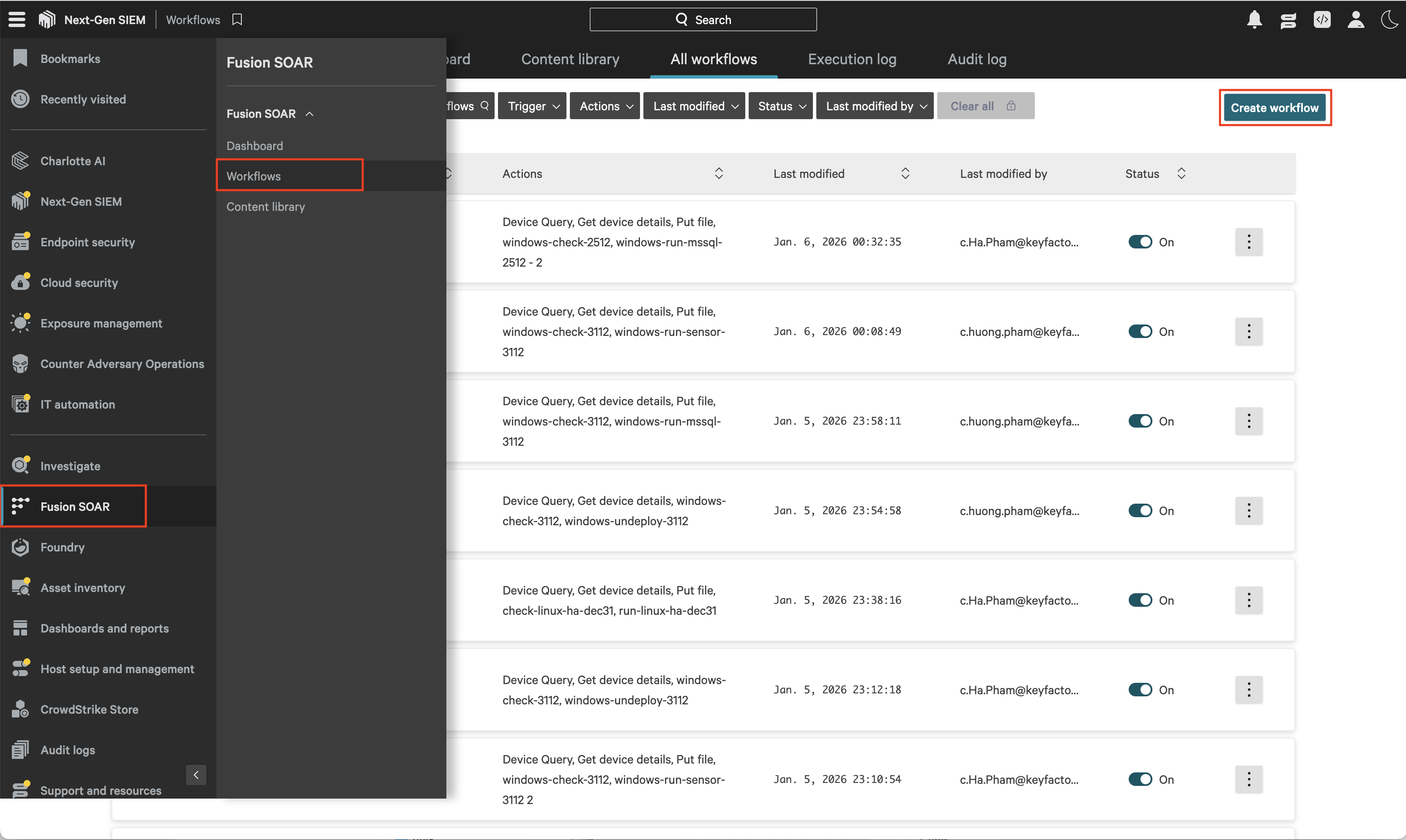
Navigate to Fusion SOAR -> Workflows, then click Create workflow to open the CrowdStrike workflow builder interface.
-
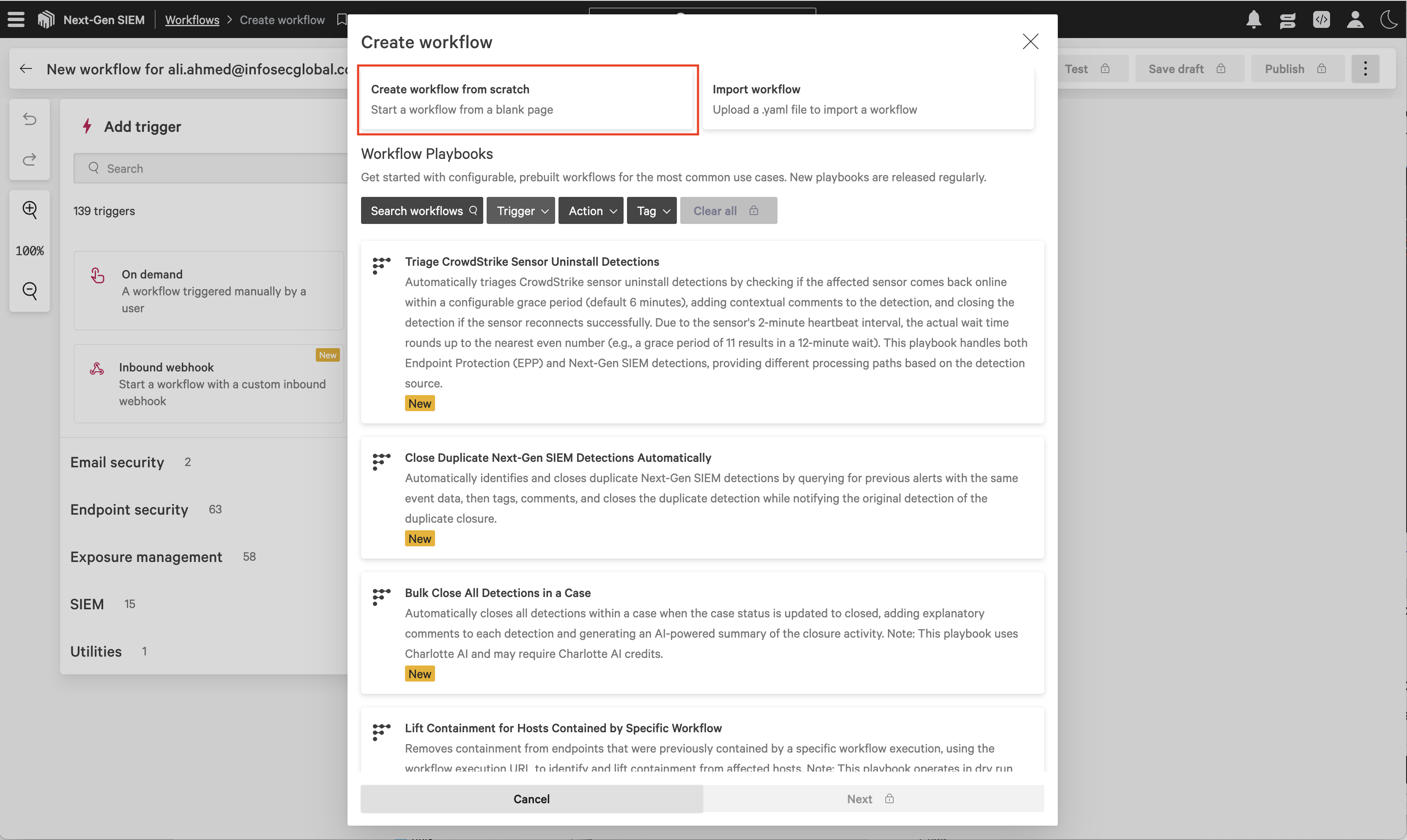
In the Create workflow dialog, select Create workflow from scratch.
-
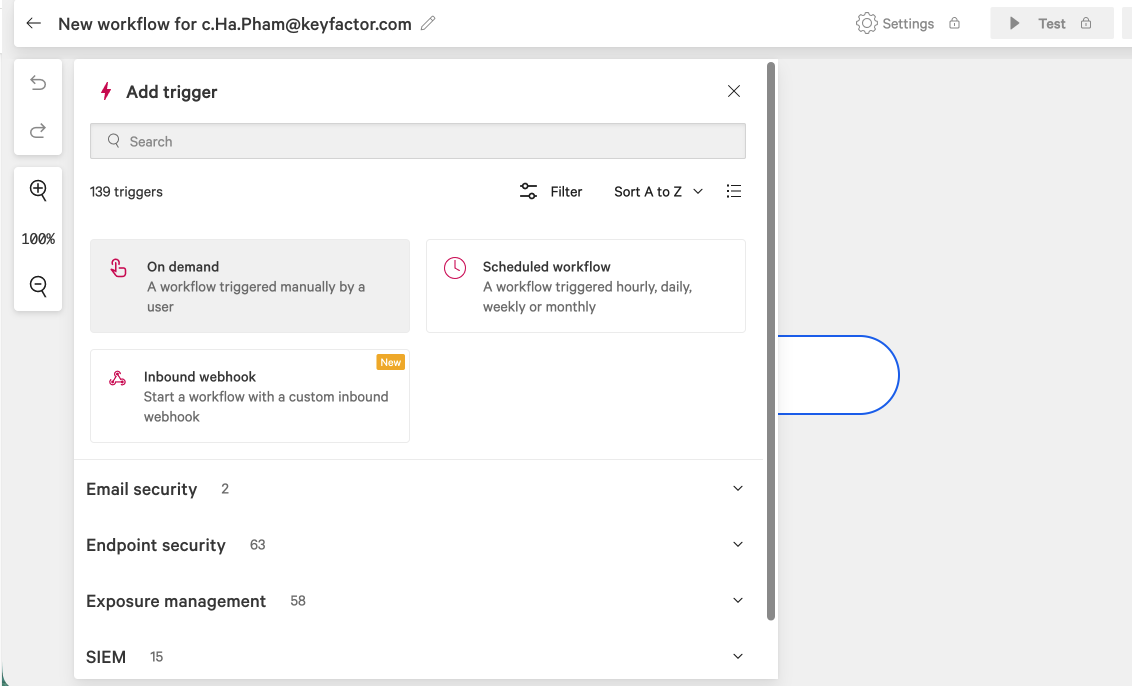
In the Add trigger dialog, select Scheduled workflow and configure the execution schedule.
-
On-demand: The workflow is triggered manually by the user.
-
Scheduled: The workflow is triggered automatically at the selected time.
-
-
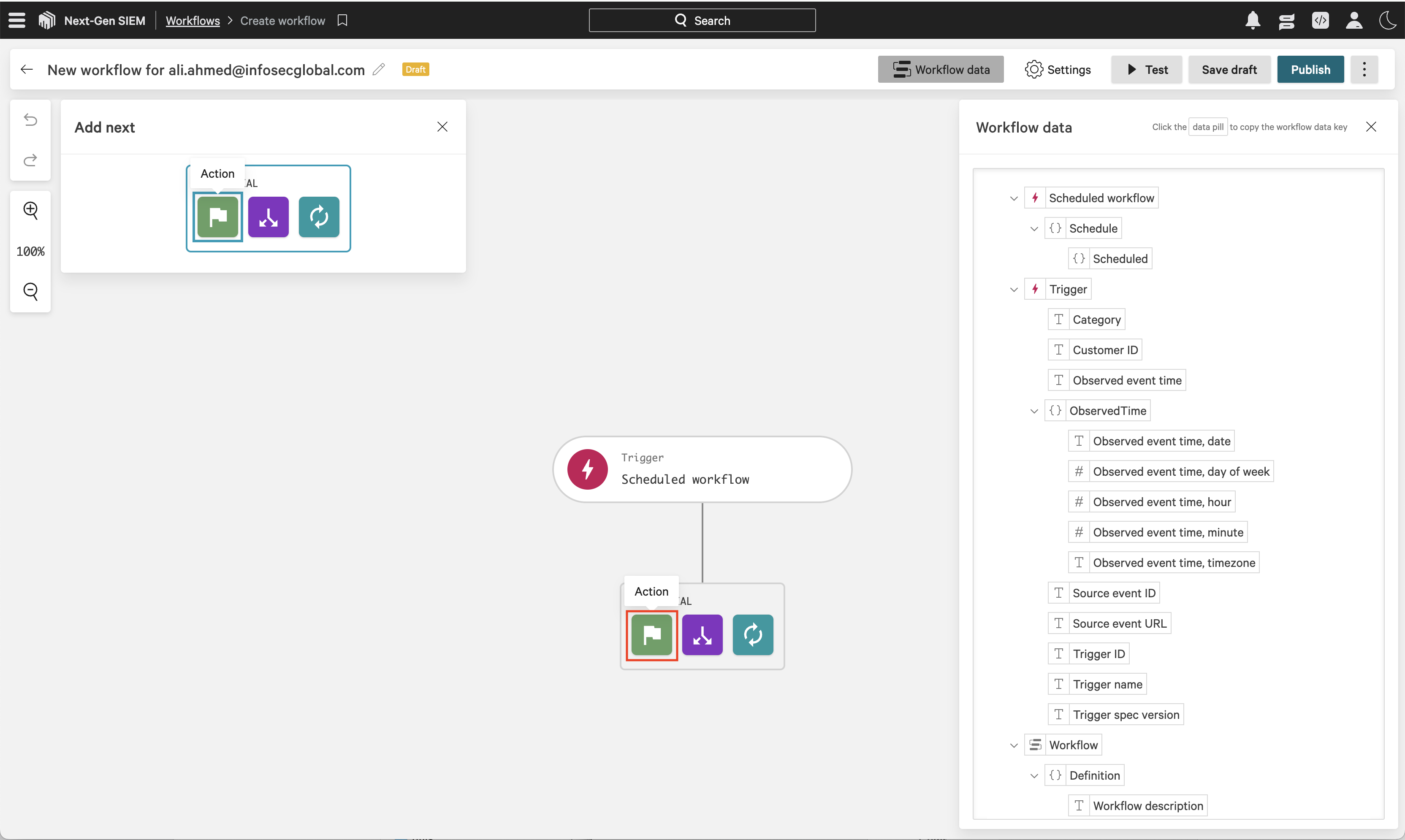
On the workflow builder, click Action.
-
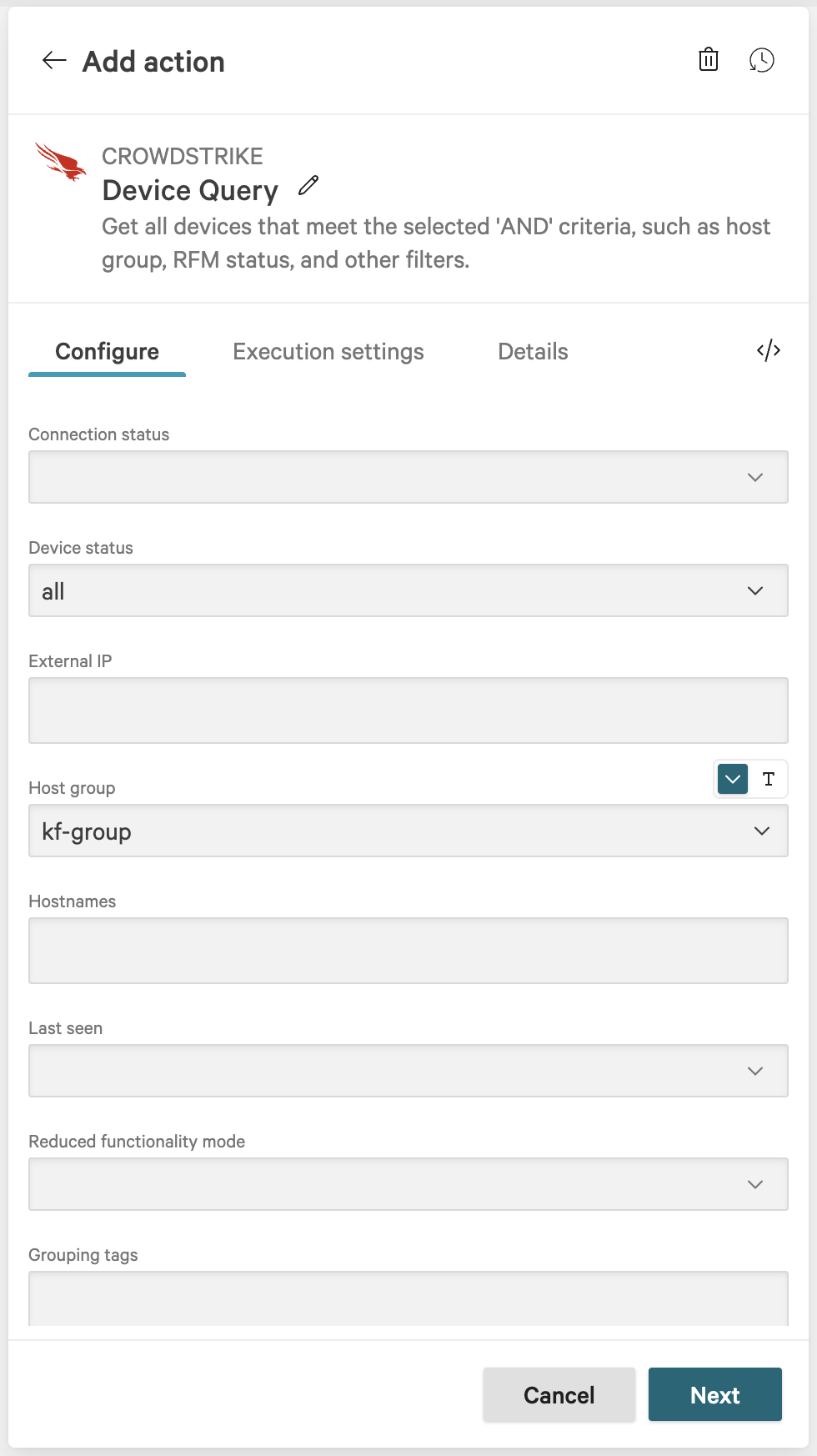
In the Add action dialog, search for and select Device Query.
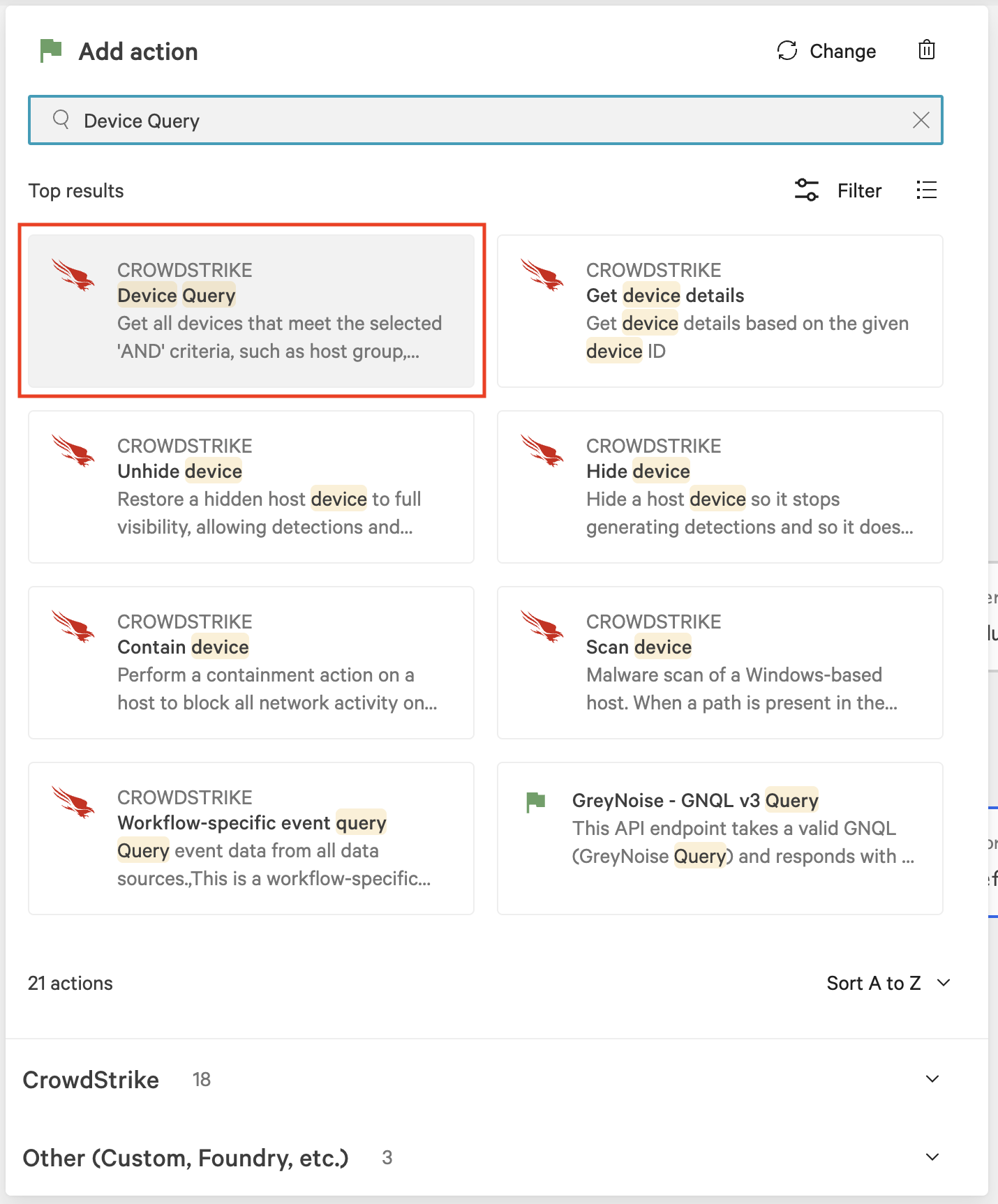
In the Device Query dialog, configure fields specific to your environment to select the devices where the host scan sensor should run. At a minimum, set Device status and either Host group or Host names:
-
Device status: all
-
Host group: The workflow will be triggered to run on all target hosts within this group. Select the host group containing the hosts you want to scan, as configured in the Prerequisites.
-
Host names: The workflow will be triggered to run on specified host names.
-
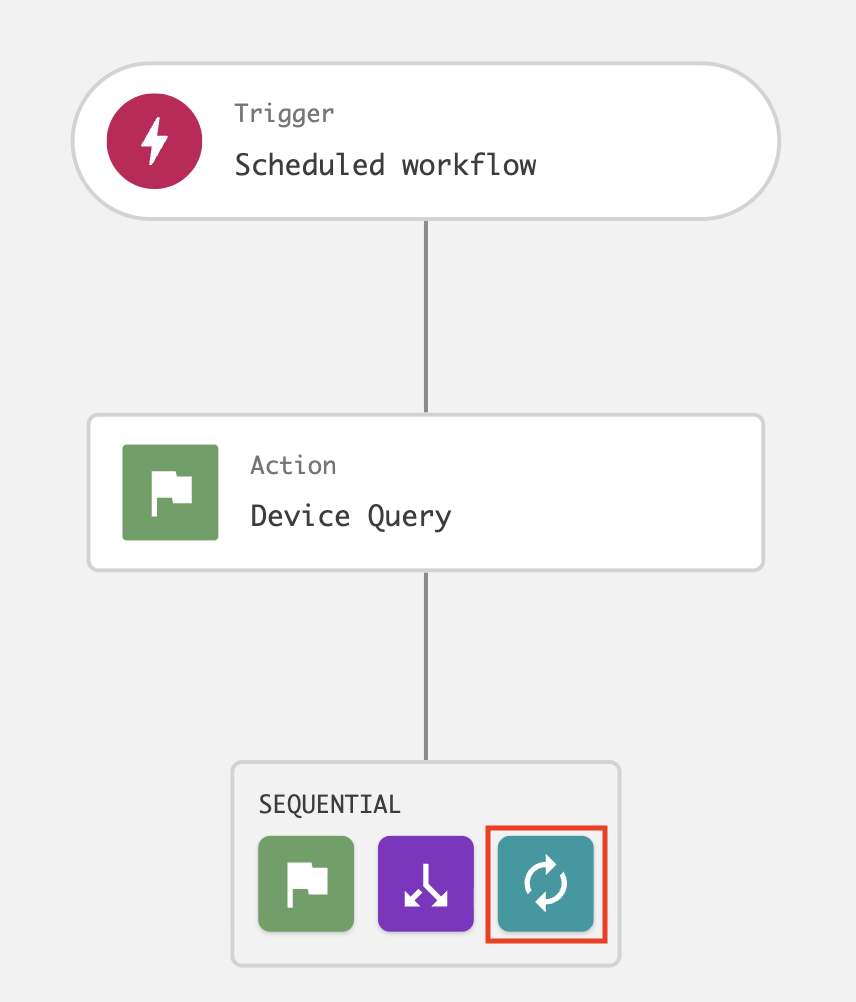
On the workflow builder, add a Loop after Device query.
-
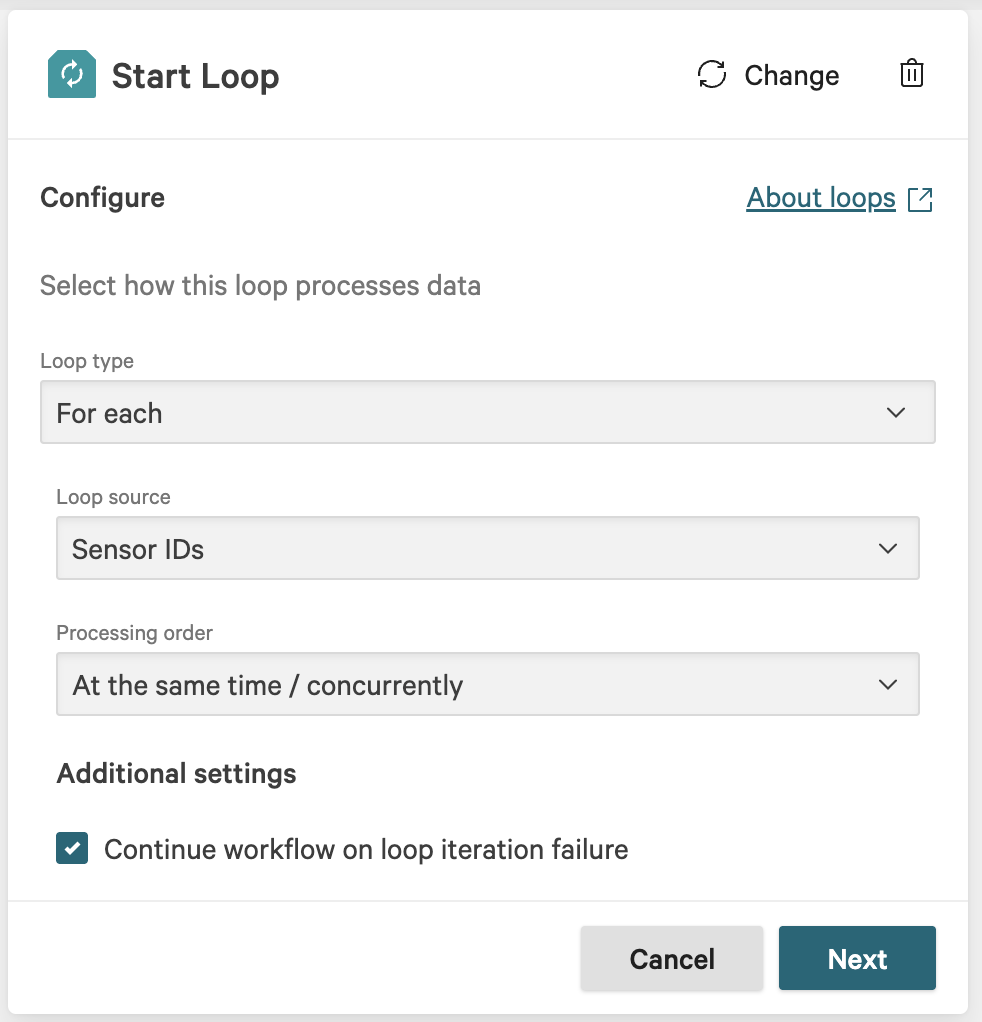
In the Start loop dialog, enter the following and click Next:
-
Loop type: For each
-
Loop source: Sensor IDs
-
Processing order: At the same time/concurrently
-
Continue workflow on loop iteration failure: Enabled
-
-
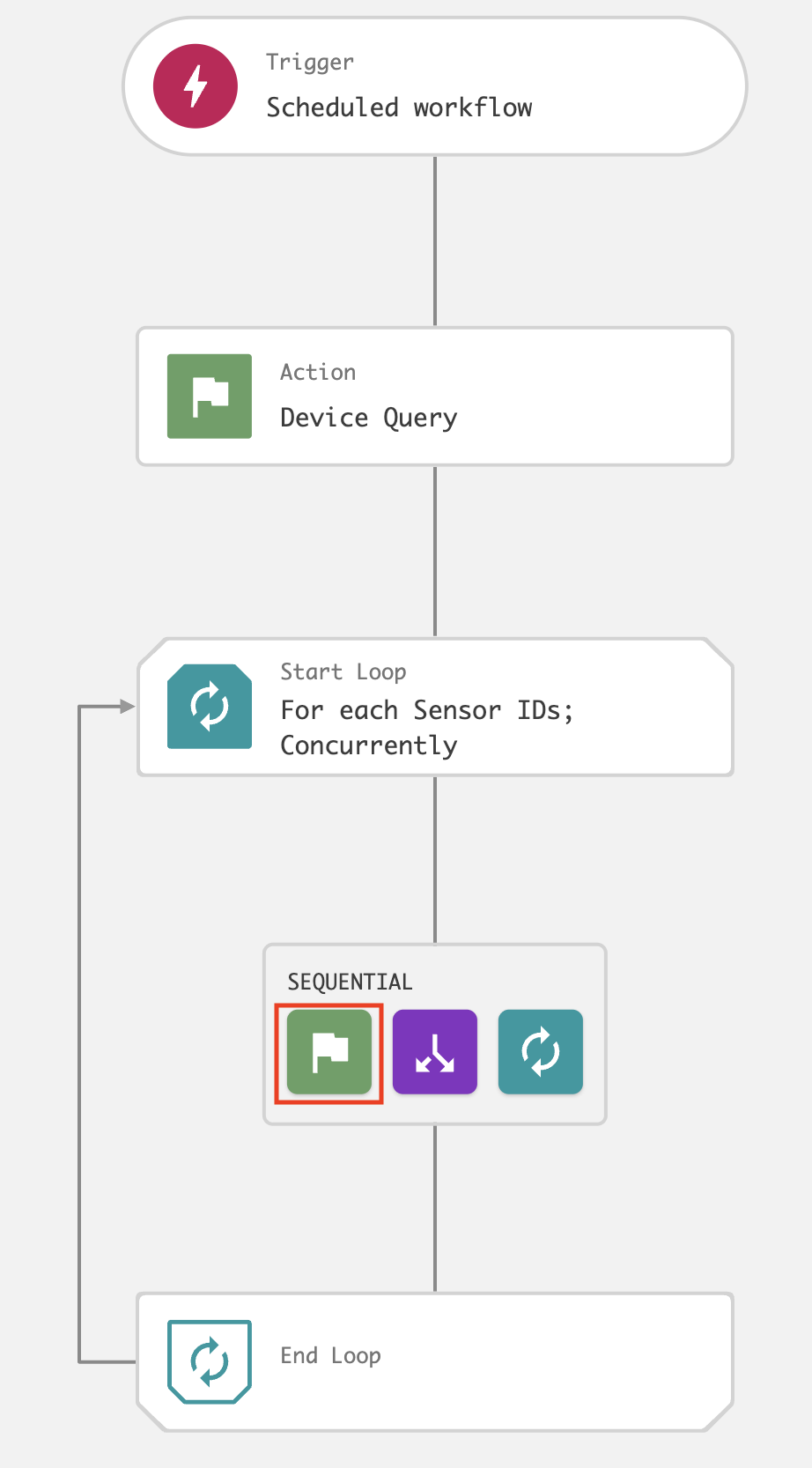
On the workflow builder, add an action inside the loop.
-
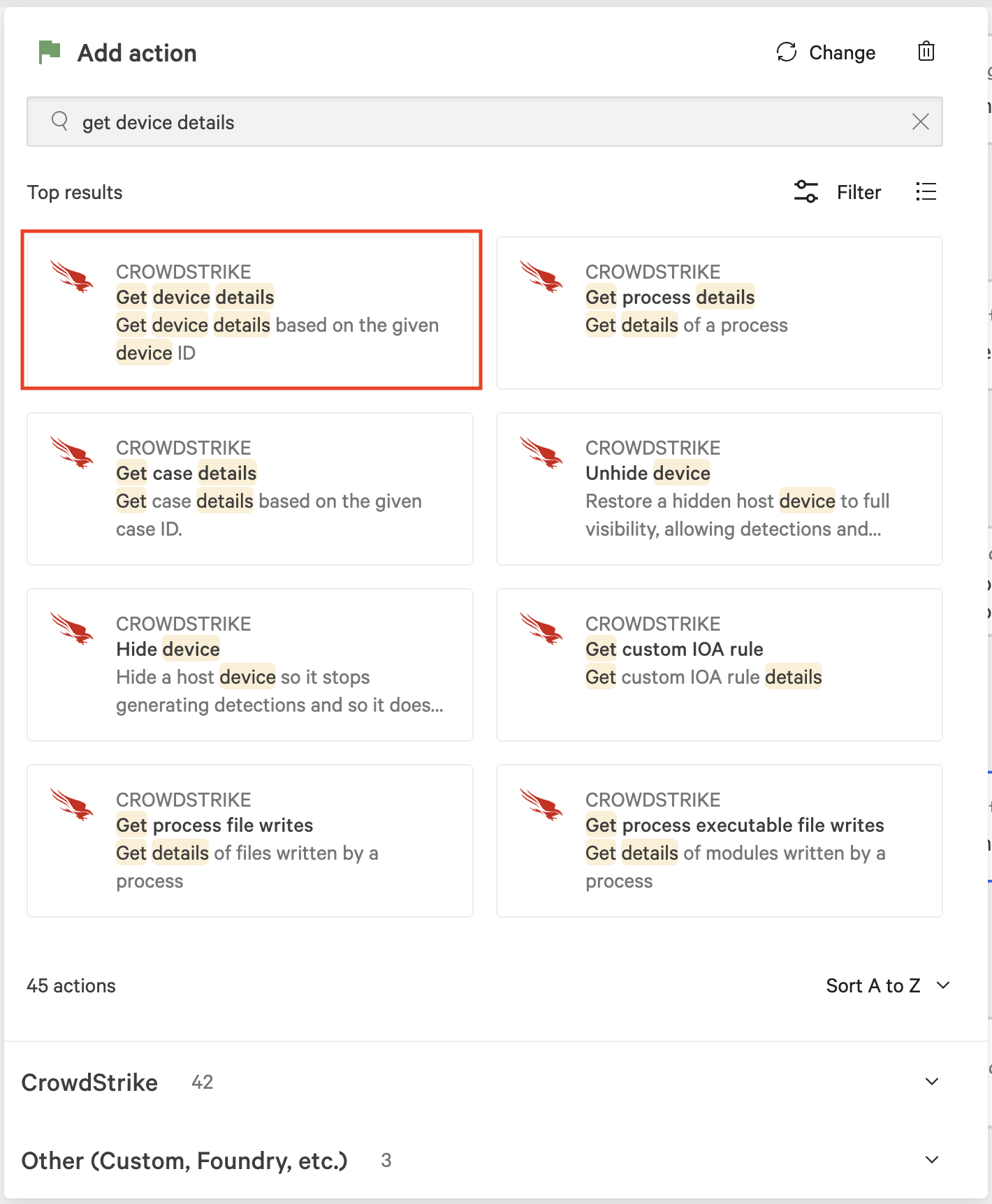
In the Add action dialog, search for and select Get device details.
-
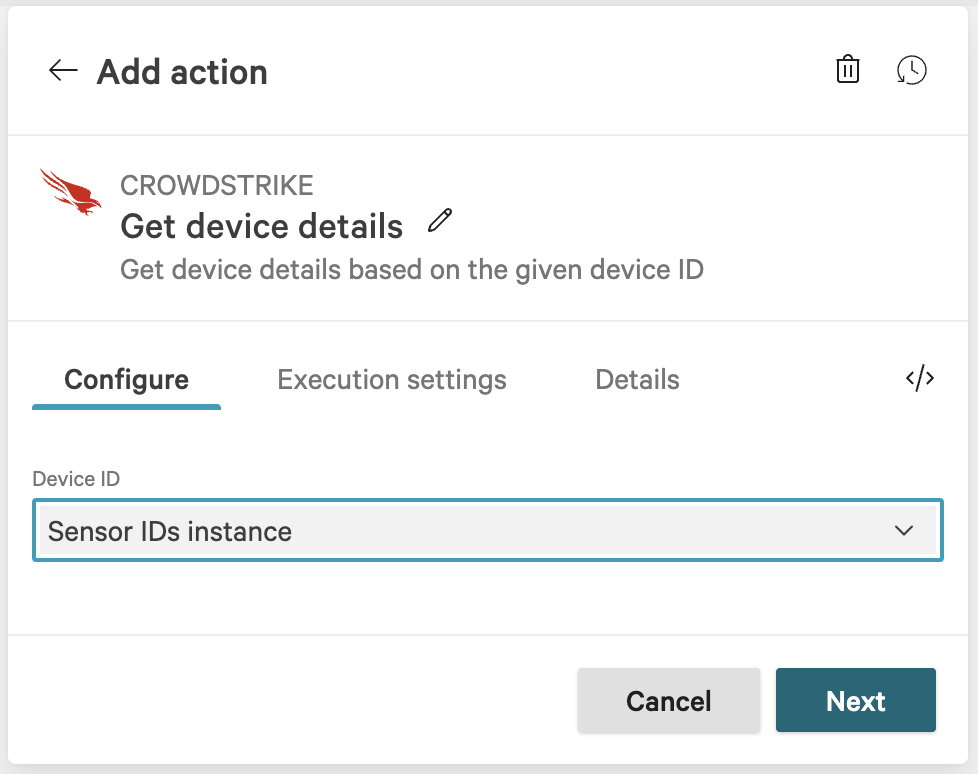
In the Device details dialog, set Device ID to Sensor IDs instance, then click Next.
-
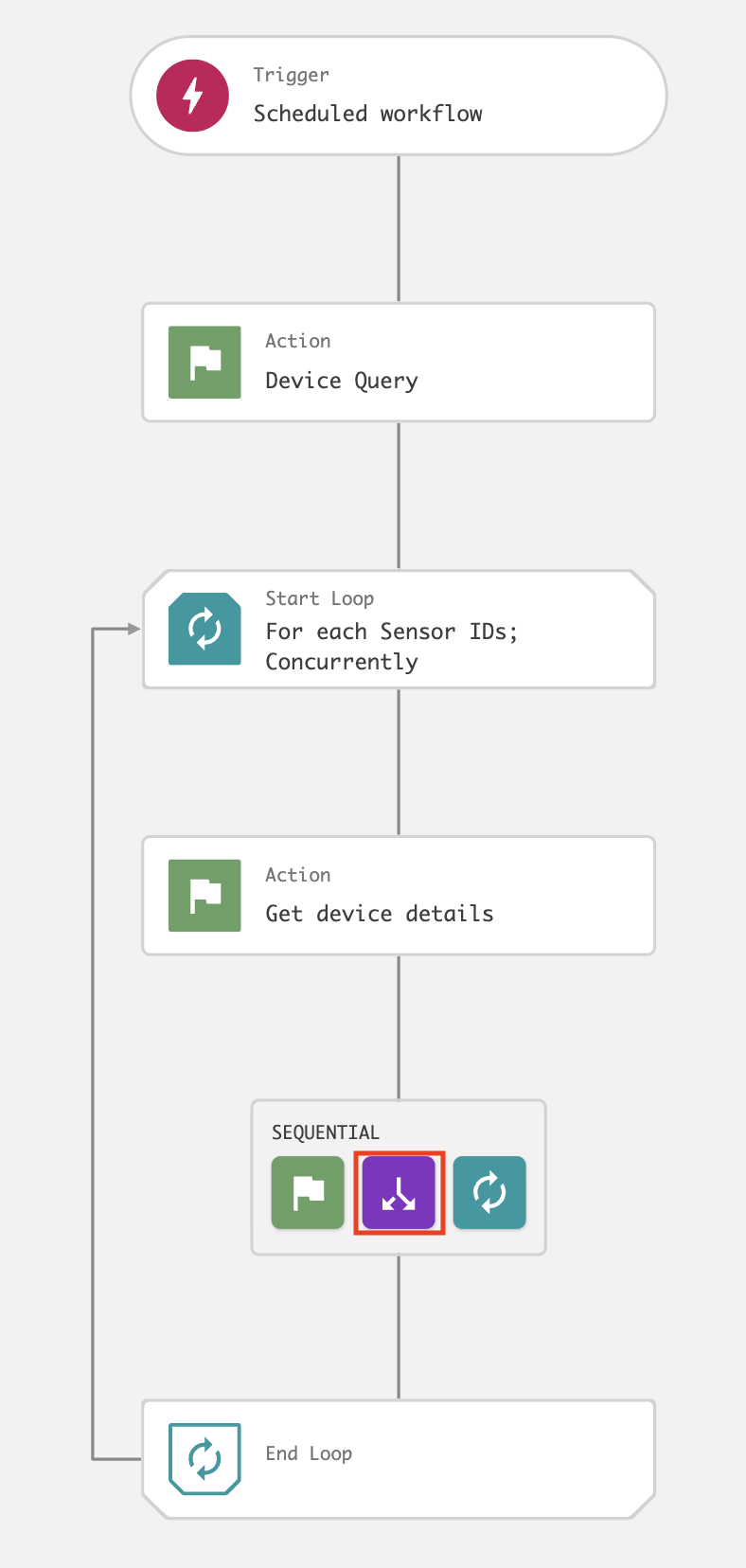
On the workflow builder, add a Condition after Get device details.
-
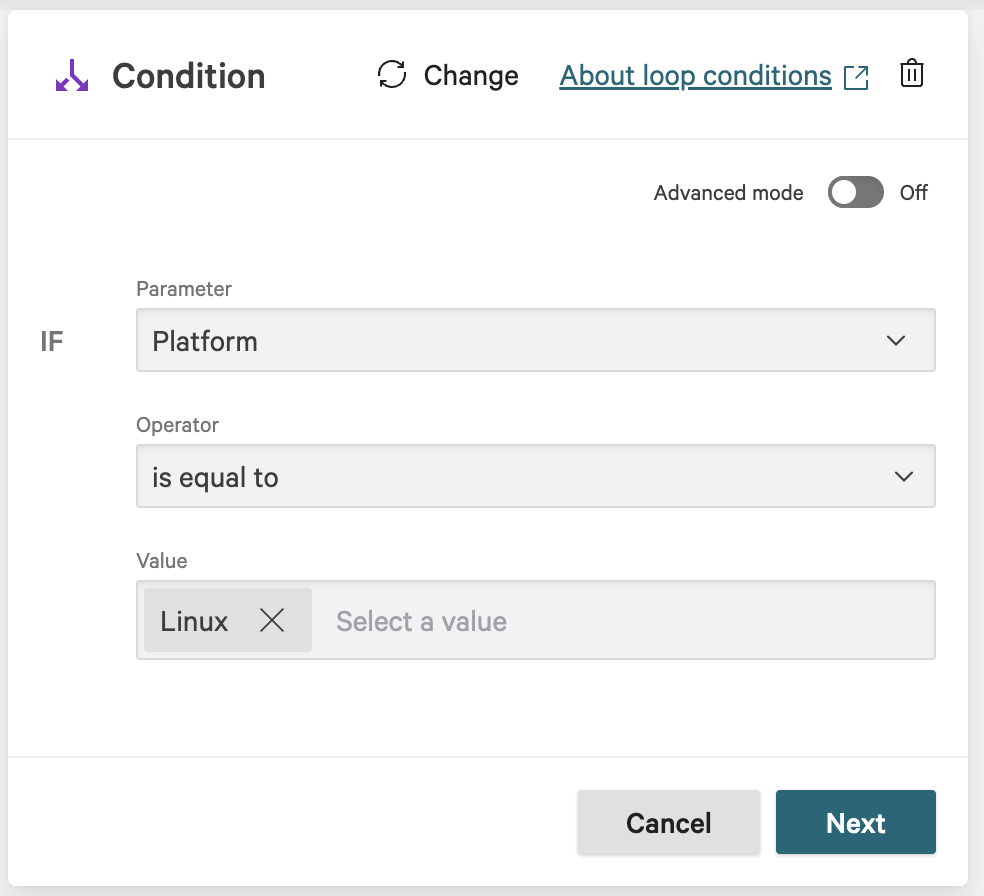
In the Condition dialog, enter the following and click Next:
-
Parameter: Platform
-
Operator: is equal to
-
Value:
<platform>(Windows, Linux, or macOS)
-
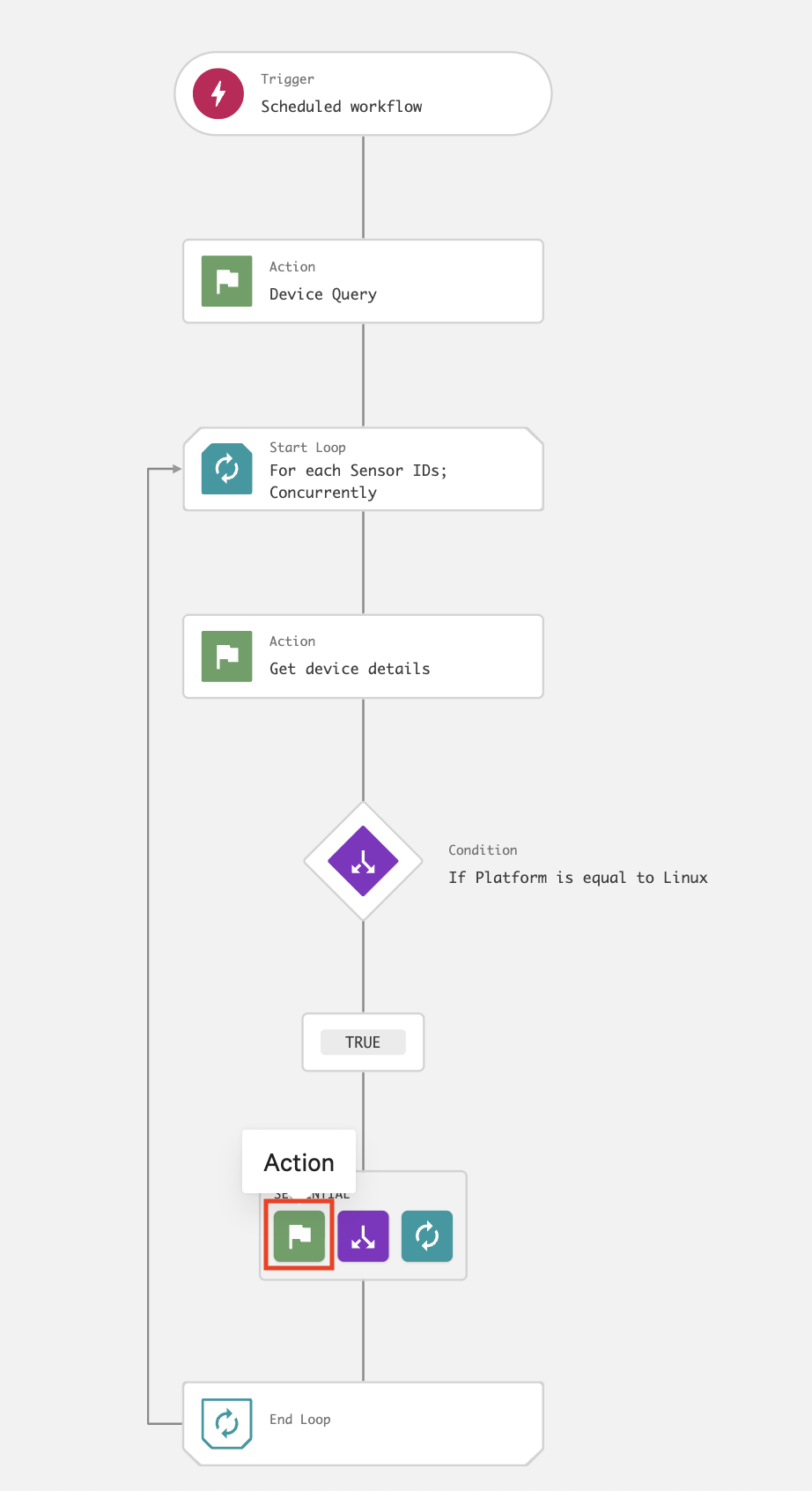
On the workflow builder, add an action under the TRUE branch.
-
In the Add action dialog, search for and select the script
kf-agilesec-check-sensor-zip-<linux|windows>orkf-agilesec-check-sensor-macos.sh. -
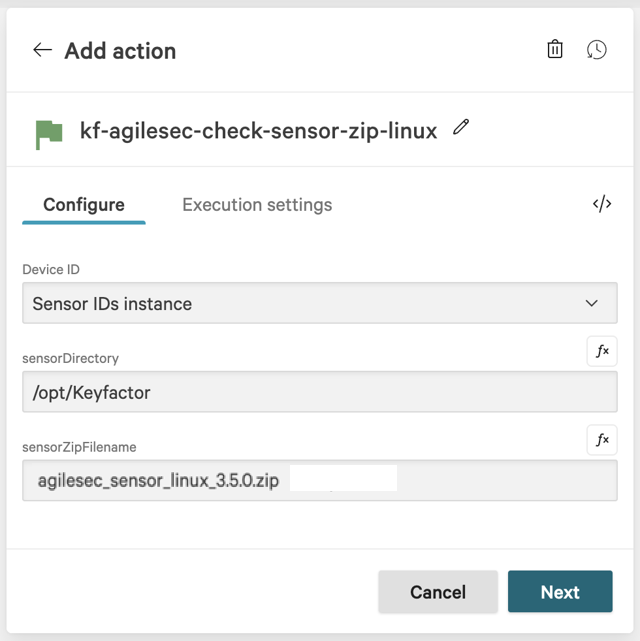
In the action configuration for
kf-agilesec-check-sensor-zip-<platform>, enter the following recommended values and click Next:-
Device ID: Sensor IDs instance
-
sensorDirectory:
-
Linux:
/opt/Keyfactor -
Windows:
C:\Program Files\Keyfactor -
Mac:
/Library/Application Support/Keyfactor
-
-
sensorZipFilename: The specific sensor version to deploy.
If updating sensor versions, ensure this is set to the updated sensor.-
Linux:
agilesec_sensor_linux_<version>.zip -
Windows:
agilesec_sensor_windows_<version>.zip -
Mac:
agilesec_sensor_osx_<version>.pkg
-
-
-
On the workflow builder, add a Condition after action kf-agilesec-check-sensor-zip-<platform>.
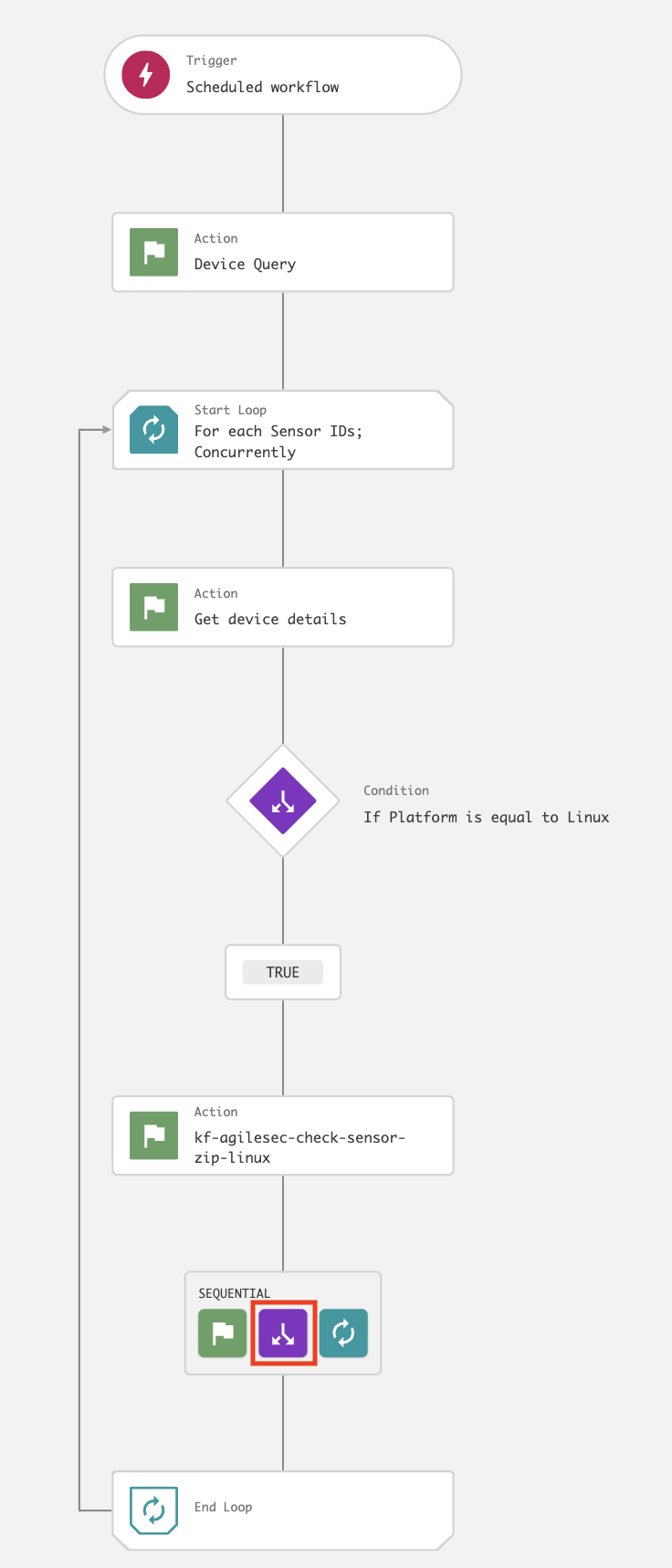
-
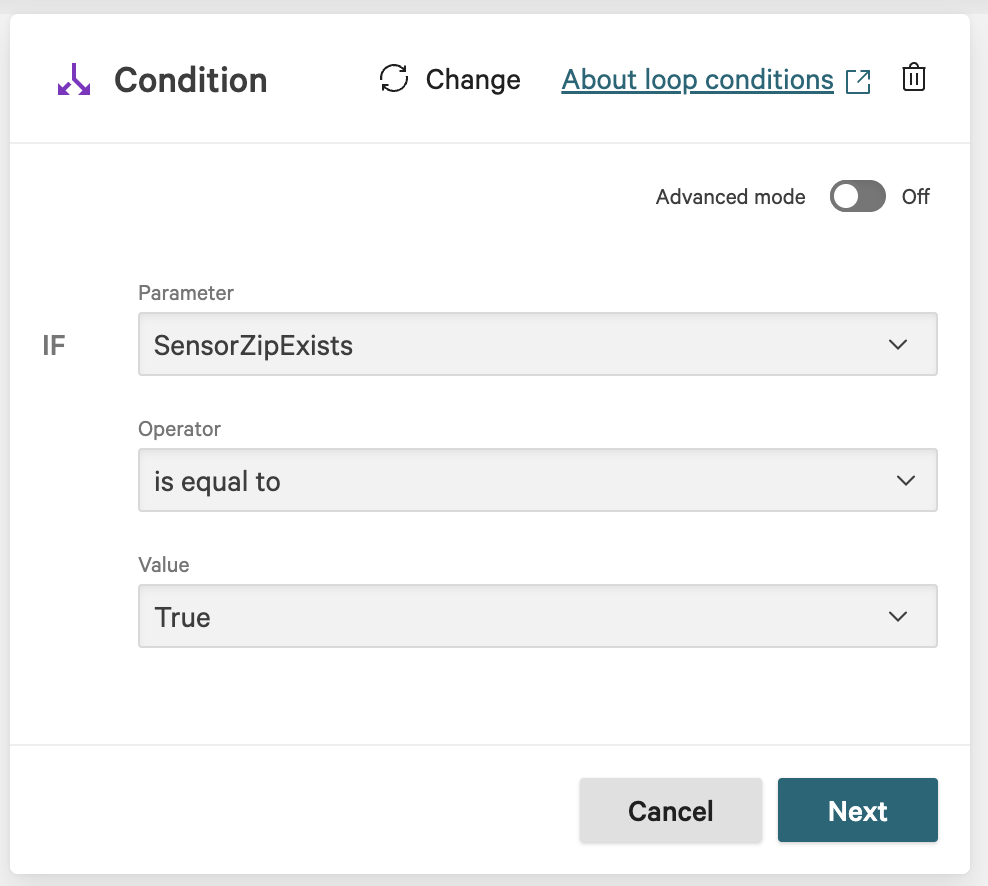
In the Condition dialog, enter the following and click Next:
-
Parameter: SensorZipExists (Linux/Windows) or SensorInstalled (Mac)
-
Operator: is equal to
-
Value: True
-
On the workflow builder, add an action under the
TRUEbranch.
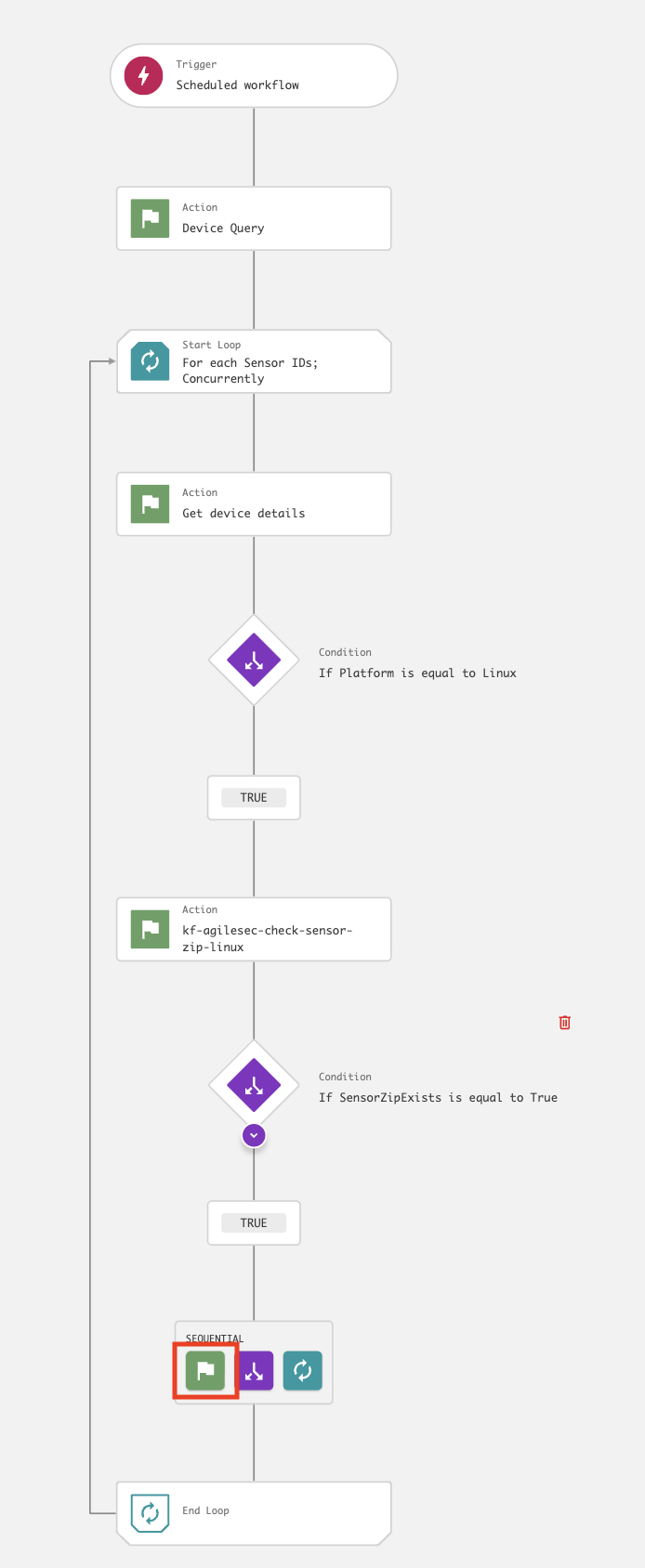
-
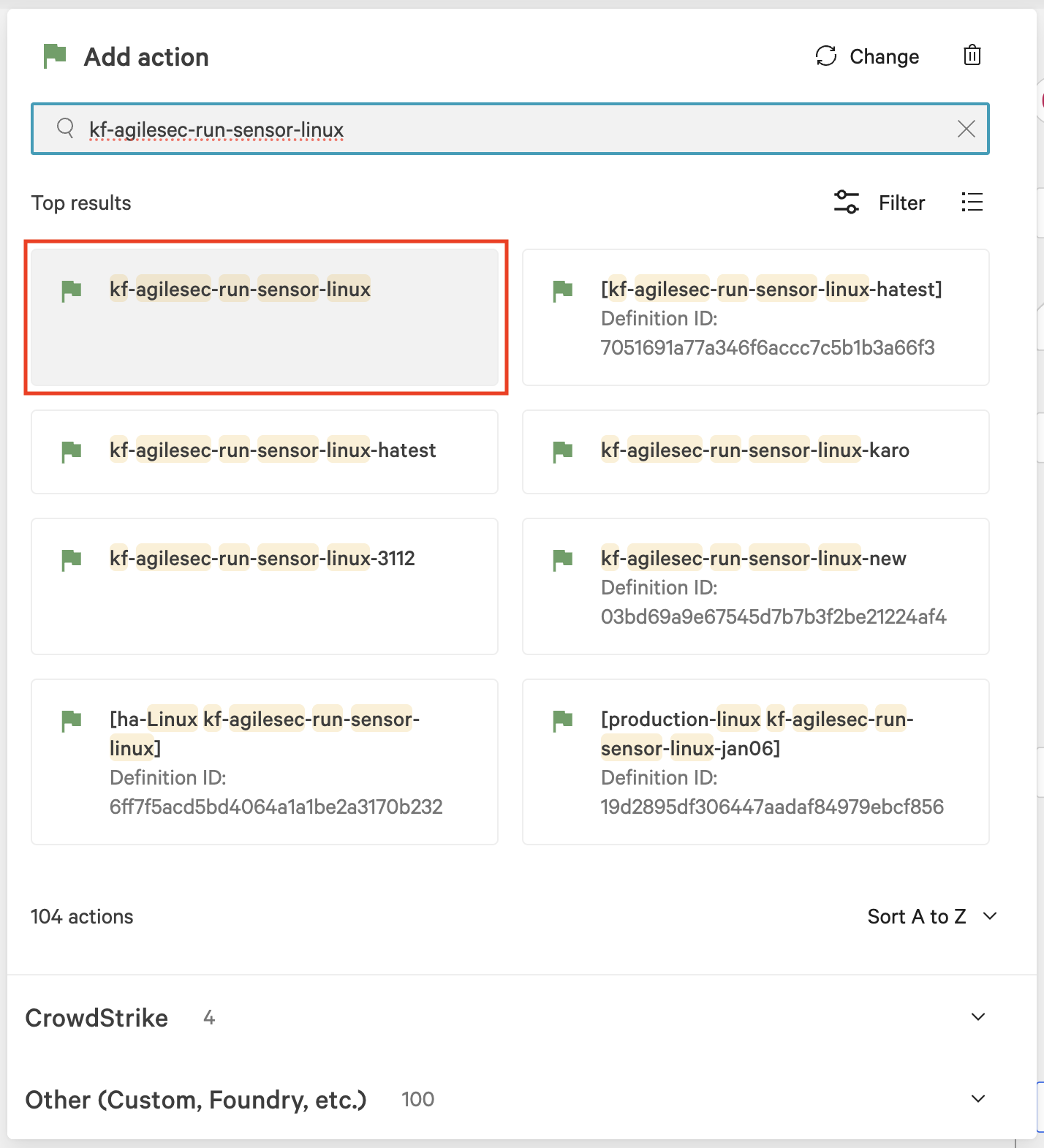
In the Add action dialog, search for and select the script
kf-agilesec-run-sensor-<platform>.
-
In the action configuration for
kf-agilesec-run-sensor-<platform>, enter the following recommended values for your environment:
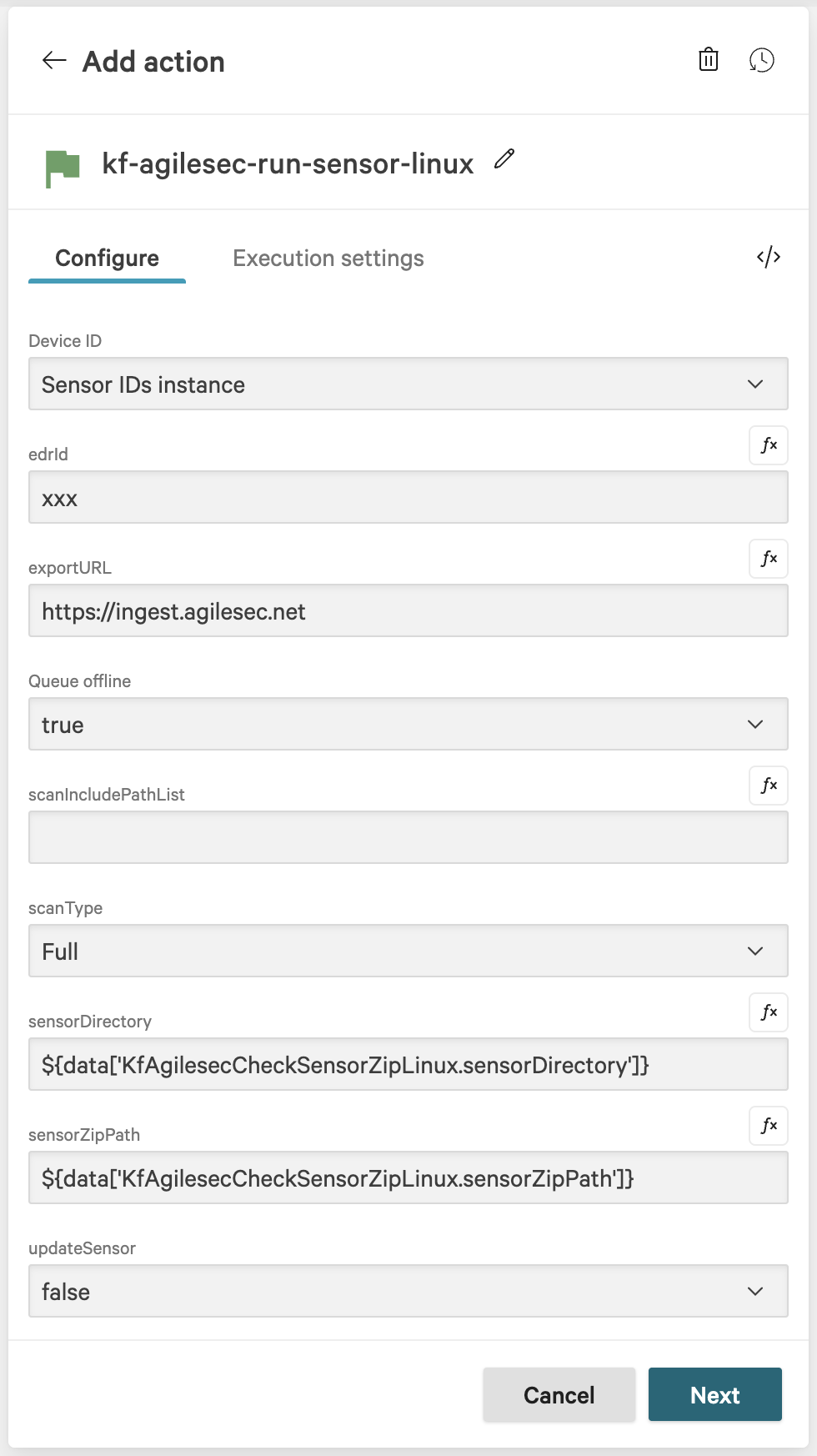
|
Field |
Value |
Description |
|
|
Sensor IDs instance |
Device ID provided by CrowdStrike |
|
|
|
Used to obtain an access token from AgileSec Platform. This access token is used for authenticating with the ingestion service. See Prerequisites. |
|
|
|
External facing AgileSec platform URL.
|
|
|
|
Queues the action when the device is offline. |
|
|
|
Type of scan to perform: Windows/Linux/Mac:
Windows/Linux:
Mac:
|
|
|
|
This parameter is for Linux and Windows only. Sensor install directory. Use the default value to use the output from check sensor zip action. |
|
|
|
This parameter is for Linux and Windows only. Path to the sensor ZIP. Use the default value |
|
|
|
This parameter is for Mac only. Path to the sensor package. |
|
|
|
When set to When set to
|
-
On the workflow builder, add an action under the
ELSEbranch forsensorZipExists.
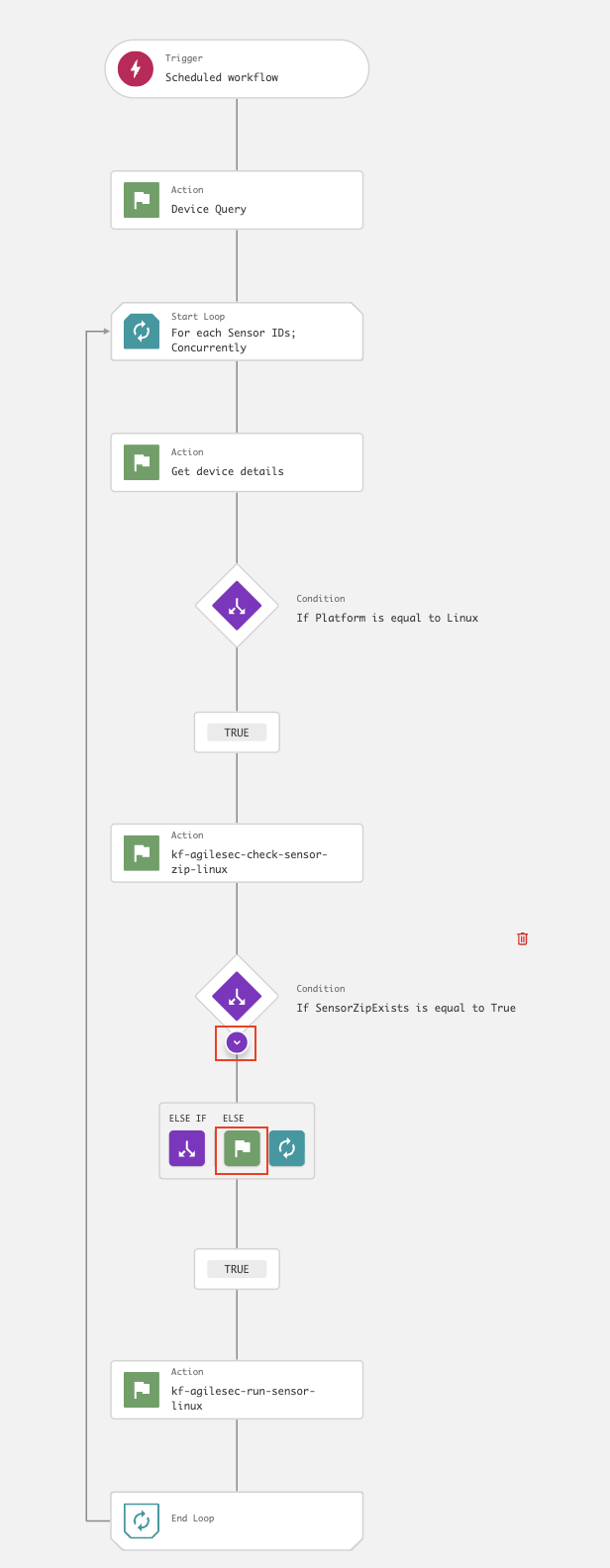
-
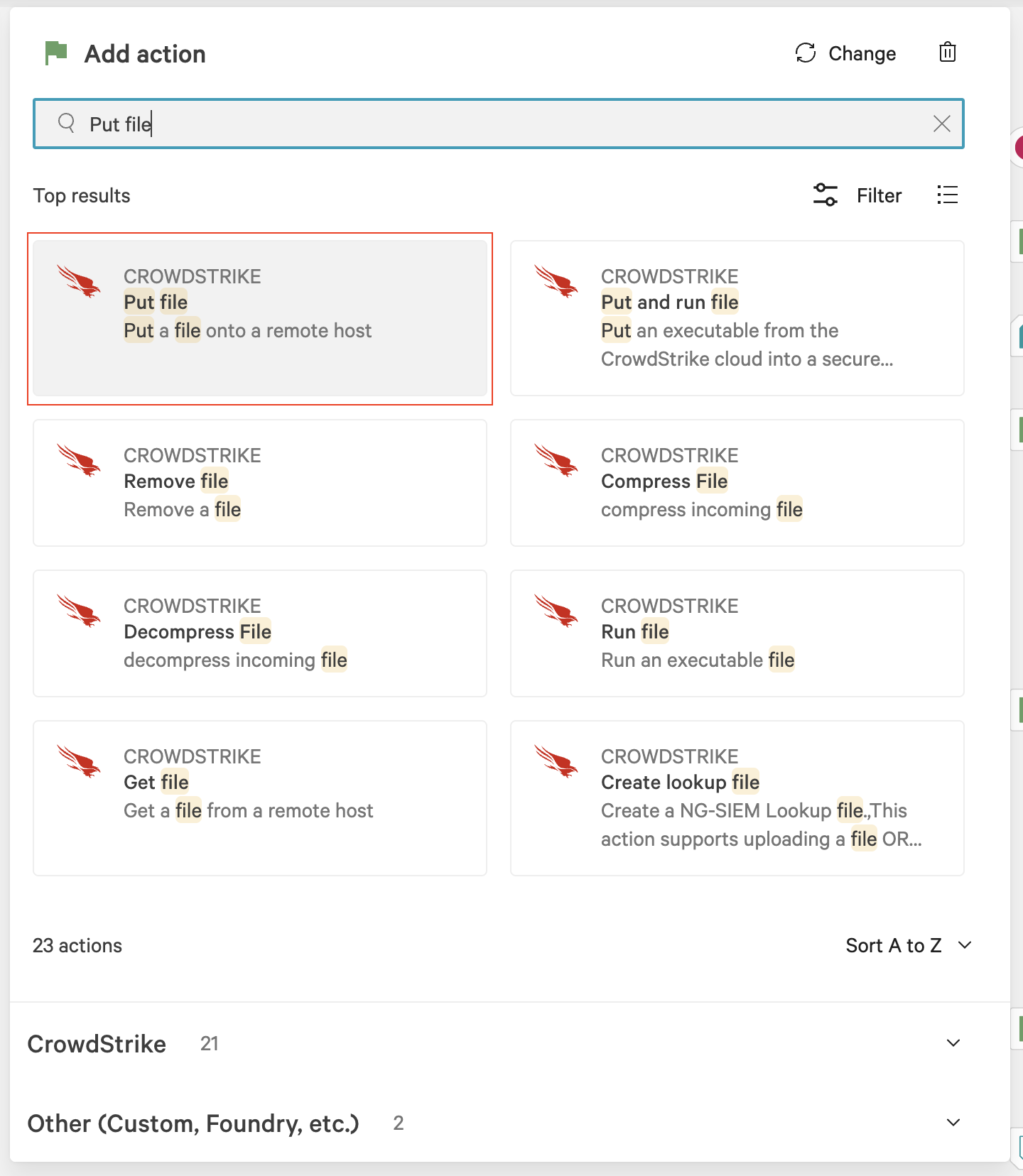
In the Add action dialog, search for and select Put file.
-
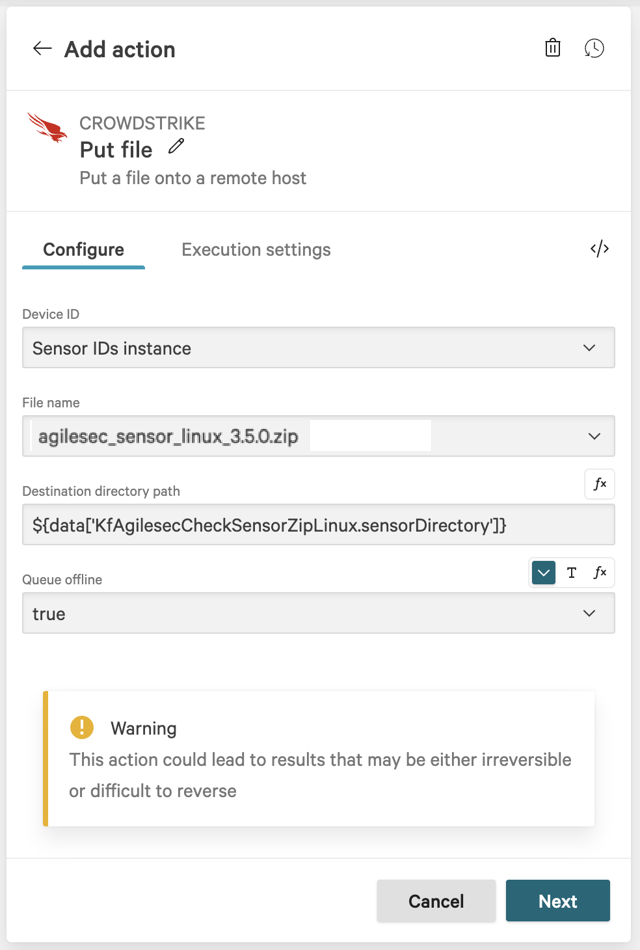
In the Put file dialog, enter the following values and click Next:
-
Device Id:
Sensor IDs instance -
File name: The specific sensor version to deploy.
If updating sensor versions, ensure this is set to the updated sensor.-
For Linux:
agilesec_sensor_linux_<version>.zip -
For Windows:
agilesec_sensor_windows_<version>.zip -
For macOS:
agilesec_sensor_osx_<version>.pkg
-
-
Destination directory path:
-
For Linux:
${data['KfAgilesecCheckSensorZipLinux.sensorDirectory']} -
For Windows:
${data['KfAgilesecCheckSensorZipWindows.sensorDirectory']} -
For macOS:
/Library/Application Support/Keyfactor
-
-
Queue offline:
true
-
On the workflow builder, add action
kf-agilesec-run-sensor-<platform>(same as Step 18) under the Put file. -
Configure the action
kf-agilesec-run-sensor-<platform>.-
IMPORTANT: Set
updateSensortotrue. -
All other parameters should match Step 19’s
kf-agilesec-run-sensor-<platform>action.
-
-
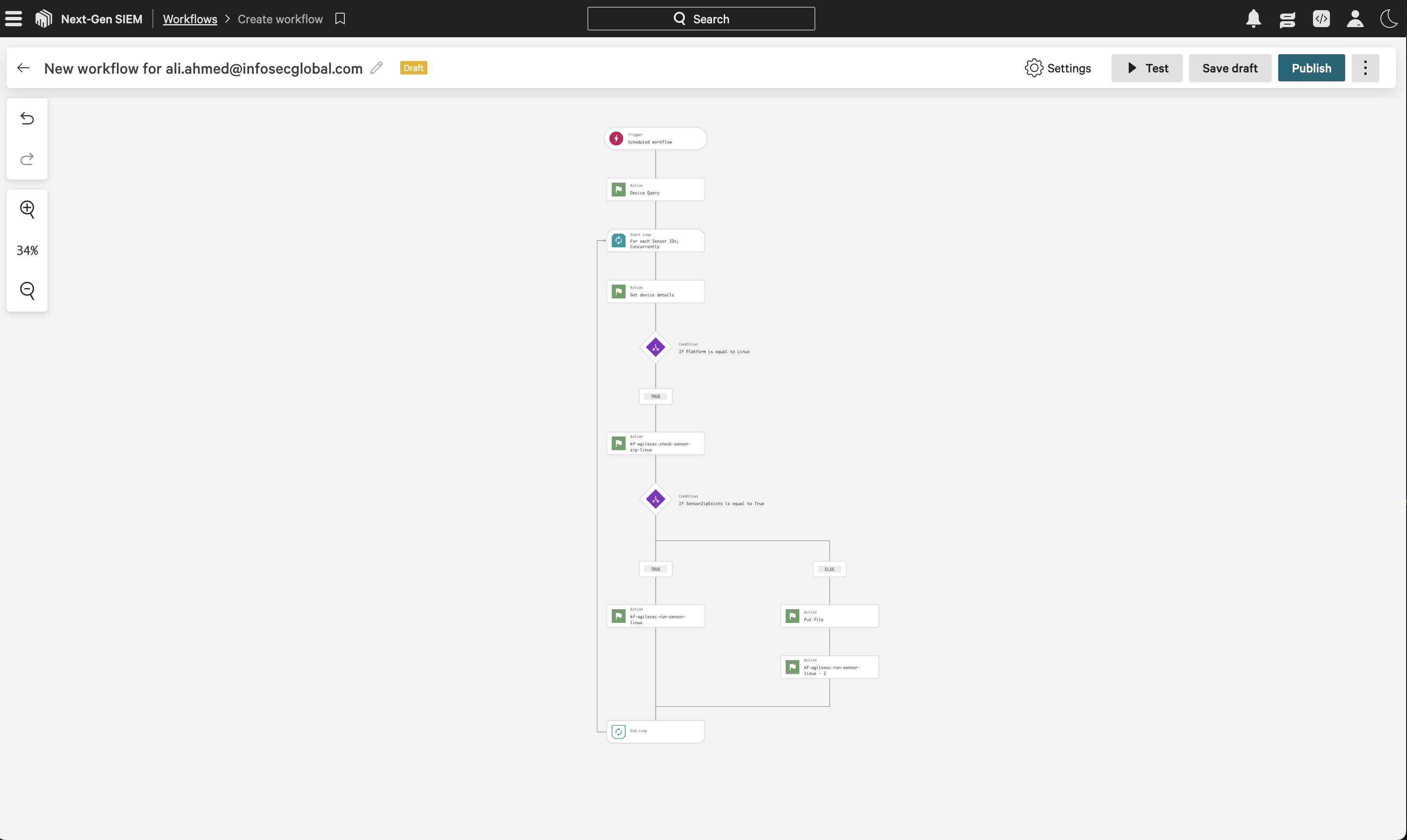
The workflow is now complete and should resemble the following:
-
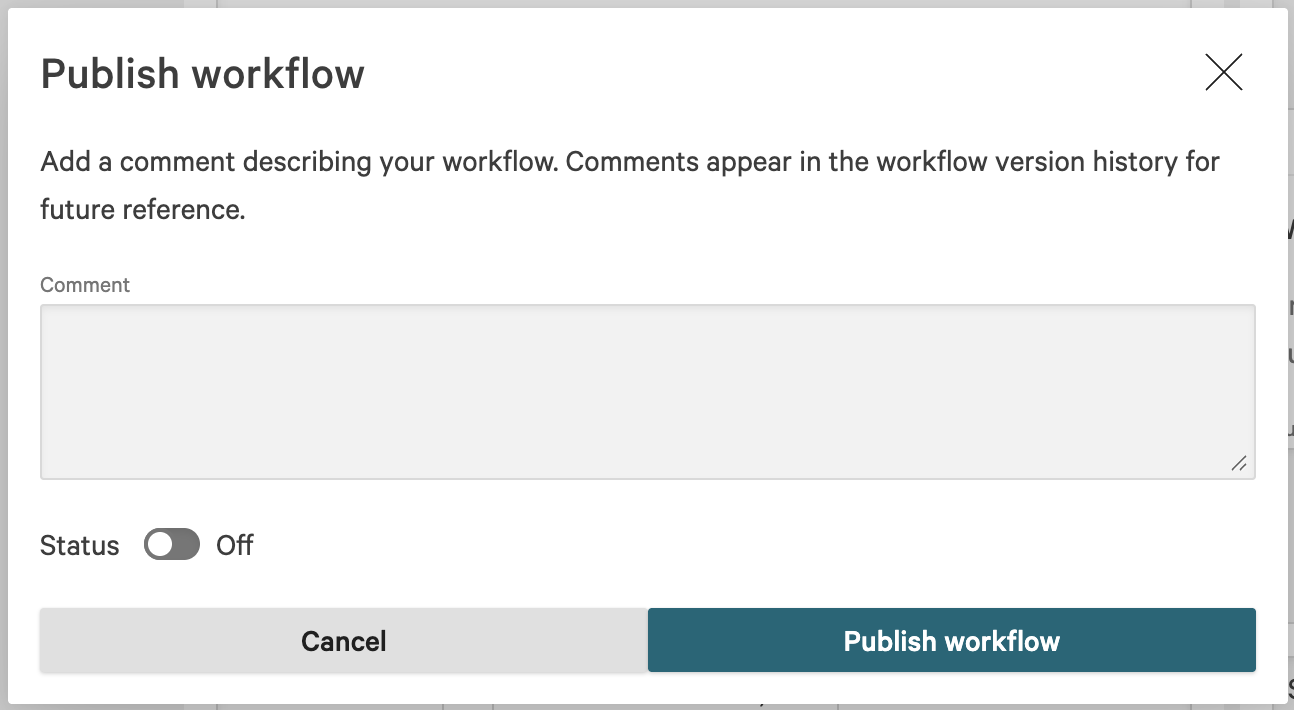
Click Publish, then in the Publish workflow dialog click Publish workflow. Toggle Status to On now to activate the workflow. Workflow activation may also be postponed until later.
Step 5: Execute Workflow to Run Host Scan Sensor
-
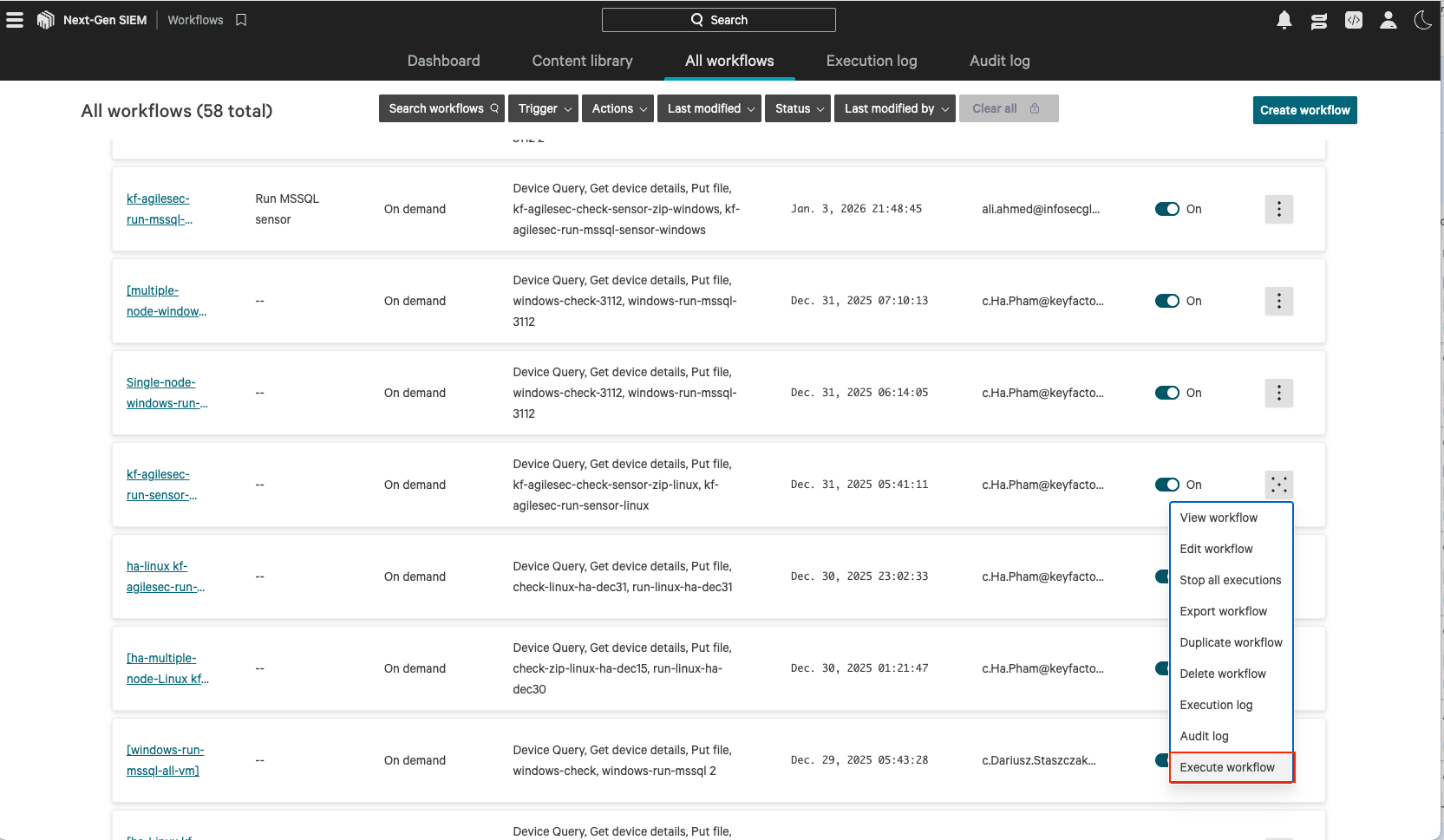
If your workflow trigger is on-demand, execute the workflow to test the sensor.
-
If your workflow trigger is scheduled, wait for the configured interval for the sensor to run.
-
Check the scan output data on AgileSec Platform UI
-
A host sensor scan is initiated on all machines included in “Device Query” action.
-
Findings found by the scan are exported to the ingestion service.
-
View scan history and results on the Keyfactor AgileSec Platform UI
-
Step 6: Workflow To Undeploy Sensor
The un-deployment workflow cleanly removes the deployed sensor components and associated execution artifacts from the endpoint.
Follow the same instruction used to create the "Run host sensor" workflow, with the following changes:
-
In the Add trigger dialog, select On-demand instead of Scheduled.
-
On the true branch of the sensorZipExists (Windows/Linux) or SensorInstalled (Mac) condition:
-
Linux: add action
kf-agilesec-undeploy-sensor-linux -
Windows: add action
kf-agilesec-undeploy-sensor-windows -
Mac: add action
kf-agilesec-undeploy-sensor-osx
-
-
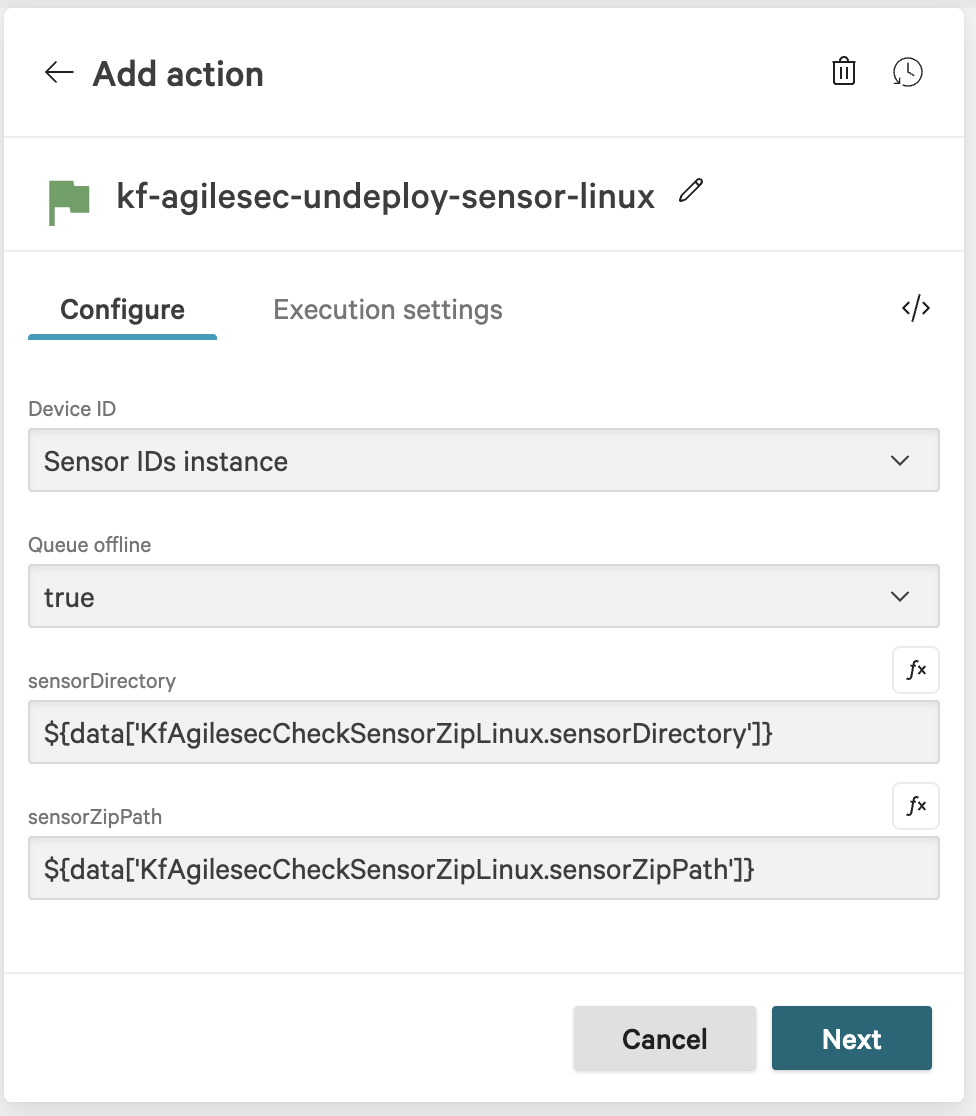
In the action configuration, enter the following recommended values for your environment:
-
Device Id:
Sensor IDs instance -
Queue Offline:
true -
sensorDirectory:
-
Linux:
${data['KfAgilesecCheckSensorZipLinux.sensorDirectory']} -
Windows:
${data['KfAgilesecCheckSensorZipWindows.sensorDirectory']}
-
-
sensorZipPath:
-
Linux:
${data['KfAgilesecCheckSensorZipLinux.sensorZipPath']} -
Windows:
${data['KfAgilesecCheckSensorZipWindows.sensorZipPath']} -
Mac:
/Library/Application Support/Keyfactor
-
-
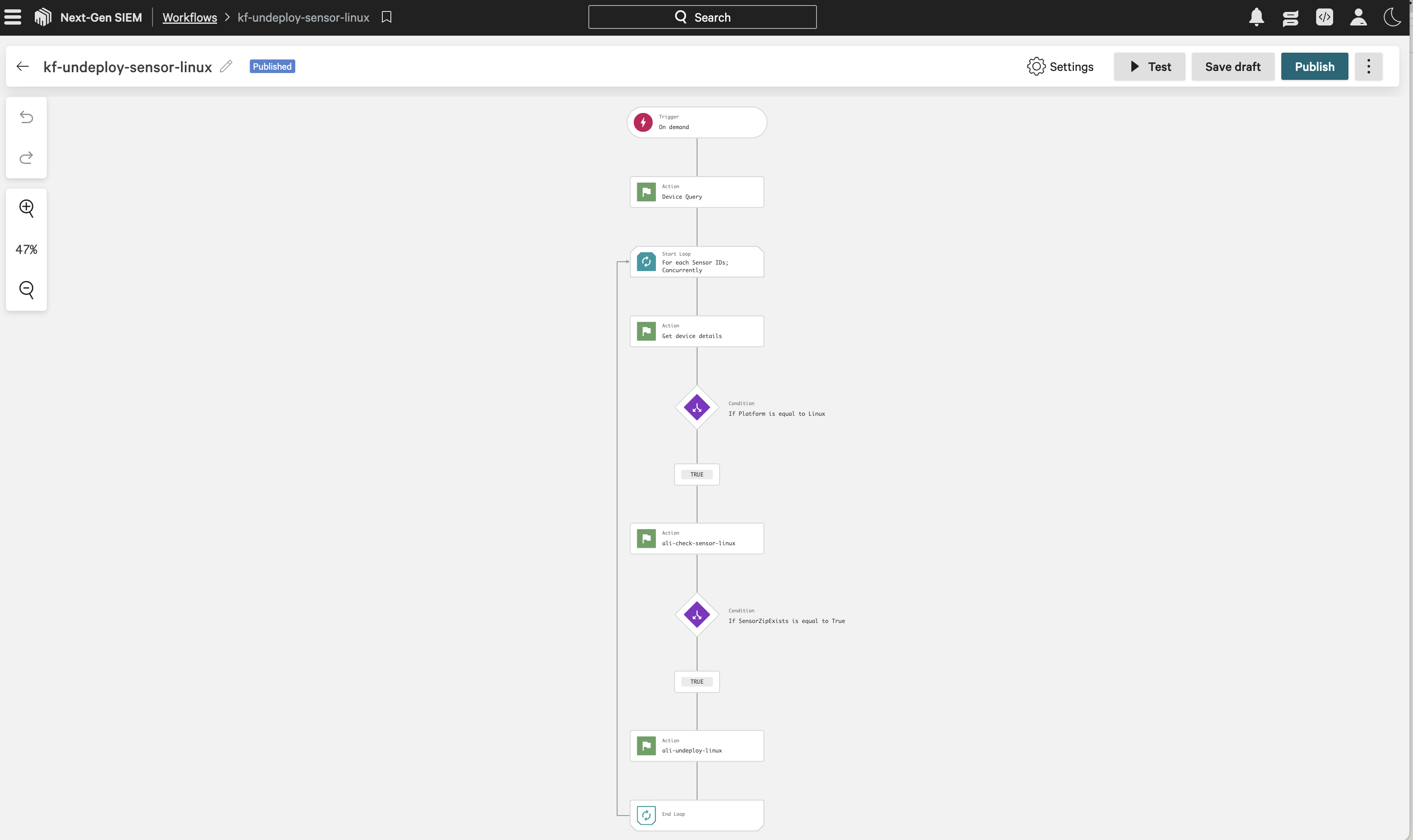
The undeploy sensor workflow should resemble the following:
Step 7: Deploy New Sensor Package
When a new version of the sensor package is released, follow these steps to uninstall the existing sensor and deploy the new version:
-
In the Run Host Sensor workflow, check the following:
-
For Windows/Linux: Ensure the
kf-agilesec-check-sensor-zip-<platform>action sensorZipFilename and the Put File’s File name are both set to the updated sensor version. -
For Mac: Ensure the
kf-agilesec-check-sensor-maosaction sensorPkgFilename and the Put File’s File name are both set to the updated sensor version. -
Ensure the
kf-agilesec-run-sensor-<platform>action under the Else hasupdateSensorset totrue.
-
-
Execute the "Run Host Sensor" workflow to install the new version.