.png)
This guide explains how Role-Based Access Control (RBAC) and permissions work in AgileSecPlatform, including platform roles and their capabilities, and how to configure granular access control in OpenSearch. It helps ensure users have appropriate access to platform features and data based on their responsibilities.
1. Introduction
This guide provides information about Role-Based Access Control (RBAC) and permissions management in AgileSecPlatform. It covers platform roles, their capabilities, and how to configure granular permissions in OpenSearch for advanced access control.
AgileSecPlatform implements RBAC to ensure users have appropriate access to features and data based on their organizational responsibilities. The platform provides fixed roles for platform operations, while OpenSearch offers flexible permission management for data access control.
For information about creating and managing user accounts, see User Management and Authentication Guide.
2. Platform Roles
AgileSecPlatform provides three predefined roles that control user access to platform features and capabilities. These roles cannot be customized, but they can be supplemented with OpenSearch-specific permissions for granular data access control.
2.1 Platform Administrator
The Platform Admin user has complete control over the entire platform.
What this role can do:
Platform Management:
-
Manage global analytics profiles and policies
-
Configure EDR (Endpoint Detection and Response) settings
User Management:
-
View, edit, and delete any user account across the system
-
Invite new users to any organization and resend invitations, including platform (privileged) users
-
Assign roles to users
Organization Settings:
-
Configure organization authentication options (SAML 2.0 SSO)
-
Manage API access tokens and API callback endpoints
-
Set up third-party integrations
Analytics & Analysis:
-
Full Access: View, search, and analyze all data within the organization's scope
-
Dashboard Management (OpenSearch Dashboards): Create, edit, and delete dashboards and visualizations
-
Reporting: Generate and download reports
-
Analysis Policy Management: Manually sync or resync a profile, set a specific policy profile as the active one for the organization, and configure profile policy configurable variables
2.2 Admin (Organization Administrator)
The Admin user has complete control over the organization except for platform operations.
What this role can do:
User Management:
-
View, edit, and delete any user account within the organization
-
Invite new users to the organization and resend invitations
Organization Settings:
-
Configure organization authentication options (SAML 2.0 SSO)
-
Manage API access tokens and API callback endpoints
-
Set up third-party integrations
Analytics & Analysis:
-
Full Access: View, search, and analyze all data within the organization's scope
-
Dashboard Management (OpenSearch Dashboards): Create, edit, and delete dashboards and visualizations
-
Reporting: Generate and download reports
-
Analysis Policy Management: Manually sync or resync a profile, set a specific policy profile as the active one for the organization, and configure profile policy configurable variables
What this role cannot do:
-
Cannot invite platform users or grant platform access to another user
-
Cannot perform platform management operations
2.3 User (Standard User)
The User role is designed for general access to AgileSecPlatform features without administrative privileges.
What this role can do:
-
Manage own profile (e.g., change password)
-
Scans: Configure and run scans, view sensor data
-
Read-Only Access: View dashboards, visualizations, and analysis reports
-
Data Visibility: Browse analysis results by source or filter
What this role cannot do:
-
Cannot manage other users or invite new members
-
Cannot change organization settings
-
Cannot access or modify API tokens
-
Cannot create or modify OpenSearch dashboards or visualizations
3. Role Comparison Matrix
|
Capability |
Platform Admin |
Admin (Org Admin) |
User |
|---|---|---|---|
|
Platform management |
✓ |
✗ |
✗ |
|
User management (all orgs) |
✓ |
✗ |
✗ |
|
User management (own org) |
✓ |
✓ |
✗ |
|
Invite platform users |
✓ |
✗ |
✗ |
|
Organization settings |
✓ |
✓ |
✗ |
|
API token management |
✓ |
✓ |
✗ |
|
Third-party integrations |
✓ |
✓ |
✗ |
|
View all data |
✓ |
✓ |
✓ |
|
Create/edit dashboards |
✓ |
✓ |
✗ |
|
Generate reports |
✓ |
✓ |
✗ |
|
Configure scans |
✓ |
✓ |
✓ |
|
View dashboards |
✓ |
✓ |
✓ |
4. OpenSearch Permissions Management
While platform roles control access to AgileSecPlatform features, OpenSearch allows for more granular permission management through internal roles and users. This enables advanced access control scenarios such as index-level, document-level, and field-level security.
When to Use OpenSearch Internal Roles
Create internal OpenSearch roles and users when you need:
-
Read-only dashboard access without the ability to modify visualizations
-
Custom dashboard editing permissions for specific users
-
Index-level access control to restrict access to specific data indexes
-
Document-level security to filter which documents users can see
-
Field-level security to hide sensitive fields from certain users
-
Direct OpenSearch API access with specific permissions
Accessing OpenSearch Security Settings
To manage OpenSearch roles and users:
-
Log directly into OpenSearch using URL:
https://<agilesec-platform-url>/osdashboards -
Use
adminuser and password. Unless changes, it should be the admin password set during installation. -
Press cancel on Select your tenant.
-
Go to Management → Security in the left navigation menu
-
Select either Roles or Internal Users depending on your task
5. Creating Internal OpenSearch Roles and Users
5.1 Creating a Read-Only User
Read-only users can view data through dashboards but cannot modify visualizations.
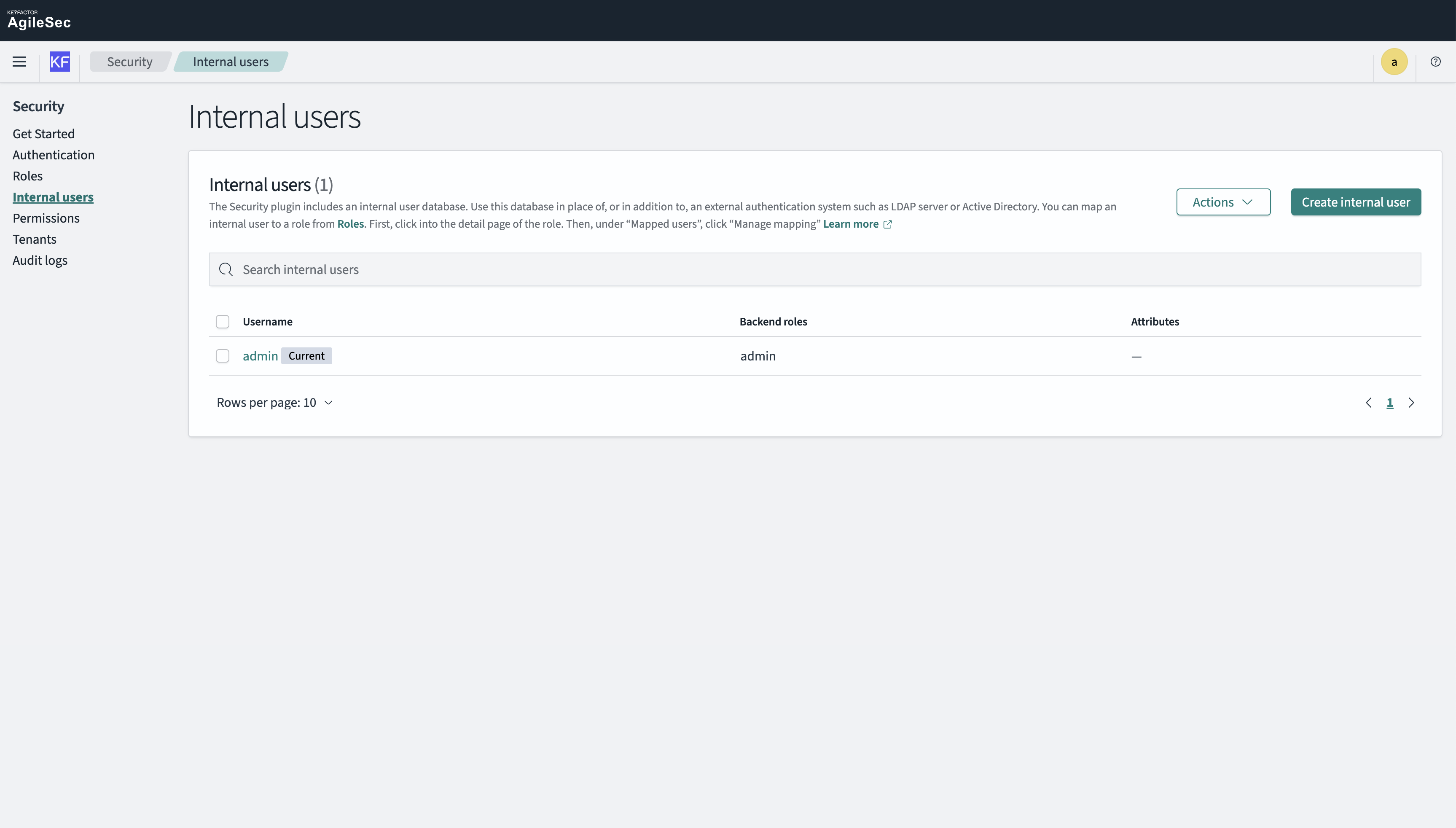
Step 1: Go to Security > Internal Users
Navigate to Security → Internal Users using an admin account.
Step 2: Create a New Internal User
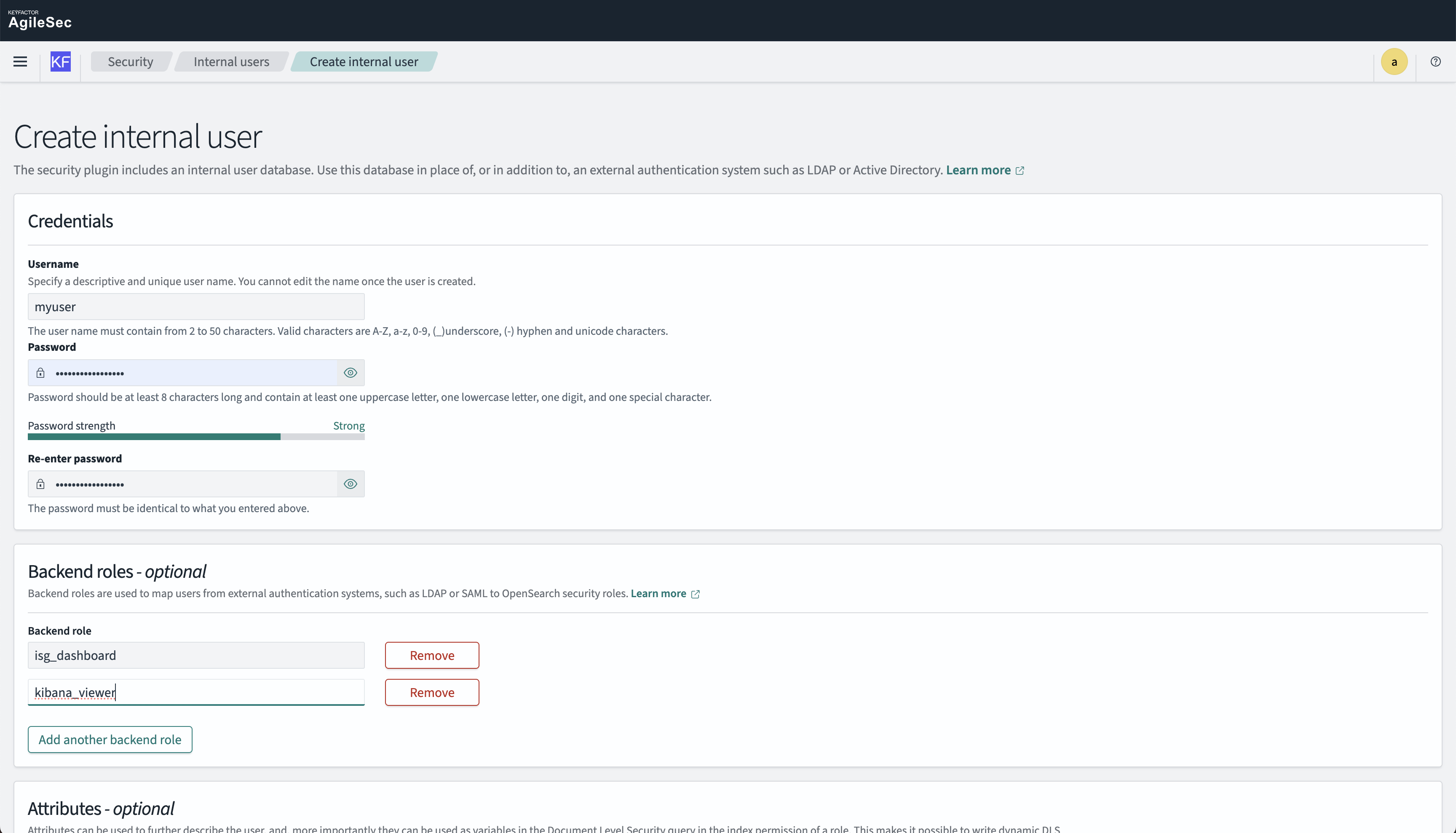
Click "Create Internal User" and perform the following actions:
-
Set Username
-
Set Password
-
Set Backend roles → Grant predefined roles to the user:
-
isg_dashboard→ Specific role to allow only access to ISG data -
kibana_viewer→ Specific role to only display the dashboard menu
-
-
Click "Create"
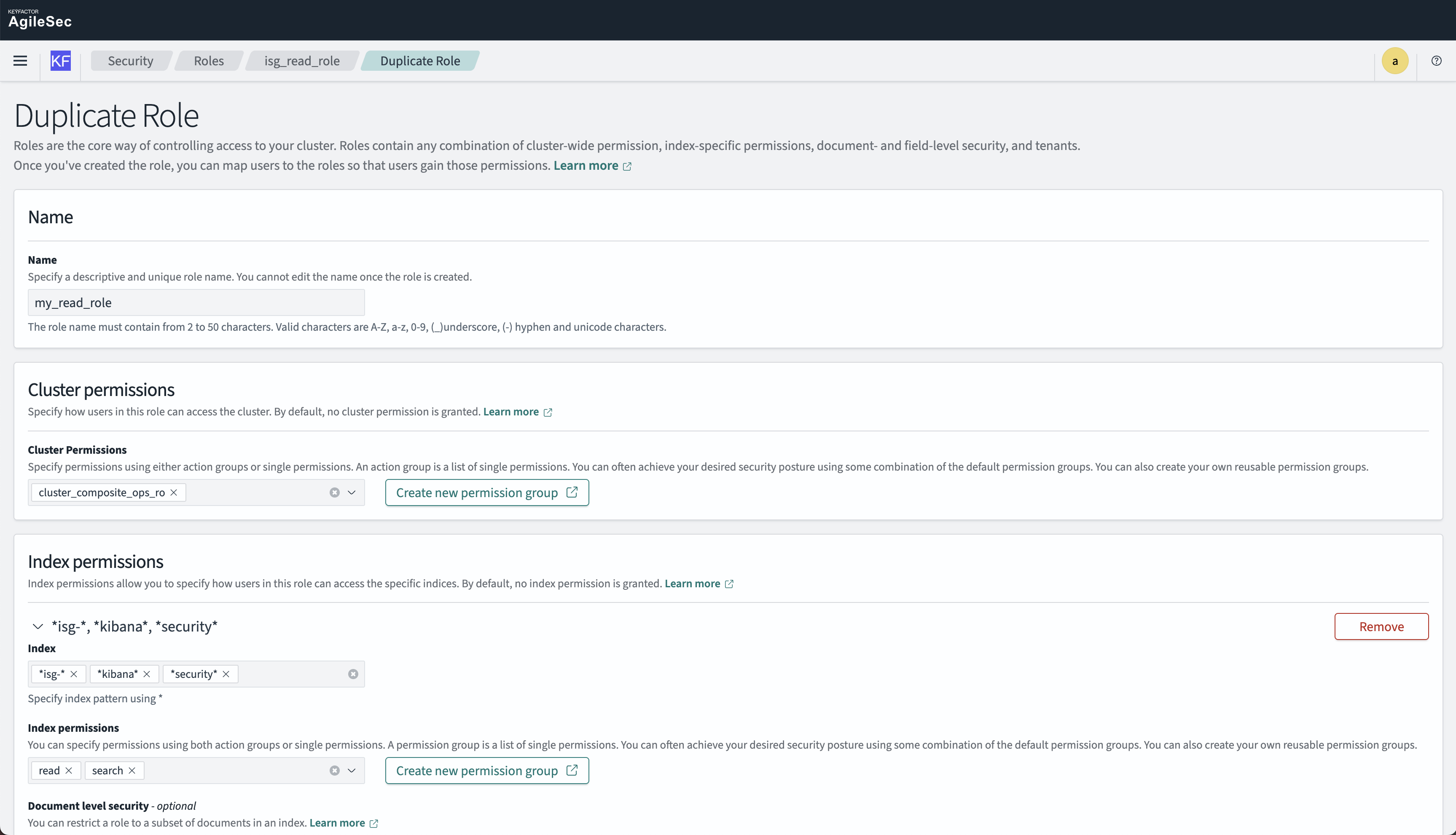
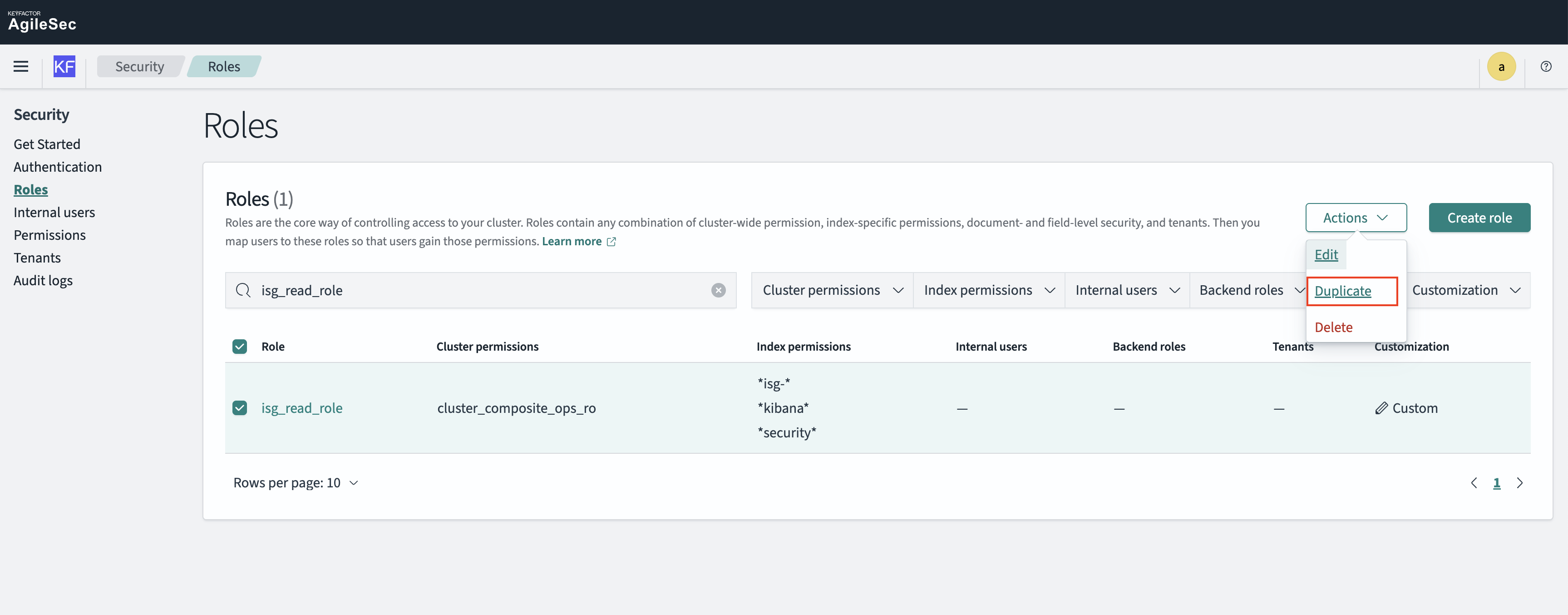
Step 3: Duplicate isg_read_role
-
Go to Security → Roles
-
Find isg_read_role
-
Click Actions → Duplicate
-
Give it a new name (e.g.,
<org_name>_read_role)
-
Scroll down to the Tenant permissions section
-
Select Tenant for your organization.
-
Select Read only permission
-
Click Create

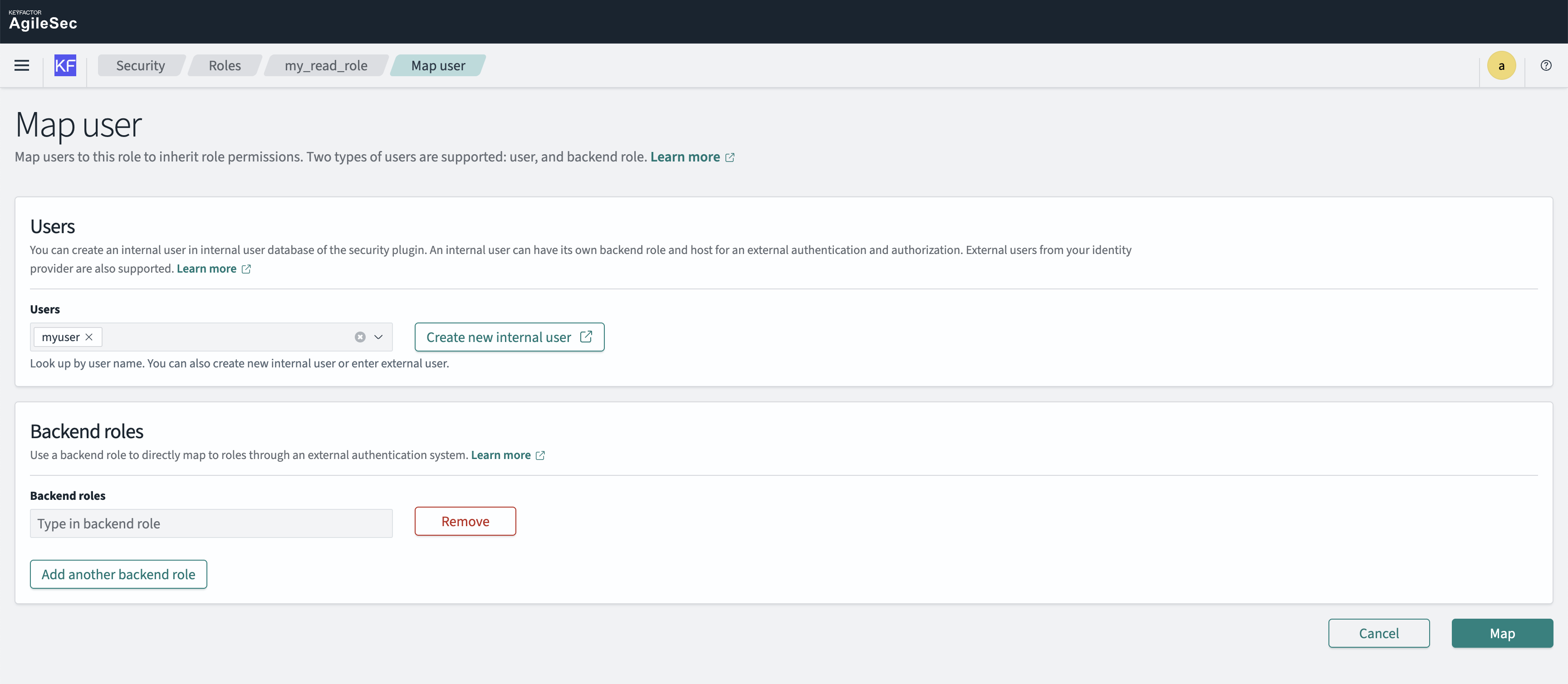
Step 4: Map User to the New Role
-
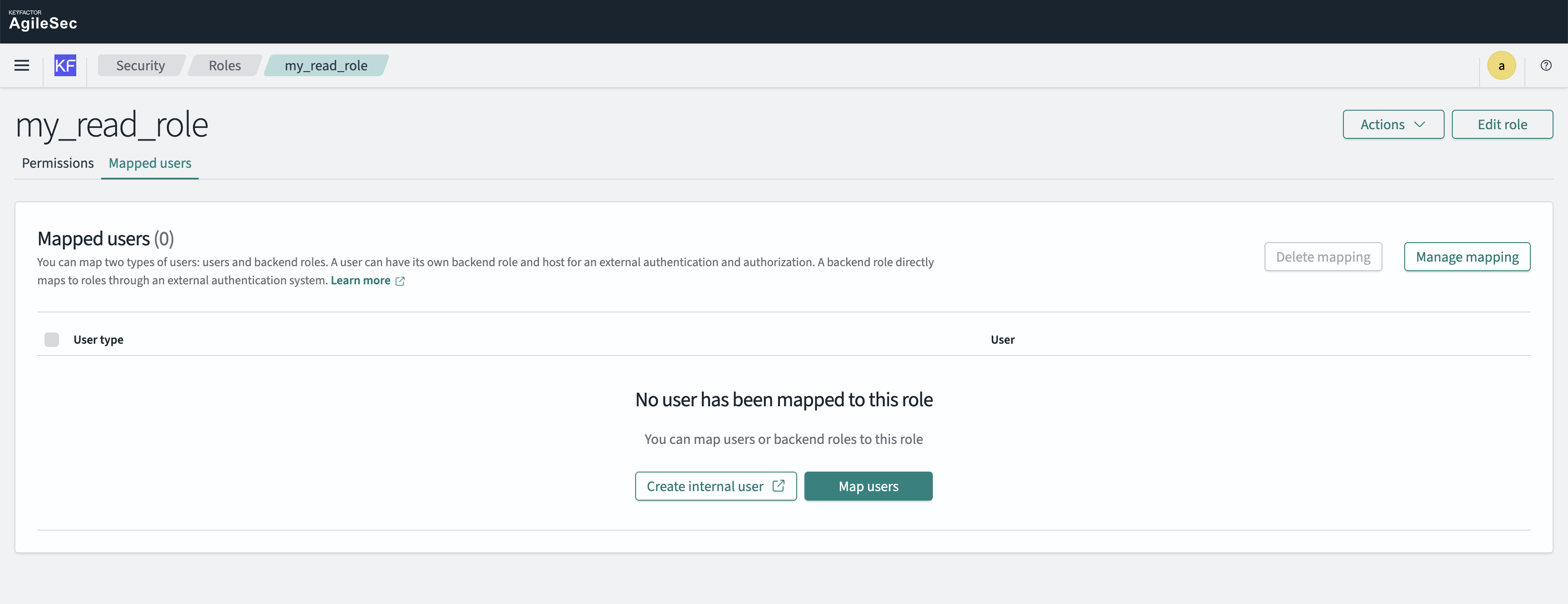
While still in the duplicated role, click the Mapped users tab
-
Click Map Users
-
Under Users, select your newly created username
-
Click Map
Step 3: Test User
-
Go directly to OpenSearch URL:
https://<agilesec-platform-url>/osdashboards -
Log in with the new user credentials. The read-only user should only have access to the Dashboard menu and predefined visualizations.
5.2 Creating a Custom Role for Dashboard Modification
Custom roles enable users to create and modify visualizations while maintaining appropriate access controls.
Step 1: Go to Security > Roles
Navigate to Security → Roles using an admin account.
Step 2: Duplicate Existing Role
Open the isg_read_role role and duplicate it, as it contains predefined permissions that will be reused.
Step 3: Create Custom Role
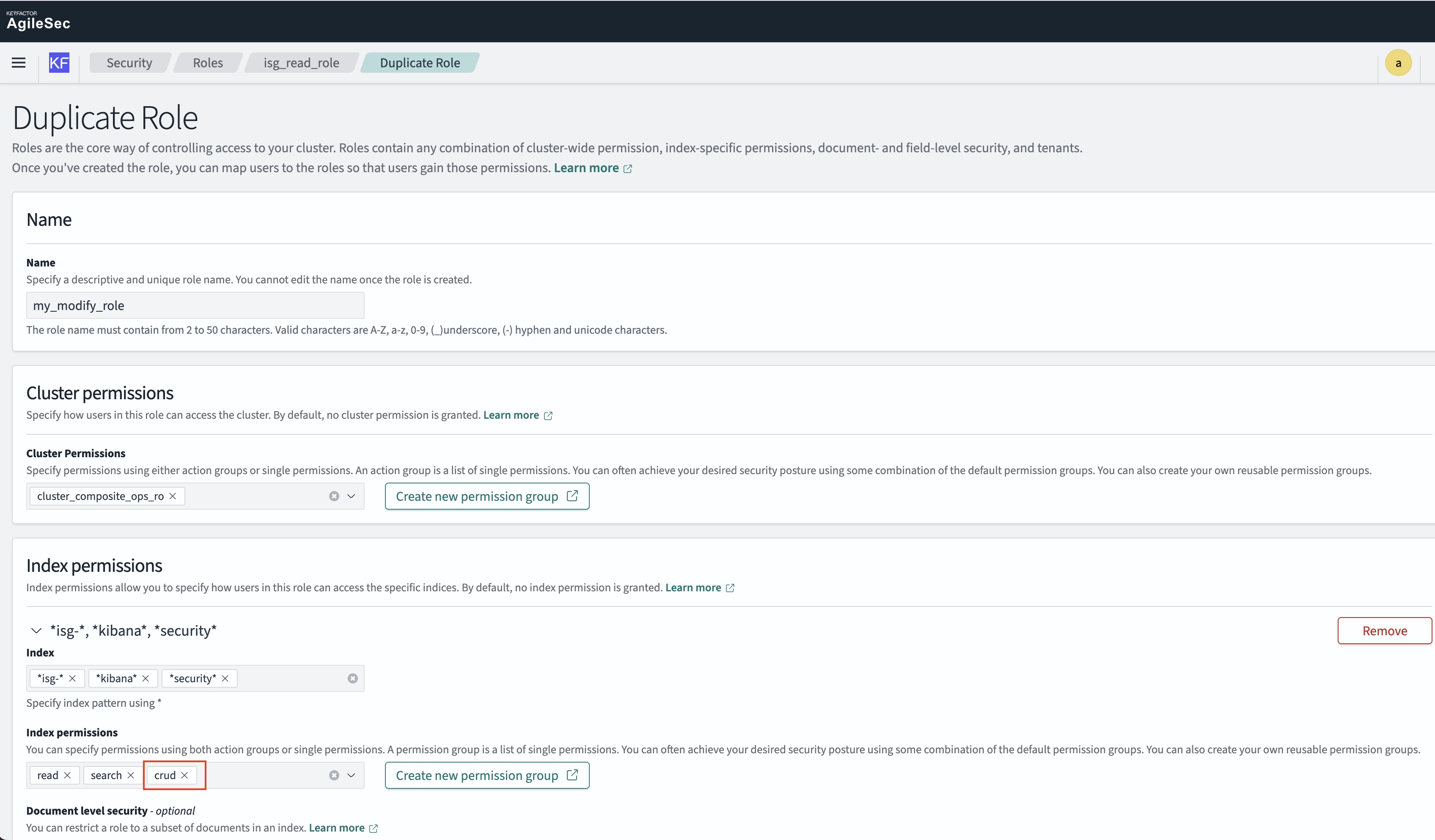
Perform the following changes to create isg_modify_role:
Name: Change to isg_modify_role or different name
Cluster permissions: No change
Index permissions:
-
Indexes:
isg-*,*kibana*,*security*(no change) -
Index permissions: Add
crudpermission for create, read, update, and delete rights on dashboards -
Document level security: No changes
-
Field Level Security: No changes
-
Anonymization: No changes
Tenant Permissions:
-
Tenant: Select your organization tenant (e.g.,
kf-agilesec.com) for organization-specific dashboards, orglobal_tenantfor system-wide dashboards -
Permission: Select Read and Write

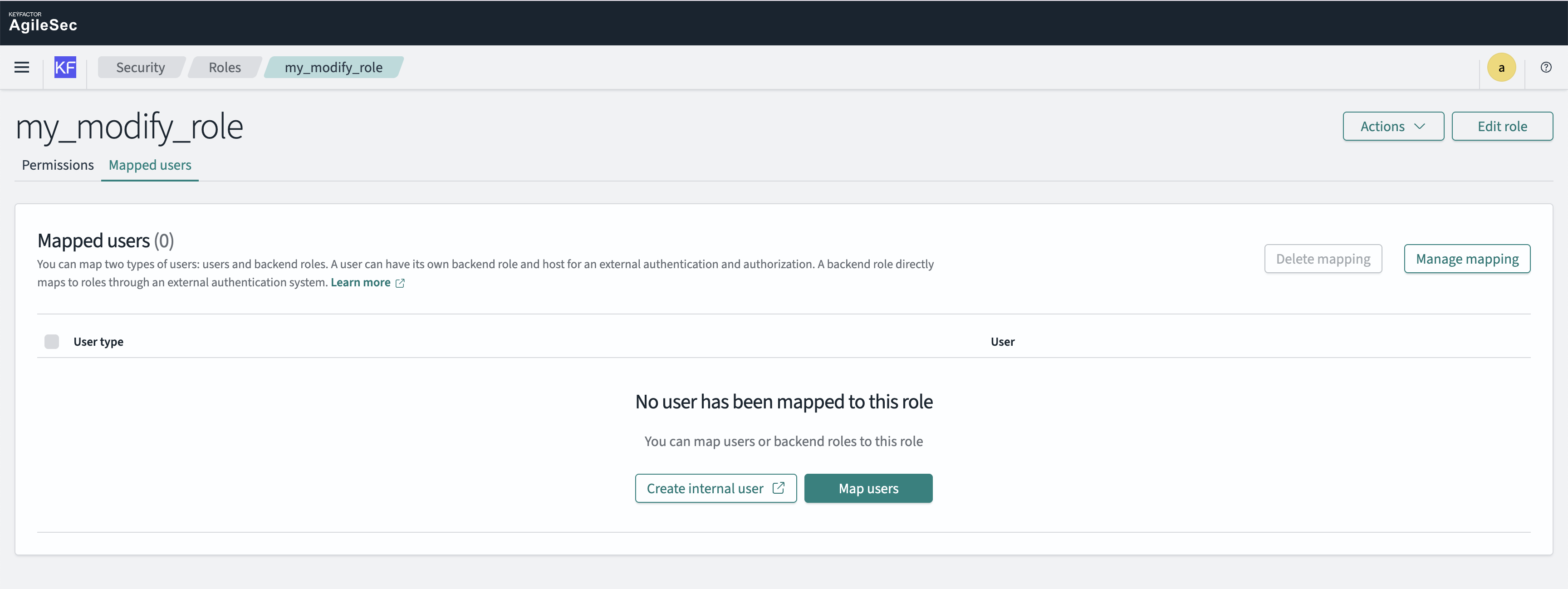
Step 4: Map User to the New Role
-
While still in the duplicated role, click the Mapped users tab
-
Click Manage Mappings to add users that will be allowed to modify dashboards.
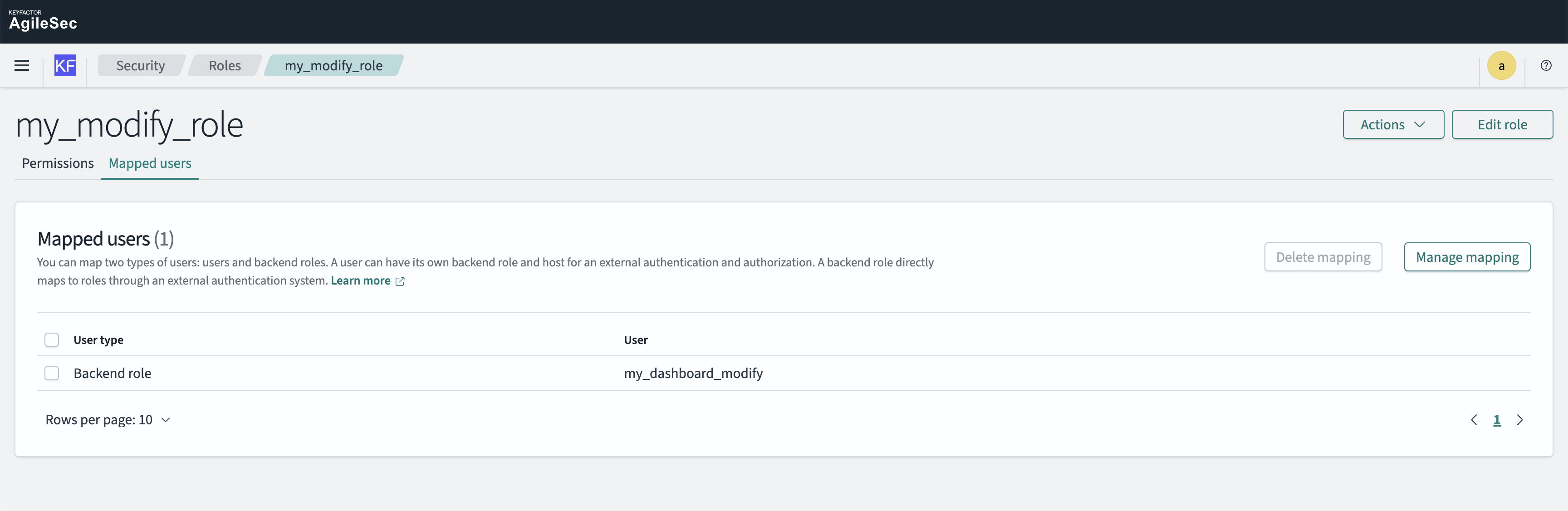
Step 4: Create Backend Role
You can manually map users to roles or create a "Backend Role" that can be directly applied to users. Create a new backend role: my_dashboard_modify
-
Go to the role mapping section for
my_modify_role -
Select the "Mapped Users" tab
-
Click "Manage Mapping"
-
Add Backend Role Name:
my_dashboard_modify -
Save the mapping
Step 5: Assign Role to User
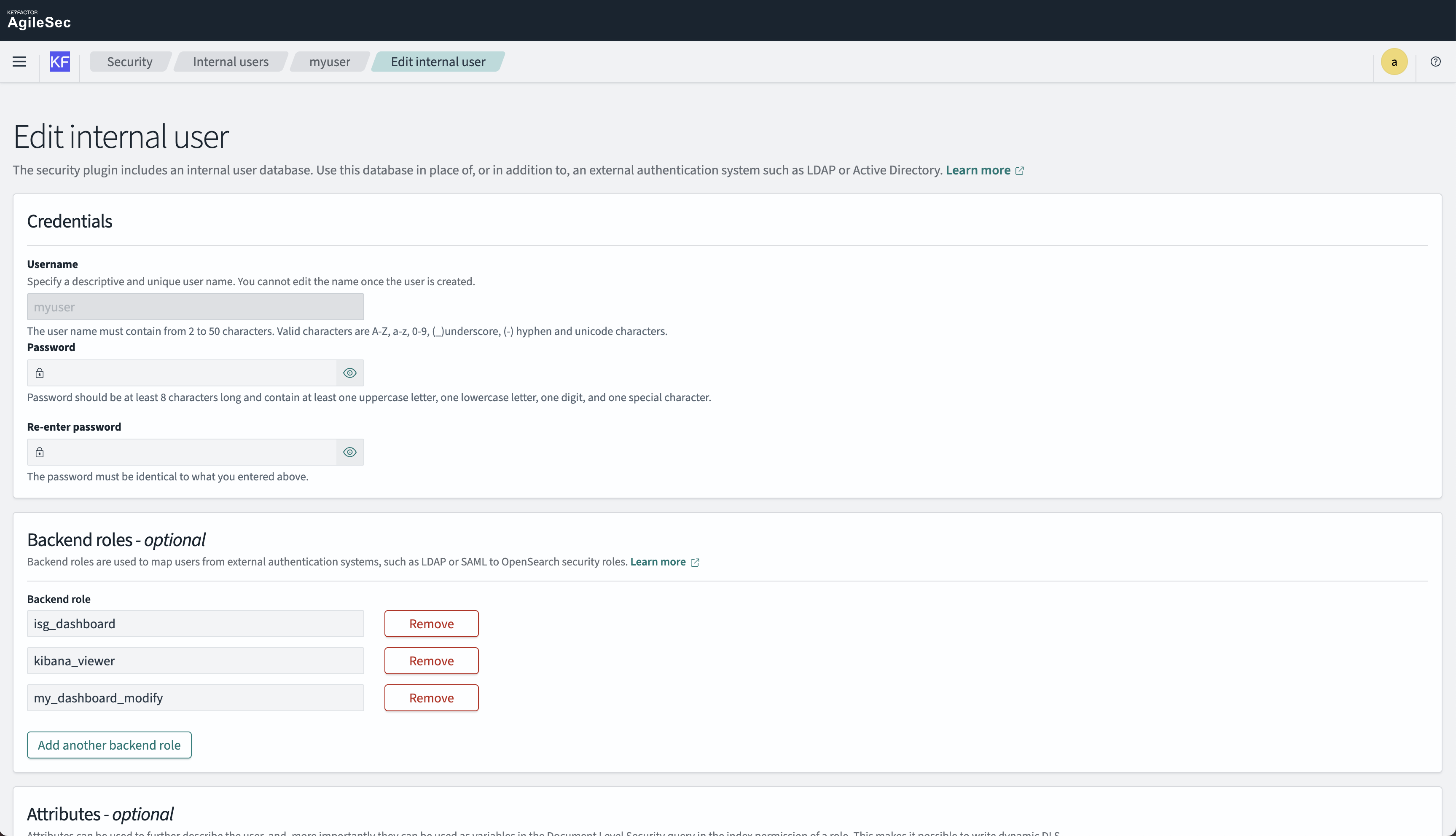
Now assign the role to a user:
-
Navigate to Security → Internal Users
-
Select the user you want to modify
-
Add Backend Role:
my_dashboard_modify -
Remove other backend roles (if necessary)
-
Save changes
Step 6: Test User
-
Go directly to OpenSearch URL:
https://<agilesec-platform-url>/osdashboards -
Log in with the user credentials. The user should have access to all menus except Security and be able to create and modify dashboards.
6. Document Level Security
Document level security allows you to create roles that restrict access to specific documents within an index based on query conditions.
Use Cases for Document Level Security
-
Restrict users to see only data from specific hosts or systems
-
Limit visibility to documents from certain time periods
-
Filter data based on severity levels, tags, or other metadata
-
Implement multi-tenant data isolation within the same index
6.1 Creating a Role with Document Level Security
Step 1: Create a New Role
Navigate to Security → Roles → Create Role and configure the following settings:
Name: Provide a descriptive name for the role
Cluster Permission: cluster_all (or more granular permissions as needed)
Index 1 Settings (for ISG data with document filtering):
-
Index:
*isg-*(includes all cryptographic findings) -
Index Permission:
read(or more granular permissions) -
Document Level Security: Add query to filter documents:
JSON example
{
  "bool": {
    "must": {
      "match": {
        "host.name.keyword": "MyHost"
      }
    }
  }
}
This example restricts access to documents where host.name.keyword equals "MyHost". You can modify the query to match your specific filtering requirements.
Index 2 Settings (for dashboard functionality):
-
Index:
.kibana*,opendistro* -
Index Permission:
read -
Note: These indexes must be added without document-level security restrictions to allow dashboards and visualizations to load properly
Tenant Permissions:
-
Set appropriate tenant permissions based on user needs
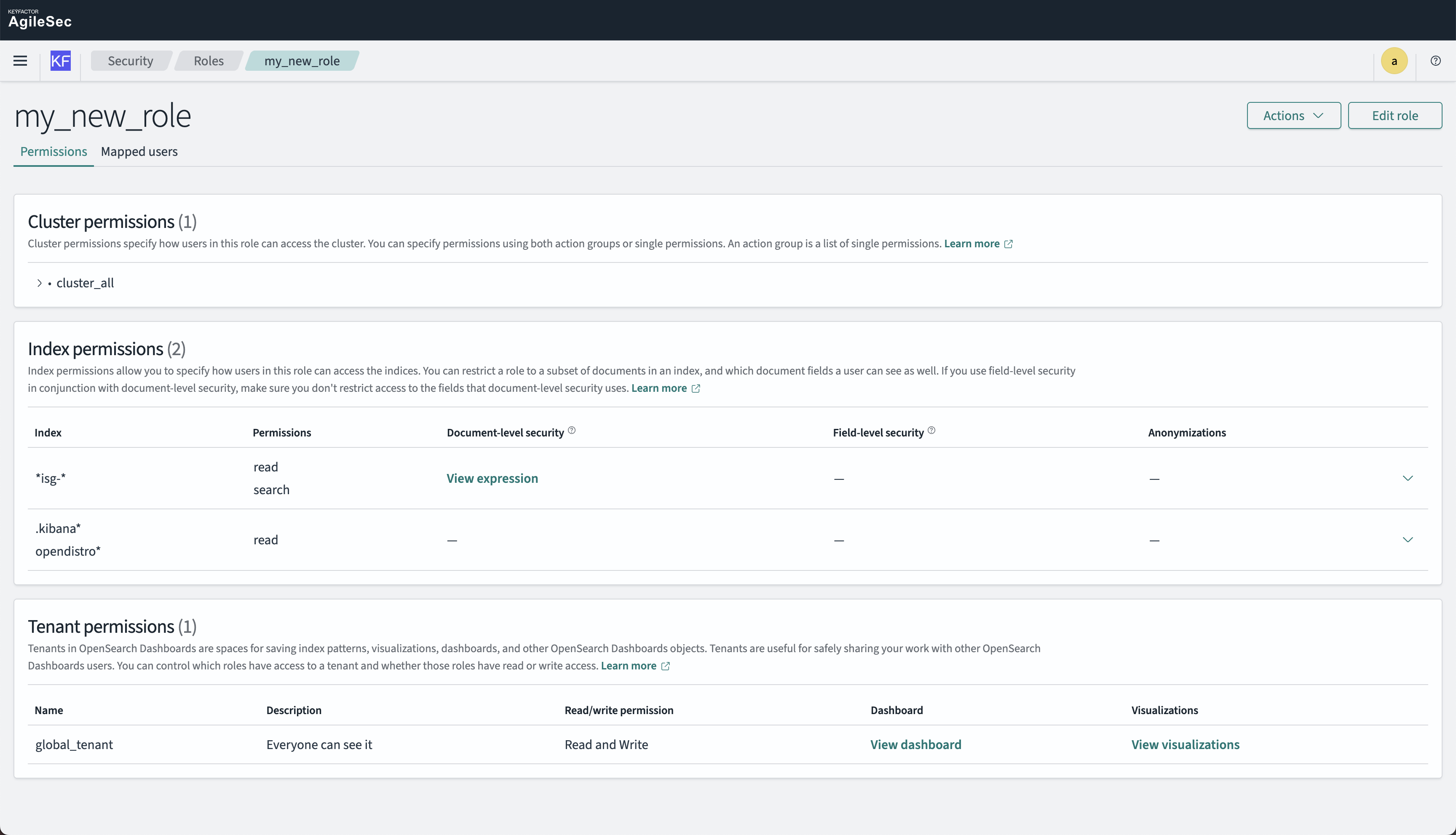
Step 2: Check the Summary
After creating the role, review the summary to ensure all permissions are configured correctly. Verify that:
-
The document level security query is properly formatted
-
Index patterns are correct
-
Tenant permissions are appropriate
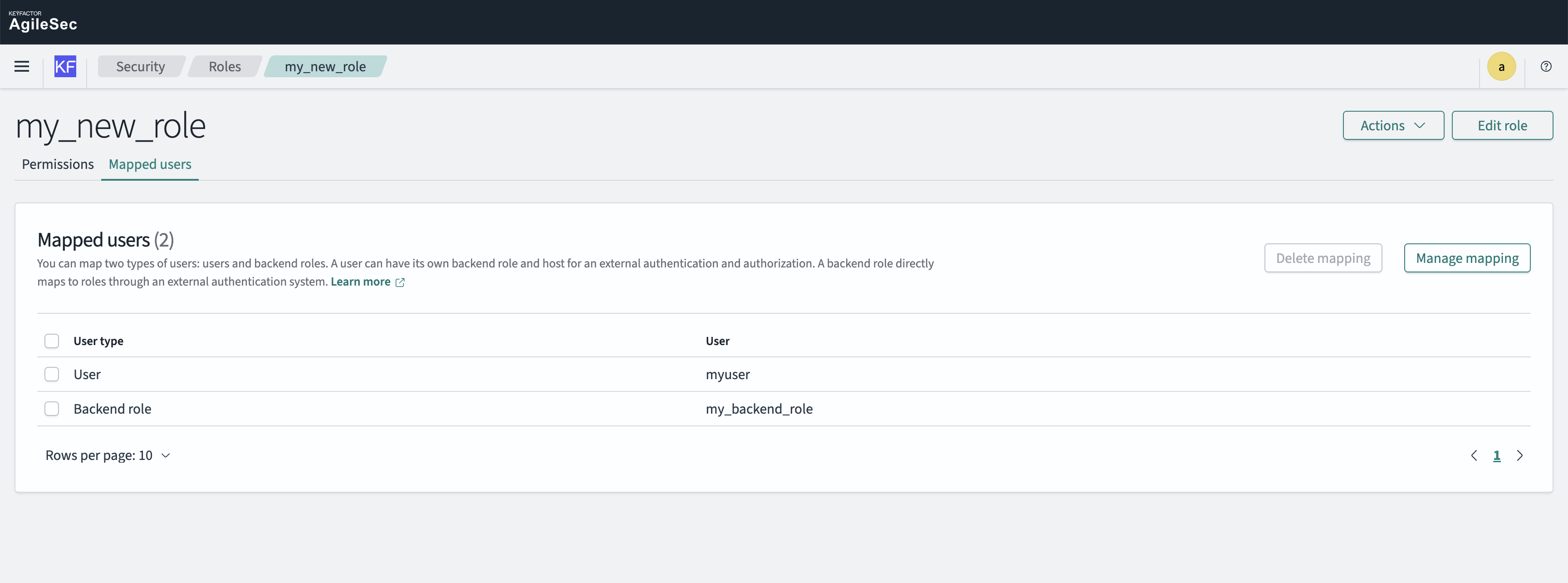
Step 3: Assign Users
-
Navigate to the role's "Mapped Users" tab
-
Click "Manage Mapping"
-
Either:
-
Map specific users directly to the role, or
-
Create a backend role that can be assigned to multiple users
-
-
Save the mapping
Step 4: Test the Role
Log in as a user with the document-level security role and verify:
-
Only documents matching the security query are visible
-
Dashboards and visualizations load correctly
-
The user cannot see documents outside their permitted scope