.png)
This guide describes the REST APIs exposed by the KF AgileSec Platform for managing scan execution and retrieving scan status programmatically. It covers authentication and authorization, required request headers, callback registration, and supported API endpoints.
Overview
This document is intended for developers and system integrators who want to automate scan workflows or integrate the platform with external applications and monitoring systems.
Authentication and Authorization
Generating an API Token
To generate an API token, follow these steps as an organization administrator:
-
Sign in to the platform using an organization administrator account.
-
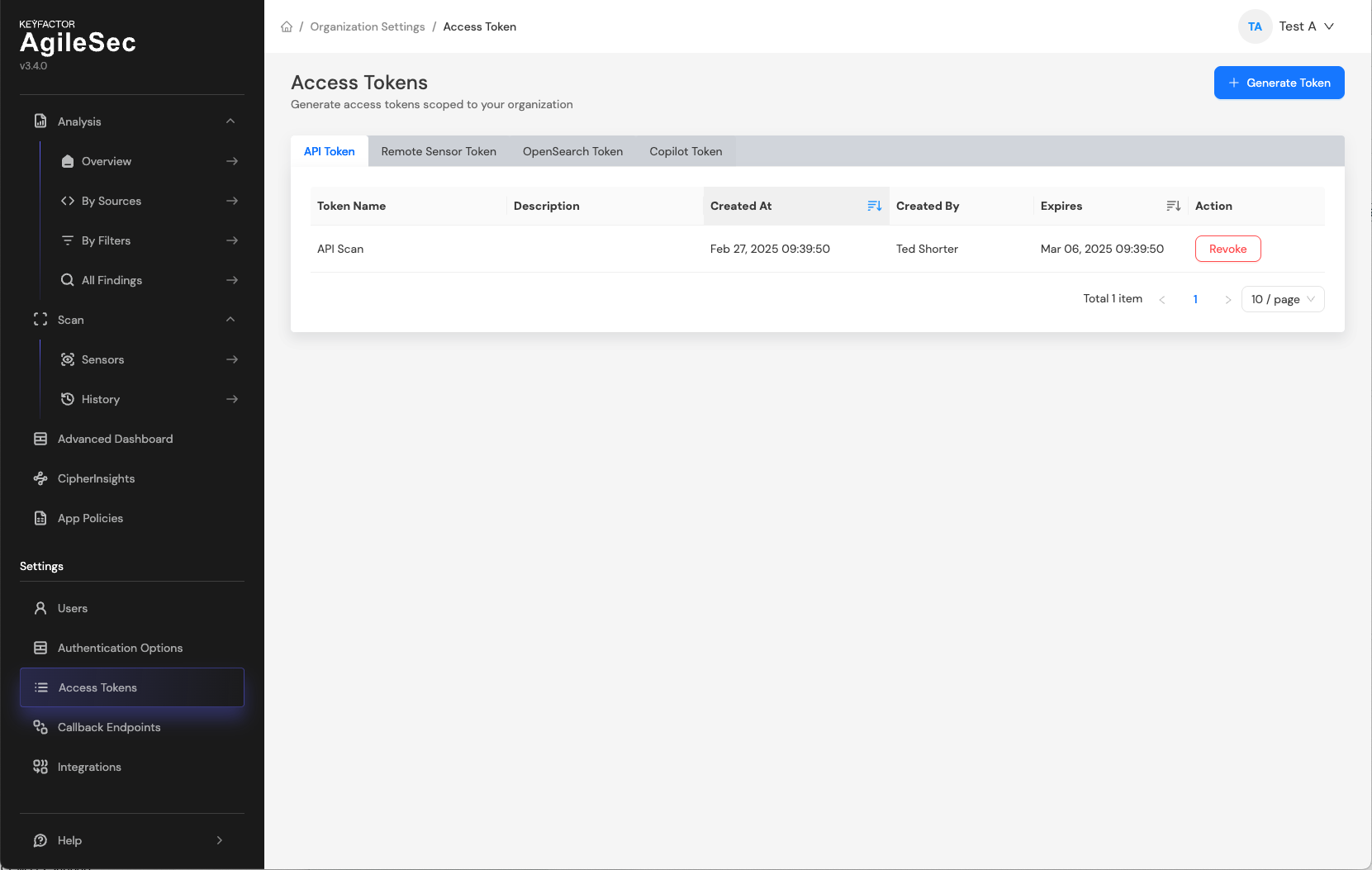
Navigate to Settings → Access Tokens.
-
On the API Token screen, click Generate Token.
-
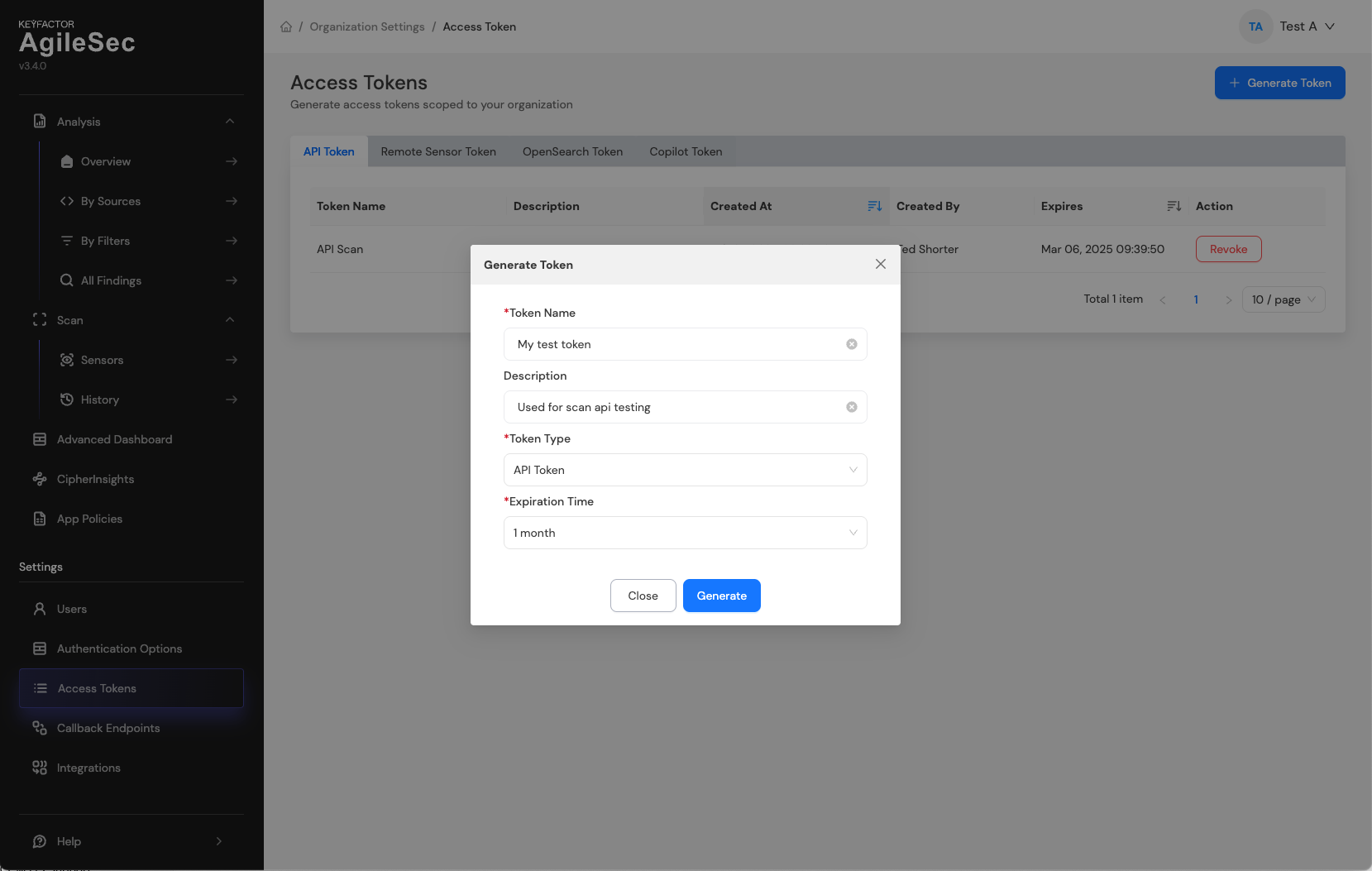
In the Generate Token form, enter the following:
-
Token Name (required): Enter a short, descriptive name.
-
Description (optional): Provide details about the intended use.
-
Token Type (required): Select API Token.
-
Expiration Time (required): Choose an expiry from the dropdown.
-
-
Click Generate.
-
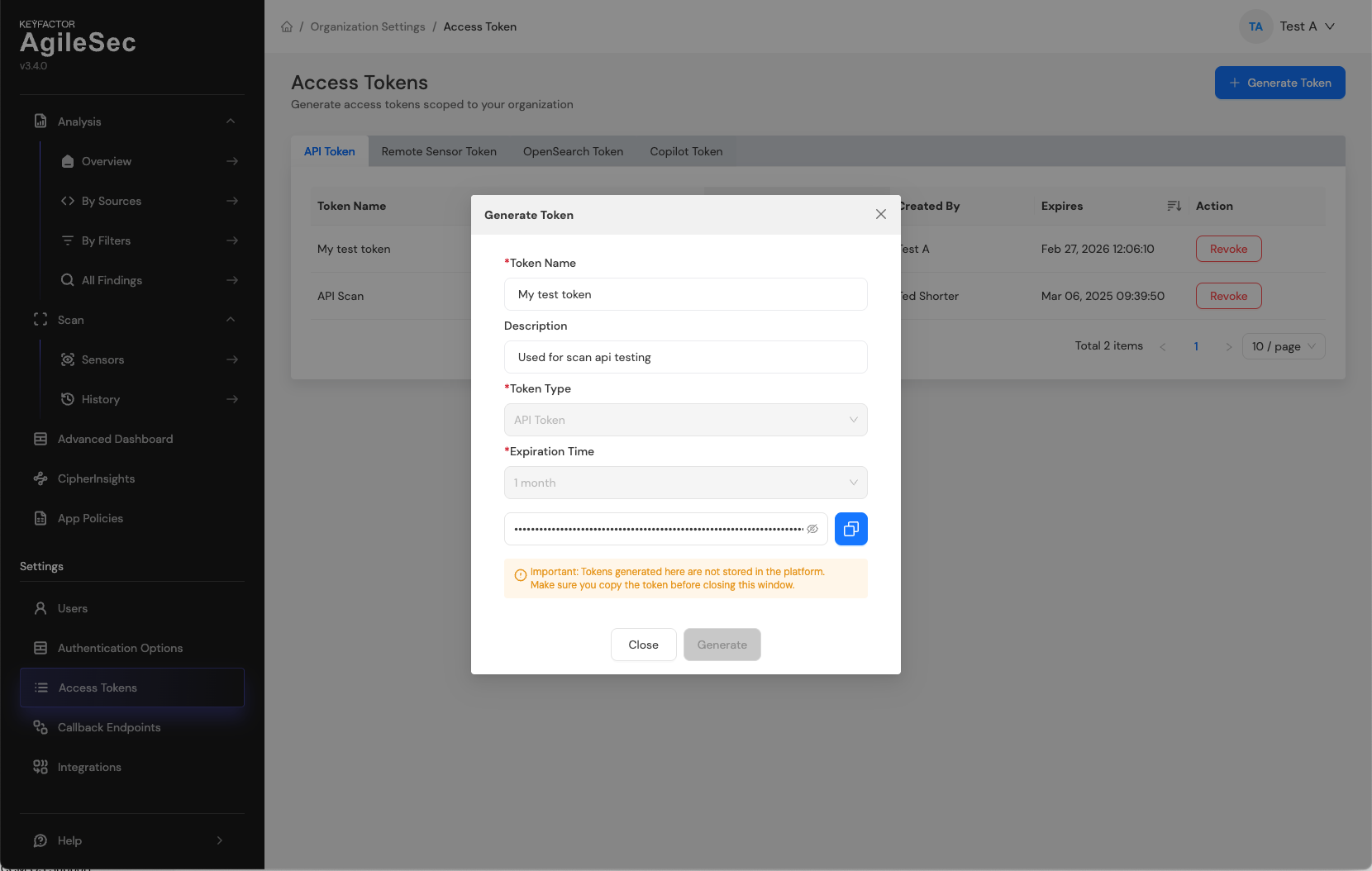
Copy the token immediately and store it in a secure secrets store (for example, a password manager or Vault). The token will not be shown again.
HTTP Headers
The following HTTP request headers are supported:
|
Header name |
Required |
Description |
|---|---|---|
|
|
Y |
|
|
|
Y |
API token used to authenticate the request. Include this header on all API calls (for example: |
Callback Registration
To receive scan status updates for API-initiated scans, you must register one or more callback endpoints. Registering callback endpoints lets you reference a pre-approved endpoint by Callback ID, so you do not need to send sensitive callback credentials with each scan request.
Registering a callback endpoint
Follow these steps as an organization administrator:
-
Sign in to the platform using an organization administrator account.
-
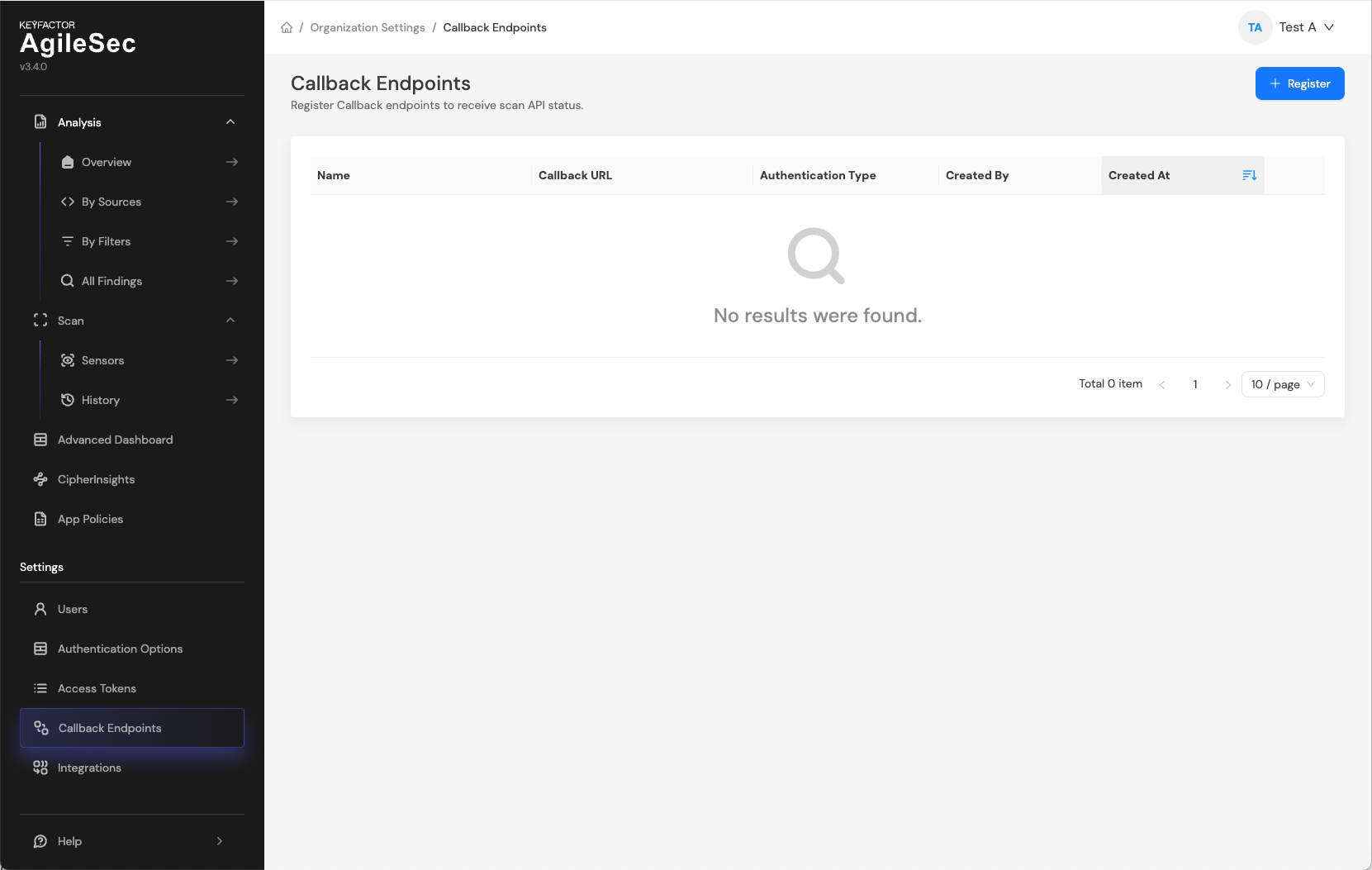
Navigate to Settings → Callback Endpoints.
-
Click Register.
-
In the Register New Endpoint form, enter the following:
-
Name: A descriptive label (for example,
scans-callback-prod). Max 200 characters. -
Callback URL: The full callback URL (HTTPS recommended). Max 200 characters.
-
Authentication Type: Select the method supported by your endpoint: None, Bearer Token, or API Token.
-
Header Name (for API Token only): The custom header name your endpoint expects (for example,
X-Custom-Auth). -
Token Value (Bearer Token or API Token): The secret credential.
-
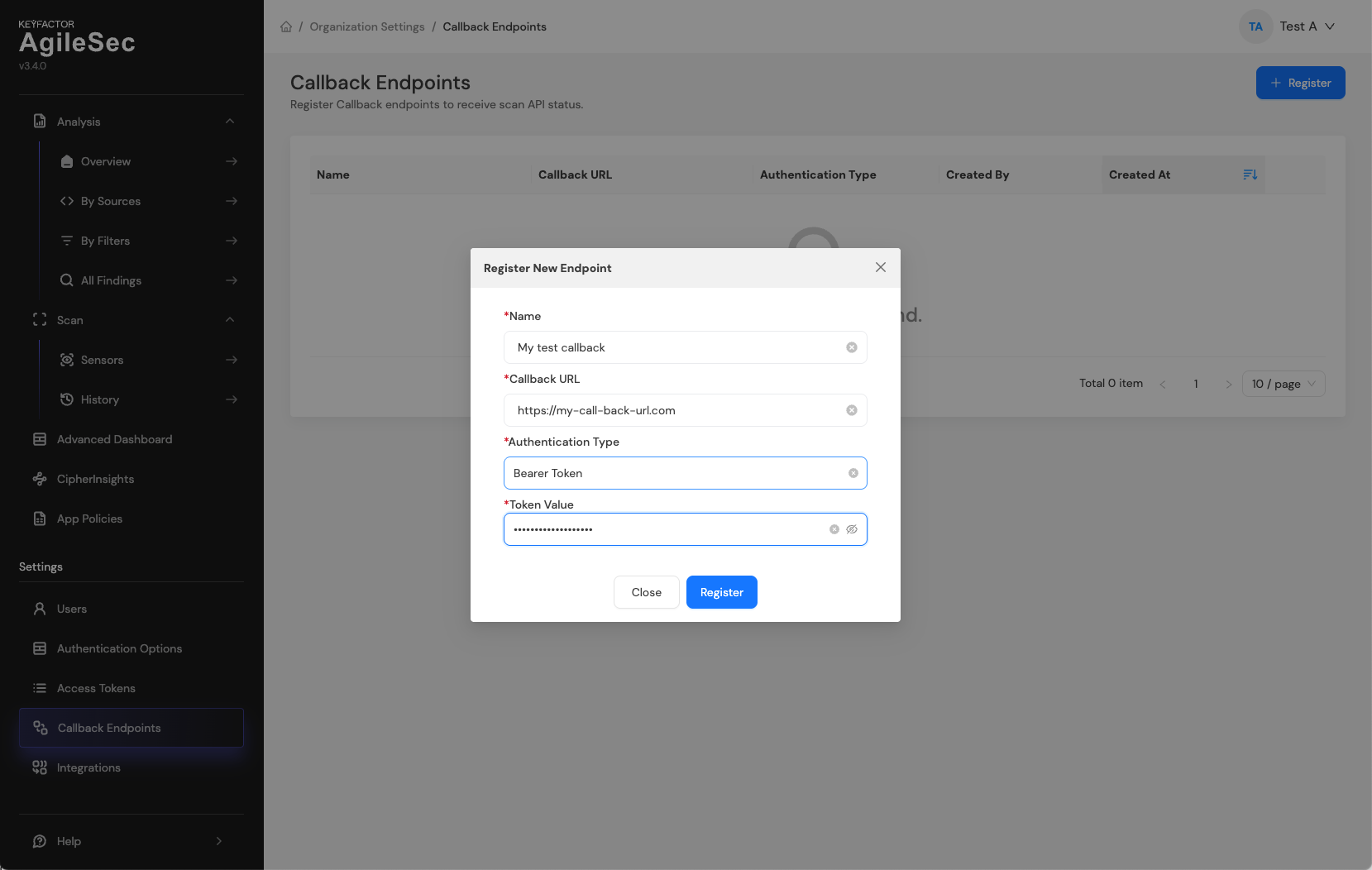
-
Click Register. The system verifies the endpoint is reachable.
Retrieving the Callback ID
-
Return to the Callback Endpoints screen.
-
Find the endpoint you registered.
-
Select Action → Copy Callback ID.
-
Use the Callback ID when configuring scans.
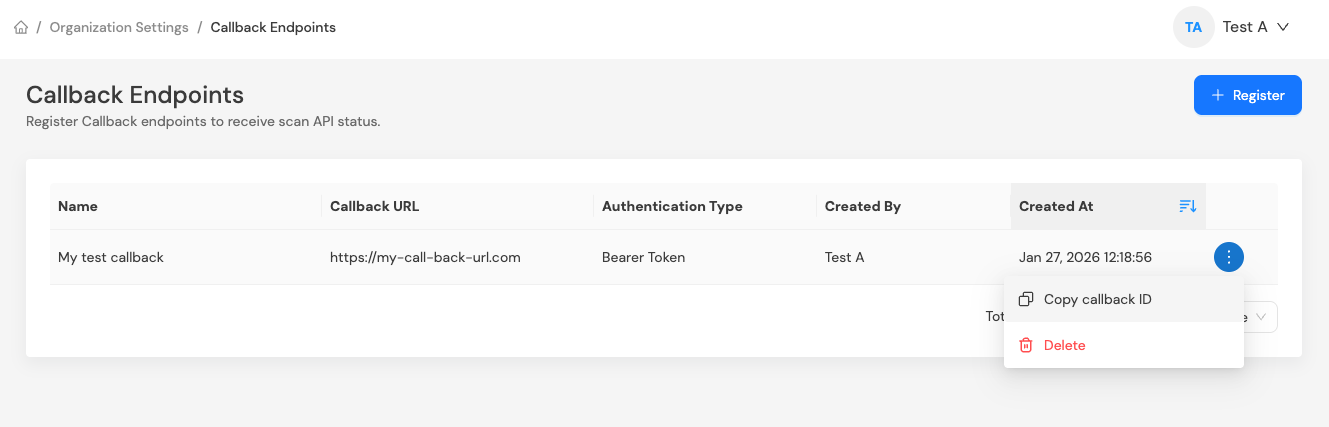
Callback Authentication
As of v3.4.0, the platform supports three callback authentication types: None, Bearer Token, and API Token.
Callback credentials are always stored encrypted in the database.
API Reference
This section describes the endpoints used to create and execute scans.
Create and Execute Scan
Endpoint
POST https://<agilesec-platform-url>/v3/scan/create
Purpose
Creates a new sensor configuration and immediately triggers an on-demand scan execution.
Request body
{
  "sensorType": "<sensor type>",
  "sensorName": "<sensor name>",
  "sensorConfig": {/* sensor-specific config object */},
  "priority": "low",
  "callbackId": "<callback ID>",
  "incrementalScan": false,
  "autoResolutionInterval": 30,
  "labels": [
    { "<label name>": "<label value>" }
  ]
}
Note:
sensorConfigis sensor-specific. Depending on thesensorTypeyou are using, refer to the corresponding Sensor User Guide for the requiredsensorConfigpayload format and examples.
Request body parameters
|
Name |
Type |
Required |
Description |
|---|---|---|---|
|
|
String |
Y |
The type of sensor to use for the scan. |
|
|
String |
Y |
A unique name for the sensor. |
|
|
Object |
Y |
Configuration specific to the sensor type. |
|
|
String |
N |
Scan priority: |
|
|
String |
N |
Registered callback endpoint Id. See Callback Registration to get callback Id. |
|
|
Boolean |
N |
Enables incremental scanning. Default: |
|
|
Integer |
N |
Interval (in days) for auto-resolution of missing findings. Default: platform/system configuration. |
|
|
Array[Object] |
N |
Custom labels. See Common Parameters → Labels. |
Response
Returns an HTTP status code and a response payload indicating the scan request submission status.
Response HTTP status codes
-
200 OK: Success.
-
400 Bad Request: Invalid parameters or Validation Failed.
-
401 Unauthorized: Invalid Token.
-
404 Not Found: Sensor Type or Callback ID not found.
Response payload
{
  "sensorId": "<sensorId>",
  "executionId": "<executionId>",
  "status": "successful",
  "message": "Create new sensor and trigger scan successfully"
}
Response Payload Attributes
|
Name |
Type |
Description |
|---|---|---|
|
|
String |
Unique identifier of the sensor created for the scan |
|
|
String |
Unique identifier for the scan execution. |
|
|
String |
Submission status. Value is |
|
|
String |
Additional details about the submission result. |
400 Bad Request
|
Issue |
Error Message |
How to Fix |
|---|---|---|
|
Missing Field |
|
Add the missing mandatory field ( |
|
Invalid Data Type |
|
Fix the data type:
|
|
Unexpected Field |
|
Remove any field not in the allowed list from the JSON payload. |
|
Invalid Priority |
|
Use strictly |
|
Invalid Config |
|
Review the Sensor Config Parameters reference for your specific sensor type (e.g., incorrect Git URL or Artifactory token format). |
401 Unauthorized
|
Issue |
Error Message |
Possible Causes |
How to Fix |
|---|---|---|---|
|
Access Denied |
|
|
|
404 Not Found
|
Issue |
Error Message |
Description |
How to Fix |
|---|---|---|---|
|
Invalid Sensor Type |
|
The |
|
|
Invalid Callback ID |
|
The |
|
Execute Scan
Endpoint
POST https://api.agilesec.net/v3/scan/execute
Purpose
Executes an existing sensor created using the Create and Execute Scan API.
Request body
{
  "sensorId": "<sensorId>"
}
Request body parameters
|
Name |
Type |
Required |
Description |
|---|---|---|---|
|
|
String |
Y |
The unique identifier of the existing sensor to execute. |
Response
Returns an HTTP status code and a response payload indicating the execute request submission status.
Response HTTP status codes
-
200 OK: Success.
-
400 Bad Request: Invalid parameters or Validation Failed.
-
401 Unauthorized: Invalid Token.
-
404 Not Found: Sensor Type or Callback ID not found.
Response payload
{
  "executionId": "<executionId>",
  "status": "successful",
  "message": "Scan execution started successfully."
}
Response Payload Attributes
|
Name |
Type |
Description |
|---|---|---|
|
|
String |
Unique identifier for the scan execution. |
|
|
String |
Submission status. Value is |
|
|
String |
Additional details about the submission result. |
400 Bad Request
|
Issue |
Error Message |
How to Fix |
|---|---|---|
|
Missing Sensor ID |
|
Ensure your JSON body is |
401 Unauthorized
|
Issue |
Error Message |
Possible Causes |
How to Fix |
|---|---|---|---|
|
Access Denied |
|
|
|
404 Not Found
|
Issue |
Error Message |
Description |
How to Fix |
|---|---|---|---|
|
Sensor Not Found |
|
The |
|
Scan Deprecated
Endpoint
POST https://<agilesec-plantform-url>/v3/scan
Purpose
Submit request for an on-demand scan. This API is deprecated and will be removed in v3.6. Use the Create and Execute Scan instead.
Request Body
{
  "sensorType": "<sensor type>",
  "sensorName": "<sensor name>",
  "sensorConfig": {/* sensor-specific config object */},
  "priority": "<priority value>",
  "callbackId": "<callback ID>",
  "labels": [
    { "<label name>": "<label value>" },
    { "<label name>": "<label value>" },
  ]
}
sensorConfigis sensor-specific. Depending on the sensorType you are using, refer to the corresponding Sensor User Guide for the requiredsensorConfigpayload format and examples.
Request Body Parameters
|
Name |
Type |
Required |
Description |
|---|---|---|---|
|
|
String |
Y |
The type of sensor to use for the scan. |
|
|
String |
Y |
A unique name for the sensor. This name is displayed in the sensor logs in the UI. |
|
|
Object |
Y |
Sensor-specific configuration. The fields in this object vary by |
|
|
String |
N |
Scan priority: |
|
|
String |
N |
Registered callback endpoint Id. See Callback Registration to get callback Id. |
|
|
Array[Object] |
N |
Custom labels. See Common Parameters → Labels. |
Response
Returns an HTTP status code and a response payload indicating the scan request submission status.
Response HTTP status codes
-
200 OK: The scan request was submitted successfully.
-
400 Bad Request: One or more request parameters are invalid.
-
401 Unauthorized: The request is unauthorized (missing or invalid API token).
-
404 Not Found: The specified sensor type was not found.
Refer to the Sensor User Guide for sensor specific error codes
Response Payload Attributes
|
Name |
Type |
Description |
|---|---|---|
|
|
String |
Unique identifier of the sensor created for the scan |
|
|
String |
Unique identifier for the scan execution. |
|
|
String |
Submission status. Value is |
|
|
String |
Additional details about the submission result. |
Response payload
{
  "executionId": "xyz12345",
  "status": "successful",
  "message": "Scan has been successfully submitted."
}
400 Bad Request
|
Validation |
Description |
Example error message |
|---|---|---|
|
Missing |
The payload does not include the required |
|
|
Missing |
The payload does not include the required |
|
|
Missing |
The payload does not include the required |
|
|
Invalid |
|
|
|
Invalid |
|
|
|
Invalid |
|
|
|
Invalid |
|
|
|
Invalid |
|
|
|
Invalid |
|
|
|
Unexpected parameter |
The request includes a field not in the supported list ( |
|
401 Unauthorized
|
Issue |
Error Message |
Possible Causes |
How to Fix |
|---|---|---|---|
|
Access Denied |
|
|
|
404 Not Found
|
Issue |
Error Message |
Description |
How to Fix |
|---|---|---|---|
|
Invalid Sensor Type |
|
The |
|
|
Invalid Callback ID |
|
The |
|
Scan Callback Request
When a scan completes (successfully or unsuccessfully), the platform sends a callback request to the registered callback URL.
Callback Request Payload
{
  "sensorId": "<sensorId>",
  "executionId": "<executionId>",
  "status": "<successful|failed>",
  "errorCode": "<errorCode>",
  "message": "<message>",
  "labels": [
    { "<label name>": "<label value>" }
  ]
}
Callback Payload Fields
|
Name |
Type |
Description |
|---|---|---|
|
|
String |
The unique identifier of the sensor. |
|
|
String |
The unique identifier of the scan execution. |
|
|
String |
|
|
|
String |
Present when |
|
|
String |
Additional details about the execution result. |
|
|
Array[Object] |
Labels associated with the sensor and returned for both successful and failed executions. |
Callback Error Codes
When an error occurs, the callback payload includes errorCode in the format <namespace>-<code>. Refer to the Sensor User Guide for sensor specific error codes.
Scan Status API
Endpoint
GET https://<agilesec-platform-url>/v3/scan/{executionId}
Purpose
Retrieve the status of a scan execution using the executionId.
Request
No request body.
Response
Returns the current status and metadata for the scan execution.
Response HTTP Status Codes
-
200 OK: Scan status retrieved successfully.
-
404 Not Found: The specified
executionIdwas not found.
Response Payload
{
  "sensorId": "<sensorId>",
  "executionId": "<executionId>",
  "status": "<status>",
  "message": "<message>",
  "ranBy": "<user>",
  "ranAt": "<timestamp>",
  "labels": []
}
Response Payload Attributes
|
Name |
Type |
Description |
|---|---|---|
|
|
String |
Unique identifier of the sensor associated with this scan execution. |
|
|
String |
Unique identifier of the scan execution. |
|
|
String |
Current scan execution status |
|
|
String |
Additional details about the current status. |
|
|
String |
The user or system account that initiated the scan. |
|
|
String |
Timestamp indicating when the scan was started (ISO 8601 format). |
|
|
Array[Object] |
Labels associated with the sensor and returned with the scan status. See Common Parameters → Labels. |
Common Parameters
This section describes request parameters that are used across multiple APIs
Scan Priority ( priority )
The scan priority value can be high, medium, or low. If not specified, low priority is assumed. All scan requests enter a common pool and are executed in priority order:
-
High priority scans are executed first, in the order they are received.
-
If no high priority scans are present, medium priority scans are executed next, in the order they are received.
-
If no high or medium priority scans are present, low priority scans are executed, in the order they are received.
Labels ( labels )
Labels are custom attributes that can be saved with the scan sensor and scan results. They are returned in callbacks and sent to OpenSearch along with the scan results.
Labels are provided as an array of key/value pairs. Each element in the array represents a single label:
-
Label name: The label key to set.
-
Label value: The value associated with the label.