.png)
Keyfactor Command is a highly flexible platform that provides end-to-end visibility and automation for digital certificates and keys across an organization's IT infrastructure. Command ACME enables workloads using the ACME protocol to seamlessly request certificates from any Certificate Authority (CA) integrated with Keyfactor Command. Command ACME uses a claim-based mapping, and this guide enables the following workflow:
-
An admin user creates a claim in Command ACME using ACME Management API. This claim will map the scope claim in JWT Access Tokens to a Certificate Template in Command.
-
A user authenticates to the Command ACME Key Management API to fetch an EAB key using an access token containing the claim.
-
The user configures the ACME client to use the EAB key when creating an Account in Command ACME.
-
Certificate Orders created under the Account are enrolled in Command using the Certificate Template mapped by the EAB key of the Account used.
The following diagram depicts the architecture, protocols involved, and the above steps.
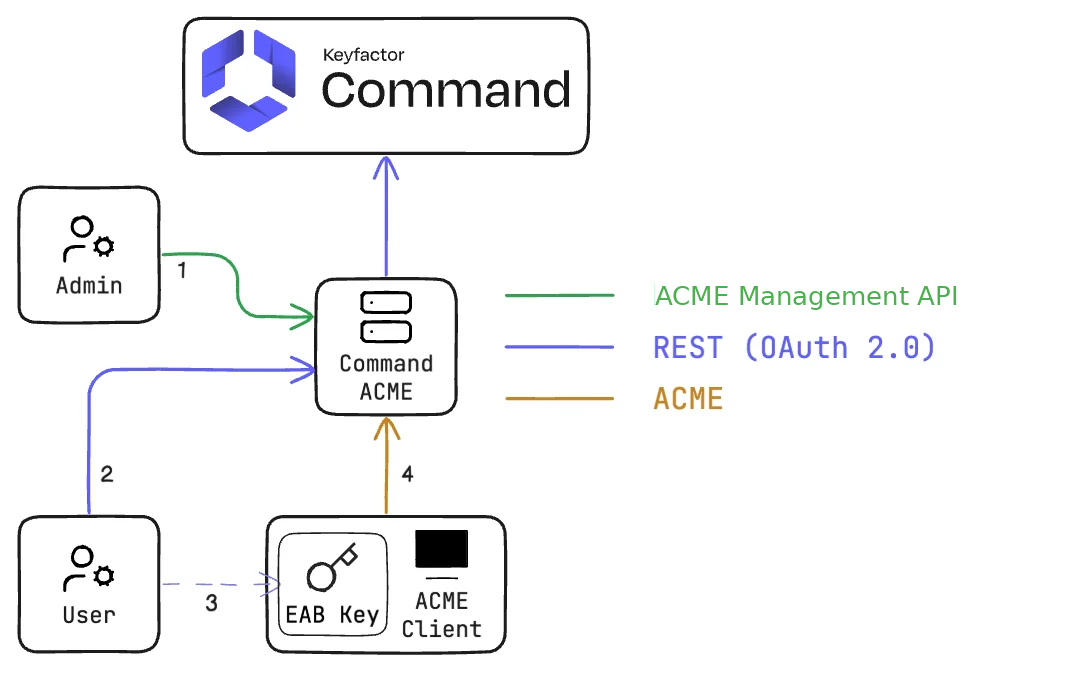
This guide walks you through the steps to identify & configure a Certificate Template in Command, then set up Command ACME to map an OAuth scope to that template. Next, you'll use provided scripts that use the OAuth 2.0 Client Credentials grant to fetch an EAB Key for use by an ACME client like cert-manager or Certbot.
Outcomes
In this guide, you will:
-
Identify & configure a Certificate Template in Command.
-
Create a claim in Command ACME that maps a JWT claim to the Certificate Template.
-
Fetch an EAB key using the Key Management API.
Prerequisites
Before you continue, you should have an ACME instance deployed and configured in the Keyfactor Customer Portal for Command SaaS. For more information, see ACME Enrollment.
-
A deployed ACME Server via the Customer Portal for Command SaaS
Step 1: Identify and Configure a Certificate Template
Certificate Templates in Command define the properties and constraints of issued certificates, including key usage, validity period, allowed algorithms, and required subject information. Refer to the Command documentation to learn more about Certificate Templates. This section provides the steps to configure a Certificate Template for use by Command ACME.
-
Sign in to the Command Web Portal.
-
Toggle the Locations dropdown and click Certificate Templates.
-
Identify a Certificate Template suitable for use by your ACME use case. The Template that you select cannot be targeted by an Approval Workflow. Double-click on the Certificate Template that you have identified.
-
Perform the following in the Details tab.
-
Make a note of the Template Short Name.
-
Under Allowed Enrollment Types, ensure that CSR Enrollment is toggled.
-
-
Click the Authorization Methods tab and perform the following:
-
Ensure that Restrict Allowed Requestors is toggled.
-
Click Add.
-
In the Name dropdown, select a suitable Security Role that the identity used by the Command ACME Server has access to.
-
Click Save.
-
-
Click Save.
Step 2: Prepare an OAuth Client to Authenticate a User to the Key Management API
Users authenticate to the Command ACME Server API for EAB key retrieval using an OAuth 2.0 Access Token. Claims in the JWT access token are mapped to a permission in the Command ACME server and a Certificate Template in Command. This guide details how to fetch access tokens for the ACME Server API using the Client Credentials grant.
-
Identify a suitable scope value representative of the Certificate Template identified earlier. Any EAB key requested with this scope will be tied to that template, so it's best to use a scope that clearly reflects the template or its intended use case. For example, acme:template:<template-name> or acme:<use case>.
-
In your OAuth 2.0 provider, create or identify a confidential client application that supports the Client Credentials grant. Ensure that this client is authorized to request the scope identified earlier and that, when requested, the scope is included in access tokens issued by the authorization server. Ensure that the following information is readily available.
-
Token URL: The endpoint provided by the OAuth 2.0 authorization server where you will exchange client credentials for a JWT Access Token to authenticate to the Key Management API.
-
Client ID: The unique identifier assigned to a client application by the OAuth provider.
-
Client Secret: A confidential key used alongside the Client ID.
-
Scope(s): The scope value identified earlier in addition to any other scopes required by your OAuth provider.
-
Audience: The intended recipient of the access token or a specific value required by your OAuth provider. This guide doesn't configure Command ACME to have any opinion on the contents of the audience claim in access tokens, and it's purely up to your OAuth authorization server to determine what audience is requested. In most cases, the audience will be blank.
-
Step 3: Creating a Claim
In Command ACME 25.1, a Claim maps a particular JWT claim and value to a Certificate Template in Command. In this section, you will use the claims command to map the Scope claim identified earlier to the Certificate Template identified and configured earlier. Each client that requests an EAB key using this scope will get a unique key that maps to the same Certificate Template. If you require multiple Certificate Templates, you'll need to create multiple claims.
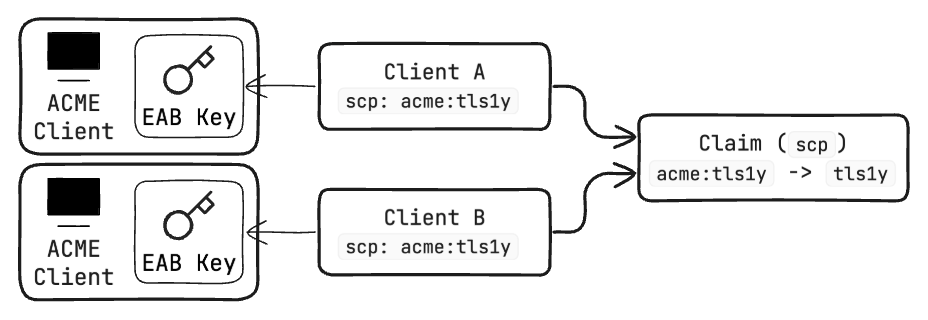
Use the ACME Management API to create a claim using the below example.
curl -X POST https://your-keyfactor-host/ACME/claims \
  -H "Content-Type: application/json" \
  -H "Authorization: Bearer YOUR_API_TOKEN" \
  -H "X-Keyfactor-Requested-With: APIClient" \
  -d '{
    "claimType": "ACCESS_TOKEN_CLAIM",
    "claimValue": "ACCESS_TOKEN_CLAIM_VALUE",
    "roles": ["EnrollmentUser"],
    "template": "COMMAND_CERTIFICATE_TEMPLATE"
  }'
Replace the following fields:
-
ACCESS_TOKEN_CLAIM: The Scope claim in JWT access tokens returned by your OAuth 2.0 authorization server. In most cases, this will be scp, but some authorization servers use scope.
-
ACCESS_TOKEN_CLAIM_VALUE: The scope identified earlier. For example, acme:template:<template-name> or acme:<use case>.
-
COMMAND_CERTIFICATE_TEMPLATE: The Template Short Name of the Certificate Template in Command.
-
The output of the above command is similar to the following:
{"id":3,
"claimType":"scope",
"claimValue":"acme:tls1",
"template":"ssl",
"roles":["EnrollmentUser"]}
Step 4: Fetch an EAB Key
This section provides a PowerShell and Bash script to fetch an EAB key corresponding to the confidential client application whose Client ID maps to a Certificate Template in Command. Depending on your preferred scripting language, create a new file and copy and paste the script of your choice. The top of each script contains pre-defined values required to create an access token and submit a request to the Key Management API. Populate these values with the following:
-
COMMAND_ACME_API_URL: The URL to the Command ACME API including the scheme. For example, https://enrollment.example.com/acme. -
TOKEN_URL: The token endpoint provided by the OAuth 2.0 authorization server. -
CLIENT_ID: The unique identifier assigned to a client application by the OAuth provider. -
CLIENT_SECRET: A confidential key used alongside the Client ID. -
SCOPE: The scope value identified earlier in addition to any other scopes required by your OAuth provider. -
AUDIENCE: A specific value required by your OAuth provider. This guide doesn't configure Command ACME to have any opinion on the contents of the audience claim in access tokens, and it's purely up to your OAuth authorization server to determine what audience is requested. In most cases, the audience will be blank.
Powershell Script
# Initialize variables
$COMMAND_ACME_API_URL = ""
$TOKEN_URL = ""
$CLIENT_ID = ""
$CLIENT_SECRET = ""
$SCOPE = ""
$AUDIENCE = ""

# Prompt for variables if they are empty
if (-not $COMMAND_ACME_API_URL)
{
    $COMMAND_ACME_API_URL = Read-Host "Enter the URL to Command ACME"
}
if (-not $TOKEN_URL)
{
    $TOKEN_URL = Read-Host "Enter Token URL"
}
if (-not $CLIENT_ID)
{
    $CLIENT_ID = Read-Host "Enter Client ID"
}
if (-not $CLIENT_SECRET)
{
    # Prompt as SecureString to avoid displaying it in plain text
    $secureClientSecret = Read-Host "Enter Client Secret" -AsSecureString
    # Convert the SecureString to plain text for usage in the POST body
    $CLIENT_SECRET = [Runtime.InteropServices.Marshal]::PtrToStringAuto(
        [Runtime.InteropServices.Marshal]::SecureStringToBSTR($secureClientSecret)
    )
}
if (-not $SCOPE)
{
    $SCOPE = Read-Host "Enter Scope (enter for empty)"
}
if (-not $AUDIENCE)
{
    $AUDIENCE = Read-Host "Enter Audience (enter for empty)"
}

function Get-Token
{
    # Construct the POST body
    $tokenBody = "client_id=$($CLIENT_ID)&client_secret=$($CLIENT_SECRET)&grant_type=client_credentials"

    if ($SCOPE)
    {
        $tokenBody += "&scope=$($SCOPE)"
    }
    if ($AUDIENCE)
    {
        $tokenBody += "&audience=$($AUDIENCE)"
    }

    # Call the token endpoint
    try
    {
        $tokenResponse = Invoke-RestMethod `
            -Uri $TOKEN_URL `
            -Method Post `
            -ContentType 'application/x-www-form-urlencoded' `
            -Body $tokenBody
    } catch
    {
        Write-Error "Failed to request access token."
        throw
    }

    $accessToken = $tokenResponse.access_token
    if (-not $accessToken)
    {
        Write-Error "Failed to parse 'access_token' from response."
        Write-Host $tokenResponse
        exit 1
    }
    return $accessToken
}

# Fetch the EAB key from Command ACME
$token = Get-Token
$url = "$($COMMAND_ACME_API_URL)/KeyManagement"
Write-Host "GET $url"

# Invoke the API endpoint with the Bearer token
try
{
    $response = Invoke-RestMethod -Uri $url -Headers @{ "Authorization" = "Bearer $token" } -Method Get
    $response
} catch
{
    Write-Error "Failed to invoke $url"
    throw
}
Bash Script
#!/bin/bash

COMMAND_ACME_API_URL=""
TOKEN_URL=""
CLIENT_ID=""
CLIENT_SECRET=""
SCOPE=""
AUDIENCE=""

if [[ -z "$COMMAND_ACME_API_URL" ]]; then
    read -p "Enter the URL to Command ACME: " COMMAND_ACME_API_URL
fi
if [[ -z "$TOKEN_URL" ]]; then
    read -p "Enter Token URL: " TOKEN_URL
fi
if [[ -z "$CLIENT_ID" ]]; then
    read -p "Enter Client ID: " CLIENT_ID
fi
if [[ -z "$CLIENT_SECRET" ]]; then
    read -s -p "Enter Client Secret: " CLIENT_SECRET
    echo  # Move to a new line after hidden input
fi
if [[ -z "$SCOPE" ]]; then
    read -p "Enter Scope (enter for empty): " SCOPE
fi
if [[ -z "$AUDIENCE" ]]; then
    read -p "Enter Audience (enter for empty): " AUDIENCE
fi

fetch_token () {
    local token_body="client_id=$CLIENT_ID&client_secret=$CLIENT_SECRET&grant_type=client_credentials"

    if [ ! -z $SCOPE ]; then
        token_body="$token_body&scope=$SCOPE"
    fi
    if [ ! -z $AUDIENCE ]; then
        token_body="$token_body&audience=$AUDIENCE"
    fi

    # Send the request with the correct content type
    local token_response=$(curl --request POST \
        --url "$TOKEN_URL" \
        --header 'content-type: application/x-www-form-urlencoded' \
        --data "$token_body")

    local access_token="$(echo "$token_response" | jq -r '.access_token')"
    if [[ -z "$access_token" || "$access_token" == "null" ]]; then
        echo "failed to request access token" >&2
        echo "$token_response" >&2
        exit 1
    fi
    echo "$access_token"
}

# Fetch the EAB key from Command ACME
token=$(fetch_token)
url="$COMMAND_ACME_API_URL/KeyManagement"
echo "GET $url"
curl --url "$url" \
    -H "Authorization: Bearer $(echo "$token")" \
    --header "Authorization: Bearer $(echo "$token")"
The output of the API call contains a keyId and keyValue:
-
keyIdis a string containing the reference GUID for the EAB key issued to the external account (user) within the Keyfactor ACME server. This identifier allows the server to recognize which external account is associated with a given ACME request. -
keyValueis a string containing the HMAC key value. This cryptographic key is used to sign the ACME request for external account binding, ensuring that the request is authenticated and that the ACME client is authorized to register with the Keyfactor ACME server.
These values should be used when configuring the ACME Client. For example, see the cert-manager documentation on usage of External Account Binding.