.png)
Enterprise
The Thales Luna HSM sidecar container enables integrating the application container to a network attached Thales Luna. The following covers how to set up the integration in Kubernetes.
For more general information on the HSM integration with PKCS#11, see HSM Integration.
Prerequisites
Before using this container, you need the following:
-
Luna7 net-HSM with fully configured secured network access. The EJBCA deployment will be configured with:
-
The IP address/hostname of the HSM
-
server.pem certificate
-
-
Administrative access on the HSM for registering a client and assigning partitions to the client.
-
The P11 Proxy must have network access to the HSM service (security groups, network ACLs, etc)
-
An existing key pair credential for the client, i.e. the HSM driver container, to communicate with the HSM.
HSM driver container deployment parameters
The following lists parameters for the HSM sidecar container.
Environment variables
The following environment variables configure the HSM sidecar container with the Helm chart in the hsm.luna section.
|
Name |
Description |
Comments |
|---|---|---|
|
server_name |
IP Address or FQDN of the HSM that the client will connect to. |
Default: None
|
|
CKLOG2_ENABLED |
Enables logging of PKCS11 calls on the HSM client. Values: 0 = disabled, 1 = enabled. |
Default: 0
|
|
PROTECTED_AUTHENTICATION_PATH_FLAG_STATUS |
Defines how the HSM slot is protected. Options: 0 = No PED, 1 = Crypto Officer, 2 = Crypto User. |
Default: 0
|
Volume mounts
The volume mount parameters are mandatory and need only be configured in the HSM sidecar container. These mounts are defined via the Helm chart under the hsm.luna section, using a combination of ConfigMap and Secret resources.
You can verify the configuration by checking the corresponding files inside the container after deployment.
|
Description |
Mount point |
Mandatory |
|---|---|---|
|
HSM Server certificate |
|
Yes |
|
Client certificate to communicate with HSM |
|
Yes |
|
Client private key for HSM communication
|
|
Yes |
|
|
|
No (required for HSMs in HA Group) |
Prepare HSM configuration
The following assumes that the server certificate and client credentials are already available.
Configure the server certificate and client credentials:
-
Create a Kubernetes secret with the client private key to communicate with the HSM.
-
The file name inside the secret must be
dockerlunaclientKey.pem. -
Replace
<namespace>with your deployment's namespace. -
The name of this secret must be referenced later in the Helm
values.yaml.Bashkubectl create secret generic hsm-luna-secret-client-key \ -n cadeploymentnamespace --from-file=dockerlunaclientKey.pem=dockerlunaclientKey.pem
-
-
Create a Kubernetes ConfigMap to configure the HSM server certificate and client certificate.
-
The HSM server certificate and client certificate values in the
values.yamlmay be adjusted in the next section.
-
Example (certificate contents truncated):
apiVersion: v1
kind: ConfigMap
metadata:
  name: hsm-luna-configmap
data:
  server.pem: |
    -----BEGIN CERTIFICATE-----
    MIIDOTCCAiGgAwIBAgIBADANBgkqhkiG9w0BAQsFADBgMQswCQYDVQQGEwJDQTEQ
    .....truncated.....
    OaIJWeLzCzXw4bzKbl5VvfwXmrTyCh0wHgN+E1VOhv8s2HhA3/Mzujb1VhPDCT0Z
    LP1EfFulatVU0dtbQg==
    -----END CERTIFICATE-----
  dockerlunaclient.pem: |
    -----BEGIN CERTIFICATE-----
    MIIDMzCCAhugAwIBAgIBADANBgkqhkiG9w0BAQsFADBdMQswCQYDVQQGEwJDQTEQ
    .....truncated.....
    xP96D2AMJN/9/rPHLHEJqETdYBvZYwdzyqB9GinxwuxlCfkrolx+ETyk16wK63m1
    dABXXPaeLg==
    -----END CERTIFICATE-----
Configure Deployment
The following provides an example of customizing the deployment using Helm. Note that the Helm chart values file values.yaml describes an example test deployment and does not include:
-
Database connection.
-
Configured
imagePullSecretsthat may be required. -
TLS connection required after the deployment and creation of the CAs.
Ensure that the deployment is allowed an Egress to the physical HSM.
Make sure to adjust the values for the HSM server environment variable (server_name) and any required secrets.
#imagePullSecrets: []
ejbca:
  env:
    TLS_SETUP_ENABLED: "later"
    LOG_AUDIT_TO_DB: true
#################### HSM configuration - start ####################
hsm:
  enabled: true
  luna:
    enabled: true
    server_name: "192.168.30.106"
    credentials:
      certificates:
        configMap: "hsm-luna-configmap"
      privateKey:
        secret: "hsm-luna-secret-client-key"
#################### HSM configuration - end ####################
podSecurityContext:
  fsGroup: 10001
# Ingress or LoadBalancer configuration skipped
Alternatively, it’s possible to use Chrystoki.conf file in replacement of setting server_name. For that, create a Kubernetes secret with the file.
-
-
The file name inside the secret must be
Chrystoki.conf. -
Replace
<namespace>with your deployment's namespace. -
The name of this secret must be referenced later in the Helm
values.yaml.Bashkubectl create secret generic -n <namespace> hsm-luna-chrystoki \ --from-file=Chrystoki.conf=Chrystoki.conf
-
Then, in your values file, set custom_chrystoki_conf_secret instead of server_name:
#imagePullSecrets: []
ejbca:
  env:
    TLS_SETUP_ENABLED: "later"
    LOG_AUDIT_TO_DB: true
#################### HSM configuration - start ####################
hsm:
  enabled: true
  luna:
    enabled: true
    custom_chrystoki_conf_secret: hsm-luna-chrystoki
    credentials:
      certificates:
        configMap: "hsm-luna-configmap"
      privateKey:
        secret: "hsm-luna-secret-client-key"
#################### HSM configuration - end ####################
podSecurityContext:
  fsGroup: 10001
# Ingress or LoadBalancer configuration skipped
Configure High-Availability (HA)
The HA group must be created beforehand on a registered Luna client. This is what synchronizes the members' key material and the internal HA master key. The sidecar only consumes an existing group, it does not create one. See Setting Up an HA Group (Thales).
The sidecar can consume a Thales Luna HA group with no change to the deployment parameters. The environment variables, volume mounts, and crypto-token steps are identical to the single-HSM integration. HA is expressed entirely inside the injected Chrystoki.conf.
Add the following three sections to the Chrystoki.conf you provide (in addition to the LunaSA Client section pointing at the Luna servers):
VirtualToken = {
  VirtualToken00Label   = <GROUP_LABEL>;      # becomes the slot label EJBCA connects to
  VirtualToken00SN      = <GROUP_SN>;         # HA group serial number
  VirtualToken00Members = <MEMBER_SN_1>,<MEMBER_SN_2>;   # member partition serials
  VirtualTokenActiveRecovery = activeEnhanced;
}

HAConfiguration = {
  reconnAtt = -1;
  AutoReconnectInterval = 60;
  ProbeTimeout = 0;
  haLogStatus = disabled;
}

HASynchronize = {
    <GROUP_LABEL> = 1;
}
The group is then presented to EJBCA as a single slot (labelled <GROUP_LABEL>), and the crypto token is created against it exactly as in the standard flow.
Create and verify HSM crypto token
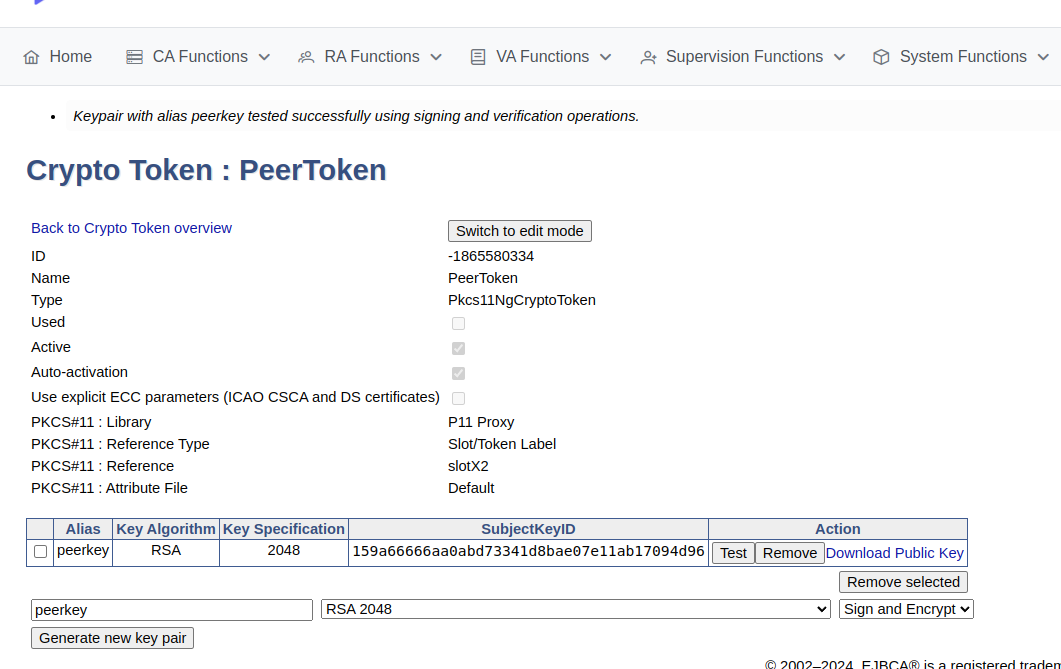
To create a crypto token and then test the HSM key, do the following:
-
In the EJBCA menu, click CA Functions > Crypto Tokens.
-
Click Create new and specify the following on the New Crypto Token page:
-
Name: Specify a name for the crypto token.
-
Type: Select PKCS#11 NG.
-
Auto-activation: Select use to allow EJBCA to save the password and reapply it after a restart so that the CA is always available.
-
For PKCS#11 : Reference Type, select Slot/Token Label.
-
For PKCS#11 : Reference, select one of the listed slots available in the HSM.
-
Authentication Code: Enter a password for auto-activation, the same as provided for the slot or token in the HSM.
-
Click Save to create the crypto token.
-
-
Once created, you can generate new key pairs or view any existing key pairs on the HSM.
-
To verify that the HSM key is operational, click Test.
Advanced deployments
The EJBCA Enterprise configuration export/import tool EJBCA ConfigDump allows you to deploy EJBCA with automation. For information on deploying EJBCA with automation, using a soft HSM integration suitable for testing, see Deploy EJBCA as CA with automation with SoftHSM2.
Thales Luna 7 HSM installations can also be automated using the EJBCA ConfigDump tool. For information on how to configure the tool in Kubernetes, see EJBCA Configdump in Kubernetes.
.