.png)
Requirements:
-
OTP User must be removed.
-
The Domain Master Secret must be set.
-
The Backup Storage Location must be configured.
-
Log in to the Software Appliance.
-
Open the Backup page.
-
In the section Backup Settings, Automated Backup Schedule, use the drop-down menu to specify how often a backup should be performed.
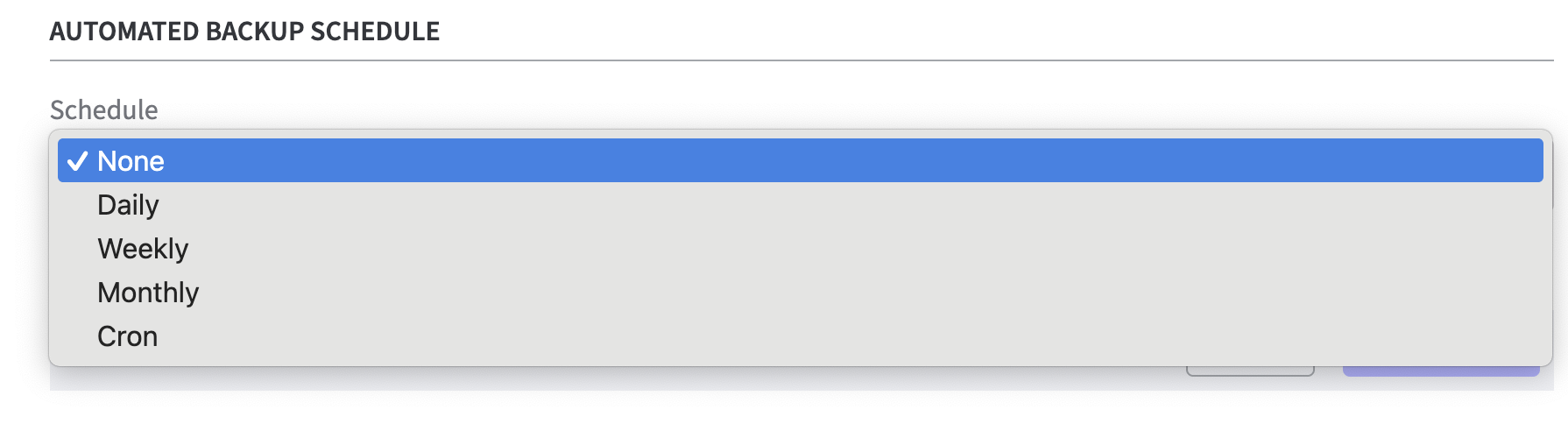
After the first selection, further fields open for setting the date/time. Set these according to your requirements.
You have the following options:
None: (default): if no automatic backup should be triggered
Daily: define Hour of Day and Minute of Hour
Weekly: define Day of Week, Hour of Day and Minute of Hour
Monthly: define Day of Month, Hour of Day and Minute of Hour
Cron: use the Quartz-style cron expression with seven fields:
|
Field Name |
Mandatory |
Allowed Values |
Allowed Special Characters |
|---|---|---|---|
|
Seconds |
YES |
0-59 |
, - * / |
|
Minutes |
YES |
0-59 |
, - * / |
|
Hours |
YES |
0-23 |
, - * / |
|
Day of month |
YES |
1-31 |
, - * ? / L W
|
|
Month |
YES |
1-12 or JAN-DEC |
, - * / |
|
Day of week |
YES |
1-7 or SUN-SAT |
, - * ? / L # |
|
Year |
NO |
empty, 1970-2099 |
, - * / |
The order of the fields is as follows:
Second, Minutes, Hours, Day of month, Month, Day of week, Year with the values separated by a space.
You must to chose between using day of month or day of week:
-
use ? as a value for the field that is not used (e.g. set ? for day of the month if the backup is to be taken every Friday. Than specify the day of the week instead)
-
Use * as a value to select all (e.g. if the backup is to be performed every month).
-
All other allowed special characters are explained in detail in CRON tutorials.
0 0 0 ? * FRI:
midnight (0 sec , 0 min , 0 hour),
day of the month (?),
every month (*)
Fridays only (FRI).
Click Save Settings to confirm your entries.
So far, only a schedule for the backup has been defined.
No backup has been created yet!
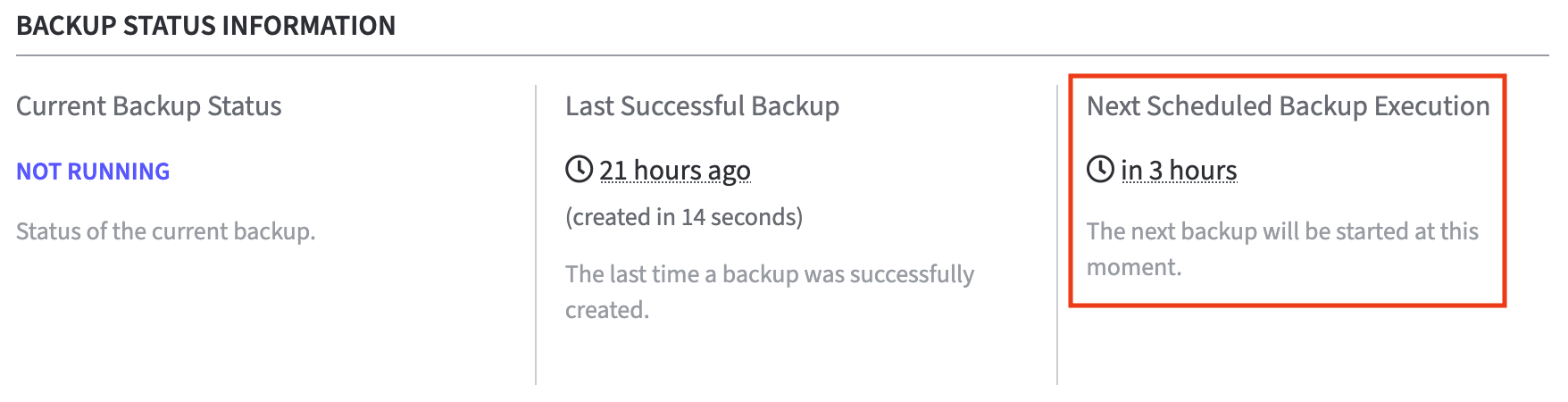
Check the Next Scheduled Backup Execution in the Backup Status Information to see when the next backup will be triggered.