.png)
This page describes how to add a new user to the Super Administrator Role in the Test Drive.
EJBCA administrator privileges are managed on the EJBCA Roles Management page. For more information, refer to the EJBCA documentation about Roles and Access Rules.
Add a user to the Super Administrator Role
To add a role member to the Super Administrator Role:
-
With the original Test Drive administrator login, access the EJBCA Administration page and select Roles and Access Rules under System Functions.
-
Next to the Super Administrator Role, click Members.
Optionally, click Add to add a new role for different permissions. -
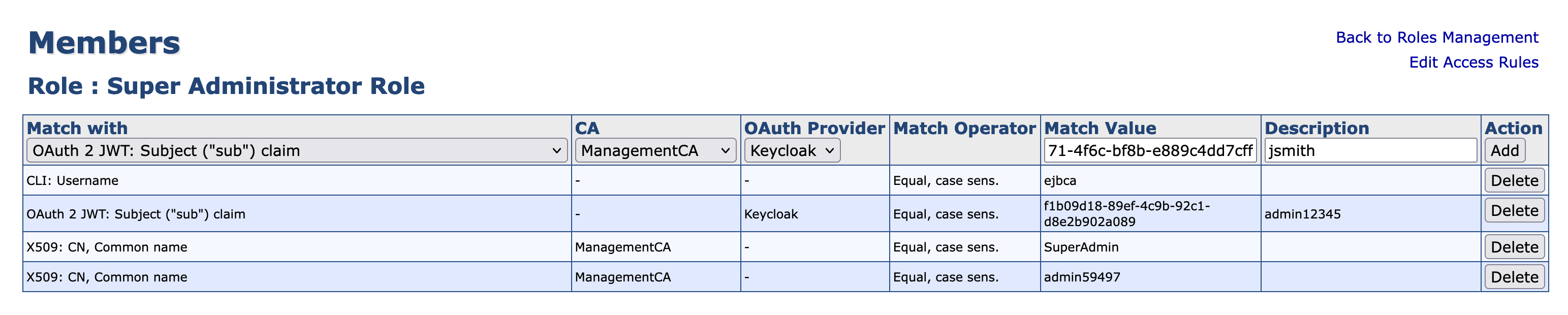
Specify the following user information for the role member: Members are defined by the following attributes:
-
Match With: Select “OAuth 2 JWT: Subject (“sub”) claim”
-
CA: Ensure that the Management CA is selected for the CA to match on.
-
OAuth Provider: “Keycloak”
-
Match Value: Paste the User ID from above.
-
Description: Specify anything to identify this user. In this example, the username “jsmith”
-
-
Click Add to add the user to the role.
User login
The new user can now log in to the Test Drive EJBCA Admin Web:
-
Navigate to
https://<TEST DRIVE URL>:8443/ejbca/adminweb).
If you get a browser security warning, then install the Test Drive certificate in your browser. See separate page.
-
At the Keyfactor login panel, sign in with your username and password.
If a temporary password was assigned, you must create a new password upon your first login.
Once authenticated, the new user is logged into the EJBCA Admin Web.