.png)
A Certificate User Domain allows you to authenticate users using a client certificate, typically for unattended agents and CI/CD pipelines.
Prerequisite
Before you can assign a specific certificate to a new Certificate User as a Client Certificate Chain, you must upload it in the Client Auth Certificates section to make the certificate available for assignment. This step can be performed by a Signum Administrator.
Configure the Domain
-
In the Admin Web Console, navigate to Access > Domains and click New.
-
Set Domain Type to Certificate Users and complete the common domain options (Alias, Concurrency, User Limit). See Domains for descriptions of these fields.
-
Click Submit to create the domain.
The new domain appears in the list on the Domains tab, where you can create and manage its users.
The Certificate Users Domain supports only one user group. See Domains | User Groups.
Create a Certificate User
-
Select the new Certificate Users domain from the list of available domains in the Domains tab.
-
In the popup window for editing the domain, navigate to the Users tab.
-
Click New to begin creating a new user.
-
Under Signum Configurations, fill in:
-
Username: for example,
alice@example.com -
Name: the user's display name
-
Email: the user's email address
-
-
You can also set:
-
Add one or more Client Certificate Chains.
-
Optionally, define Attribute Matching Rules to enforce during authentication.
-
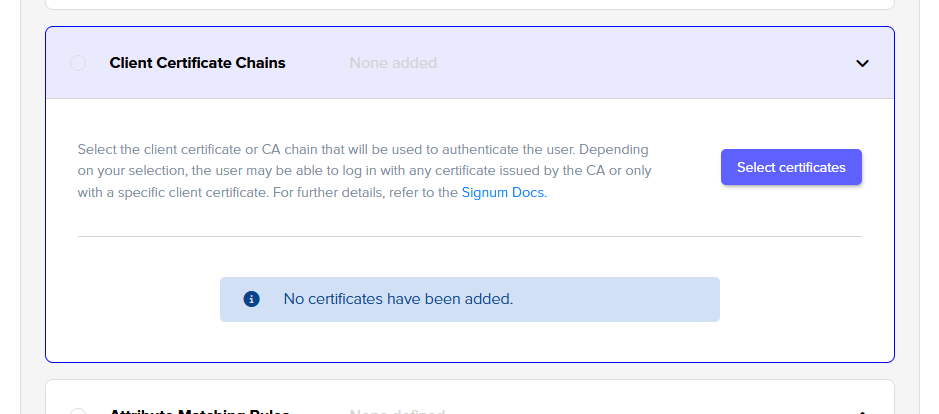
Client Certificate Chains
In the Client Certificate Chains setting, define a certificate user by either adding a specific client certificate or adding any client certificate issued by that CA.
Because these entries reference specific certificates, an expired certificate prevents the user from authenticating.
Specific Client Certificate
Upload the specific certificate in the Client Auth Certificates section and set in the user configuration. If a specific client certificate is configured, the client needs to present that specific certificate to gain access. Only that certificate is able to act as this user.
CA Chain Certificate
Upload a chain certificate (root or intermediate) and set it in the user configuration.
If you want to ensure only one certificate can act as the defined user, complete the user definition by adding attribute-matching rules that ensure that only one certificate generated by the selected CA is able to act as this user. By selecting only the CA certificates, you would allow any certificate issued by that Authority to connect.
Attribute Matching Rules
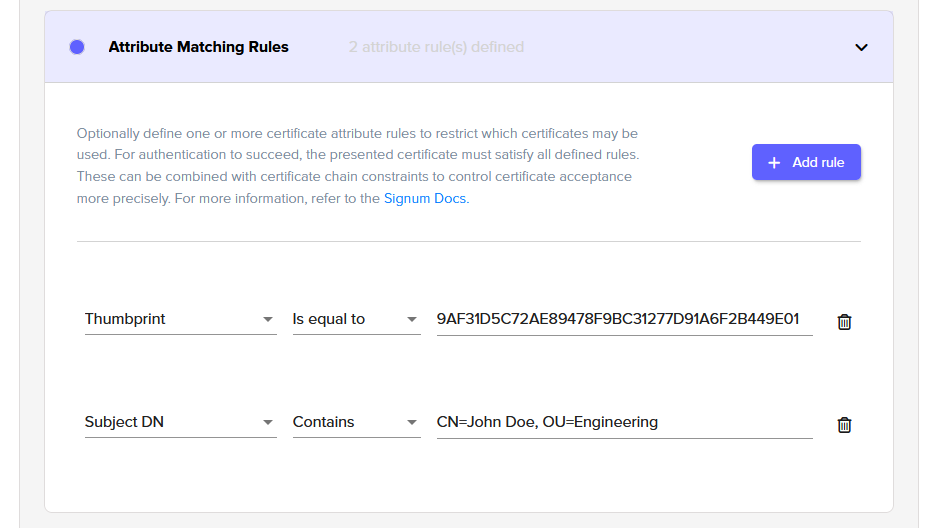
In addition to Client Certificate Chains, you can create rules for the user certificate. For example:
-
Thumbprint is equal to
9AF31D5C72AE89478F9BC31277D91A6F2B449E01 -
Subject DN contains
CN=John Doe, OU=Engineering
To restrict a client certificate to a particular CA, you could add:
-
Issuer DN is equal to
CN=Example CA, O=Example Corp, C=US
A user is authenticated only if the presented certificate meets all defined Attribute Matching Rules.
The available attributes are:
-
Serial number
-
Subject DN
-
Thumbprint
-
SANs
-
Issuer DN
Usage Notes
Any certificate configuration, either Specific Client Certificate or CA Chain, may be only be assigned to one user. Assigning the same configuration to more than one user results in a login error message: “The certificate matches more than one user profile. We’re unable to determine which account to use. Please reach out to your administrator.”
Both the CA certificate chain and the client authentication certificate can be used in combination with attribute matching rules.
Regardless of the situation, expired certificates do not work.
Some example configurations and the resulting behavior are:
|
Client Certificate Chains |
Attribute Matching Rule |
Behavior |
|---|---|---|
|
CA chain |
none |
An agent presenting with any certificate issued by the CA will be accepted. |
|
CA chain |
✔️ |
An agent presenting with any certificate issued by the CA will be accepted AND the selected attributes must match. |
|
Client auth cert |
none |
An agent must present with the specific client certificate. |
|
Client auth cert |
✔️ |
An agent must present with the specific client certificate AND the selected attributes must match. |