.png)
To register in the Keyfactor Portal and log in for the first time, follow the steps below.
Registering in the Keyfactor Portal
-
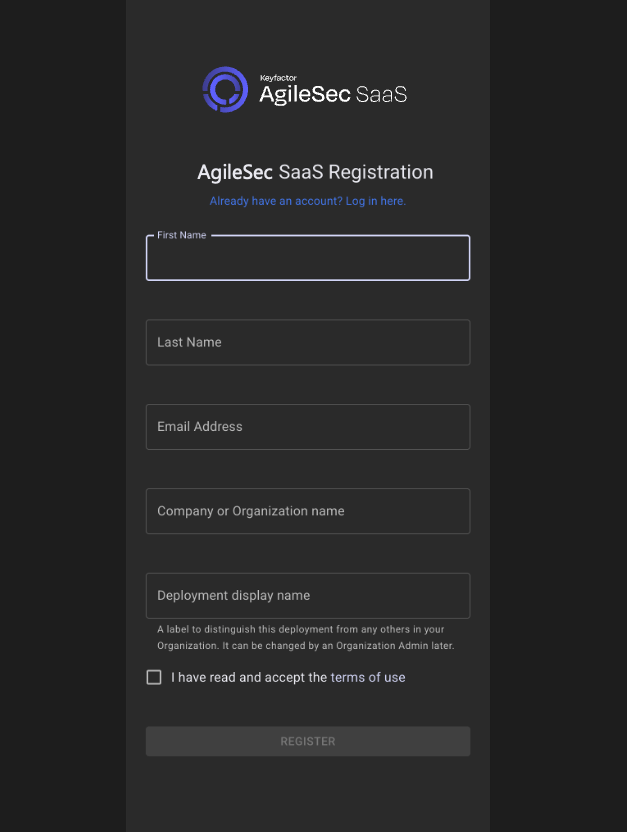
Specify the organization details on the Keyfactor Portal Registration page.
Note: If your organization already has an existing SaaS deployment, you can add this deployment to the same Organization by logging in via the “Already have an account?” link.
-
Once you have read through the Terms, click the check box next to I have read and accept the terms of use, and then click Register.
A confirmation email will be sent to the account specified in the Email Address field and must be confirmed to continue.
Tip: The email will come from <support@az.keyfactorsaas.com>. Add this email address to your address book to prevent the message from being accidentally categorized into the junk folder.
-
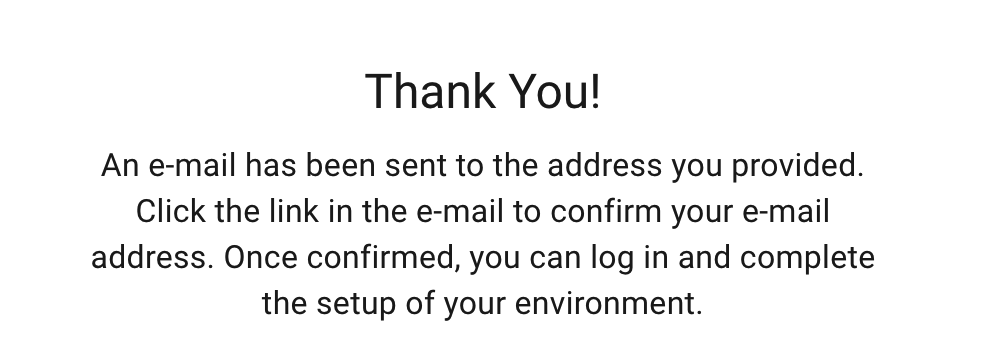
A confirmation page will display to confirm successful registration.
-
In the confirmation email, click Confirm Email to confirm registration.
-
If successful, the Portal will show your email address was successfully confirmed. Sign back into the Keyfactor Portal to set your password and finish the registration process. Enter a password, and then click Reset Password.
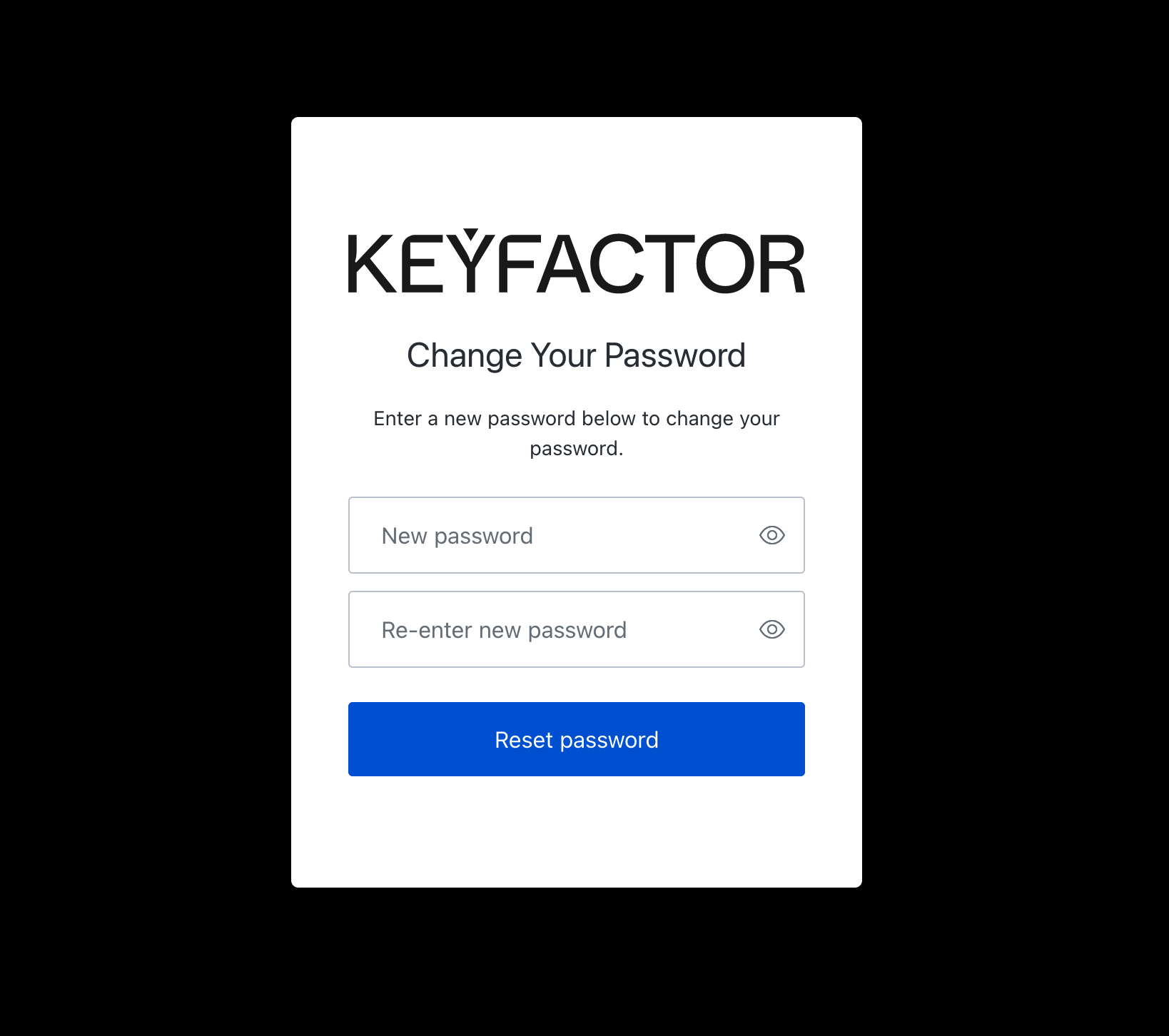
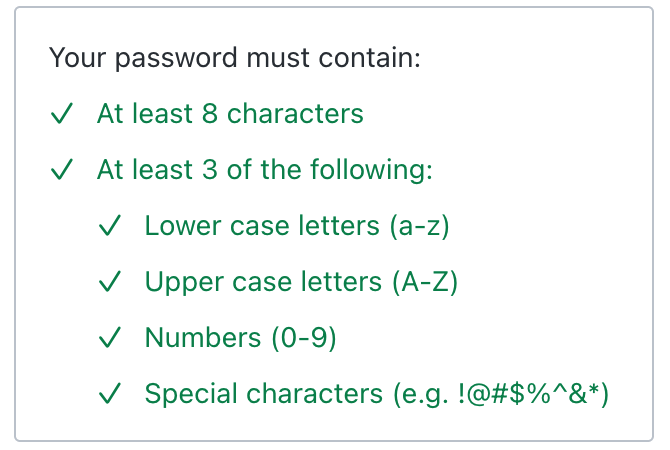
The new password should meet the following password requirements.
-
After resetting your password, click Back to Keyfactor SaaS Portal.
Logging in for the first time
-
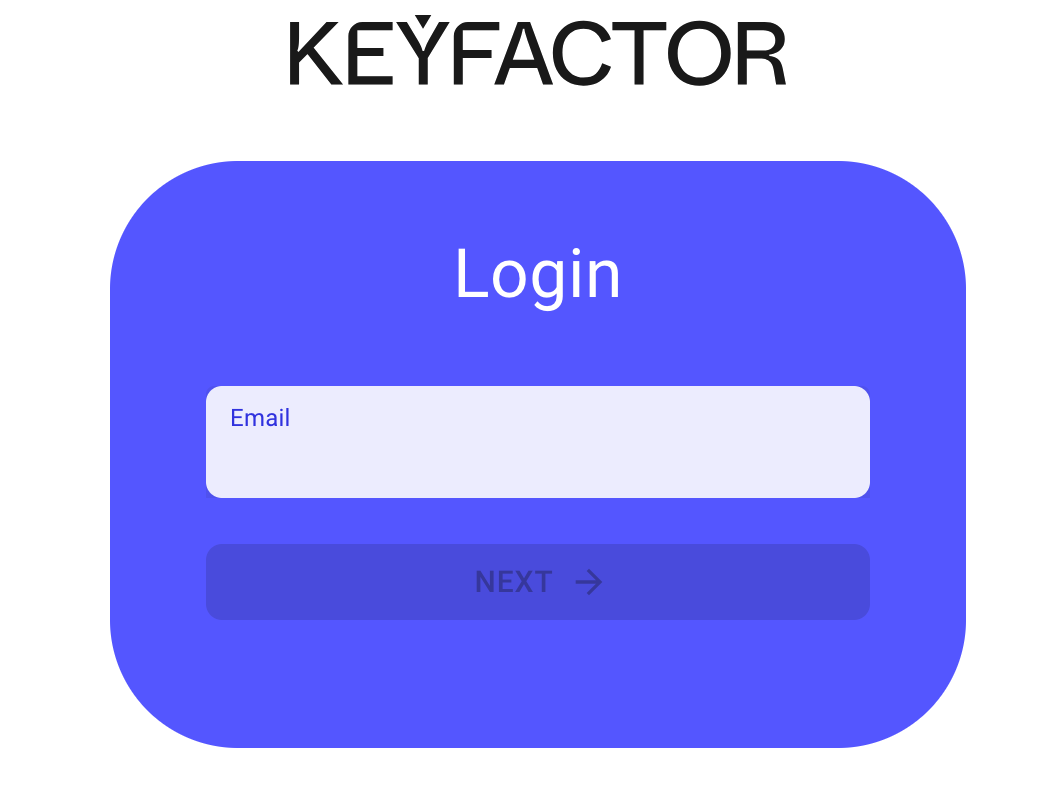
After registering, enter your email address in the Email field, and then click Next.
-
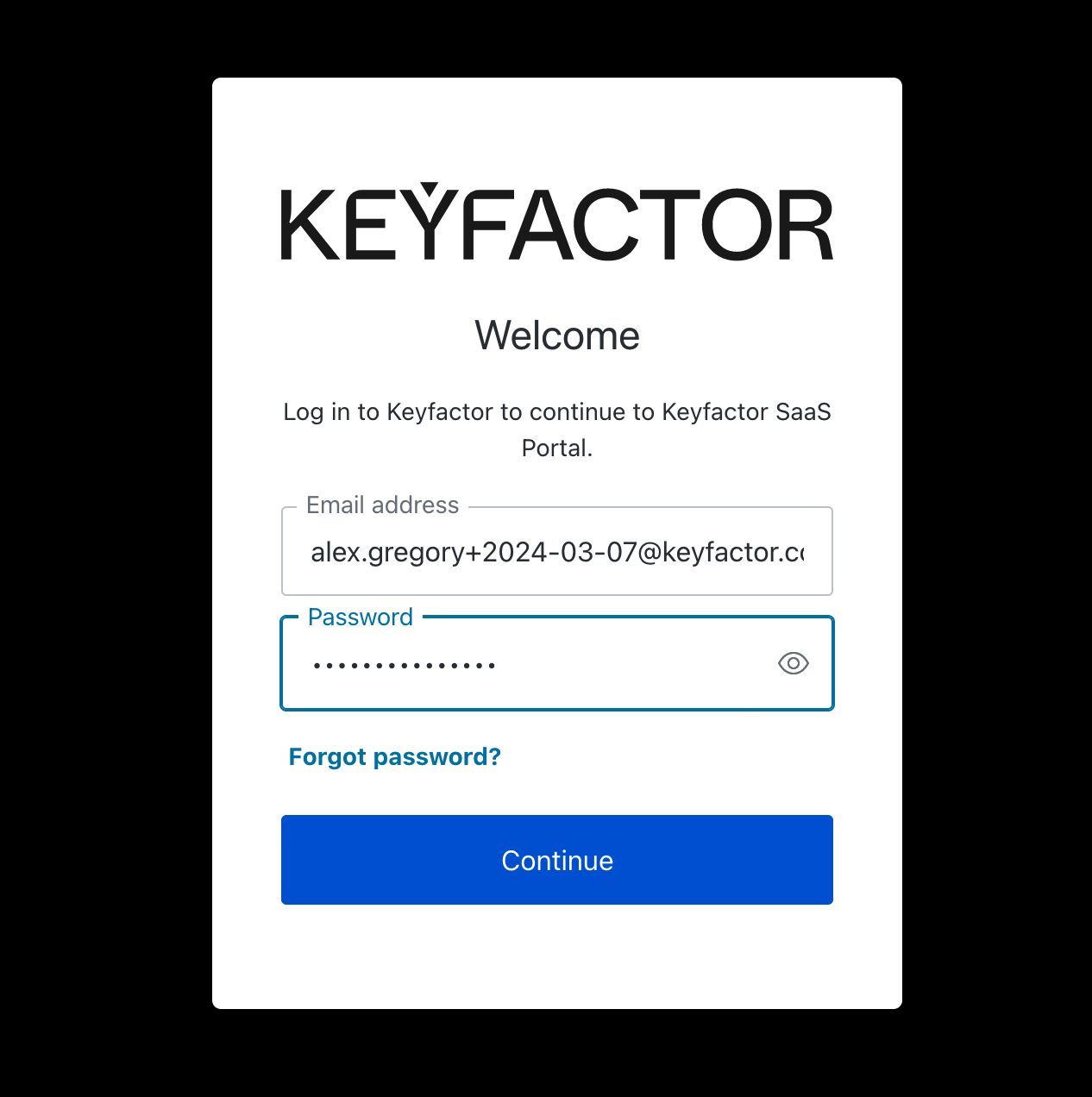
On the next screen, your email address will be populated for you. Enter the password you set when registering, then click Continue.
-
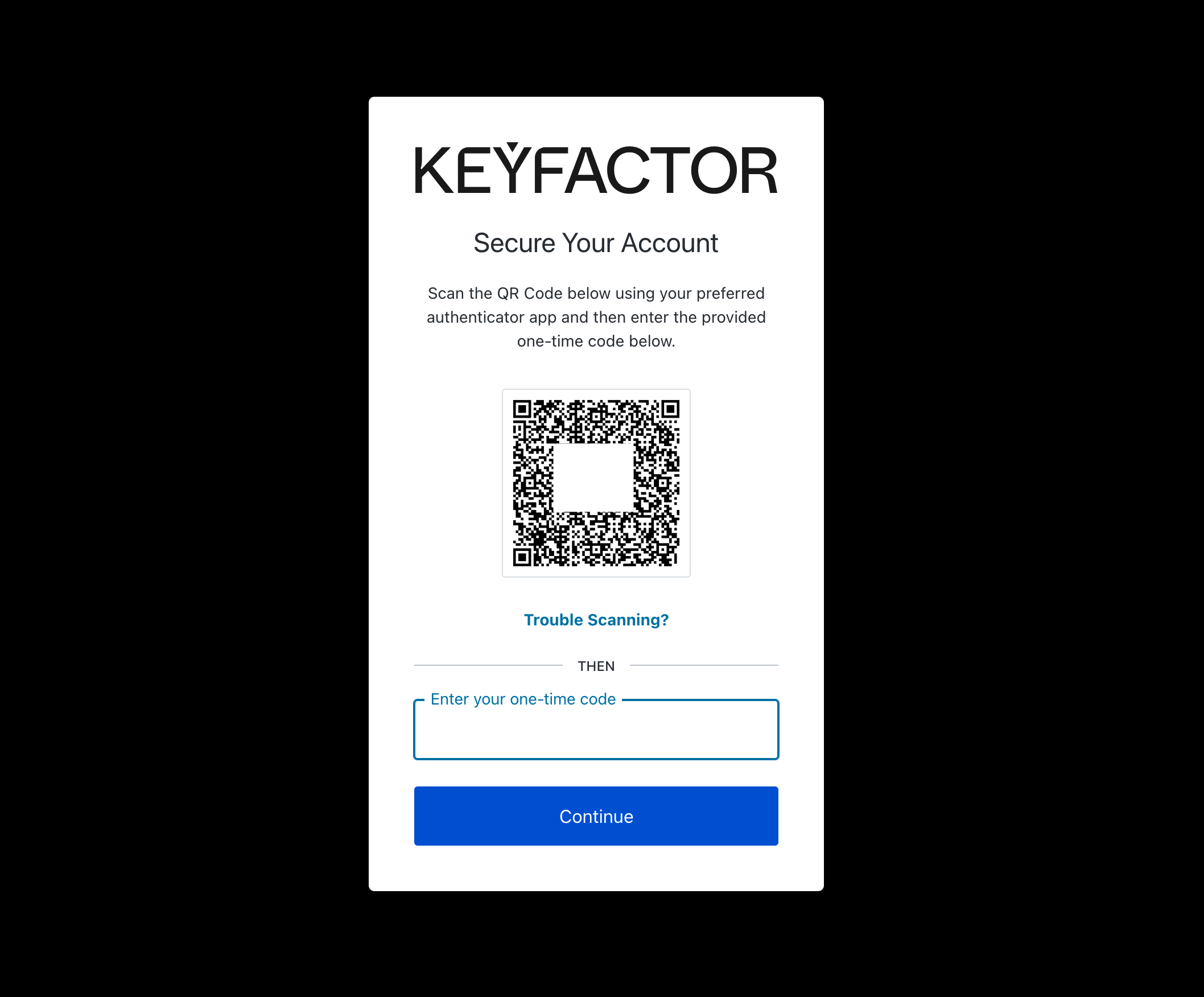
Use an MFA app (such as Google Authenticator, Microsoft Authenticator, or Last Pass Authenticator) to enroll anMFA token.
-
Click the + icon in your MFA app to add a token, then choose the camera option to scan a QR code.
-
Once the codes are generated, enter the six-digit code in the Enter your one-time code field and click Continue.
-
Info: The Keyfactor SaaS Portal leverages adaptive MFA as standard for all users. Adaptive MFA is a flexible, extensible MFA policy to protect your tenant from bad actors without increasing friction for real users. It assesses potential risk during every login transaction, and then prompts the user for additional verification if appropriate.
Note: If you would like to always prompt for MFA, please see Use the Organizations feature for instructions to update authentication settings.
-
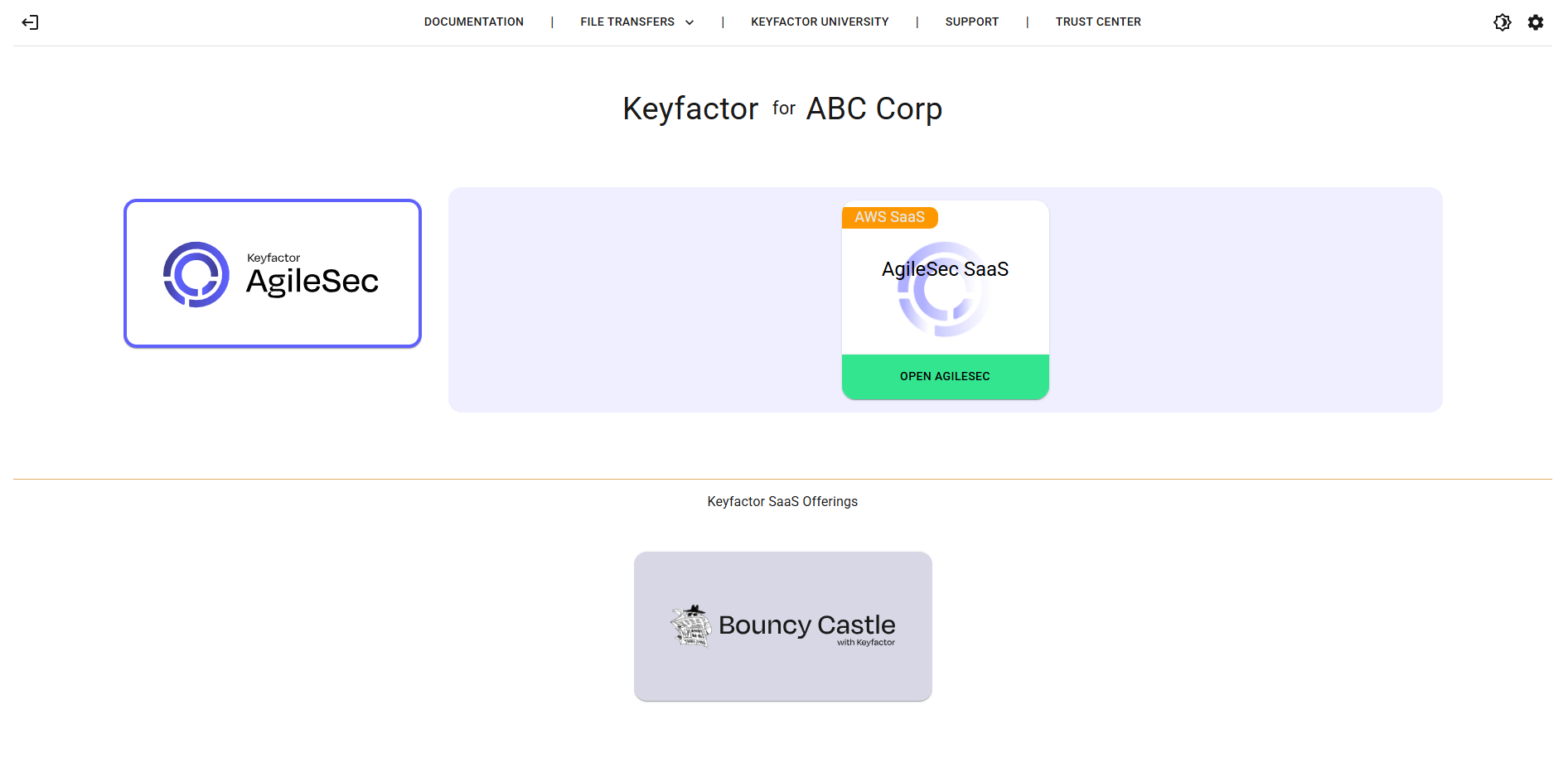
After entering the MFA code, you will be brought to the Organizations feature page, which includes deployment tiles linking to Portal Web interfaces for deployed SaaS products.
Next - Using Organizations
See Use the Organizations feature for deployment access and other SaaS Organizations information.