.png)
This guide includes the key steps for deploying the specific content created by ISG to leverage the capabilities of Tanium to perform a cryptographic inventory at scale.
Prerequisites
To start the deployment of the ISG Tanium Content, you will need to receive the download link from ISG. If you don't have the download link, please reach out to ISG support. This guide is designed for the following versions of the Products:
-
Tanium Version Build. 7.5.x
-
Tanium Version Console. 3.4.x
-
ISG Sensor Tanium Content. 3.4.x
-
ISG AgileSec Analytics Unified Sensors for Tanium. 3.4.0
Other version of Tanium may have different import process.
The guide applies for another version of Tanium with minor differences in the import process.
Create Roles in Tanium
The following two roles should be created in Tanium:
Tanium Admin Role
The Tanium Admin role is the person who will load the package from ISG into Tanium and provide access to the Crypto Operational Role. The following actions should be considered when creating the role and granting permissions:
-
Download ISG packages from the link provided by ISG
-
Create ISG Content Set
-
Load ISG Actions and Packages
-
Load ISG Sensors
-
Load ISG Saved Questions
-
Load ISG Connect Jobs after modification of URLs
-
Assign a set of Hosts to Crypto Operational Role
-
Assign a set of rights to Crypto Operation Role
Crypto Operational Role
The Crypto Operational role is the person who will manually execute the different sensors and actions from Tanium to trigger cryptographic inventory. It is recommended to provide the following rights to the crypto operational role:
-
Right to run objects available in ISG Content Set
-
Right to Run ISG Actions on authorized hosts
-
Right to Create New Saved Questions
-
Right to Run Saved Questions
-
Right to Create New Connect Jobs
-
Right to Run Connect Jobs
Download ISG Tanium Content
The ISG Tanium Content is provided in a single archive. The archive is provided separately through a secure download link by ISG.
-
ISG-Sensor-3.4.0-Tanium.zip
Key components
The ISG Tanium Content archive contains the following key components:
-
ISG Tanium Package. Used to deploy ISG discovery capabilities to end-points through Tanium Agent.
-
ISG Tanium Sensors. Used to query cryptographic findings from ISG packages.
-
ISG Tanium Saved Questions. Used to leverage a set of pre-built saved questions.
-
ISG Tanium Connect Jobs. Used to export cryptographic findings to an external source.
-
ISG Scripts/Executables. Used to perform the deploy, discovery and removal action.
Installation Package Structure
The ISG Tanium Content Archive contains the following files.
- ISG-Tanium Connect-3.4.0.json                > Connect jobs to load into Tanium manually
- ISG-Tanium-Saved-Questions-3.4.0.json        > Saved Questions to load into Tanium
- ISG-Tanium-Sensors-3.4.0.json                > Sensors to load into Tanium manually
- ISG-Tanium-Packages-3.4.0.json               > Packages to load into Tanium manually


- ./Packages-Executables                         > Executables to load in packages
    - ./ISG-Deploy-Linux
       - ./isg_sensor_3.4.0-py.zip             > Common Python Scripts
       - ./isg_sensor_linux_3.4.0.zip          > ISG Sensor Executable
       - ./isg_ds_deploy.py                    > Deploy Script

    - ./ISG-Deploy-Windows
       - ./isg_sensor_3.4.0-py.zip             > Common Python Scripts
       - ./isg_sensor_windows_3.4.0.zip        > ISG Sensor Executable
       - ./isg_ds_deploy.py                    > Deploy Script

    - ./ISG-Discover-Linux
       - ./isg_ds_discover.py                  > Discovery Script

    - ./ISG-Discover-Windows
       - ./isg_ds_discover.py                  > Discovery Script

    - ./ISG-Run-Linux
       - ./isg_ds_run.py                       > Run Script

    - ./ISG-Run-Windows
       - ./isg_ds_run.py                       > Run Script

    - ./ISG-Undeploy-Linux
       - ./isg_ds_undeploy.py                  > Undeploy Script

    - ./ISG-Undeploy-Windows
       - ./isg_ds_undeploy.py                  > Undeploy Script
ISG Sensors
ISG-Tanium-Sensors-3.4.0.json
The following sensors will be loaded in Tanium. The sensors will be used to interact with the ISG packages and query specific cryptographic information. The sensors are usually divided into 2 groups, 1) the file level sensors which return information about the location plus the metadata of the associated cryptographic object and 2) detailed information about the cryptographic object. As Tanium limits the number of events that can be returned by Sensors by hosts, ISG implemented specific parameters that allow sensors to return only a subset of information.
|
Name |
Type |
Description |
|---|---|---|
|
ISG - Algorithm Files |
Algorithms |
Get files containing cryptographic algorithms |
|
ISG - Algorithm Summary |
Algorithms |
Get the summary of cryptographic algorithms |
|
ISG - Certificate Algorithms |
Certificates |
Get algorithms used by Certificates |
|
ISG - Certificate Encoded |
Certificates |
Get certificates in PEM-encoded format |
|
ISG - Certificate Files |
Certificates |
Get files containing certificates. |
|
ISG - Certificate Info |
Certificates |
Get files and certificate metadata |
|
ISG - Certificate Summary |
Certificates |
Get the summary of certificates |
|
ISG - JCA Files |
Algorithms JCA |
Get files containing JCA (java) calls |
|
ISG - JCA Summary |
Algorithms JCA |
Get the summary of JCA (java) calls |
|
ISG - Key Files |
Keys |
Get files containing cryptographic keys |
|
ISG - Key Summary |
Keys |
Get the summary of cryptographic keys |
|
ISG - Keystore Files |
Keystores |
Get files containing keystores |
|
ISG - Keystore Summary |
Keystores |
Get the summary of keystores |
|
ISG - Library Files |
Crypto Libraries |
Get files containing cryptographic libraries |
|
ISG - Library Summary |
Crypto Libraries |
Get the summary of cryptographic libraries |
|
ISG - Status Deploy |
Status |
Get status of the ISG sensor deployment |
|
ISG - SSH Protocol Event |
SSH Keys |
Get keys used by network interfaces |
|
ISG - SSH Key Summary |
SSH Keys |
Get keys used by network interfaces |
|
ISG - TLS Certificate Summary |
Certificate |
Get certificates used by network interfaces |
ISG Packages
ISG-Tanium-Packages-3.4.0.json
ISG packages are used to deploy the ISG discovery plugin via the Tanium infrastructure. The packages are split into 3 main categories, including:
-
the deployment of the ISG package
-
the execution of the ISG package (discover and run packages)
-
the removal of the ISG package. The following packages are provided.
|
Name |
Type |
Details |
|---|---|---|
|
ISG - Deploy [Linux] |
Deploy |
Deploy ISG Sensor on targeted Linux Machines |
|
ISG - Deploy [Windows] |
Deploy |
Deploy ISG Sensor on targeted Windows Machines |
|
ISG - Discover [Linux] |
Discover |
Run ISG Sensor locally on targeted Linux Machines |
|
ISG - Discover [Windows] |
Discover |
Run ISG Sensor locally on targeted Windows Machines |
|
ISG - Run [Linux] |
Run |
Run ISG Sensor on targeted Linux Machines |
|
ISG - Run [Windows] |
Run |
Run ISG Sensor on targeted Windows Machines |
|
ISG - Undeploy [Linux] |
Undeploy |
Undeploy ISG Sensor on targeted Linux Machines |
|
ISG - Undeploy [Windows] |
Undepoy |
Undeploy ISG Sensor on targeted Windows Machines |
ISG Saved Questions
ISG-Tanium-Saved-Questions-3.4.0.json
ISG saved questions are pre-built questions that leverage the ISG sensors. The default saved questions have been designed to split queries returning a large amount of data into isolated queries, such as queries related to X.509 certificates. The saved questions include the 1) Event Saved questions aiming to return the location of cryptographic objects associated with the associated metadata 2) Objects that return detailed information about the related cryptographic objects (especially for X509 certificates that contain several useful information).
|
Name |
Type |
Details |
|---|---|---|
|
ISG - Key Events |
Key |
Query key events |
|
ISG - Keystore Events |
Keystore |
Query keystore events |
|
ISG - Library Events |
Library |
Query cryptographic library events |
|
ISG - Network Cipher Events |
Network |
Query network cipher events |
|
ISG - Self-Signed Certificate Events |
Certificate |
Query self-signed certificate events |
|
ISG - Self-Signed Certificate Objects |
Certificate |
Query self-signed certificate objects |
|
ISG - Signed Certificate Events |
Certificate |
Query signed certificate events |
|
ISG - Signed Certificate Objects |
Certificate |
Query signed certificate objects§ |
|
ISG - TLS Certificates Events |
Certificate |
Query Certificates used by Network Interfaces |
|
ISG - SSH Key Events |
Certificate |
Query SSH Keys used by Network interfaces |
Custom sensors are created to return only specific information to ISG backend or when a sensor returns more items by host than allowed by Tanium.
Tanium Connect
ISG-Tanium-Connect-3.4.0.json
The Tanium Connect jobs match the ISG Saved Question to export the result of saved questions to the ISG backend Server. The following Tanium connect jobs are available by default.
|
Name |
Type |
Details |
|---|---|---|
|
ISG - Export Key Events |
Key |
Export key events to ISG Server |
|
ISG - Export Keystore Events |
Keystore |
Export keystore events to ISG Server |
|
ISG - Export Library Events |
Library |
Export cryptographic library events to ISG Server |
|
ISG - Export Network Cipher Events |
Network |
Export network cipher events to ISG Server |
|
ISG - Export Self-Signed Certificate Events |
Certificate |
Export self-signed certificate events to ISG Server |
|
ISG - Export Self-Signed Certificate Objects |
Certificate |
Export self-signed certificate objects to ISG Server |
|
ISG - Export Signed Certificate Events |
Certificate |
Export signed certificate events to ISG Server |
|
ISG - Export Signed Certificate Objects |
Certificate |
Export signed certificate objects to ISG Server |
|
ISG - Export TLS Certificates Events |
Certificate |
Export TLS Certificates found in network to ISG Server |
|
ISG - Export SSH Key Events |
Key |
Export SSH keys found in network to ISG Server |
Step 1: Create ISG Content Set
Go to content Set
To create the ISG AgileSec Analytics content set, navigate to Administration > Content Sets menu in Tanium.
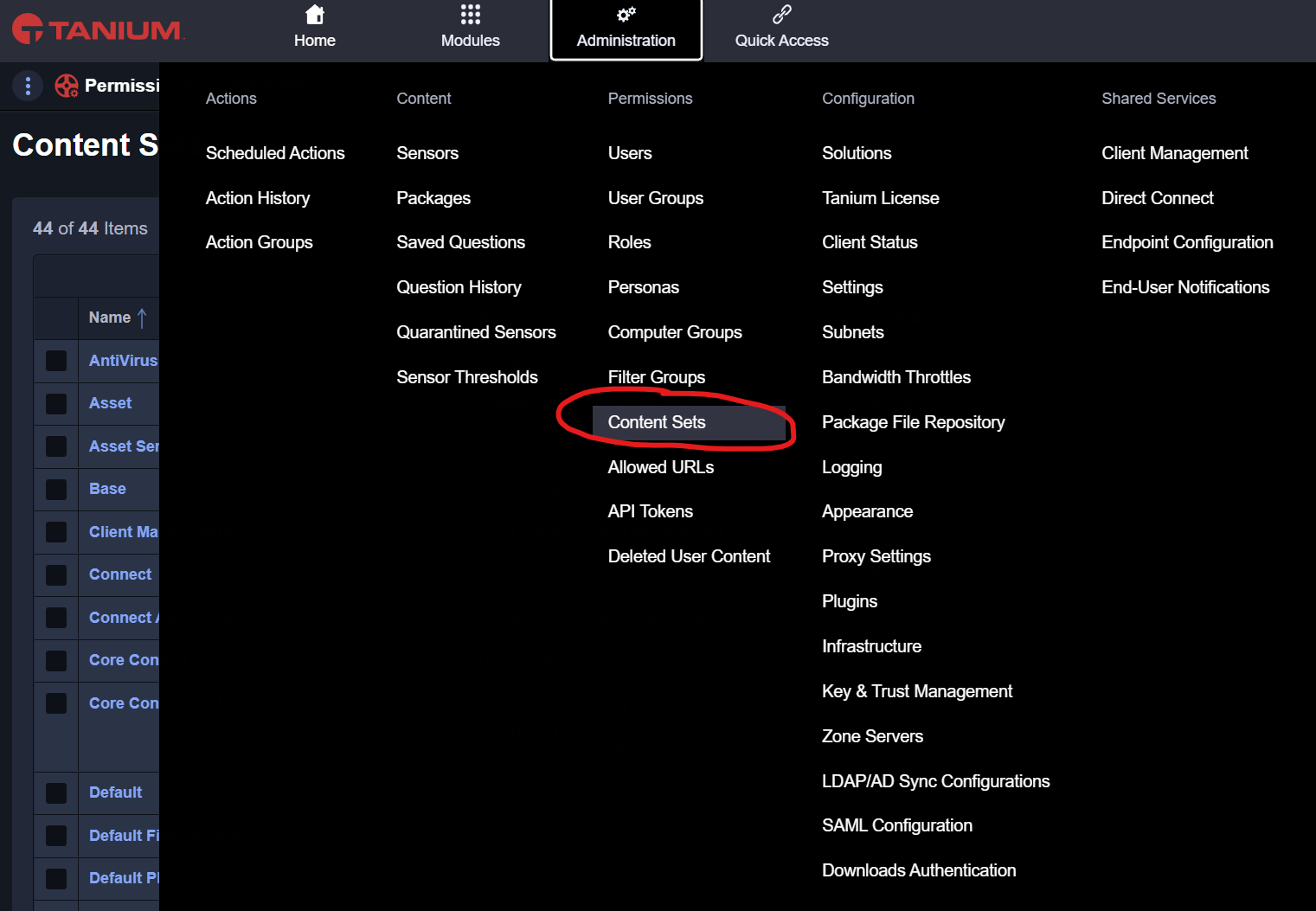
Create ISG - AgileSec Analytics Content Set
When in Content Sets, create a new content set. You must use the following name: ISG - AgileSec Analytics. Using a different name will lead to an error when loading the ISG Tanium packages.
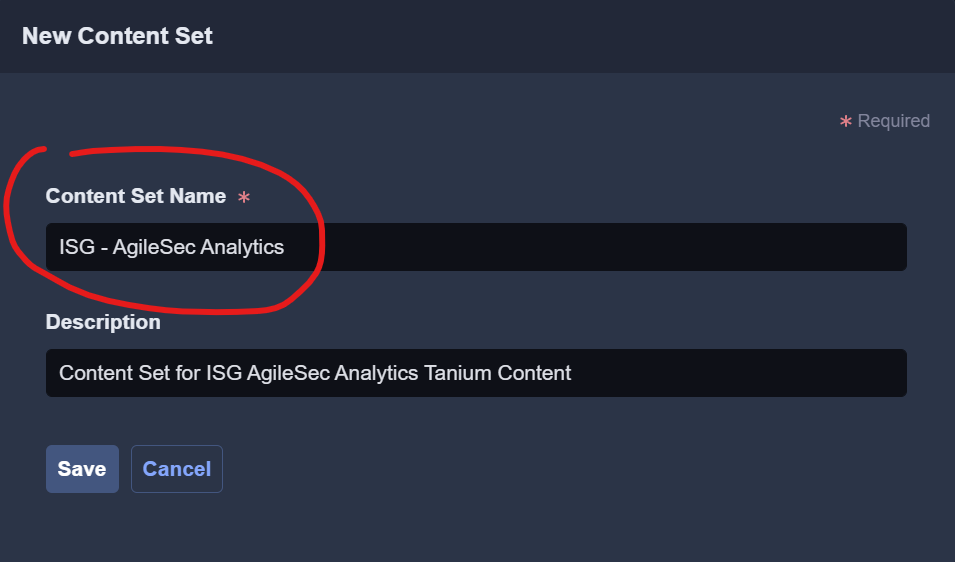
The Content Set Name must exactly (key sensitive) match the name ISG - AgileSec Analytics.
Save Content Set Changes
Modifications to the content set must be confirmed and saved prior to continuing. Verify changes and save the new content set.
Saving is mandatory. Confirm and save changes before continuing.
Step 2: Load ISG Packages
The ISG Tanium packages contain ISG executables to be controlled by the Tanium Agent. The Packages allow deployment of the ISG Sensor plugin for Tanium endpoints in order to execute cryptographic discovery, run processes on endpoints, and remove (or undeploy) sensors.
Go to Packages
To load new packages, navigate to Administration > Packages in Tanium.
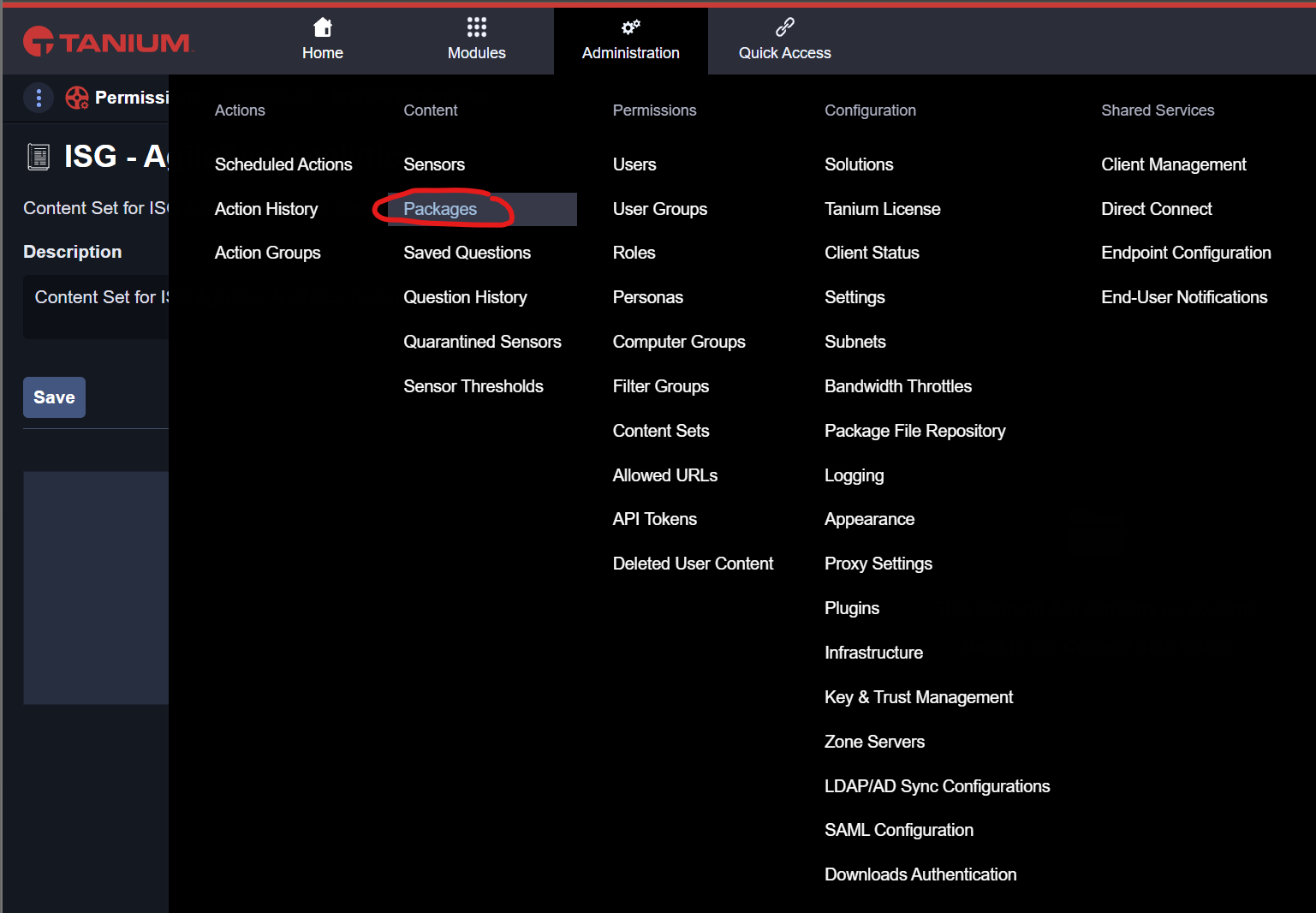
Import ISG Tanium packages
In the package menu, click on Import new content and select the file ISG-Tanium-Packages-<version>.json provided by ISG to load the ISG AgileSec Analytics Packages.

The following Packages shall become available for import. Click Begin the Import.
After successful import, the ISG Tanium Packages shall be available.
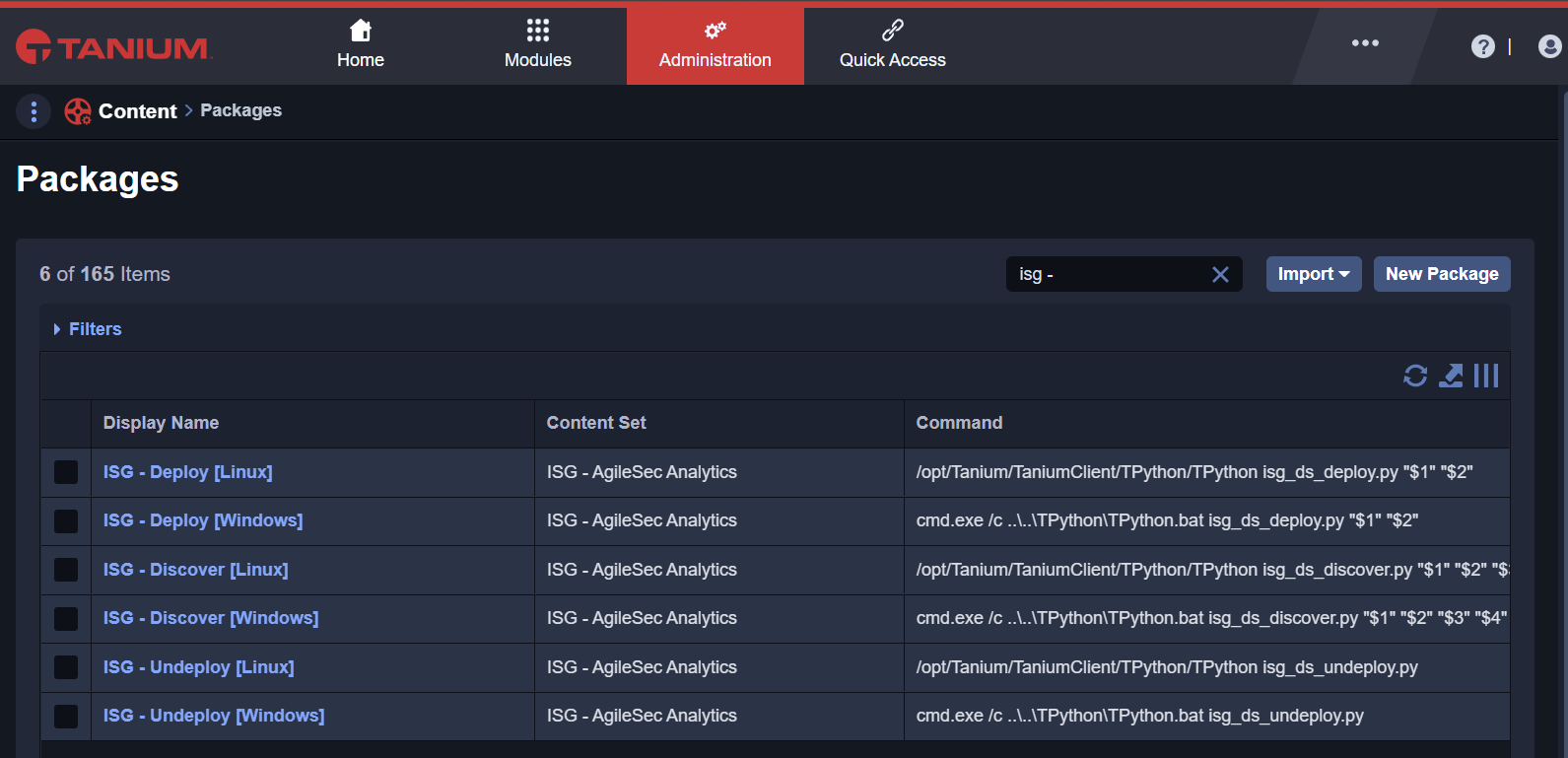
The loaded packages do not include ISG executables and other files. These must be loaded separately as defined in the next step.
Additionally, if you are upgrading to a newer version of ISG Tanium Content, update the Executables in the ISG Packages manually following the next steps.
Load ISG Executables to Packages
Click on the first Package: ISG - Deploy [Linux] to access the edit and preview modes of the package. Click on Edit Mode.
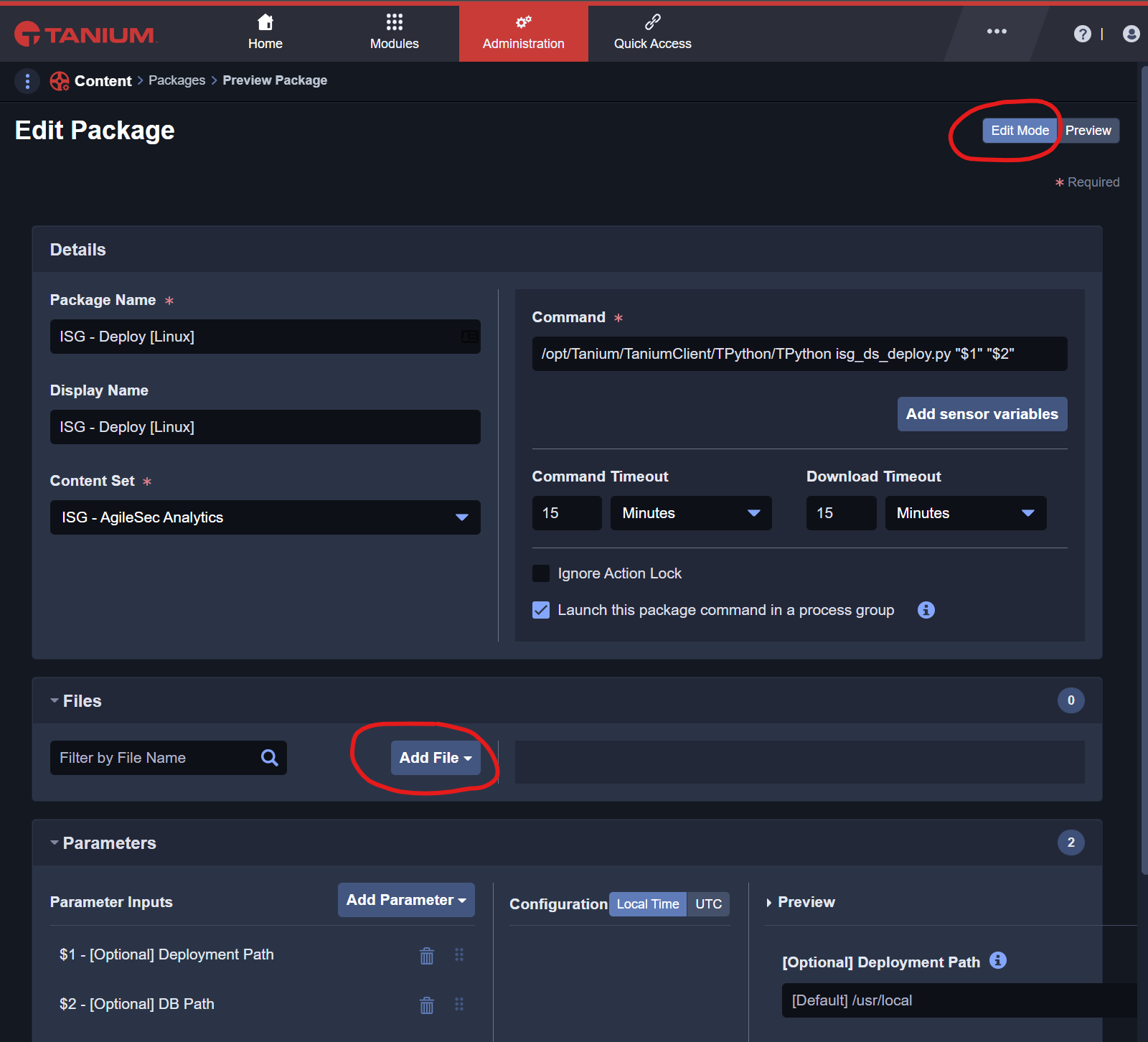
Manually add the following files to the package.
-
Load file from directory ./ISG-Deploy-Linux/isg_sensor_3.4.0-py.zip
-
Load file from directory ./ISG-Deploy-Linux/isg_sensor_linux_3.4.0.zip
-
Load file from directory ./ISG-Deploy-Linux/isg_ds_deploy.py
Save the updated package and click Yes to continue.

Load ISG Executables for all packages
Follow the previous steps to load the remaining ISG executables packages:
ISG - Deploy [Linux]
-
Load file from directory ./ISG-Deploy-Linux/isg_sensor_linux_3.4.0.zip
-
Load file from directory ./ISG-Deploy-Linux/isg_sensor_3.4.0-py.zip
-
Load file from directory ./ISG-Deploy-Linux/isg_ds_deploy.py
ISG - Deploy [Windows]
-
Load file from directory ./ISG-Deploy-Windows/isg_sensor_3.4.0-py.zip
-
Load file from directory ./ISG-Deploy-Windows/isg_sensor_windows_3.4.0.zip
-
Load file from directory ./ISG-Deploy-Windows/isg_ds_deploy.py
ISG - Discover [Linux]
-
Load file from directory ./ISG-Discover-Linux/isg_ds_discover.py
ISG - Discover [Windows]
-
Load file from directory ./ISG-Discover-Windows/isg_ds_discover.py
ISG - Run [Linux]
-
Load file from directory ./ISG-Run-Linux/isg_ds_run.py
ISG - Run [Windows]
-
Load file from directory ./ISG-Run-Windows/isg_ds_discover.py
ISG - Undeploy [Linux]
-
Load file from directory ./ISG-Undeploy-Linux/isg_ds_undeploy.py
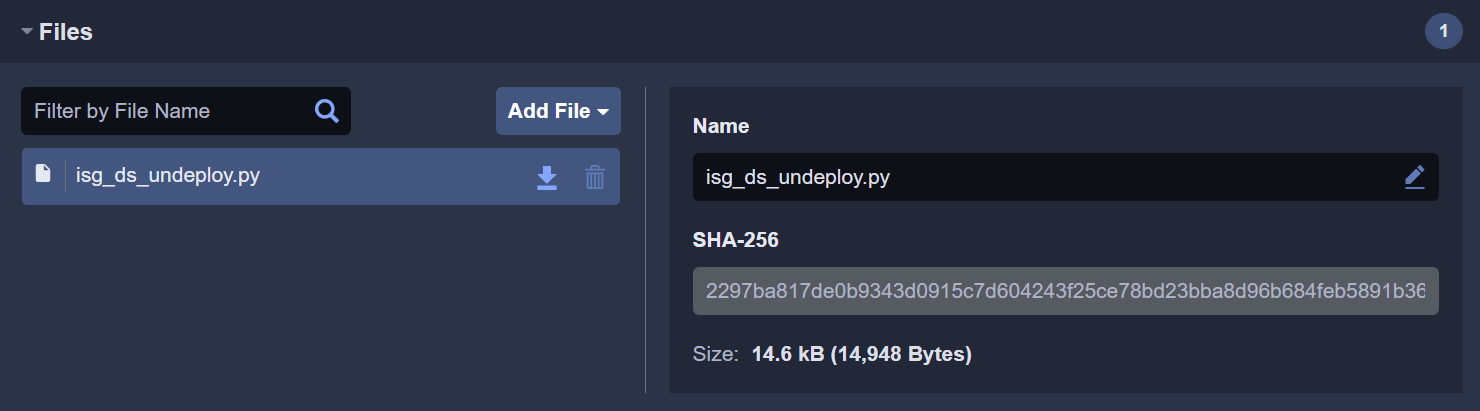
ISG - Undeploy [Windows]
-
Load file from directory ./ISG-Undeploy-Windows/isg_ds_undeploy.py
Verify ISG Executables
Verify all executables have been correctly deployed by searching for the ISG sensors. The following list shall be displayed with a valid size for each package.
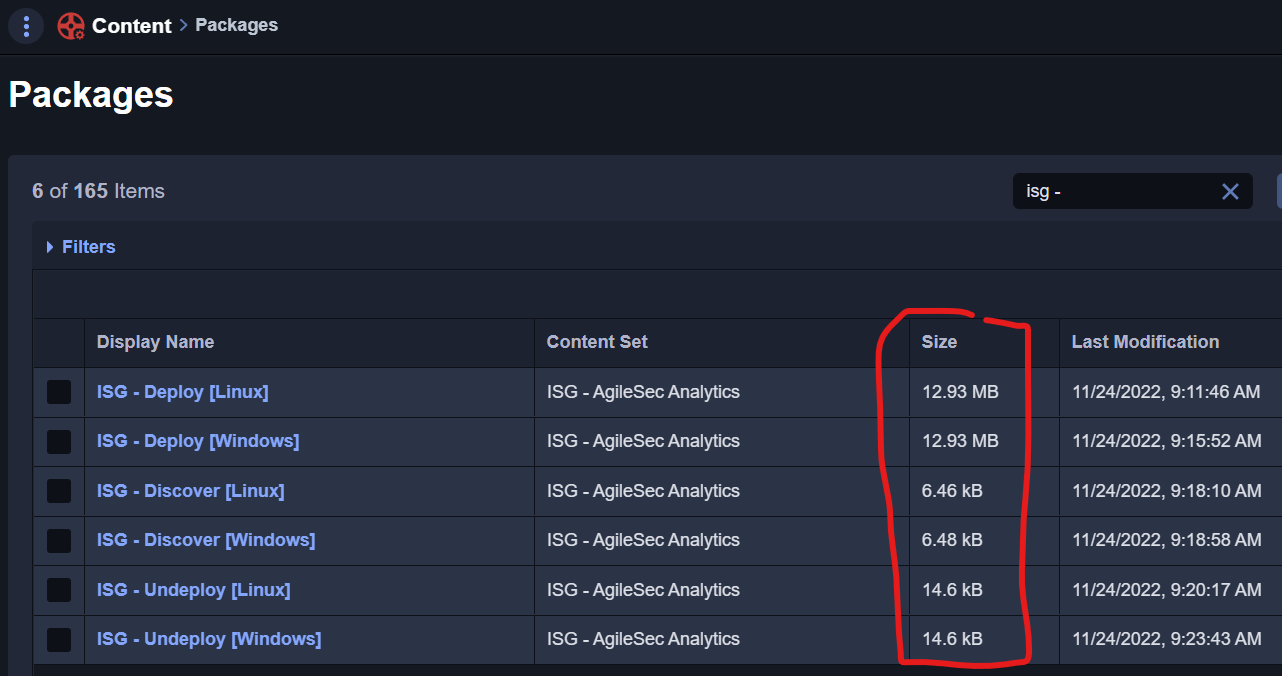
Step 3: Load ISG Sensors
The sensors are used to query information from the endpoints. ISG has created individual sensors to limit the information returned by query according to Tanium best practices. The sensors are used to query information from the endpoints and are used by the ISG Saved Questions.
Go to Sensors
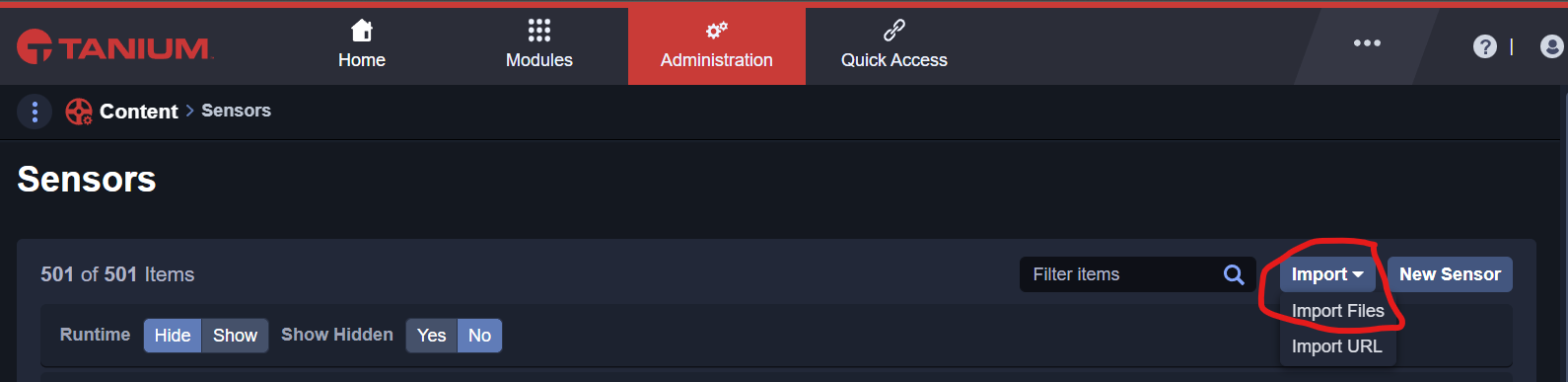
To load new sensors, navigate to Administration > Sensors menu in Tanium.
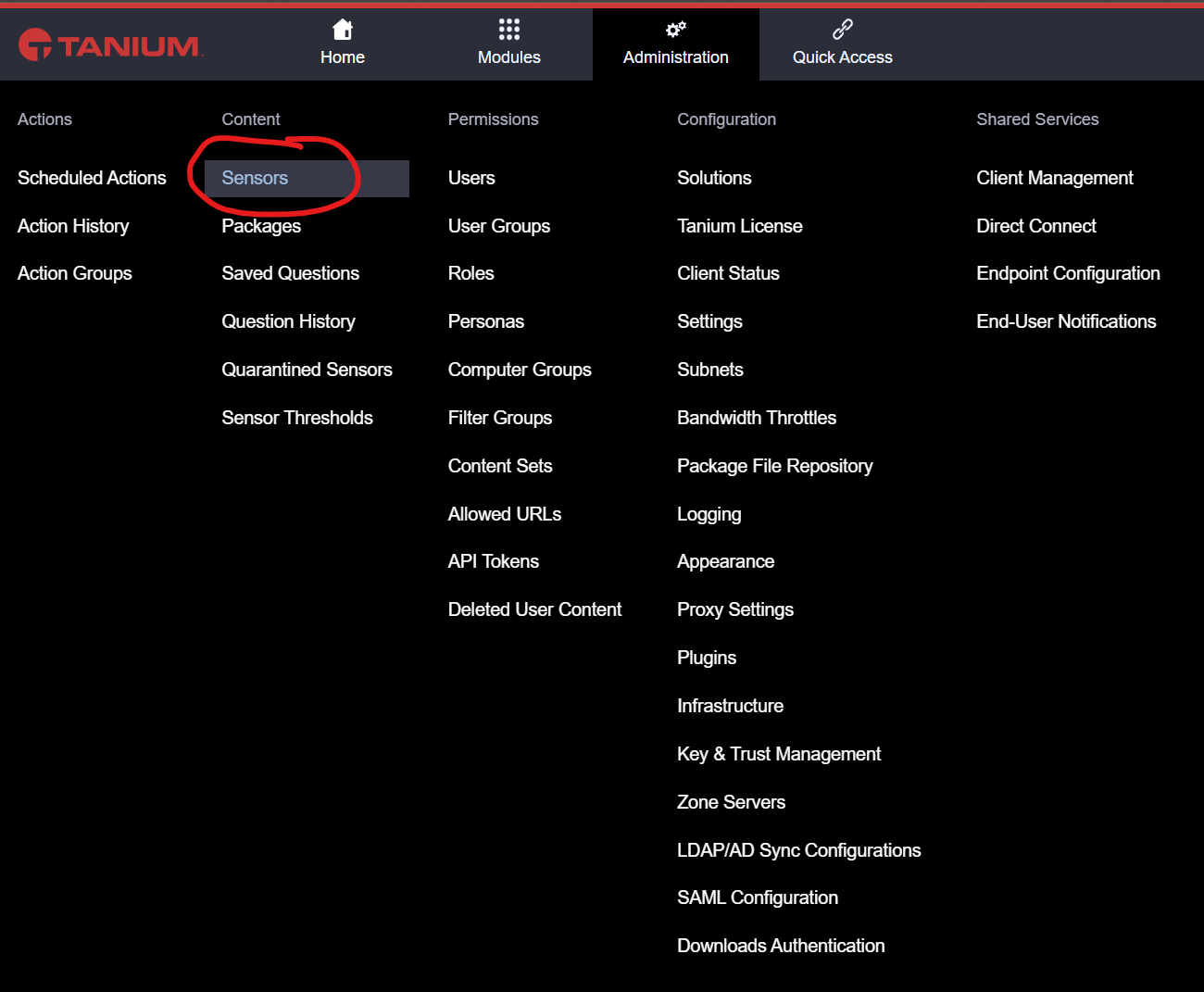
Import ISG Tanium Sensors
In the Sensors menu, click on Import and select the file ISG-Tanium-Sensors-3.4.0.json provided by ISG to load the ISG AgileSec Analytics Sensors.
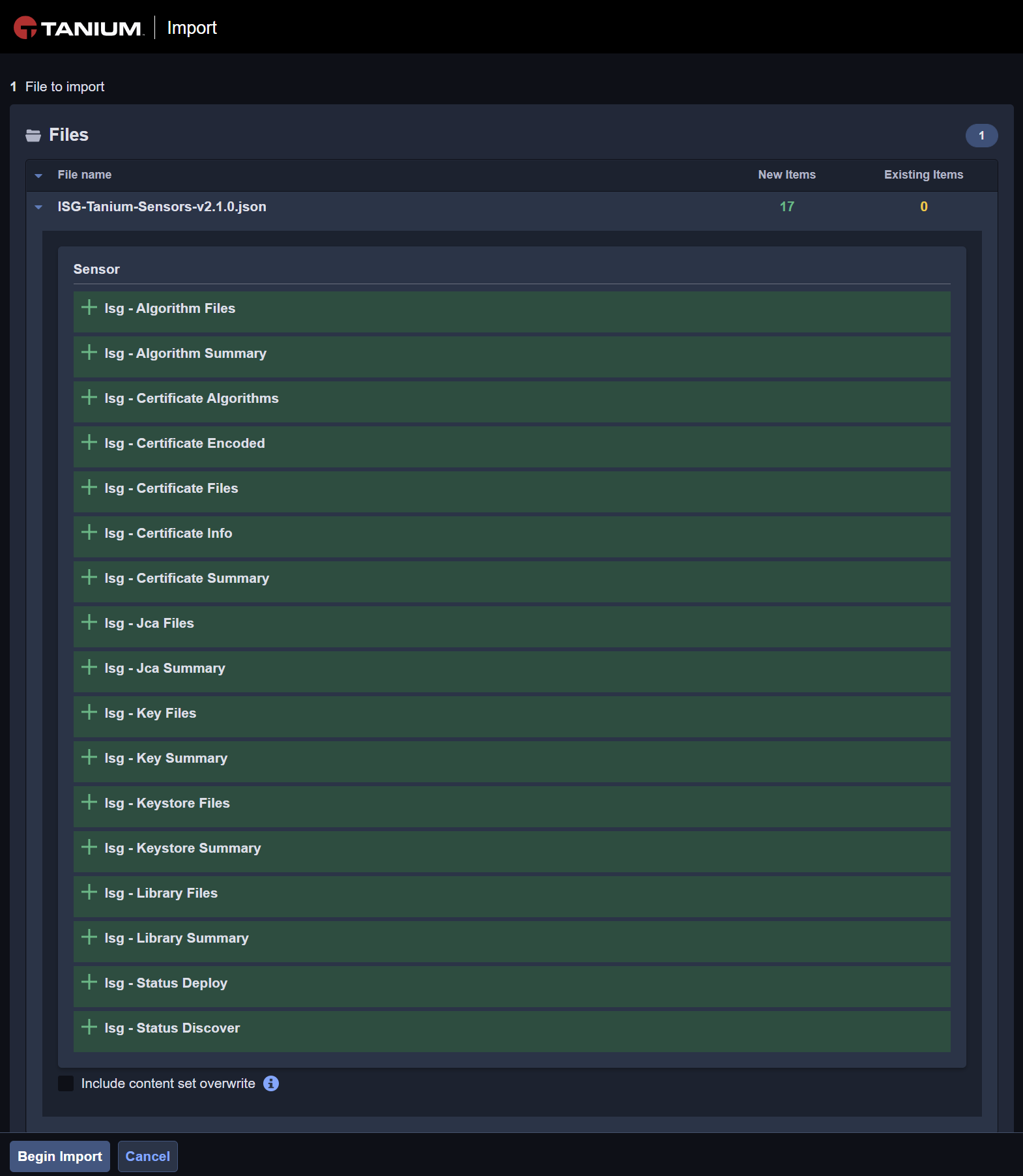
The following Sensors shall become available for import. Click Begin Import.
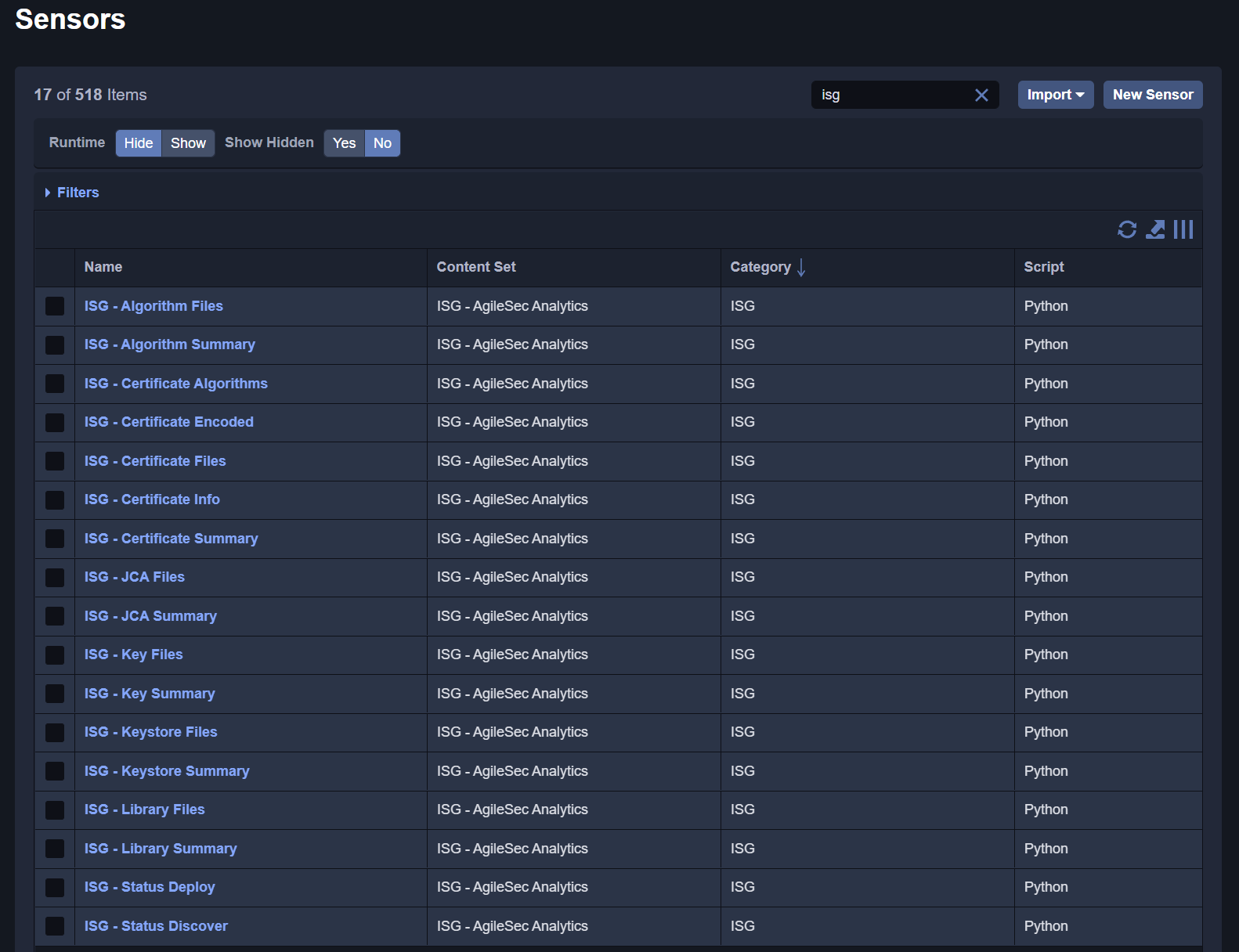
After successful import, the ISG Tanium Sensors shall be available.
Step 4: Load ISG Saved Questions
Saved questions are pre-defined questions that use different sensors from Tanium and ISG. Saved Questions are also used by Tanium Connect to export results to the ISG Backend Server.
Go to Saved Questions
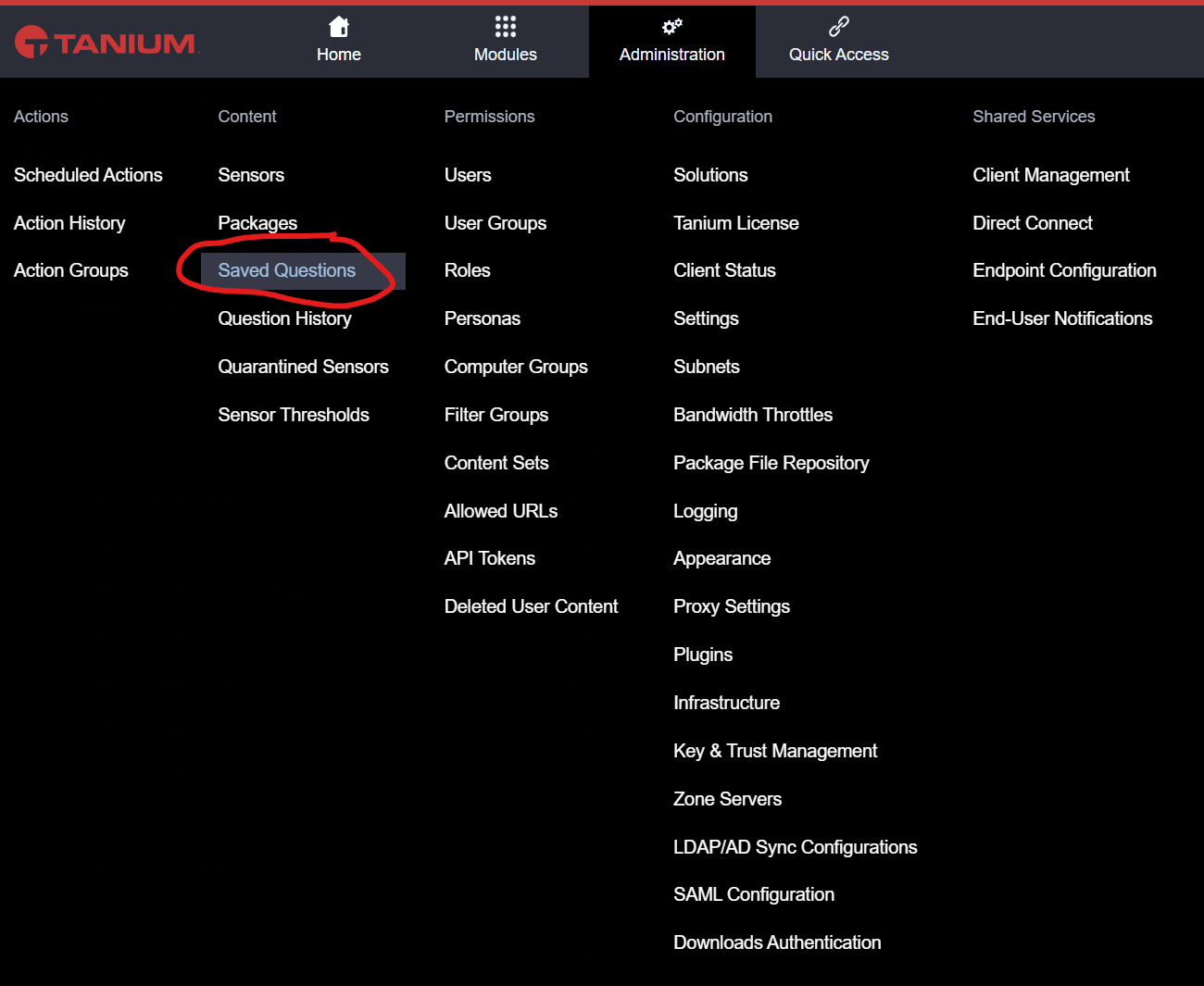
To load new Saved Questions, navigate to Administration > Saved Questions in Tanium.
Import ISG Saved Questions
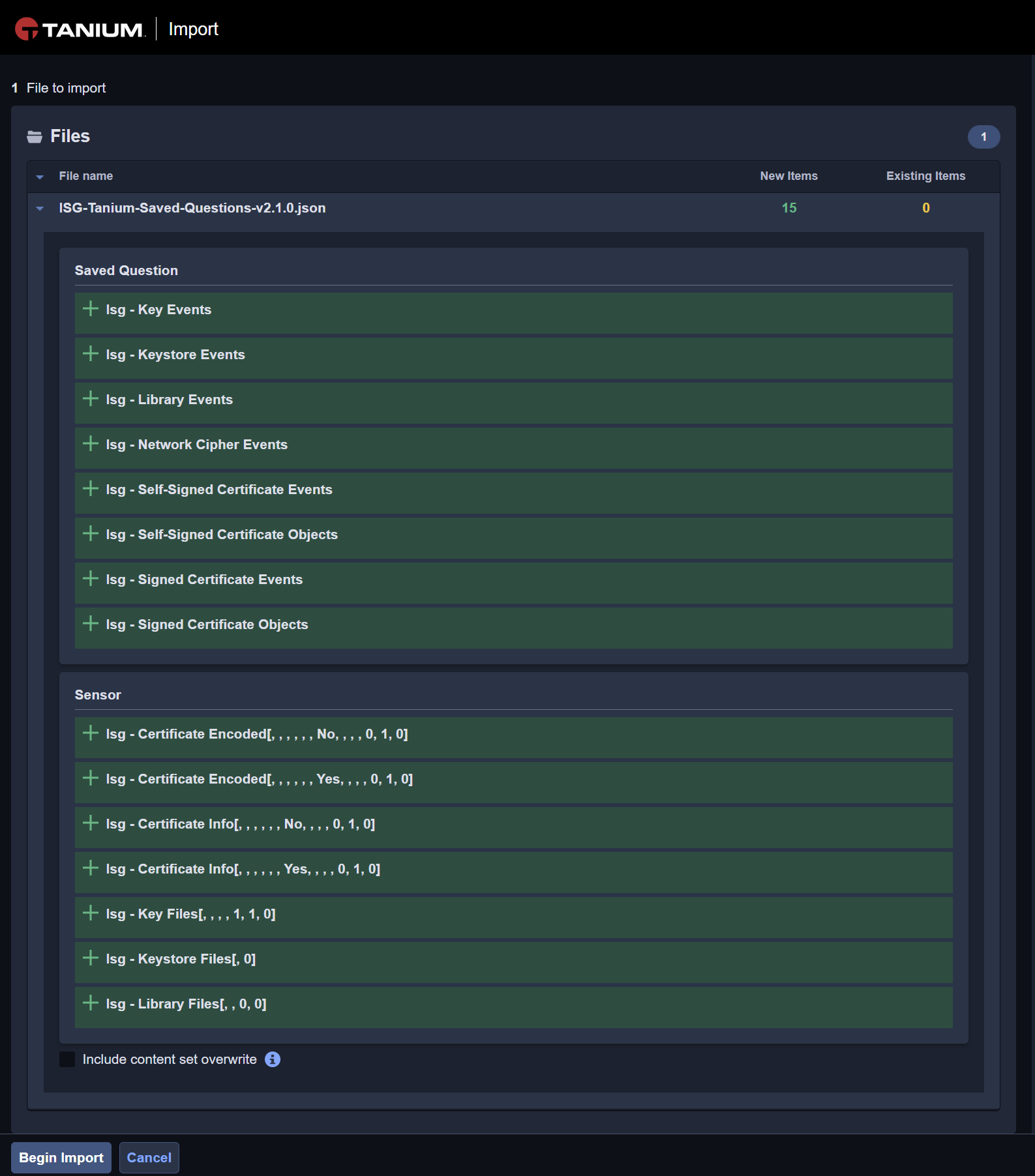
In the Saved Questions menu, click on Import and select the file ISG-Tanium-Saved-Questions-3.4.0.json provided by ISG to load both the ISG AgileSec Analytics Saved Questions and Sensors used by those Saved Questions.
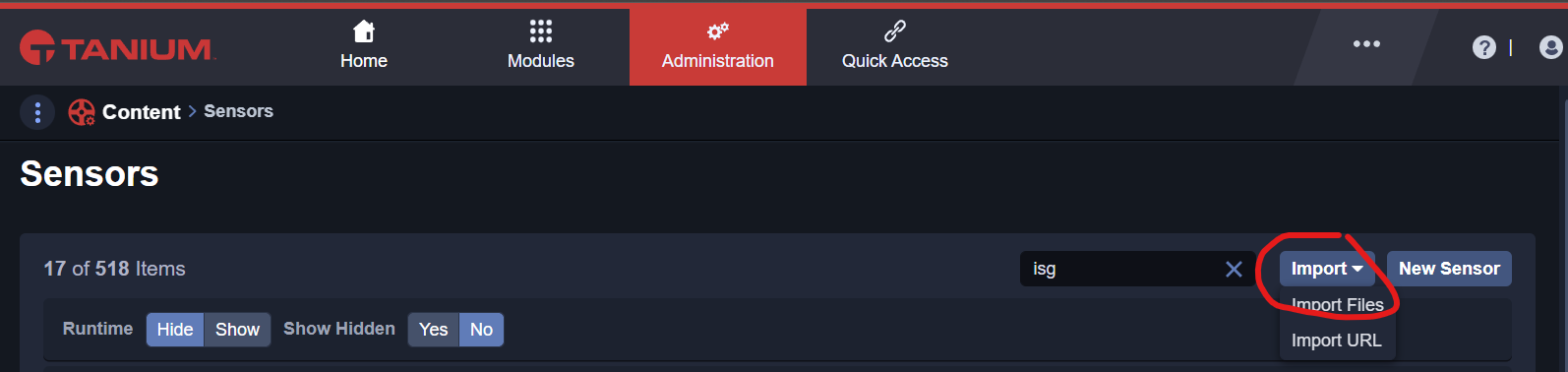
The following Saved Questions shall become available for import. Click Begin Import.
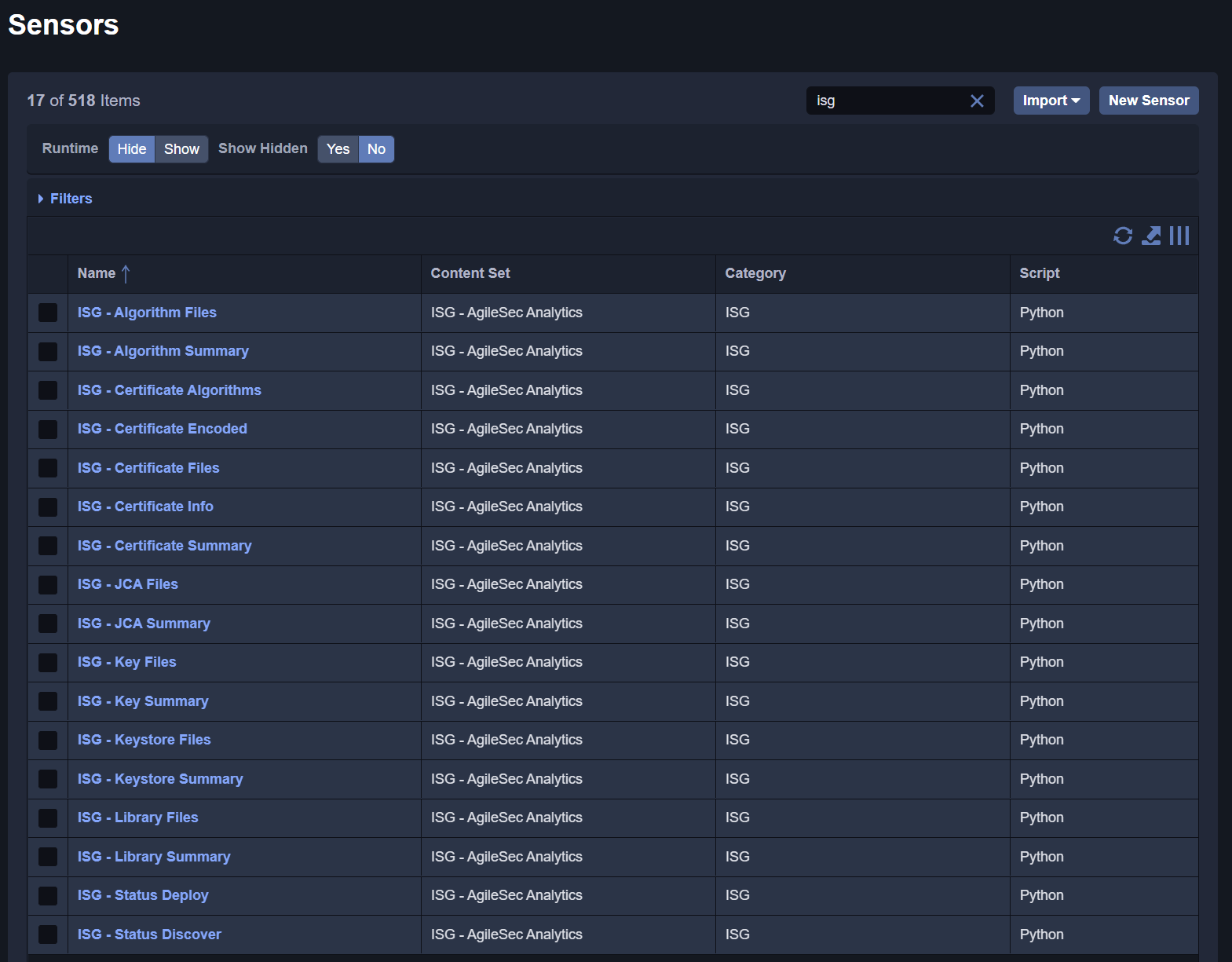
After successful import, the ISG Tanium Saved Questions shall be available.
Step 5: Load ISG Tanium Connect Jobs
Tanium Connect Jobs use the ISG Saved Questions to export findings to the ISG Server.
Configure Tanium Connect JSON files
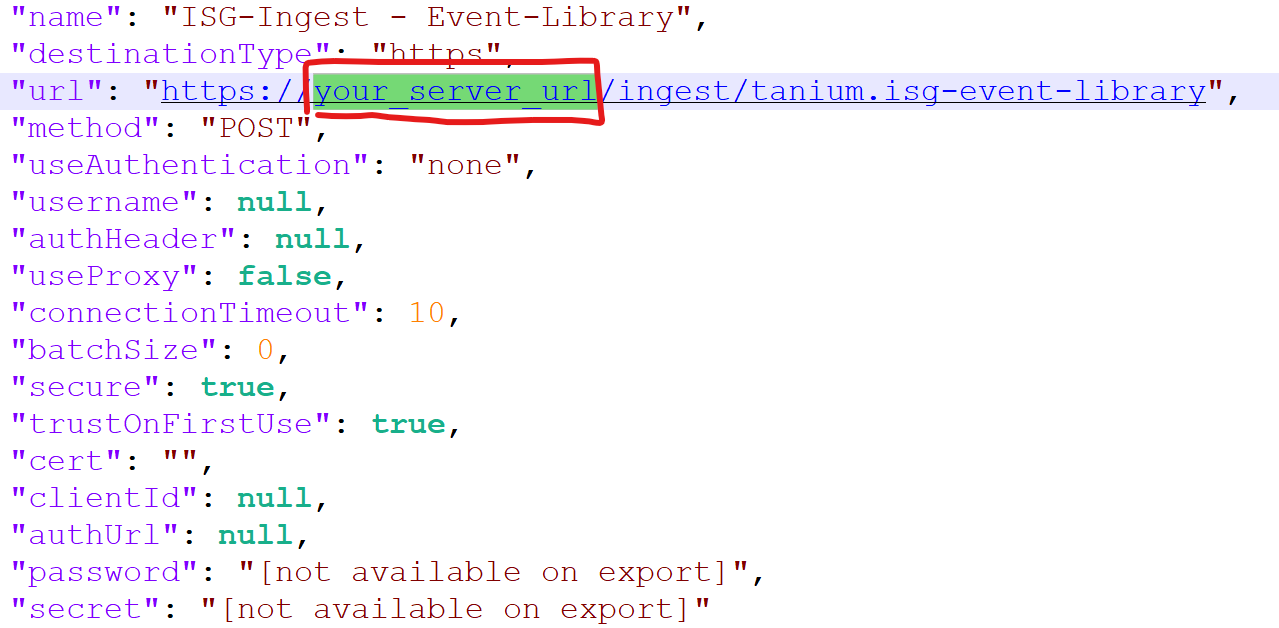
Edit the file ISG-Tanium-Connect-3.4.0.json to replace the default HTTPS destination with your specific URL for AgileSec Analytics Server. For this purpose replace all instances of your_server_url with your own server address like 10.1.2.48 or my.isgserver.local. There are a total of 18 instances to replace.
Go to Connect
To Load new packages, navigate to Modules>Connect menu in Tanium.
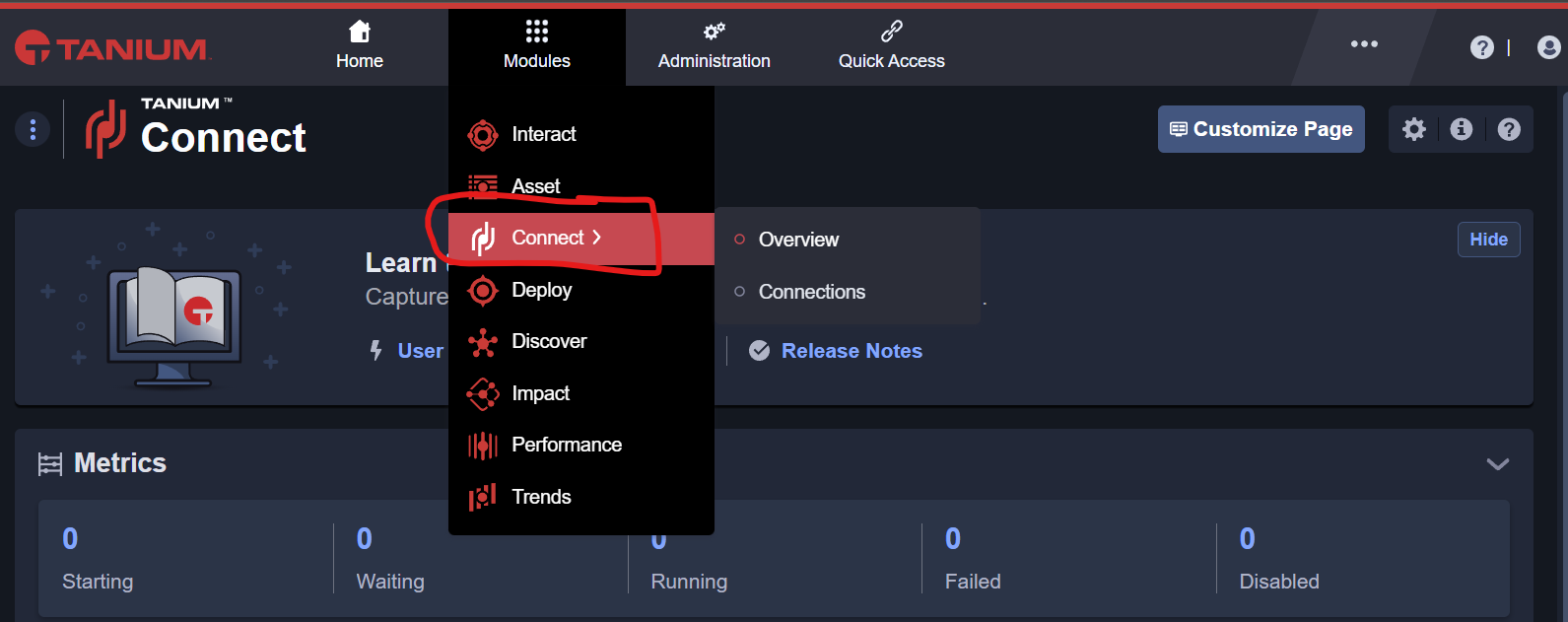
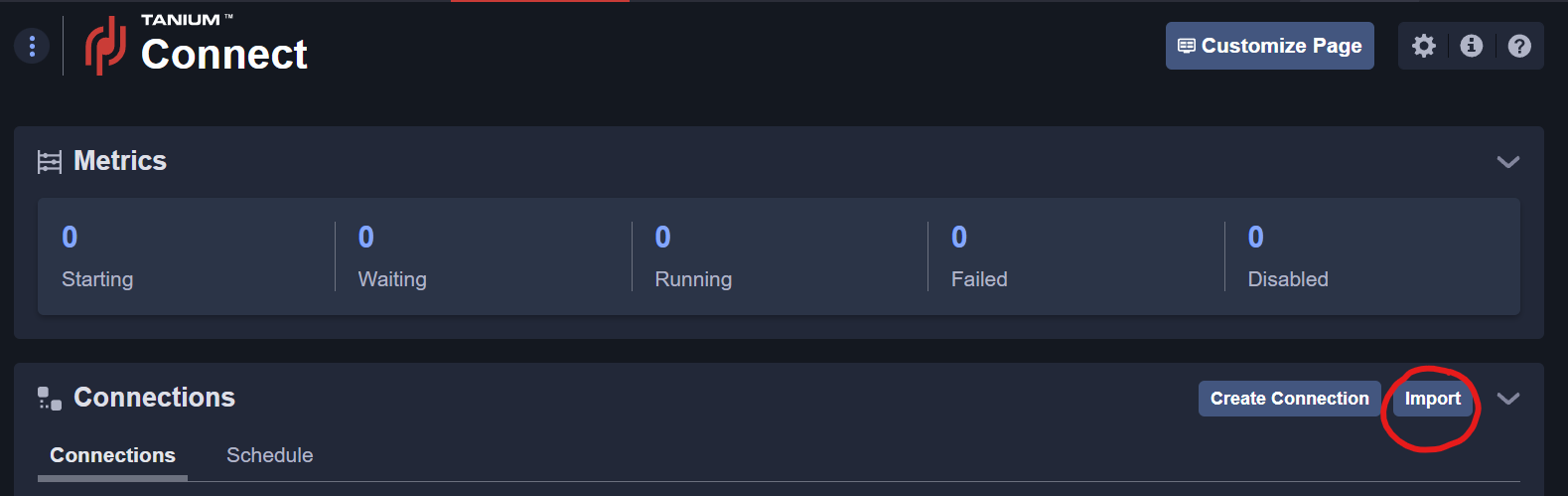
Import ISG Tanium Connect Jobs
In the package menu, click on Import new content and select the file ISG-Tanium-Connect-3.4.0.json modified to include your ISG Server URL.
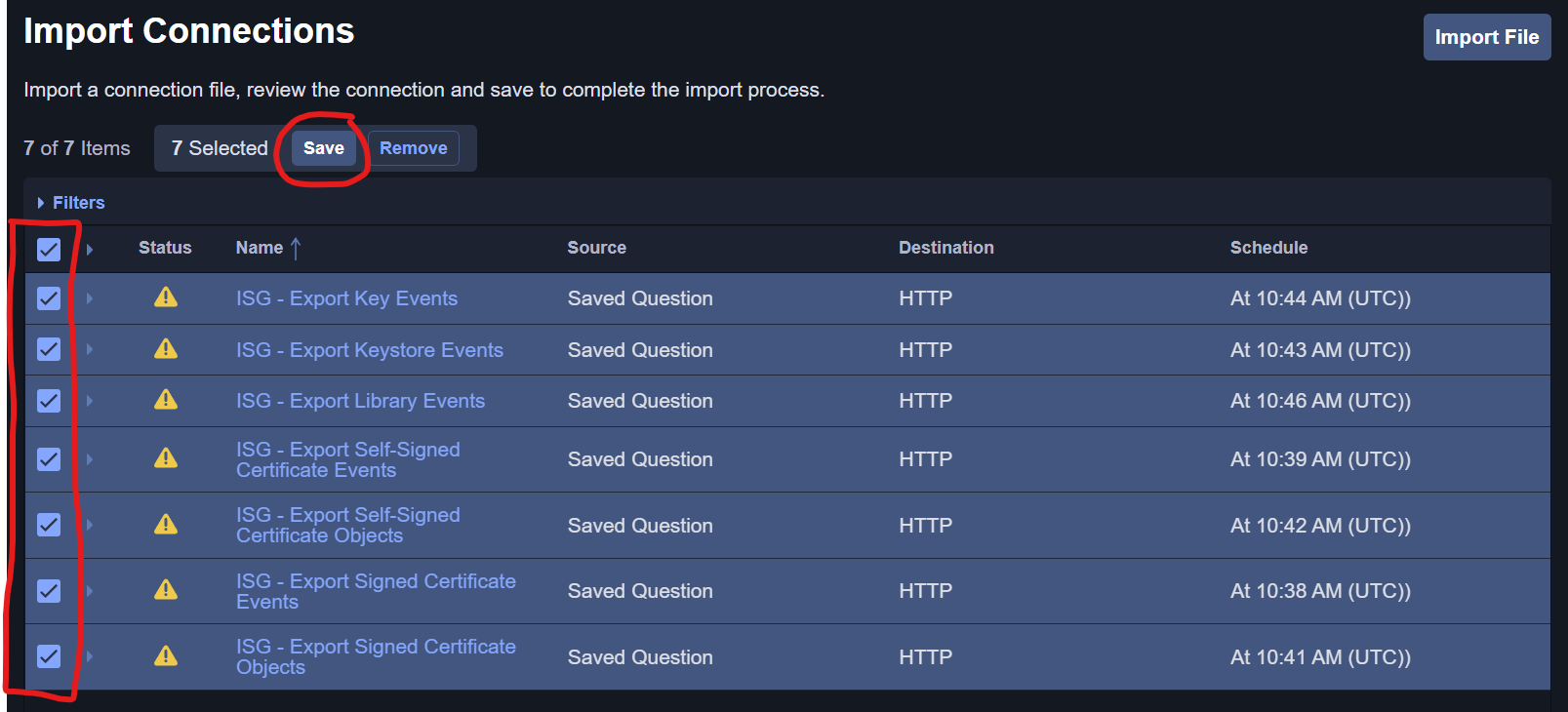
The following Packages shall become available for import. You must select each ISG Tanium Connect Job then Save. The error status is not relevant. Ignore the error status and proceed with saving.
The ISG connect jobs will be imported after you click Save.
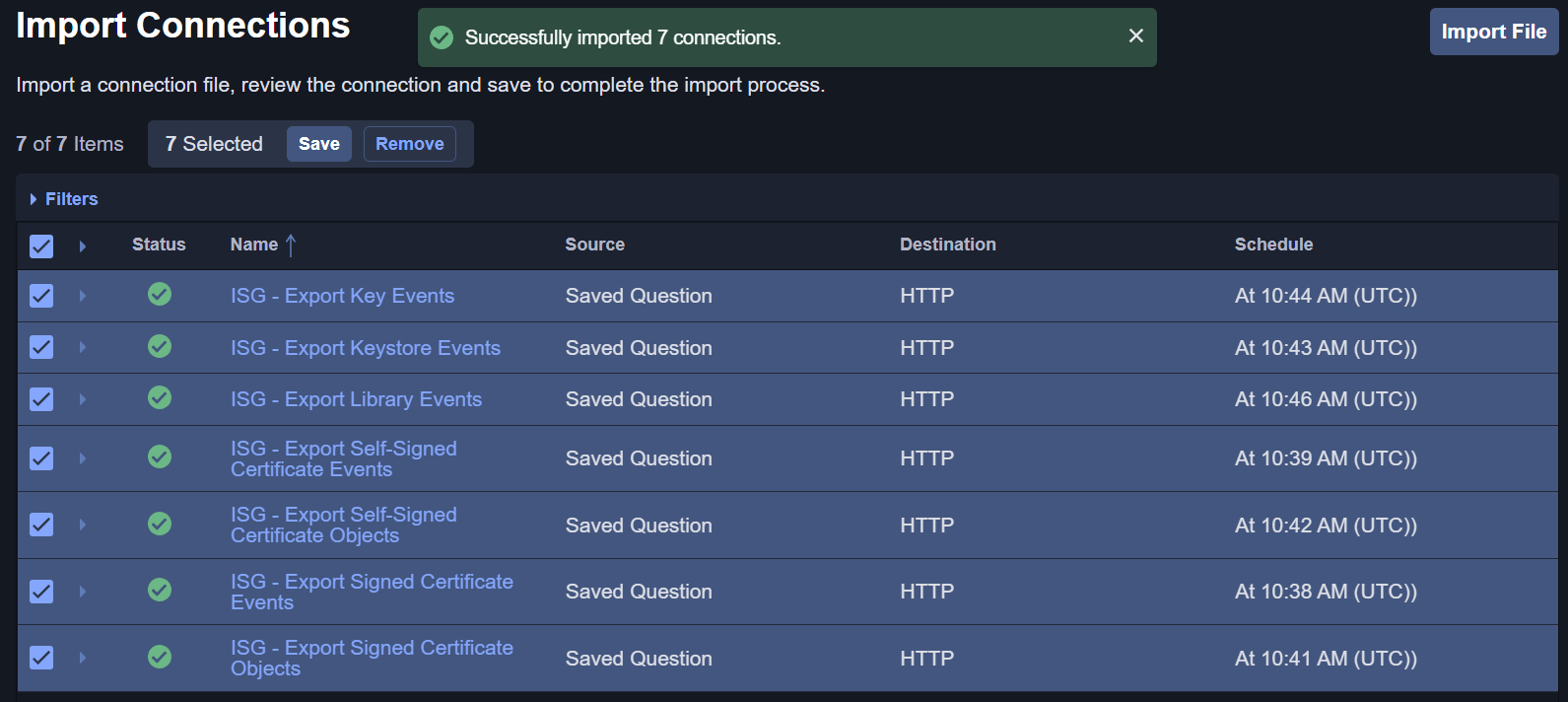
After successful import, return to the Tanium Connect Menu to see the available ISG Tanium Connect Jobs.
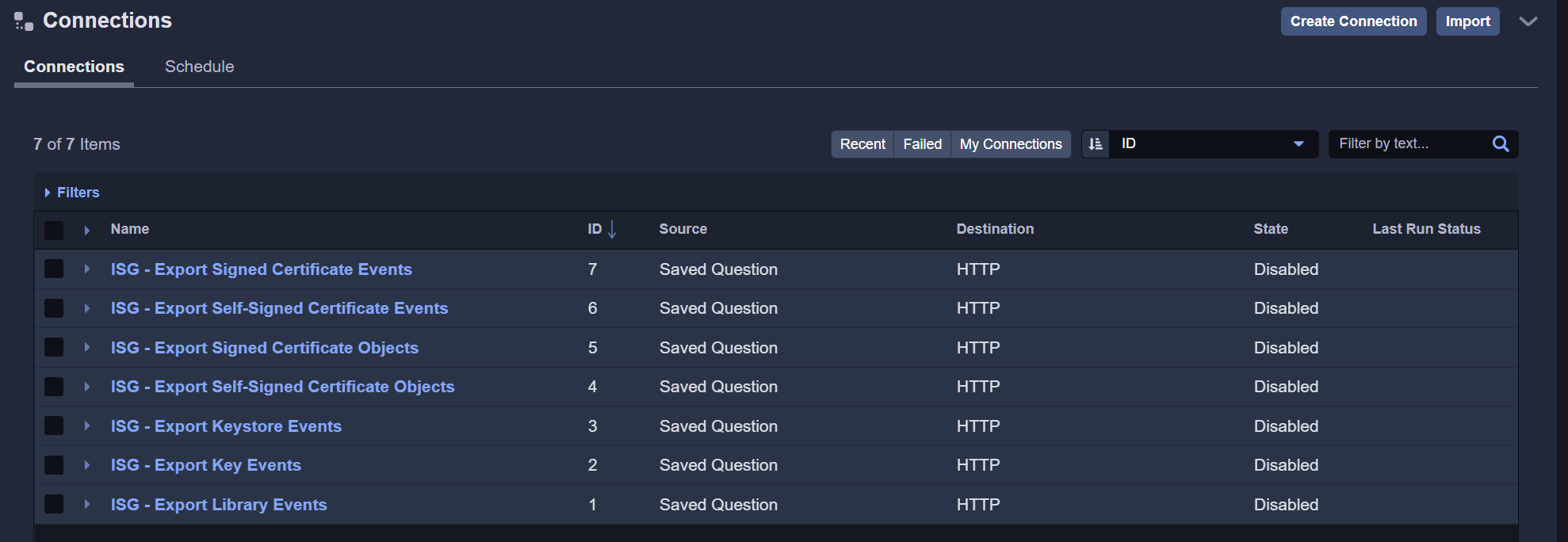
Verify Tanium Connect Job URL
Verify all Tanium Connect jobs are correctly pointing to your ISG AgileSec Analytics Backend Server. If there is a mistake, you can still edit the connection manually to reset the appropriate URL.
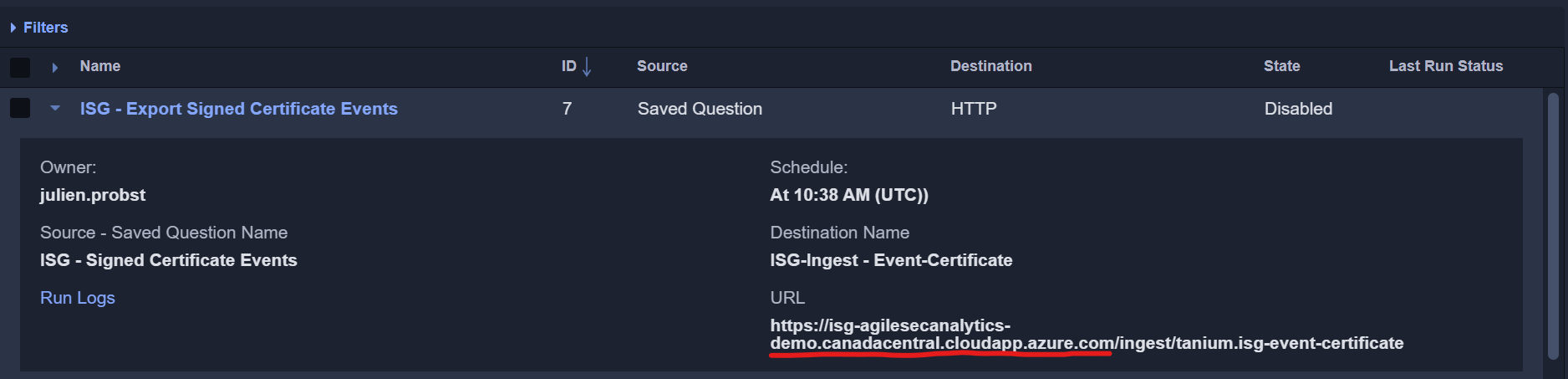
Step 6: Perform Test Run
Congratulation, all ISG Tanium Content have been successfully deployed. You can perform a test run to make sure the end-to-end data flow is working as expected.
The following example will almost always yield results.
-
Select Target Systems (generally Linux or Windows machines).
-
Execute Deploy to store the to store the AgileSec ISG Discovery Packages on the Target Systems.
-
Execute Discover [Linux] or Discover [Windows] with Host Scan = None and Network Scan = Host.
-
Execute Saved Question “ISG - SSH Protocol JSON Events” or “ISG - TLS Protocol JSON Events” and see if there are any results.
-
Note: If a host is not using SSH or TLS (HTTPS) there may not be any running processes in these results. In this case, run appropriate alternate tests for your environment’s configuration.
-
-
If there are results, execute Connect jobs “ISG - Export SSH Protocol JSON Events” or “ISG - Export TLS Protocol JSON Events”.
Select Target Systems
On the Tanium Home page, use Tanium’s Interact tool to Ask a Question or use the Question Builder to retrieve and group specific systems endpoints for cryptographic inventory.
AgileSec Tanium Actions run by OS, so it is recommended to group target endpoints by OS Platform.
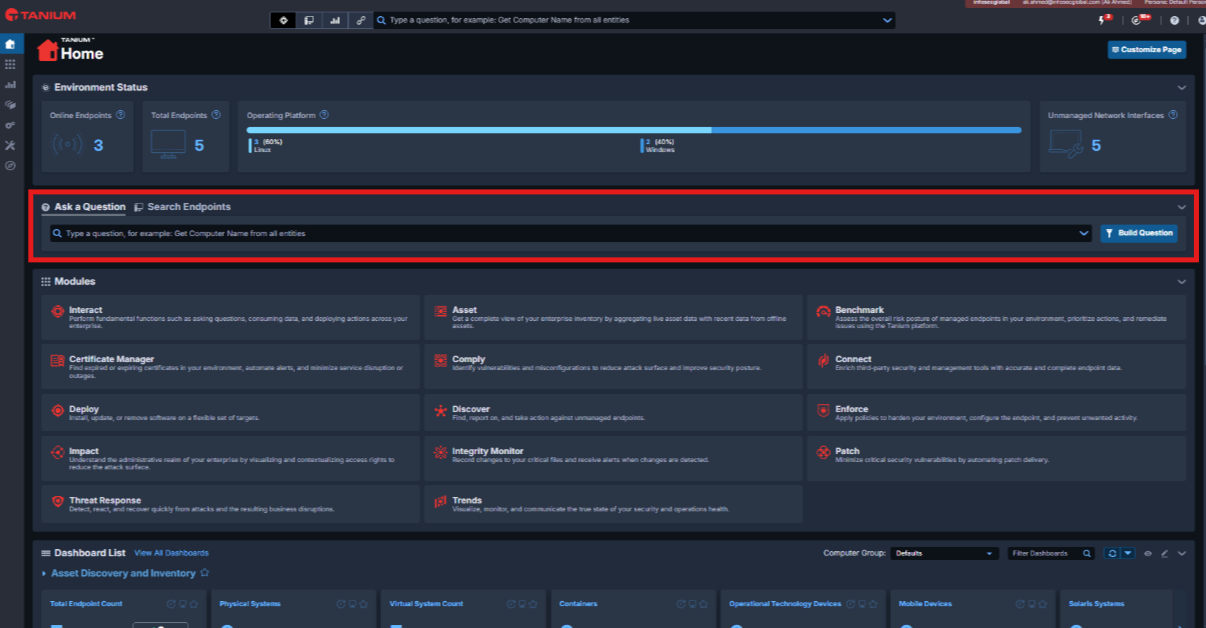
Example: Sort by OS with Ask a Question
As an example, you may sort by OS using Ask a Question as follows.
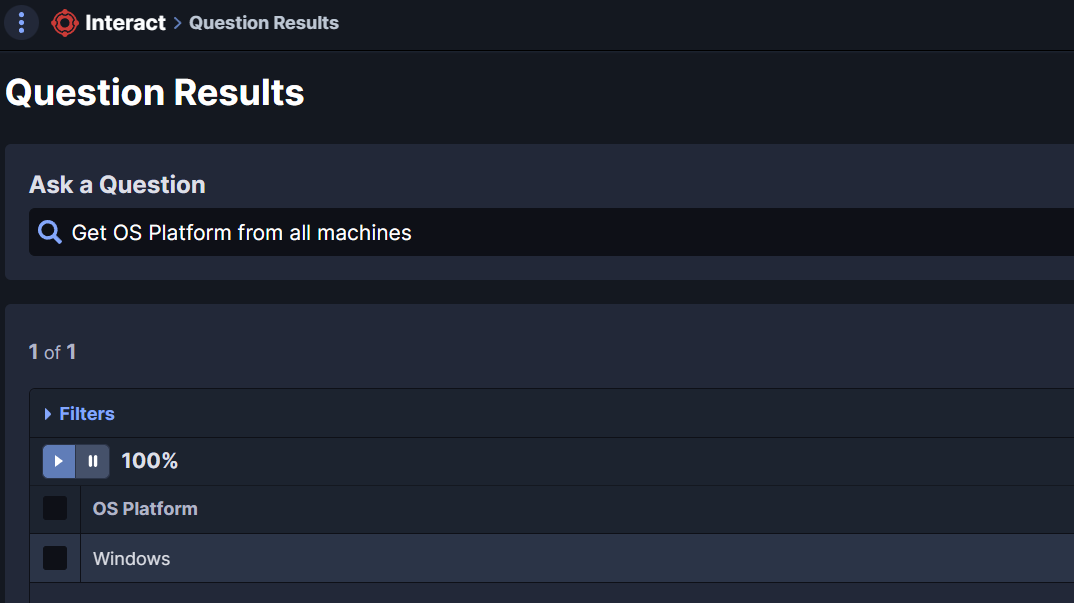
Or search for Windows OS specifically.
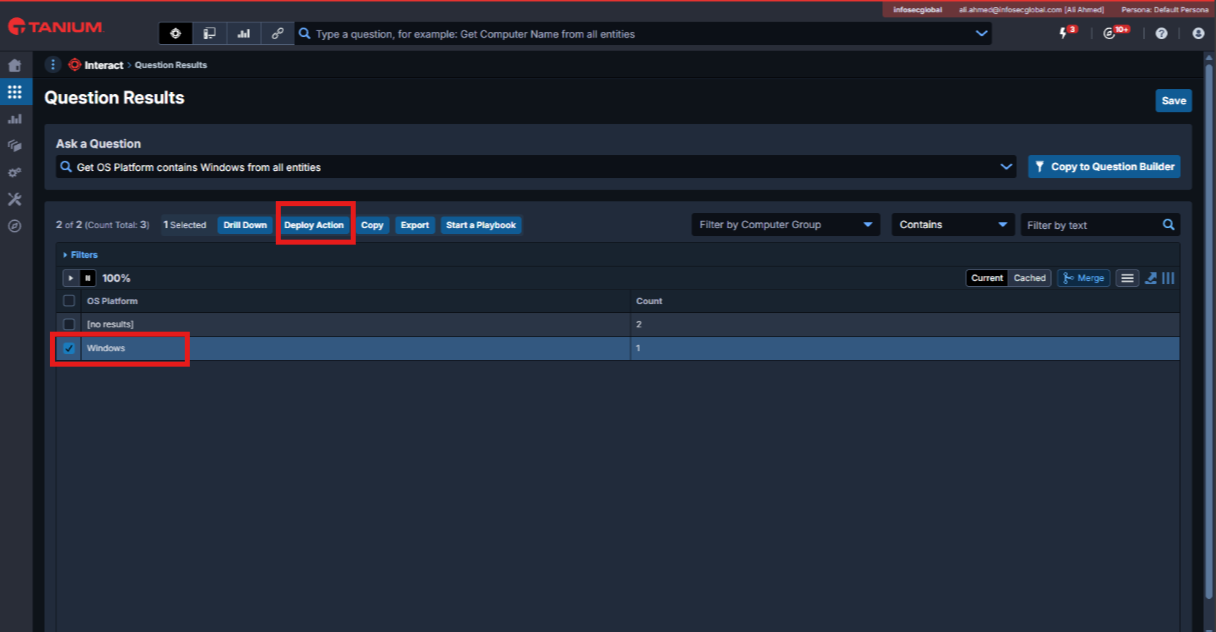
Check the box beside the results you want to target then click Deploy Action.
Execute Deploy Action
Select the ISG - Deploy action and execute it against the previously defined target systems.
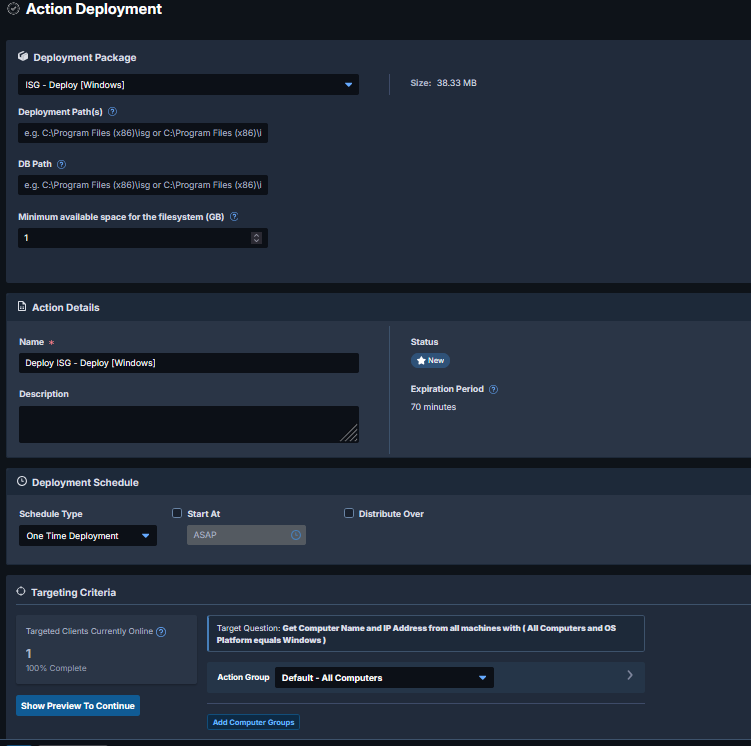
|
Deploy Action Field |
Description / Notes |
|---|---|
|
Deployment Package |
Specific Action to run. Example: ISG - Deploy [ |
|
Deployment Path |
Path to store the different AgileSec ISG Discovery Packages on the Target Systems. Tanium provides default path suggestions in the Action Deployment UI. In most cases, users can rely on the default values unless they have a specific requirement to change them. |
|
DB Path |
Path to store the different ISG Local Databases on the target systems. By default, DB Path is the same as the Deployment Path. |
|
Minimum available space for the filesystem (GB) |
Deployment Path and DB Path must have at least the specified amount of free space or Action will fail. |
|
Action Details
|
|
|
Deployment Schedule
|
Schedule Type options:
One-Time Deployment is recommended for Deploy and Undeploy actions. Discover and Run actions use One-Time Deployment by default but may be configured with a Recurring Deployment. |
|
Targeting Criteria
|
Select the previously defined Target Systems from Step 1 to execute action on. |
After filling out the required fields, click Show Preview to Continue, review, then click Deploy Actions to proceed to action execution.
Execute Discover Action
After successful deployment of the AgileSec Plugin, you can execute the Discover Action against Windows or Linux devices. Select the ISG - Discover Action, set the different parameters, then click Deploy Action.
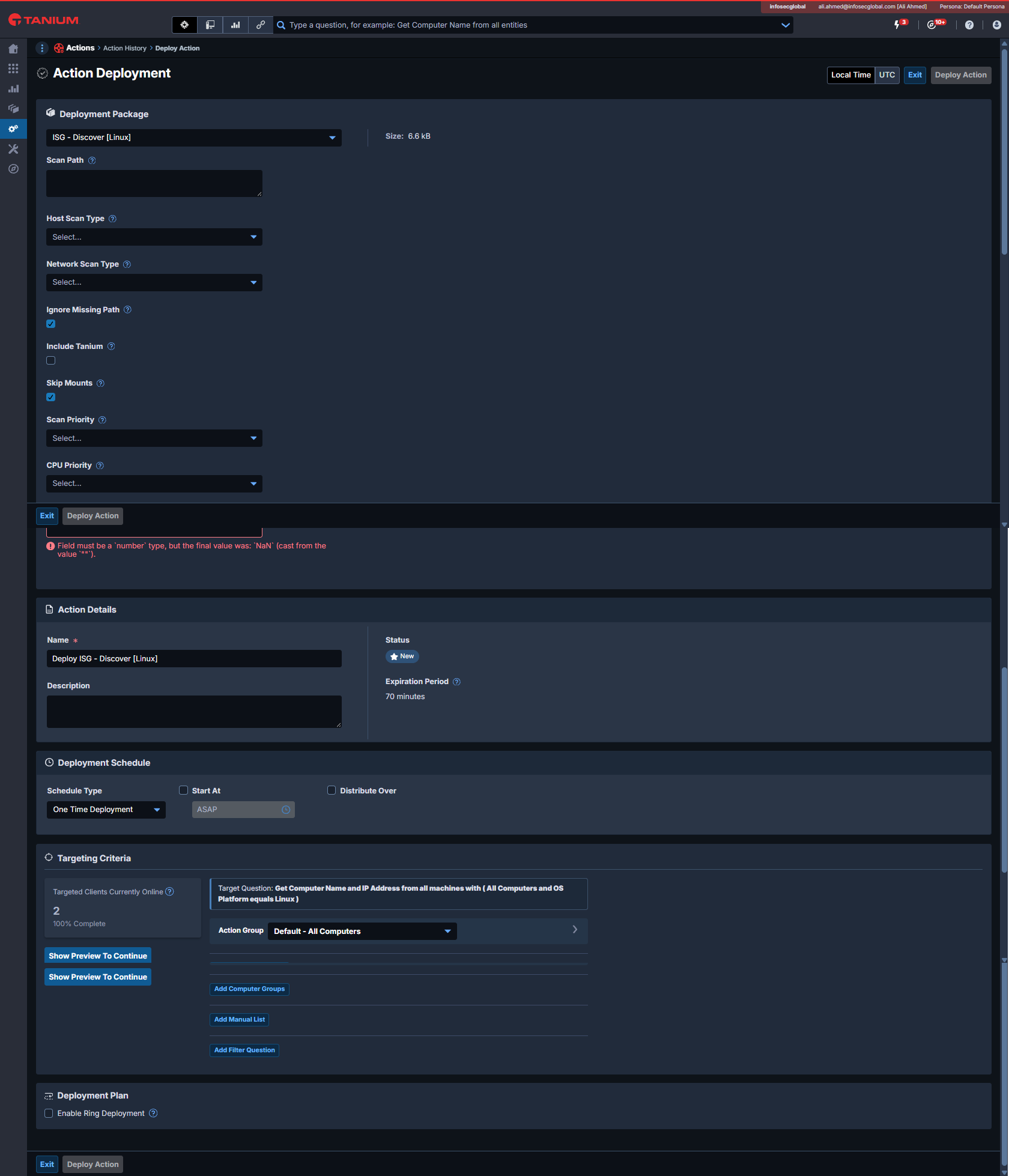
|
Discover Action Field |
Description |
Recommended Default |
|---|---|---|
|
Scan Path |
Set the Directories or Drives to include in the analysis |
Windows: Linux: Note: using / for Linux may be heavy and time-consuming as it scans the entire Linux target machine. Adjust the path based on performance and scope requirements. |
|
Host Scan Type |
Select the type of scan to run:
|
None |
|
Network Scan Type |
Select the network scan type:
|
Host |
|
Ignore Missing Path |
Avoid fail if a given scan path is missing. For example, when targeting Windows systems, if When enabled, scan will still fail if all given scan paths do not exist. |
Checked |
|
Include Tanium |
Select to include Tanium directory in scan process |
Not Checked |
|
Skip Mounts |
Set to skip network mounts |
Checked |
|
Scan Priority |
Set priority of the discovery process vs other processes:
|
Low |
|
CPU Priority |
Set number of threads to parallelize the discovery process run:
|
Normal |
|
Scan files modified since days |
Limit scan to only new or modified files since x days ago. For example, if the last scan was 3 days ago, set the value to 3 to scan for new results. |
0 |
Execute Saved Questions
Execute Saved Question “ISG - SSH Protocol JSON Events” or “ISG - TLS Protocol JSON Events” and see if there are any results.
Navigate to Modules > Interact > Overview, locate the question in the Saved Questions panel, and click its name. Alternatively, go to Administration > Content > Saved Questions, select the question, and click Load.
Check the results. If there are results, continue to Execute Connect job. Otherwise, amend your Deployment targets or change your Saved Questions to a test appropriate for your use cases.
Execute Connect Jobs
Execute Connect jobs “ISG - Export SSH Protocol JSON Events” or “ISG - Export TLS Protocol JSON Events”.
Navigate to Modules > Connect > Connections. Select the “ISG - Export SSH Protocol JSON Events” or “ISG - Export TLS Protocol JSON Events”.
Run the Connect job to finish the test run.