.png)
Instructions for deploying the Azure Key Vault Connector to scan for cryptographic assets and deliver findings to the AgileSec Platform for processing and analysis.
Overview
The Azure Key Vault Connector integrates Azure Key Vault with Keyfactor's AgileSec Platform. This Connector allows you to discover, inventory, and analyze cryptographic keys and certificates stored across one or more Azure Key Vaults within your Azure environment.
What Gets Scanned
The Azure Key Vault Connector can discover the following cryptographic asset types:
-
Cryptographic Keys: RSA and EC keys managed by Azure Key Vault, including key properties, versions, and rotation metadata.
-
X.509 Certificates: TLS/SSL certificates, code signing certificates, and other X.509 certificates stored in Key Vault, including full certificate chains and expiration data.
Prerequisite Requirements
Ensure you meet the following requirements to enable scanning.
Network Access
Ensure HTTPS network connectivity from AgileSec platform or remote execution machine to Azure Resource Manager and Key Vault endpoints.
Supported Authentication Methods
The Azure Key Vault Connector supports three authentication methods, in the following order of preference:
-
Managed Identity Credentials (Remote Execution only)
-
Client Secret Credentials
-
Default Credentials
1. Managed Identity Credentials
Use an Azure managed identity (user-assigned). This method is only supported for Remote Execution on an Azure VM or Azure-hosted environment.
|
Field |
JSON Path |
Environment Variable |
Description |
|---|---|---|---|
|
Client ID |
|
|
Managed identity client ID |
|
Resource ID |
|
|
Managed identity resource ID |
2. Client Secret Credentials
Use an Azure AD app registration with a client secret. This method is recommended for Platform and API execution where managed identity is not available.
|
Field |
JSON Path |
Environment Variable |
Description |
|---|---|---|---|
|
Tenant ID |
|
|
Azure AD tenant ID |
|
Client ID |
|
|
Azure AD application/client ID |
|
Client Secret |
|
|
Azure AD client secret value |
3. Default Credentials
If neither client_secret_credentials nor managed_credentials are specified, the Connector falls back to the default credentials available on the host (e.g., system-assigned managed identity, Azure CLI credentials, or environment variables recognized by the Azure SDK).
Azure Key Vault Required Access Rights
The Azure credentials must have the following permissions on each target Key Vault to enable scans:
|
Permission |
Scope |
Purpose |
|---|---|---|
|
Key Vault Reader |
Subscription / Vault |
Enumerate vaults within a subscription |
|
List Keys |
Key Vault |
List all keys in the vault |
|
Get Key |
Key Vault |
Retrieve key metadata and properties |
|
List Certificates |
Key Vault |
List all certificates in the vault |
|
Get Certificate |
Key Vault |
Retrieve certificate data and properties |
Tip: Assign the built-in Key Vault Reader role at the subscription level for vault enumeration, and configure a Key Vault Access Policy granting GET and LIST permissions for keys and certificates on each target vault.
Remote Execution Requirements
If running the Connector remotely using CLI, the remote execution machine must meet these requirements:
|
Component |
Requirement |
|---|---|
|
Operating System |
|
|
RAM |
Minimum 500 mb (0.5 GB) to enable API calls and data streaming. |
|
Disk Space |
Minimal; scans are API-driven and findings are streamed to the AgileSec platform. No data is stored on disk. |
|
Permissions |
Read/write access to remote sensor working directory (remote sensor install location) |
Running the Connector
AgileSec Azure Key Vault scans can be executed using the following methods:
-
Platform Scan Execution: Configure and execute scans directly through the Keyfactor AgileSec web UI with on-demand or scheduled execution options.
-
API Scan Execution: Programmatically trigger scans through REST API calls, enabling integration with CI/CD pipelines and automation workflows.
-
Remote Scan Execution: Deploy and run the Connector via CLI on customer-managed infrastructure for scenarios such as:
-
Scanning air-gapped or internal instances the platform cannot directly reach.
-
Customers wanting to manage their own scheduling and execution environment.
-
Refer to Scan Execution Flows for additional scan execution information.
Connectors/Sensors Note: Connectors are considered a subset of Sensors. Sensors and Connectors utilize the same Unified Sensor Framework, but Sensors use the Host Sensor for additional scanning depth.
“Sensor”-labeled variables for API and Remote execution are common to both Sensors and Connectors. Unless specified, do NOT update these with “Connector”.
Configuration Options
The following parameters are used to configure AgileSec Azure Key Vault scans.
Target Selection Mode
Scan a single vault by URL, all vaults in a subscription, all vaults in a resource group, or all vaults across all accessible subscriptions.
Choose one of the following target configurations. Only one may be selected.
Note: If both vault_url and subscription_ids are left blank, all vaults across all accessible subscription IDs will be scanned.
|
Field Name |
UI Display Name |
Type |
Required |
Description |
|---|---|---|---|---|
|
|
Vault URL |
String |
❌ No |
Azure Key Vault URL to target. Mutually exclusive with Example: |
|
|
Subscription IDs |
List |
❌ No |
Azure subscription IDs to target. Mutually exclusive with
|
subscription_ids Configuration
The following fields are only used when the target is subscription_ids.
|
Field Name |
UI Display Name |
Type |
Required |
Description |
|---|---|---|---|---|
|
|
Include Vault Names |
List |
❌ No |
Glob expression indicating vault names to scan. If none are stated, all vaults are scanned. |
|
|
Include Resource Groups |
List |
❌ No |
Glob expression indicating resource groups within the subscription IDs to scan. If none are stated, all resource groups are scanned. |
|
|
Exclude Resource Groups |
List |
❌ No |
Glob expression indicating resource groups within the subscription IDs to exclude. Has a higher priority than |
|
|
Exclude Vault Names |
List |
❌ No |
Glob expression indicating vault names within the subscription IDs to exclude. Has a higher priority than |
|
|
Include Vault Tags |
List |
❌ No |
Each Azure Key Vault may have associated tags.
If no tags are listed, all vaults are scanned. |
|
|
Exclude Vault Tags |
List |
❌ No |
Has a higher priority than |
Required Configuration Fields
The following configuration parameters are required.
|
Field Name |
UI Display Name |
Type |
Required |
Description |
|---|---|---|---|---|
|
|
Tenant ID |
String |
✅ Yes |
Azure AD tenant ID for client secret authentication. |
|
|
Client ID |
String |
✅ Yes |
Azure AD application/client ID for client secret authentication. |
|
|
Client Secret |
String |
✅ Yes |
Azure AD client secret for authentication. |
Advanced Configuration Fields
Advanced users may configure concurrent processing with configurable thread pools. These variables are only available for Remote Scan Execution.
|
Field Name |
UI Display Name |
Type |
Required |
Description |
|---|---|---|---|---|
|
|
Not available in UI; Remote Scan Execution only |
Number |
❌ No |
Thread pools for vault enumeration. |
|
|
Not available in UI; Remote Scan Execution only |
Number |
❌ No |
Thread pools for per-vault processing. |
Platform Scan Execution
Running scans through the user interface is the simplest and fastest way to get started. The platform enables running on-demand or scheduled scans in a dedicated environment.
Platform Scan Configuration
-
Open your browser and navigate to the Keyfactor AgileSec Platform Web URL
-
Log in with your credentials
-
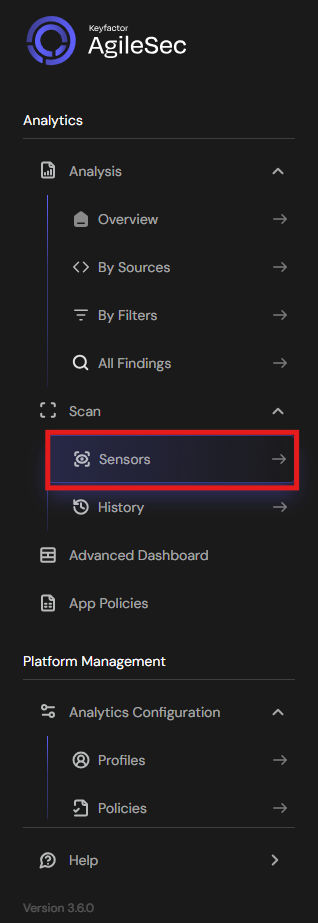
Click on "Sensors" in the left navigation menu under Scan
-
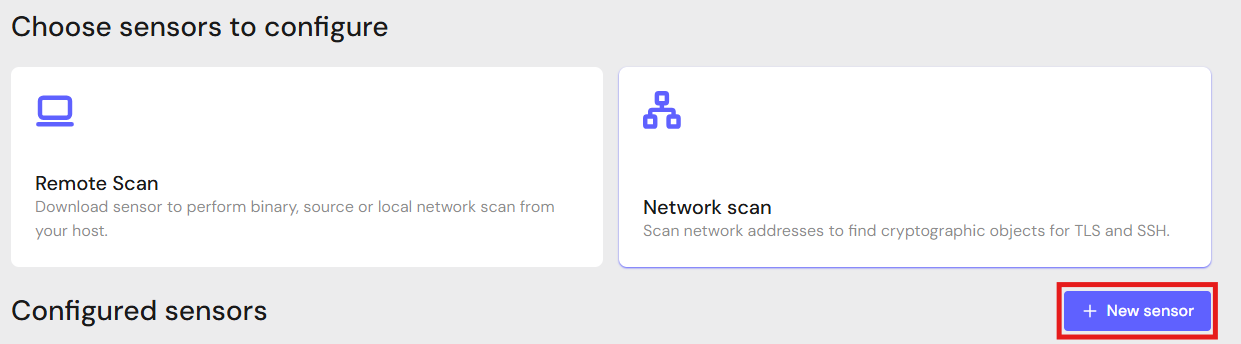
Click "+ New Sensor".
-
Click on the correct card to open the configuration interface.
Configure Parameters and Start Scan
-
Fill in the required configuration parameters.
-
Click Save.
-
Click Action then Scan to begin a scan.
Note: Click Edit to reconfigure parameters.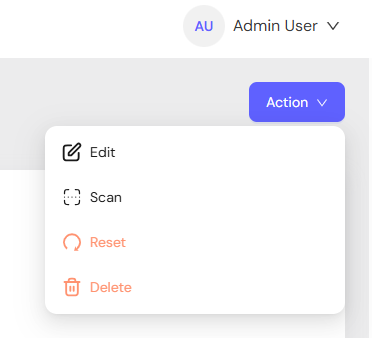
API Scan Execution
Scans may be programmatically triggered through REST API calls, enabling seamless integration with CI/CD pipelines, automation workflows, and custom applications. API execution provides flexibility for developers to incorporate cryptographic scanning into their existing development and deployment processes.
Note: For complete API reference, see API.
Generate AgileSec API Access Token
-
Open your browser and navigate to AgileSec Platform UI
-
Log in with your Keyfactor credentials
-
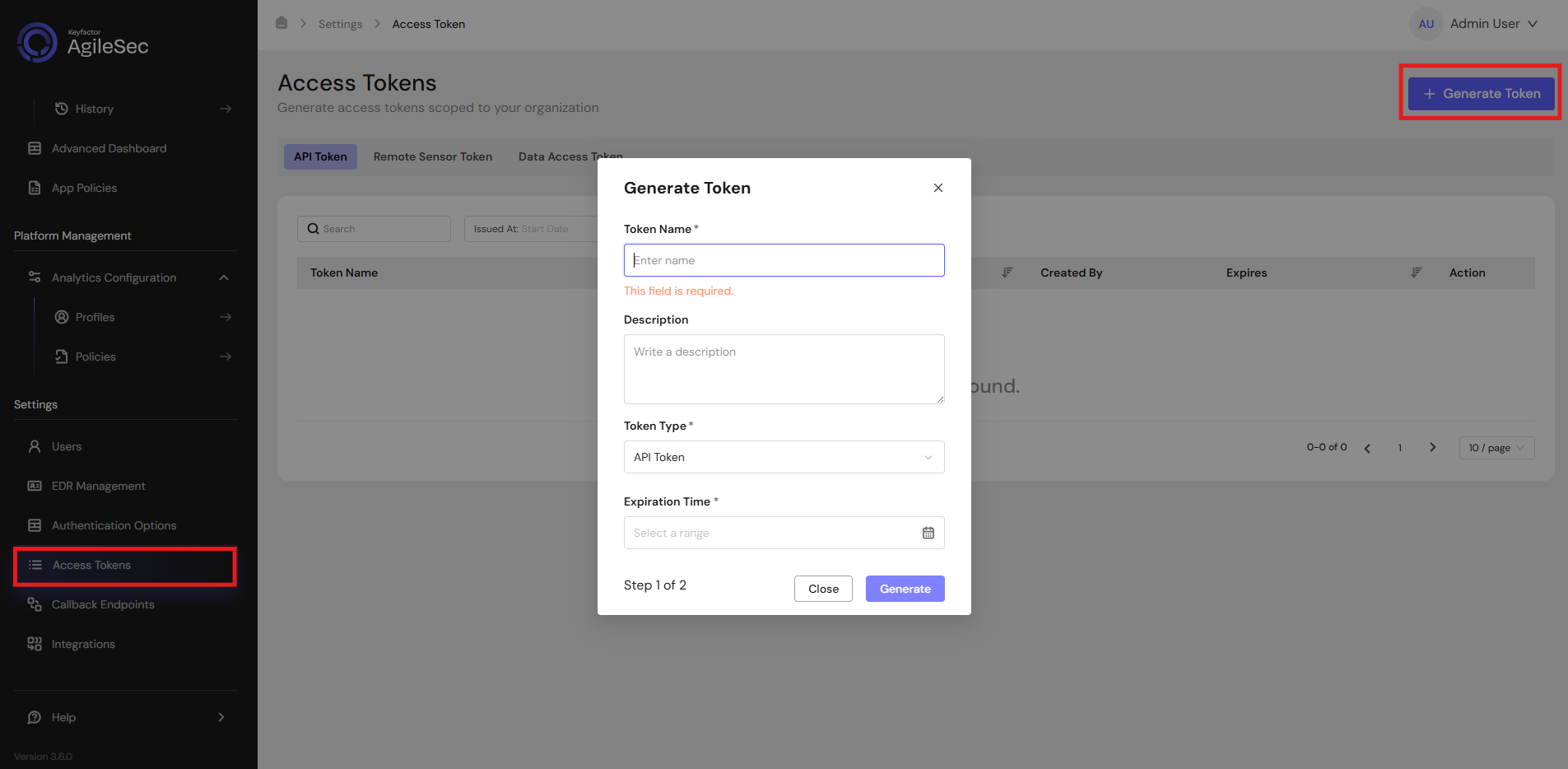
Click "Access Tokens" in the main navigation menu
-
Click "Generate Token" button
-
Set Token Type to API Token and provide the required details
-
Click "Generate" and copy the generated token
AgileSec API Endpoint
POST https://<platform-url>/v3/scan/create/
Request Format
Headers
Content-Type: application/json
isg-api-token: <your-api-token>
Request Body
  {
    "sensorName": "<sensor name>",
    "sensorType": "Azure Key Sensor",
    "sensorConfig": {
       "vault_url": "<vault url>",
       "tenant_id": "<azure ad tenant id>",
       "client_id": "<azure ad client id>",
       "client_secret": "<azure ad client secret>"
    },
    "callbackId": "<callback id>",
    "labels": [
        {
            "<label name>": "<label value>"
        }
    ],
    "priority": "<priority>",
    "incrementalScan": true,
    "autoResolutionInterval": 5
  }
Remote Scan Execution
Scans may be run on remote host machines with the AgileSec Remote Sensor Package.
Download Remote Sensor Package
-
Open your browser and navigate to the Keyfactor AgileSec Platform Web URL
-
Log in with your credentials
-
Click on "Sensors" in the left navigation menu under Scan
-
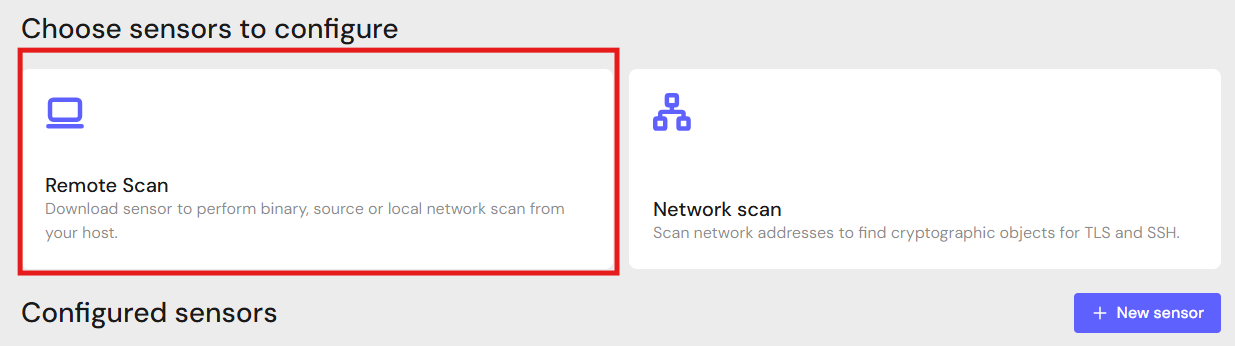
Click Remote Scan.
-
Click + Download Remote Sensor.

-
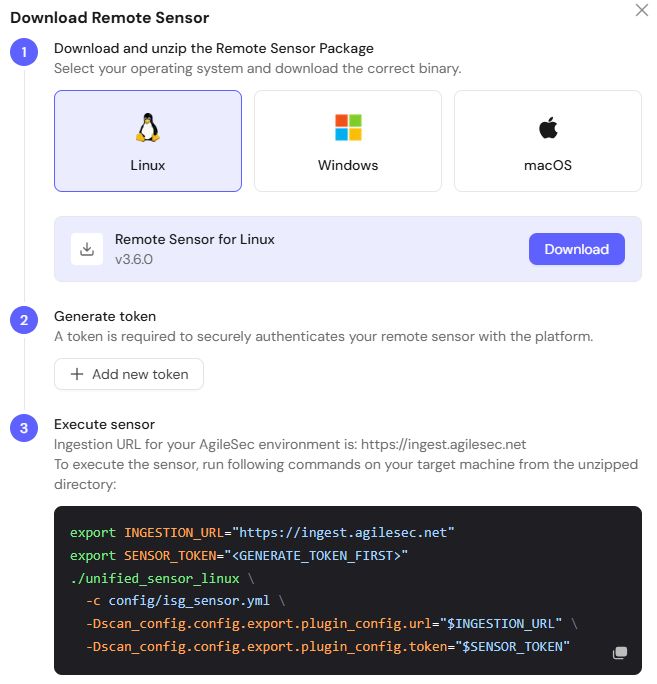
Download the sensor binary for your remote machine’s operating system
Generate Platform Token
-
In the Download Remote UI, click "Generate Token"
-
Copy the generated token
-
Store securely in an environment variable such as
SENSOR_TOKEN:export SENSOR_TOKEN="your-generated-token"
Create Configuration File
Create a YAML configuration file (e.g., azure_key_vault-config.yml) with your scan settings. An example configuration can be found at config/sample-configs/azure_key_vault-config.yml.
Step 4: Run the Connector
Execute the Connector with your configuration file:
-
Linux/macOS
Bash# Set environment variables export SENSOR_TOKEN="your-sensor-token" # Run sensor ./unified_sensor_linux -c azure_key_vault-config.yml -
Windows (PowerShell)
PowerShell# Set environment variables $env:SENSOR_TOKEN = "your-sensor-token" # Run sensor .\\unified_sensor_windows.exe -c .\\azure_key_vault-config.yml
Remote Scan Execution Configuration Examples
-
Scan a Single Vault (Client Secret Auth)
YAMLscan_config: plugins: - azkeys - export config: azkeys: name: azkeys plugin_config: vault_url: "<https://my-vault.vault.azure.net/>" client_secret_credentials: tenant_id: "your-tenant-id" client_id: "your-client-id" client_secret: "${env:AZURE_CLIENT_SECRET}" -
Scan All Vaults in a Subscription
YAMLscan_config: plugins: - azkeys - export config: azkeys: name: azkeys plugin_config: subscription_ids: [ "your-subscription-id" ] client_secret_credentials: tenant_id: "your-tenant-id" client_id: "your-client-id" client_secret: "${env:AZURE_CLIENT_SECRET}" -
Scan All Accessible Vaults (Managed Identity)
YAMLscan_config: plugins: - azkeys - export config: azkeys: name: azkeys plugin_config: managed_credentials: client_id: "your-managed-identity-client-id" -
Tuning Concurrency
YAMLscan_config: plugins: - azkeys - export config: azkeys: name: azkeys plugin_config: threads_per_target: 10 threads_per_vault: 4
Known Limitations
Scan Target Exclusivity
Only one scan target mode can be active at a time. Specify exactly one of: vault_url, subscription_id, or leave both blank to scan all subscription IDs. Attempting to configure more than one target mode will result in undefined behavior.
Throttling
Azure Key Vault enforces rate limits on API calls. When scanning a large number of vaults or vaults with many assets, the Connector may encounter HTTP 429 (Too Many Requests) responses. Reduce threads_per_target and threads_per_vault to mitigate throttling.
Private Endpoints
If Key Vaults are configured with private endpoints and no public access, the Connector must run on a machine with network access to those private endpoints (e.g., within the same VNet or via VPN/ExpressRoute).
Troubleshooting Common Errors
-
CONFIG-404– Configuration file not found-
Cause: The specified configuration file path does not exist.
-
Fix: Verify the path passed to
-configflag. The default path is../../etc/config/isg_azkeys.json.
-
-
CONFIG-422– Invalid configuration-
Cause: A required configuration field is missing or has an invalid value.
-
Fix: Review the configuration file. Ensure exactly one scan target is specified.
-
-
CONFIG-500– Internal configuration error-
Cause: An unexpected error occurred while loading or parsing the configuration.
-
Fix: Check the configuration file for syntax errors (malformed JSON). Verify environment variables are set correctly if using
envconfigoverrides.
-
-
Azure authentication failure (401 / 403)
-
Cause: Invalid or expired credentials or insufficient permissions.
-
Fix: Verify the
tenant_id,client_id, andclient_secretvalues. Ensure the app registration has not expired. Confirm the credential has the Required Access Rights on the target vaults.
-
-
Vault not found or inaccessible (404)
-
Cause: The
vault_urlis incorrect, the vault has been deleted, or the vault is behind a private endpoint without network access. -
Fix: Verify the vault URL. Check the Connector machine can reach the vault endpoint.
-
-
Rate limited (429)
-
Cause: Too many concurrent requests to Azure Key Vault APIs.
-
Fix: Reduce
threads_per_targetandthreads_per_vaultvalues. The Connector will automatically retry with backoff in most cases.
-
Getting Support
Collect diagnostic information:
-
Connector version (
-versionflag) -
Configuration file (redact secrets and client credentials)
-
Log output (run with
-l debugfor verbose logs) -
Azure details (subscription ID, vault URL, authentication method)
Contact Support
-
Portal: https://support.keyfactor.com