.png)
Instructions for deploying the Container Sensor to scan for cryptographic assets and deliver findings to the AgileSec Platform for processing and analysis.
Overview
The Container Sensor integrates container registries (Docker Hub, Azure Container Registry, private registries, etc.) with Keyfactor's AgileSec Platform. This Sensor allows you to discover, inventory, and analyze cryptographic assets embedded within container images.
What Gets Scanned
The Container Sensor downloads, extracts, and scans archived files found within container image layers to discover the following cryptographic assets:
-
X.509 Certificates: SSL/TLS certificates, code signing certificates, client authentication certificates
-
Keys: RSA, DSA, EC asymmetric public keys in PEM, DER, and PKCS8 formats as well as unencrypted private keys
-
Java Keystores: JKS, JCEKS, PKCS12 keystores
-
Tokens: JWT and JWE tokens
-
Cryptographic Libraries: OpenSSL, BouncyCastle, and other crypto implementations
-
Code Artifacts: Embedded certificates in compiled code (JAR, WAR, EAR files)
Prerequisites
Ensure you meet the following requirements to enable scanning.
Network Access
Ensure network connectivity from AgileSec platform or remote execution machine to the Container registry.
Supported Authentication Methods
Public images can be scanned without credentials. The Container Sensor supports the following authentication methods for private registries:
-
Username/Password: Standard registry credentials (e.g., Docker Hub username and password) with permissions to access private images.
-
Token-Based: Authentication using registry access tokens (e.g., for Azure Container Registry, AWS ECR) with permissions to access private images.
Note: If both username/password and token are provided, token-based authentication takes precedence.
Remote Execution Requirements
If running the Sensor remotely using CLI, the remote execution machine must meet these requirements:
|
Component |
Requirement |
|---|---|
|
Operating System |
|
|
RAM |
3 GB minimum, 4 GB recommended for large repositories. |
|
Disk Space |
Minimum 2x size of your repository. |
|
Permissions |
Read/write access to remote sensor working directory (remote sensor install location) |
Running the Sensor
AgileSec Container scans can be executed using the following methods:
-
Platform Scan Execution: Configure and execute scans directly through the Keyfactor AgileSec web UI with on-demand or scheduled execution options.
-
API Scan Execution: Programmatically trigger scans through REST API calls, enabling integration with CI/CD pipelines and automation workflows.
-
Remote Scan Execution: Deploy and run the sensor via CLI on customer-managed infrastructure for scenarios such as:
-
Scanning air-gapped or internal instances the platform cannot directly reach
-
Customers wanting to manage their own scheduling and execution environment.
-
Refer to Scan Execution Flows for additional scan execution information.
Configuration Fields
The following parameters are used to configure AgileSec Container scans.
Note: Authentication is not required for public images.
|
Field Name |
UI Display Name |
Type |
Required |
Description |
|---|---|---|---|---|
|
|
Username |
String |
❌ No |
Registry username for authentication. |
|
|
Password |
String |
❌ No |
Registry password for authentication. |
|
|
Images |
List of Strings |
✅ Yes |
List of container image references to scan. Example:
|
|
|
Password |
String |
❌ No |
Registry access token. Alternative to username/password. For UI scans, input the token in the Password field. |
Incremental Scanning Note:
When Incremental scanning is enabled, the Container Sensor tracks image manifest digests to avoid re-scanning unchanged images.
Platform Scan Execution
Running scans through the user interface is the simplest and fastest way to get started. The platform enables running on-demand or scheduled scans in a dedicated environment.
Platform Scan Configuration
-
Open your browser and navigate to the Keyfactor AgileSec Platform Web URL
-
Log in with your credentials
-
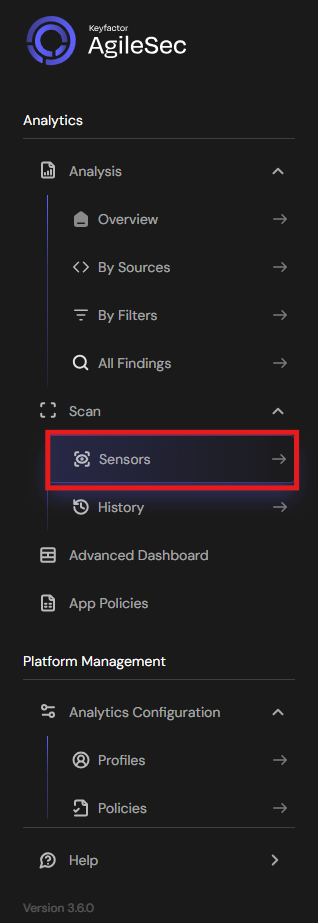
Click on "Sensors" in the left navigation menu under Scan
-
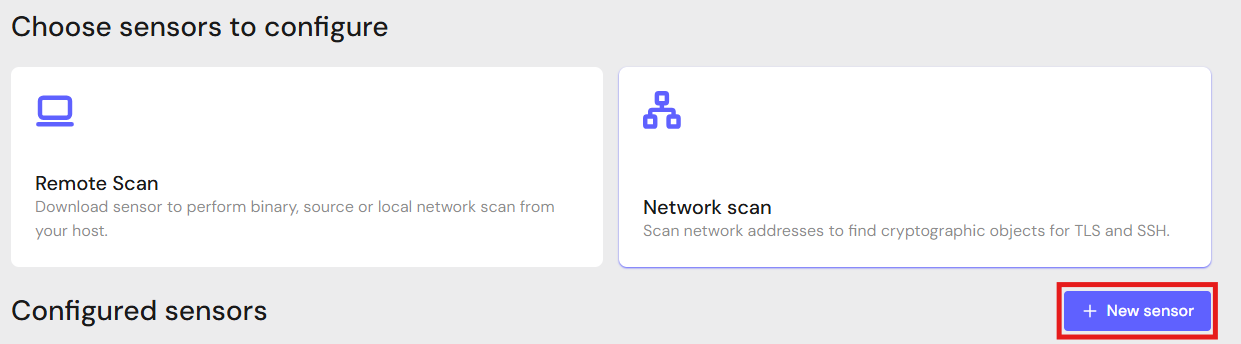
Click "+ New Sensor".
-
Click on the correct card to open the configuration interface.
Configure Parameters and Start Scan
-
Fill in the required configuration parameters.
-
Click Save.
-
Click Action then Scan to begin a scan.
Note: Click Edit to reconfigure parameters.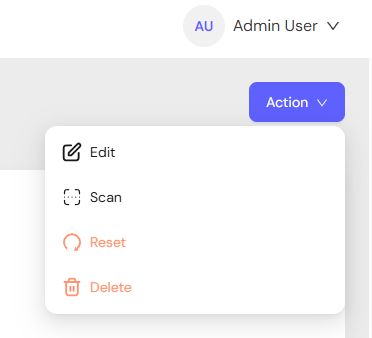
API Scan Execution
Scans may be programmatically triggered through REST API calls, enabling seamless integration with CI/CD pipelines, automation workflows, and custom applications. API execution provides flexibility for developers to incorporate cryptographic scanning into their existing development and deployment processes.
Note: For complete API reference, see API.
Generate AgileSec API Access Token
-
Open your browser and navigate to AgileSec Platform UI
-
Log in with your Keyfactor credentials
-
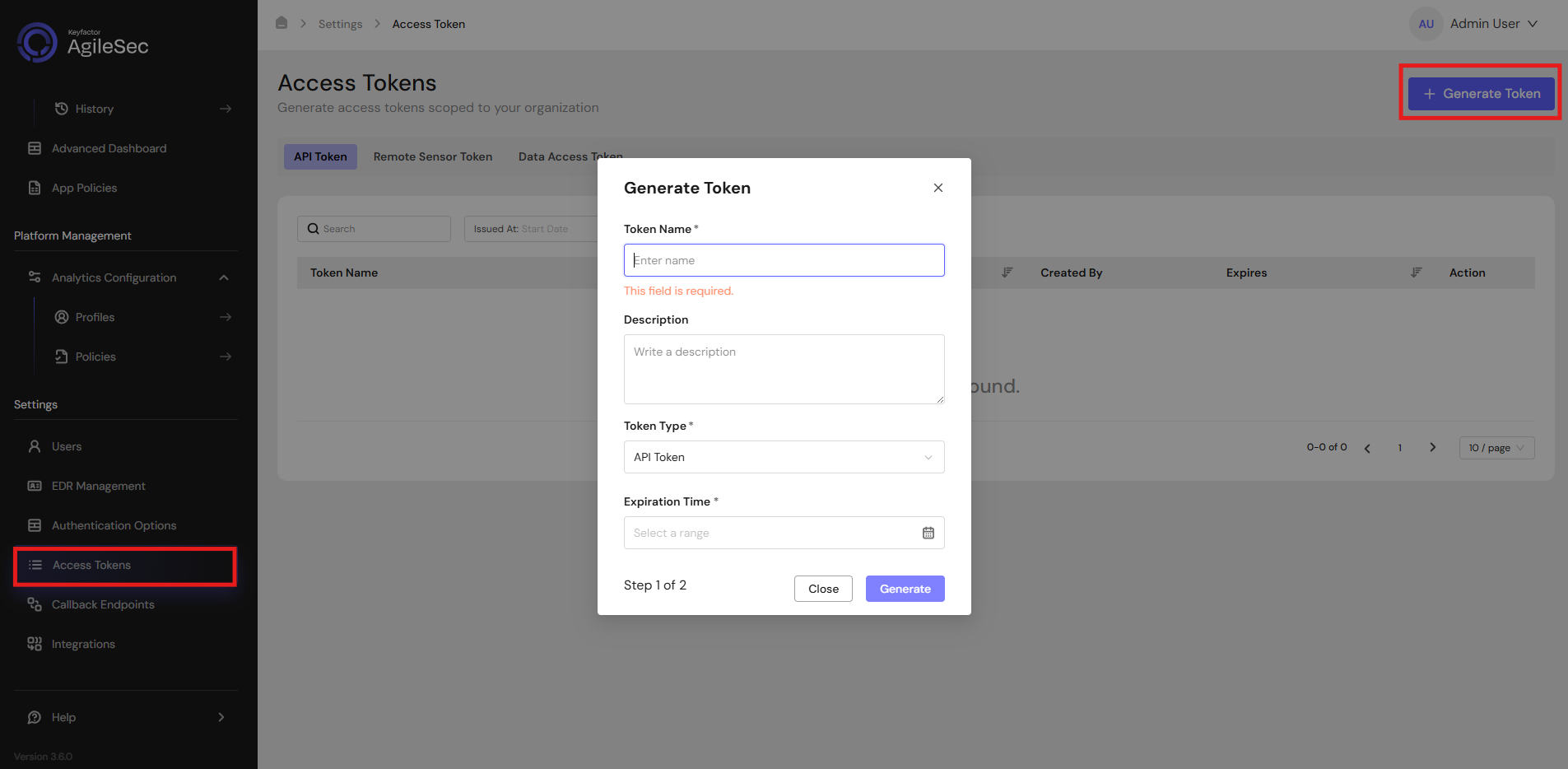
Click "Access Tokens" in the main navigation menu
-
Click "Generate Token" button
-
Set Token Type to API Token and provide the required details
-
Click "Generate" and copy the generated token
AgileSec API Endpoint
POST https://<platform-url>/v3/scan/create/
Request Format
Headers
Content-Type: application/json
isg-api-token: <your-api-token>
Request Body
  {
    "sensorName": "<sensor name>",
    "sensorType": "Container",
    "sensorConfig": {
       "username": "<registry username>",
       "password": "<registry password>",
       "images": [
           "docker.io/library/alpine:latest",
           "myregistry.io/myimage:v1.0"
       ]
    },
    "callbackId": "<callback id>",
    "labels": [
        {
            "<label name>": "<label value>"
        }
    ],
    "priority": "<priority>",
    "incrementalScan": true,
    "autoResolutionInterval": 5
  }
Remote Scan Execution
Scans may be run on remote host machines with the AgileSec Remote Sensor Package.
Download Remote Sensor Package
-
Open your browser and navigate to the Keyfactor AgileSec Platform Web URL
-
Log in with your credentials
-
Click on "Sensors" in the left navigation menu under Scan
-
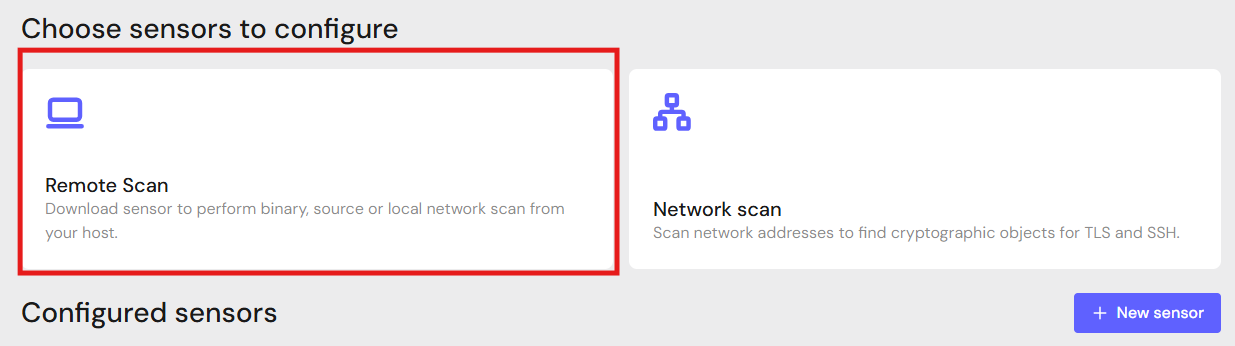
Click Remote Scan.
-
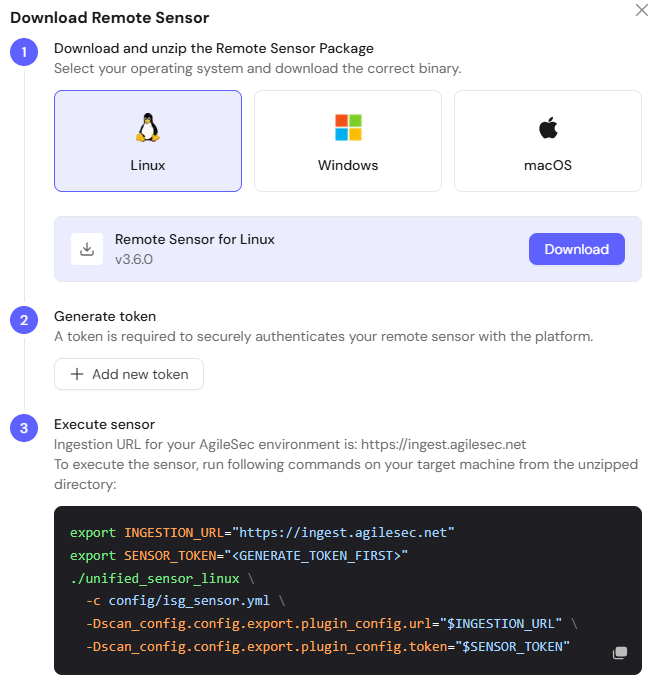
Click + Download Remote Sensor.

-
Download the sensor binary for your remote machine’s operating system
Generate Platform Token
-
In the Download Remote UI, click "Generate Token"
-
Copy the generated token
-
Store securely in an environment variable such as
SENSOR_TOKEN:export SENSOR_TOKEN="your-generated-token"
Create Configuration File
Create a YAML configuration file (e.g., container-config.yml) with your scan settings. An example configuration can be found in config/sample-configs/container.yml.
Step 4: Run the Sensor
Execute the Sensor with your configuration file:
-
Linux/macOS
Bash# Set environment variables export SENSOR_TOKEN="your-sensor-token" # Run Sensor ./unified_sensor_linux -c container-config.yml -
Windows (PowerShell)
PowerShell# Set environment variables $env:SENSOR_TOKEN = "your-sensor-token" # Run Sensor .\\unified_sensor_windows.exe -c .\\container-config.yml
Remote Scan Execution Configuration Examples
-
Scan Public Images
YAMLscan_config: plugins: - container_import - trigger_discover - export config: container_import: name: container plugin_config: images: - "docker.io/library/alpine:latest" - "docker.io/library/nginx:latest" -
Scan Private Registry with Auth
YAMLscan_config: plugins: - container_import - trigger_discover - export config: container_import: name: container plugin_config: username: "${env:REGISTRY_USER}" password: "${env:REGISTRY_PASS}" images: - "myregistry.io/myapp:v2.1" - "myregistry.io/backend:latest" -
Scan Private Registry with Token Auth
YAMLscan_config: plugins: - container_import - trigger_discover - export config: container_import: name: container plugin_config: token: "${env:REGISTRY_TOKEN}" images: - "myregistry.io/myapp:v2.1"
Known Limitations
Image Size
Very large container images require significant disk space for extraction. Ensure minimum 2x the total image size is available as disk space.
Troubleshooting Common Errors
-
CONFIG-404– Unable to read/parse configuration file-
Cause: The configuration file path is incorrect or the file is malformed.
-
Fix: Verify the config file path and validate JSON syntax.
-
-
no container images were stated-
Cause: The
imagesarray is empty or missing. -
Fix: Add at least one container image reference to the
imagesconfiguration.
-
-
401 Unauthorizedfrom registry-
Cause: Invalid credentials or token for a private registry.
-
Fix: Verify registry credentials are correct. Test with
docker pullmanually.
-
-
Disk space errors during extraction
-
Cause: Insufficient disk space to extract container layers.
-
Fix: Ensure adequate disk space (2x total image size minimum).
-
Getting Support
Collect diagnostic information:
-
Sensor version
-
Configuration file (redact credentials)
-
Log output
-
Container registry details (type, URL)
Contact Support
-
Portal: https://support.keyfactor.com