.png)
Instructions for deploying the Tenable Connector to scan for cryptographic assets and deliver findings to the AgileSec Platform for processing and analysis.
Overview
The Tenable Connector integrates Tenable Security Center with Keyfactor's AgileSec Platform. This Connector retrieves vulnerability analysis results from Tenable and extracts cryptographic protocol findings, bringing TLS/SSL visibility into the AgileSec ecosystem.
What Gets Scanned
The Connector retrieves and parses Tenable vulnerability analysis data to discover:
-
TLS/SSL Protocol Versions: Protocol versions detected on scanned network endpoints.
-
Cipher Suites: Cipher suite information from vulnerability findings.
-
Host Information: IP addresses, DNS names, and port numbers of scanned targets.
Prerequisites
Ensure you meet the following requirements to enable scanning.
Network Access
Ensure HTTPS network connectivity from AgileSec platform or remote execution machine to Tenable Security Center.
Supported Authentication Methods
The Tenable Connector supports two authentication methods:
-
API Key Authentication (recommended): Use an
access_keyandsecret_keypair generated in Tenable Security Center. -
Session Authentication: Use a
usernameandpasswordfor session-based login.
Note: If both methods are configured, Session Authentication (username/password) takes precedence.
Tenable Required Access Rights
The Tenable authentication method must have sufficient permissions to query the Tenable Security Center Vulnerability Analysis API endpoint for desired scan results.
Tenable Requirements
The Tenable instance must have the SSL Cipher Suites Supported plugin (id 21643).
Remote Execution Requirements
If running the Connector remotely using CLI, the remote execution machine must meet these requirements:
|
Component |
Requirement |
|---|---|
|
Operating System |
|
|
RAM |
Minimum 500 mb (0.5 GB) to enable API calls and data streaming. |
|
Disk Space |
Minimal; scans are API-driven and findings are streamed to the AgileSec platform. No data is stored on disk. |
|
Permissions |
Read/write access to remote sensor working directory (remote sensor install location) |
Running the Connector
AgileSec Tenable scans can be executed using the following methods:
-
Platform Scan Execution: Configure and execute scans directly through the Keyfactor AgileSec web UI with on-demand or scheduled execution options.
-
API Scan Execution: Programmatically trigger scans through REST API calls, enabling integration with CI/CD pipelines and automation workflows.
-
Remote Scan Execution: Deploy and run the connector via CLI on customer-managed infrastructure for scenarios such as:
-
Scanning air-gapped or internal instances the platform cannot directly reach
-
Customers wanting to manage their own scheduling and execution environment.
-
Refer to Scan Execution Flows for additional scan execution information.
Connectors/Sensors Note: Connectors are considered a subset of Sensors. Sensors and Connectors utilize the same Unified Sensor Framework, but Sensors use the Host Sensor for additional scanning depth.
“Sensor”-labeled variables for API and Remote execution are common to both Sensors and Connectors. Unless specified, do NOT update these with “Connector”.
Configuration Fields
The following parameters are used to configure AgileSec Tenable scans.
|
Field Name |
UI Display Name |
Type |
Required |
Description |
|---|---|---|---|---|
|
|
Tenable URL |
String |
✅ Yes |
Tenable Security Center REST API URL. Default: |
|
|
API Access Key |
String |
✅ Yes if using API Key authentication |
Tenable API access key. |
|
|
API Secret Key |
String |
✅ Yes if using API Key authentication |
Tenable API secret key. |
|
|
Username |
String |
✅ Yes if using session authentication |
Tenable username. |
|
|
Password |
String |
✅ Yes if using session authentication |
Tenable password. |
|
|
Filters |
Filter Object array Each filter object has See https://docs.tenable.com/security-center/api/Query.htm for examples. |
❌ No |
List of filters to narrow the scope of vulnerability analysis results.
|
Platform Scan Execution
Running scans through the user interface is the simplest and fastest way to get started. The platform enables running on-demand or scheduled scans in a dedicated environment.
Platform Scan Configuration
-
Open your browser and navigate to the Keyfactor AgileSec Platform Web URL
-
Log in with your credentials
-
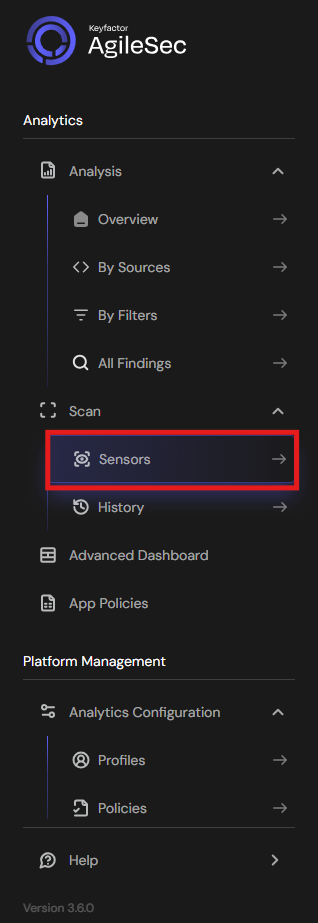
Click on "Sensors" in the left navigation menu under Scan
-
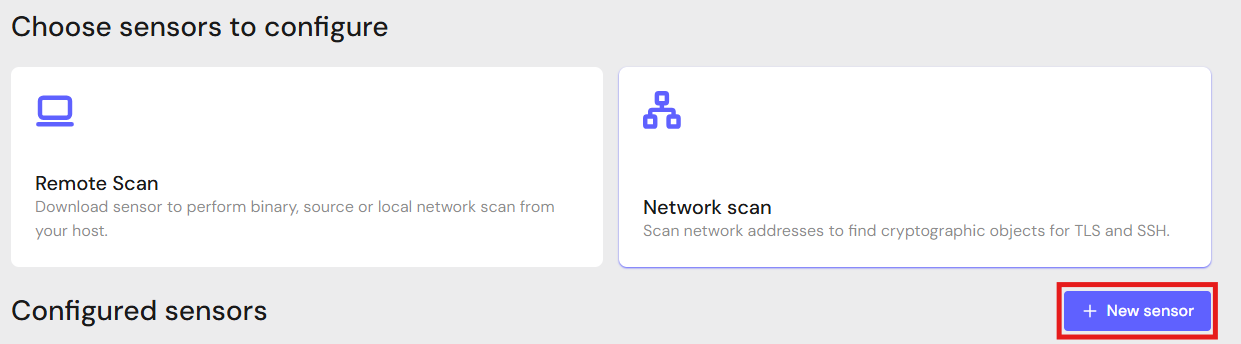
Click "+ New Sensor".
-
Click on the correct card to open the configuration interface.
Configure Parameters and Start Scan
-
Fill in the required configuration parameters.
-
Click Save.
-
Click Action then Scan to begin a scan.
Note: Click Edit to reconfigure parameters.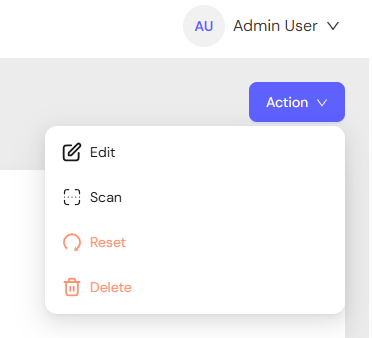
API Scan Execution
Scans may be programmatically triggered through REST API calls, enabling seamless integration with CI/CD pipelines, automation workflows, and custom applications. API execution provides flexibility for developers to incorporate cryptographic scanning into their existing development and deployment processes.
Note: For complete API reference, see API.
Generate AgileSec API Access Token
-
Open your browser and navigate to AgileSec Platform UI
-
Log in with your Keyfactor credentials
-
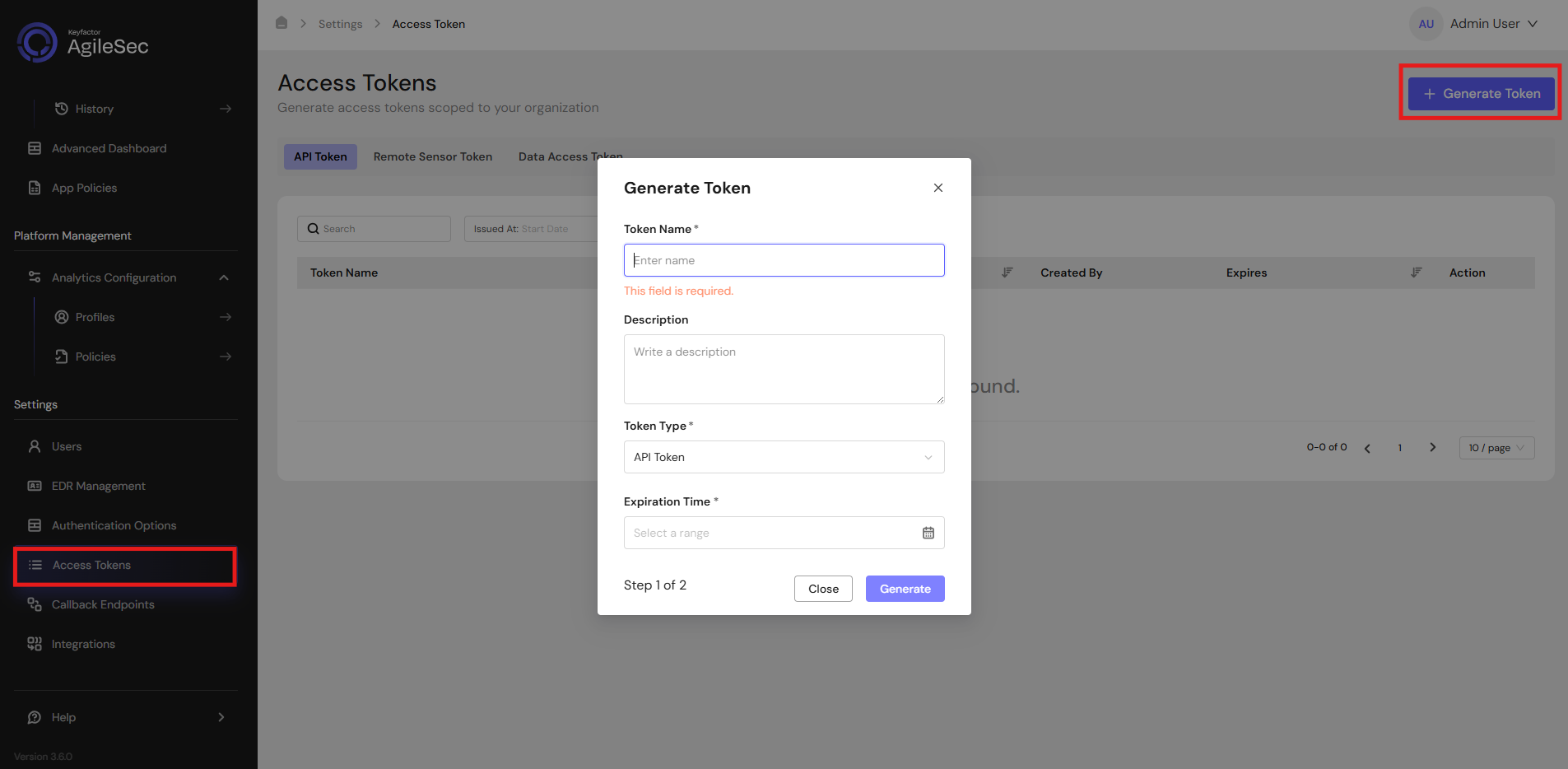
Click "Access Tokens" in the main navigation menu
-
Click "Generate Token" button
-
Set Token Type to API Token and provide the required details
-
Click "Generate" and copy the generated token
AgileSec API Endpoint
POST https://<platform-url>/v3/scan/create/
Request Format
Headers
Content-Type: application/json
isg-api-token: <your-api-token>
Request Body
  {
    "sensorName": "<sensor name>",
    "sensorType": "Tenable Network",
    "sensorConfig": {
       "url": "https://tenable.internal.company.com/rest/",
       "access_key": "<tenable access key>",
       "secret_key": "<tenable secret key>",
       "filters": [
           {
               "name": "ip",
               "operator": "=",
               "value": "127.0.0.1"
           }
       ]
    },
    "callbackId": "<callback id>",
    "labels": [
        {
            "<label name>": "<label value>"
        }
    ],
    "priority": "<priority>"
  }
Request Body (Session Auth)
  {
    "sensorName": "<sensor name>",
    "sensorType": "Tenable Network",
    "sensorConfig": {
       "url": "https://tenable.internal.company.com/rest/",
       "username": "<tenable username>",
       "password": "<tenable password>"
    },
    "callbackId": "<callback id>",
    "labels": [
        {
            "<label name>": "<label value>"
        }
    ],
    "priority": "<priority>"
  }
Remote Scan Execution
Scans may be run on remote host machines with the AgileSec Remote Sensor Package.
Download Remote Sensor Package
-
Open your browser and navigate to the Keyfactor AgileSec Platform Web URL
-
Log in with your credentials
-
Click on "Sensors" in the left navigation menu under Scan
-
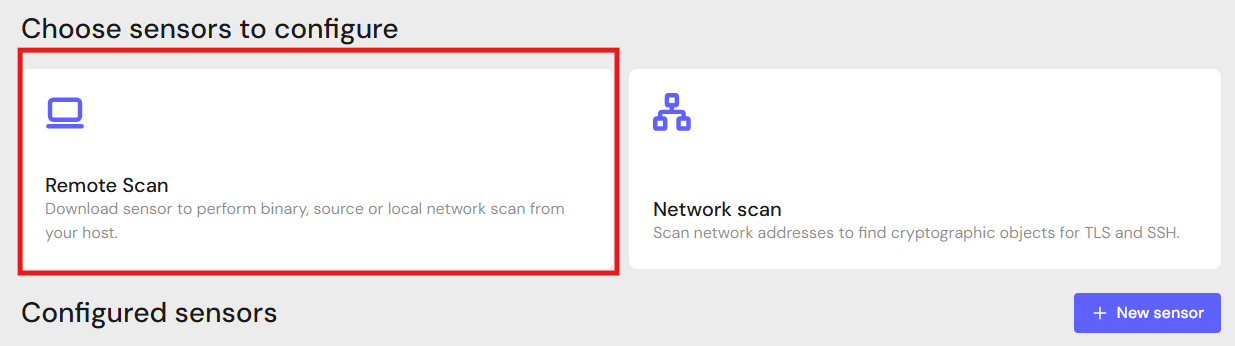
Click Remote Scan.
-
Click + Download Remote Sensor.

-
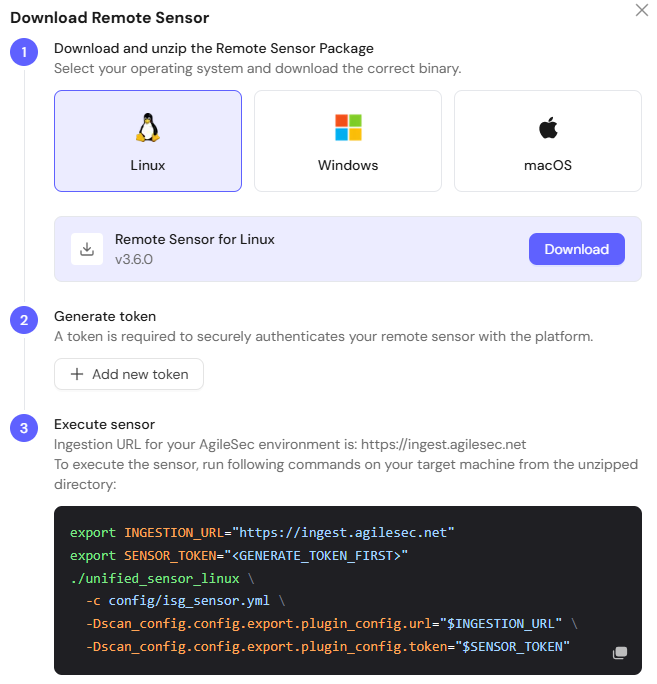
Download the sensor binary for your remote machine’s operating system
Generate Platform Token
-
In the Download Remote UI, click "Generate Token"
-
Copy the generated token
-
Store securely in an environment variable such as
SENSOR_TOKEN:export SENSOR_TOKEN="your-generated-token"
Create Configuration File
Create a YAML configuration file (e.g., tenable-config.yml) with your scan settings. An example configuration can be found in config/sample-configs/tenable.yml.
Step 4: Run the Connector
Execute the Connector with your configuration file:
-
Linux/macOS
Bash# Set environment variables export SENSOR_TOKEN="your-sensor-token" # Run Connector ./unified_sensor_linux -c tenable-config.yml -
Windows (PowerShell)
PowerShell# Set environment variables $env:SENSOR_TOKEN = "your-sensor-token" # Run Connector .\\unified_sensor_windows.exe -c .\\tenable-config.yml
Remote Scan Execution Configuration Examples
-
API Key Authentication
YAMLscan_config: plugins: - tenable - export config: tenable: name: tenable plugin_config: url: "<https://tenable.internal.company.com/rest/>" access_key: "${env:TENABLE_ACCESS_KEY}" secret_key: "${env:TENABLE_SECRET_KEY}" -
Session Authentication
YAMLscan_config: plugins: - tenable - export config: tenable: name: tenable plugin_config: url: "<https://tenable.internal.company.com/rest/>" username: "${env:TENABLE_USER}" password: "${env:TENABLE_PASS}" -
With Custom Filters
YAMLscan_config: plugins: - tenable - export config: tenable: name: tenable plugin_config: url: "<https://tenable.internal.company.com/rest/>" access_key: "${env:TENABLE_ACCESS_KEY}" secret_key: "${env:TENABLE_SECRET_KEY}" filters: - name: "ip" operator: "=" value: "127.0.0.1"
Known Limitations
Security Center Only
This Connector integrates with Tenable Security Center (on-premise). Tenable (Cloud) requires a different integration approach.
Troubleshooting Common Errors
-
CONFIG-404– Unable to read/parse configuration file-
Cause: The configuration file path is incorrect or the file is malformed.
-
Fix: Verify the config file path and validate JSON syntax.
-
-
COMMON-101– Failed serialization for output-
Cause: Internal data serialization error.
-
Fix: Enable debug logging and contact support with the log output.
-
-
401/403 Unauthorized/Access Forbidden-
Cause: Invalid API keys or session credentials.
-
Fix: Verify credentials are correct. For API keys, regenerate them in Tenable Security Center.
-
Getting Support
Collect diagnostic information:
-
Sensor version
-
Configuration file (redact credentials)
-
Log output
-
Tenable Security Center details (URL, version)
Contact Support
-
Portal: https://support.keyfactor.com