.png)
The following covers how to configure EJBCA using the Cloud Configuration Wizard.
If you are using the 1.x version of EJBCA Enterprise Cloud, proceed to the next step Log in to EJBCA Cloud AWS to retrieve the SuperAdmin certificate from your instance.
Step 1: Host Settings
In the first step, you configure the host settings for the instance.
-
The host name is automatically detected but can be modified. The host name must match the name of the host or DNS name that will be entered into a browser when accessing the Administration Interface of this EJBCA installation.
-
Using a Subject Alternative Name (SAN) with this host can be done so that a public URL can be used to access EJBCA. For example, if you would like to use https://pki.company.com/ to access a cluster of hosts, you can enter that DNS name into the wizard to be added as a SAN in the instance's TLS certificate. To use this feature, select the option to specify a Valid domain name. Note that the wizard will not verify that the domain name is a valid domain, but will confirm that the syntax is a recognized domain format.
-
Click Next to continue to the database configuration.
Host Settings Fields
The following lists available fields.
|
Field |
Description |
|---|---|
|
Host name |
Hostname of the host that EJBCA is going to be installed to (auto populated). |
|
SAN |
Alternate Name to be included in the certificate generated for this host during the installation. |
Step 2: Database Configuration
Database configuration is optional. By default, a local MariaDB server is installed. Alternatively, you can configure an external database using MariaDB, PostgreSQL, Microsoft SQL Server, or Oracle Database.
When using Oracle Database, you must configure an Option Group to enable TLS. When enabling TLS, use a FIPS-compliant cipher suite such as TLS_ECDHE_RSA_WITH_AES_256_GCM_SHA384 and TLS 1.2. FIPS mode itself does not need to be enabled.
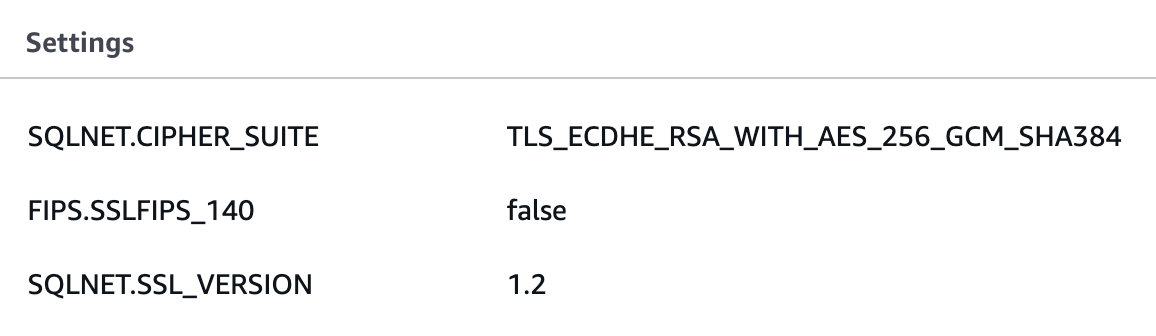
You can choose either to perform a new installation or to join a node to an existing EJBCA database.
2a: New Installation
To use a cloud-hosted database such as Amazon RDS or Aurora:
-
Select Use External Database.
-
Enter the database information, including Database type, Access URL, username, password, and database name. The Database Type can be MariaDB, PostgreSQL, Microsoft SQL, or Oracle Database. AWS configures TLS on all deployed databases automatically.
-
If using Oracle Database, follow the AWS documentation to configure an Option Group that enables TLS connectivity.
-
Before proceeding, ensure that the RDS or Aurora instance is properly configured before proceeding. For more information, refer to AWS documentation Create an RDS DB Instance.
-
Click Test to verify the database connection. You cannot proceed unless the test is successful. This should be a fresh RDS instance with no existing EJBCA database.
-
If the database exists already and the Existing EJBCA Database option is cleared, the wizard will give the error Database exists!. If this database was created ahead of time, it can be dropped since the database is created automatically by the wizard.
-
If the RDS Database instance is unavailable for any reason, the installation will fall back to a local installation to ensure success. The only way to recover from this is to export the database, import it into RDS, and reconfigure the node to point to a cloud database. It is recommended to fix the database connectivity problem and launch a new node from the Marketplace. The most common problem connecting to a cloud database is security group configuration. Ensure that the EJBCA Cloud instance is allowed to talk to the RDS instance.
-
-
Once the database connection is successful, the Success message is shown.
-
Click Next to continue to Step 3: Management CA Configuration.
2b: Join Cluster
To join a node to an existing EJBCA database, provided you already have a database with an existing EJBCA installation:
-
Select Join Existing Cluster (database already exists) to join this node to an existing EJBCA installation.
Ensure that the EJBCA CLI password matches the original password of "ejbca".
-
Provide the password for the EJBCA application database user (
ejbcadbuser). By default, this matches the admin password unless it has been changed using therotate_db_password.shscript, see Database Password Rotation AWS. -
Click Test to verify the connection. The wizard verifies both database connectivity and the existence of the specified database. If the database is not found, the test fails and you cannot proceed.
-
When Join Existing Cluster (database already exists) is enabled, all other options in the wizard are disabled and you can continue to Step 5: Review and Submit.
Database Configuration Fields
The following lists available fields.
|
Field |
Description |
|---|---|
|
Database type |
One of MariaDB (10.x), PostgreSQL (13–14), Microsoft SQL Server (2019+), or Oracle Database (19+). Other versions may work but are not officially supported. |
|
Database host name |
Host name of the host that EJBCA is going to be installed to (auto populated). |
|
Database port |
Port used for your database installation. Defaults to the standard port for the selected database type. |
|
Database username |
AWS "Master username". Must begin with a letter. |
|
Database password |
AWS "Master password". Must be at least 8 printable ASCII characters and cannot contain |
|
Database name |
Name of the database created inside the RDS database instance. |
|
Existing EJBCA Database |
Select to join an existing EJBCA installation. Select Existing EJBCA Database if you want to expand or upgrade the nodes in your cluster. |
Step 3: Management CA Configuration
You can either create a new Management CA during the installation or import an existing Management CA and have certificates from that CA be allowed access to this installation.
Create a new Management CA
EJBCA will create a Management CA based on attributes of the system to guarantee uniqueness. Note that the only required field when creating a new Management CA is the Superadmin password. For all available fields, see below.
Management CA Configuration Fields
The following lists available fields. Note that the only required field is the SuperAdmin password.
|
Field |
Description |
|---|---|
|
Create CA Common Name |
Common Name of the Management CA. This CA is used to generate administrative certificates for the CA. |
|
Subject fields |
OU= and O= can be configured for the ManagentCA DN. Includes the ReservationID, AMI-ID of the instance by default. Certificates are listed in the browser store by "O=". |
|
Key specification |
Key specification of the Management CAs signing certificate. |
|
SuperAdmin name |
Common Name of the Super administrator certificate to be generated during installation. This will be the default username in the certificate allowed access to the system. |
|
SuperAdmin password |
Password used to both retrieve the keystore from the Public Web after installation as well as the password used to protect the keystore itself. |
Use Existing (Import) Management CA
You can optionally import an existing Management CA to the instance and have certificates from that CA be allowed access to this installation.
When importing an external Management CA, a role will be added for the supplied, case-sensitive, Common Name (CN) provided. For example, if you supply "jsmith" as the username to be added, you must have a keystore issued to "jsmith" from the CA whose public certificate you are providing. The most common use case is an existing Management CA from another EJBCA installation and a SuperAdmin certificate to match.
You must have a keypair generated with the Common Name supplied from the CAs public certificate you are uploading to this instance when choosing Import CA.
To use an existing Management CA with this instance, do the following:
-
Select Use existing ManagementCA.
-
Click Browse and select the public certificate from the existing Certificate Authority.
-
Enter the Common Name (CN) for the user for which you have a keystore from this CA.
-
Click Next to continue to the Review and Submit page to review a summary of all settings.
Step 4: Key Storage and CloudHSM Configuration
This step is optional and not applicable if you selected Use Existing ManagementCA (since this means that no CA keys will be created).
By default, EJBCA creates keys for the Management CA in the database. CloudHSM key generation can be configured now so that the initial Management CAs keys are stored and created in CloudHSM. If you would like to have those keys created in a CloudHSM cluster, you can enter the credentials for your cluster here.
Before proceeding:
-
Complete CloudHSM setup according to the EJBCA Cloud AWS CloudHSM Integration Guide.
-
Ensure the required security group rules allow communication with the CloudHSM cluster.
-
Have your
customerCA.crtfile available.
Testing connectivity to the CloudHSM cluster before the installation is not possible. Therefore, if the EJBCA installation fails to connect to the CloudHSM cluster with the credentials provided for any reason, the setup will fall back to a soft key pair generation so the EJBCA installation itself does not fail. There may be more details in the log file /var/log/install.log on the EJBCA host as to why installation with CloudHSM failed if it does.
To set up your own HSM later, skip this step and click Next to continue to the Review and Submit page to review a summary of all settings.
CloudHSM Configuration Fields
The following lists available fields.
|
Field |
Description |
|---|---|
|
CloudHSM IP Address |
IP Address of the CloudHSM cluster. |
|
CloudHSM CryptoUser (CU) Password |
Password of the CloudHSM Crypto User. |
|
CustomerCA.crt Upload |
Your signed HSM certificate from your CloudHSM cluster initialization. For details, refer to AWS CloudHSM documentation. |
Step 5: Review and Submit
This page displays a summary of your configuration.
-
Click Submit to begin installation.
-
Click Previous to modify settings if needed.
After submission, installation begins, and a log viewer is displayed. When complete, you are redirected to the EJBCA RA interface to retrieve your SuperAdmin credentials.