.png)
Managing End Entities is a task performed by administrators on a regular basis. In larger PKI deployments, dedicated staff is assigned the management of end entities and associated CRL lists.
Use-Case: Search for end entities
To search for end entities, proceed as follows:
-
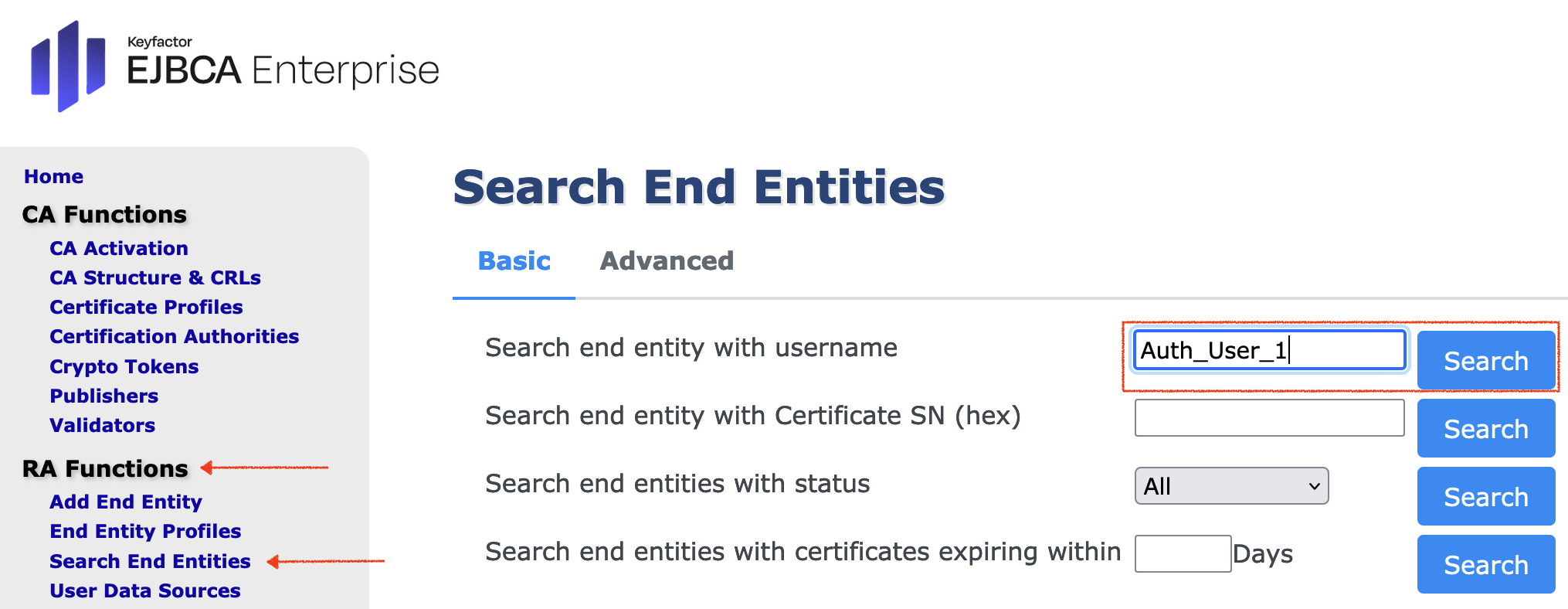
Open EJBCA Enterprise. In the sidebar, in the RA Functions section, select Search End Entities.
-
In the field Search end entity with username enter Auth_User_1.
-
Click Search.
Certificate Revocation
As described previously, there is no mechanism for recalling a certificate once it has been issued. Although there would be a business need to disable use of the certificate once it has been issued. This could be for a number of reasons.
As an example, if a user loses a token that contains their certificate, this needs be revoked so that a person who finds this cannot use it in the digital environment.
In the real world, black lists serve this purpose. If for example, a user loses their passport, the passport number is added to a blacklist of lost passports. Thus this passport cannot be used in the future.
In a similar manner if a certificate is to be revoked, this is added to a black list. This black list is updated on a regular basis and circulated and published in a manner accessible to subscribers. This list is referred to as a certificate revocation list (CRL)
It may also be possible to provide a service for online checking where by a third party that wishes to check the validity of a certificate.
Use-Case: Revoke a Certificate
To revoke a certificate using EJBCA, proceed as follows:
-
Open EJBCA Enterprise. In the sidebar, in the RA Functions section, select Search End Entities.
-
In the field Search end entity with username enter Auth_User_1.
-
Click Search.
-
Click View Certificates for Auth_User_1.
-
Select Unspecified as the revocation reason, and click Revoke.
-
A message will appear asking if you are sure you want to revoke the certificate. Click OK to accept.
-
Close the popup window.
Use-Case: Re-issue a Certificate
To re-issue a certificate using EJBCA, do the following:
-
Open EJBCA Enterprise. In the sidebar, in the RA Functions section, select Search End Entities.
-
In the field Search end entity with username enter Auth_User_1.
-
Click Search.
-
Click Edit End Entity for Auth_User_1.
-
In the fields Password and Confirm Password enter foo123.
-
Set Status to New and click Save.
-
Open the RA Web GUI.
-
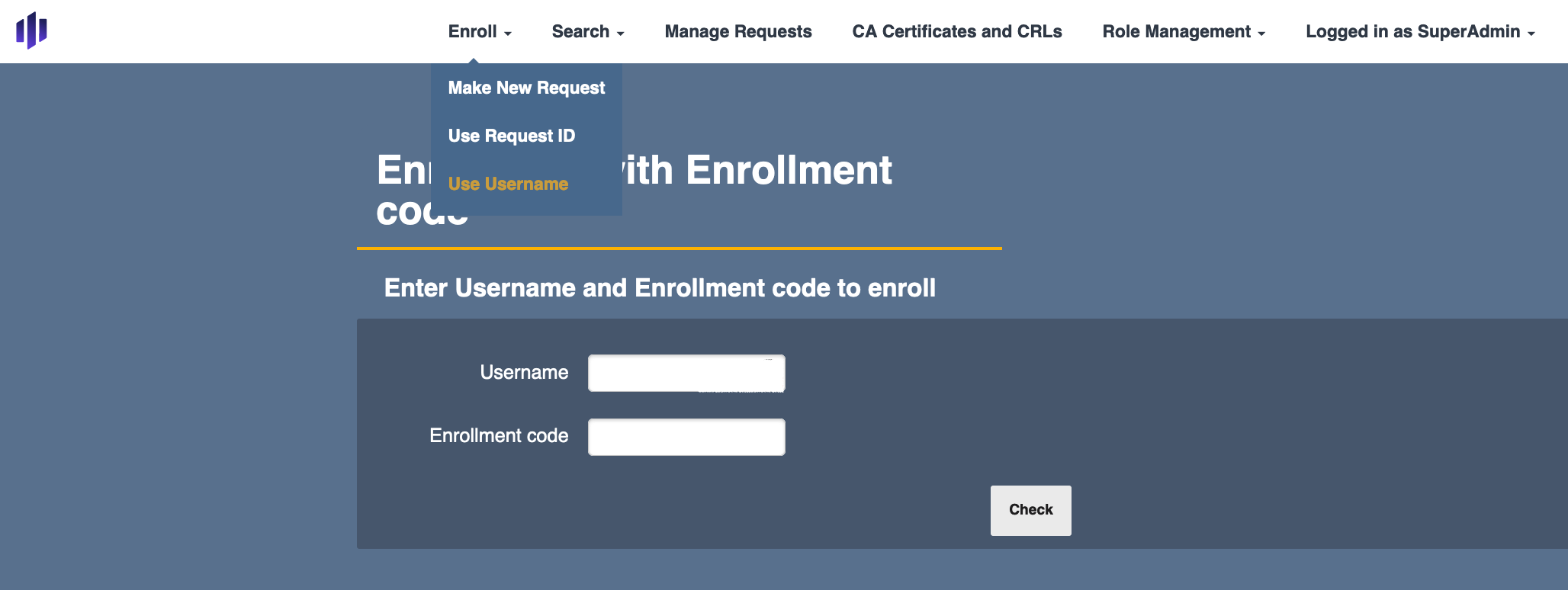
From the top menu click the drop-down menu for Enroll.
-
Chose Use Username from the drop down menu. Make the following entries:
-
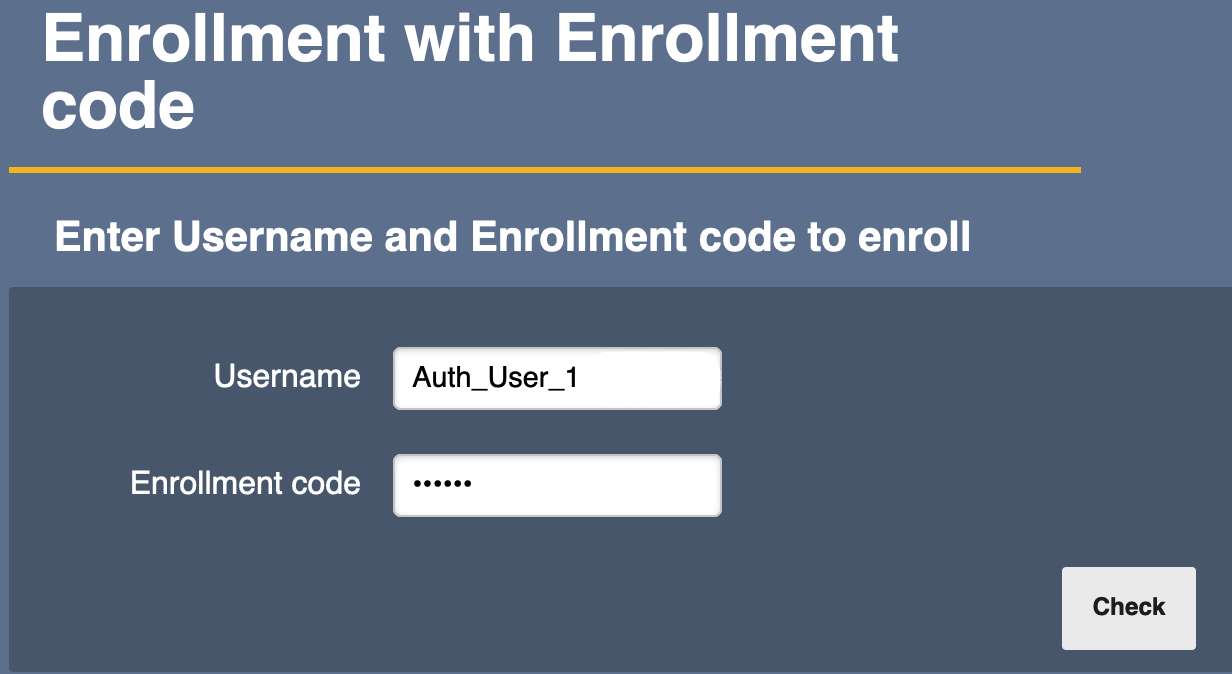
Username: Enter Auth_User_1
-
Enrollment code: Enter foo123
-
Click Check to continue.
-
For Key algorithm select RSA 1024 bits from the drop down menu.
-
Click Download PKCS#12 to continue.