.png)
Hyper-V does not allow configuration of a Luna USB HSM.
You can configure a Hardware Security Module (HSM) on a USB device to store and protect cryptographic keys in a centralized, high-assurance appliance, providing a root of trust for sensitive cryptographic data transactions.
Optionally, you can use the software-based SoftHSM implementation for demonstration or testing purposes.
Ensure that the virtual machine environment has the necessary drivers or modules to recognize and communicate with the USB HSMs.
USB pass-through functionality should be implemented so that the virtual machine can access and use the connected USB HSMs.
The virtual machine should support the necessary cryptographic libraries or APIs required to connect to the USB HSMs.
Prerequisites:
-
The Luna USB HSM must not be in transport mode.
-
The device must be initialized.
-
The slots are listed in the web configuration.
Post Quantum Cryptography (PQC)
At the time of writing, there is no Luna USB HSM firmware available that supports post-quantum cryptography.
Choice of HSM Client Version
Luna TCT does not recognize the Luna USB HSM device and therefore cannot be used with a USB device.
Existing HA grouping with Luna USB HSM is not supported!
When using multiple Luna devices, be sure to select the actual Luna USB HSM.
The backup device looks identical, making it difficult to distinguish between them visually.
Configure Luna USB HSM on ESXi
The following describes how to configure a Luna USB HSM on ESXi for the Software Appliance by registering the Software Appliance and connecting it to the USB HSM.
If there is only one USB device available, and another VM is already configured, no USB device will be shown in the ESXi Edit Settings.
Only USB devices that are not yet configured to a VM are displayed in the ESXi Edit Settings.
Either the other VM releases the USB device, or another USB device must be made available.
One Luna USB HSM device is supported.
It is recommended to connect the Luna USB HSM to only one VM at a time.
-
Log in to the ESXi where your VM is located.
-
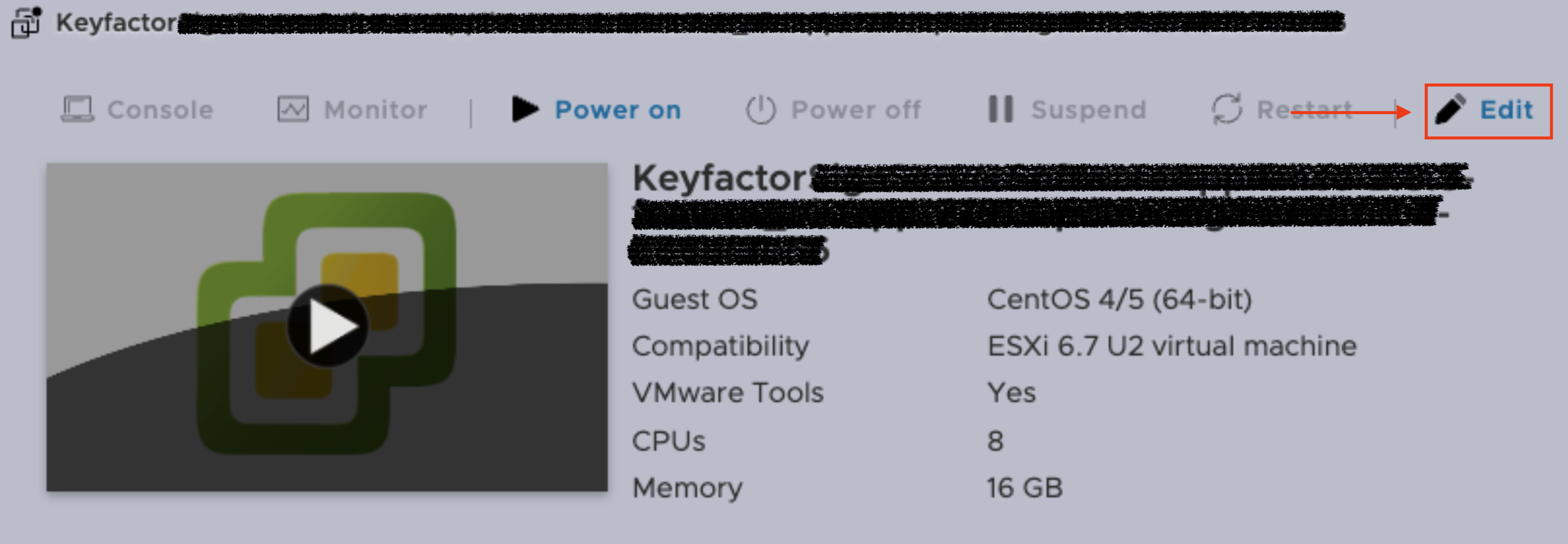
Click Edit in the upper right corner of the VM.
-
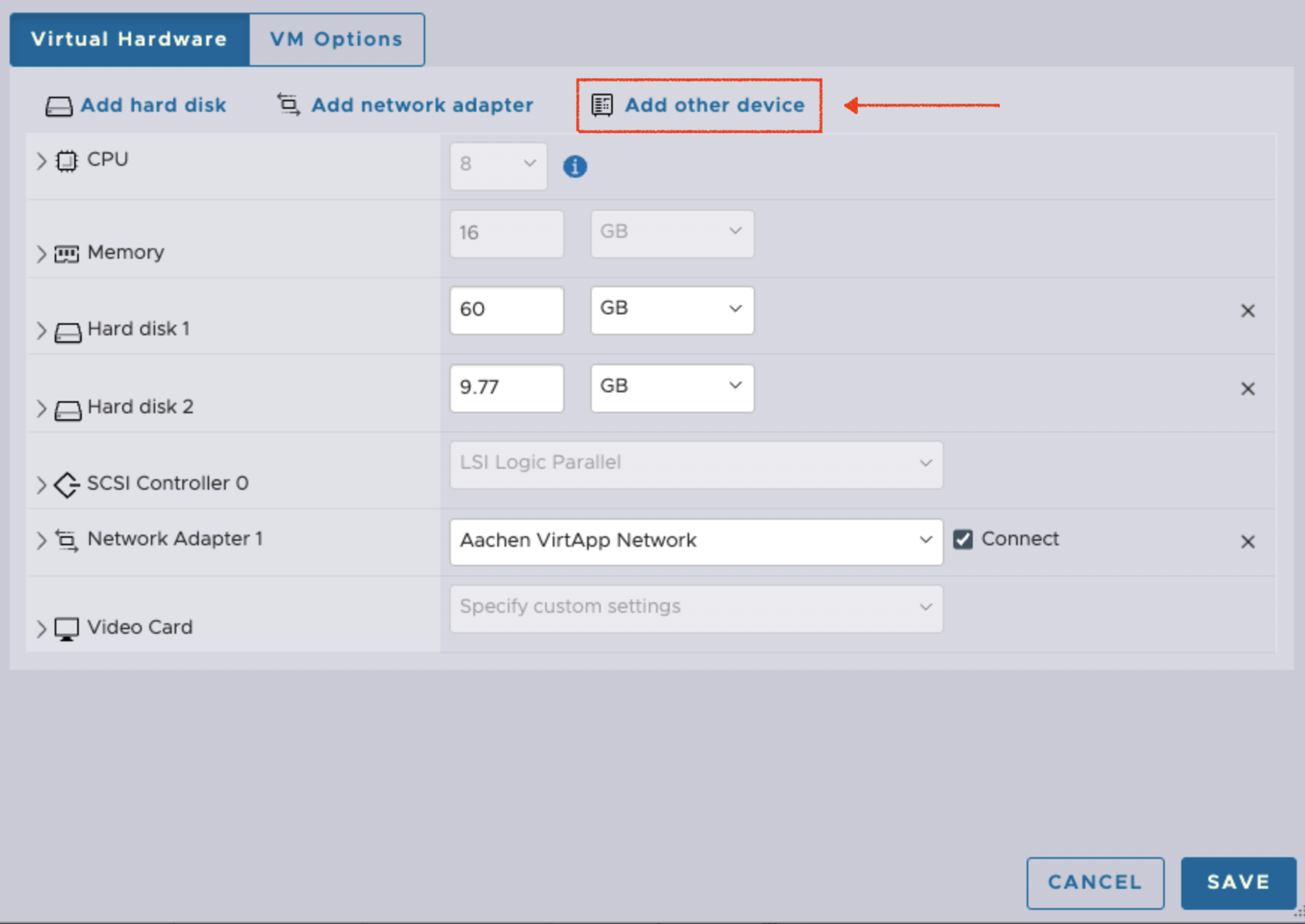
Click Add other device.
-
Select the USB Device.
If there are multiple USB devices connected to the VM, make sure to select Rainbow Luna USB HSM.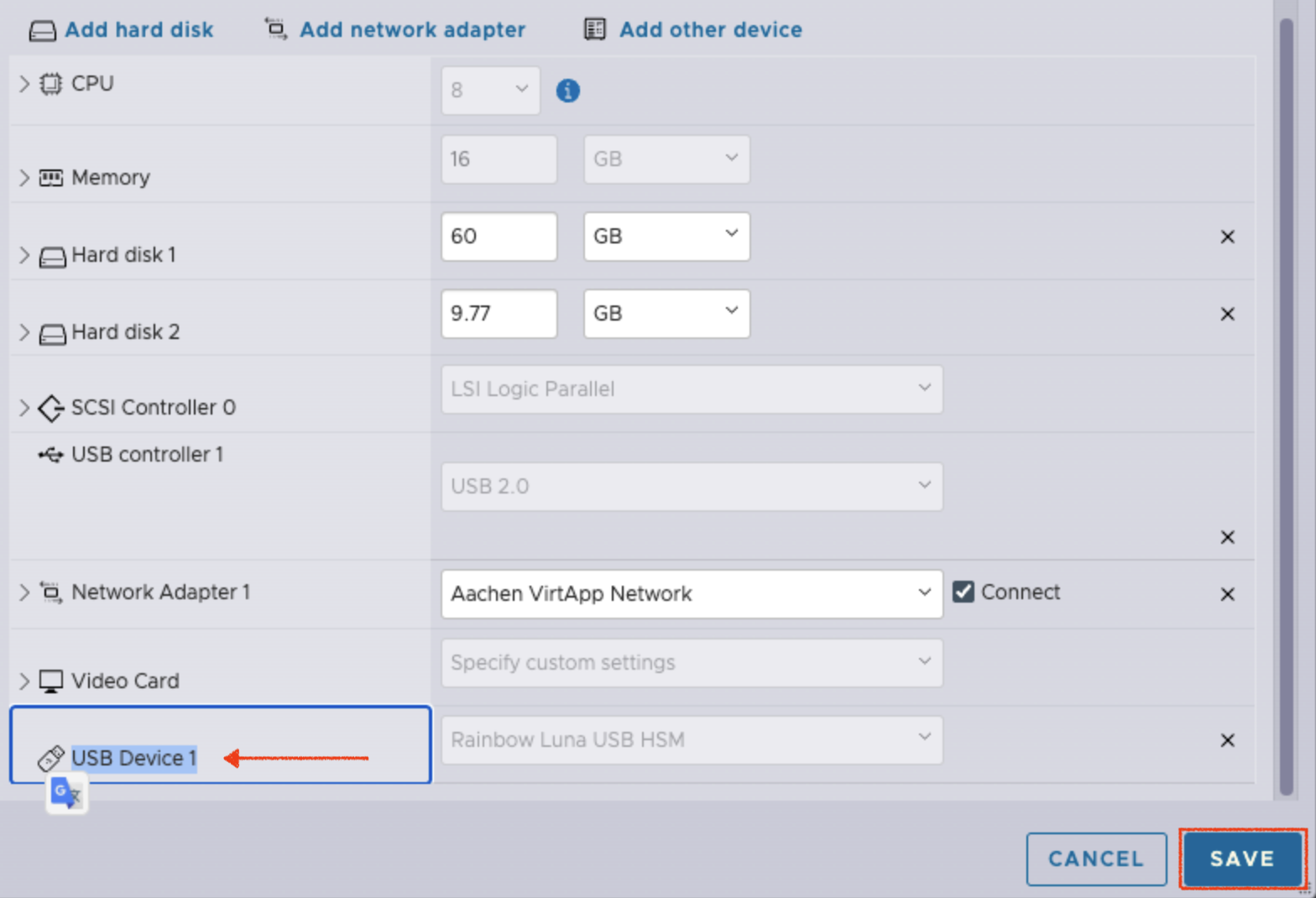
-
Click Save to confirm the configuration.
The connection of a Luna USB device to the ESXi VM is now configured.
If you run into issues after the configuration, you can get HSM specific log messages from a HSM Support Package.
For further information please refer to Create an HSM Log.
-
Log in to your Software Appliance and open the Security page or click Configure HSM in the Overview.
For more detailed information please see Connect Software Appliance with the Luna HSM. -
On the Security page in the HSM Configuration section, select Luna HSM to access the Configuration fields.
-
HSM Client Version
Click on the HSM Client Version to be used. -
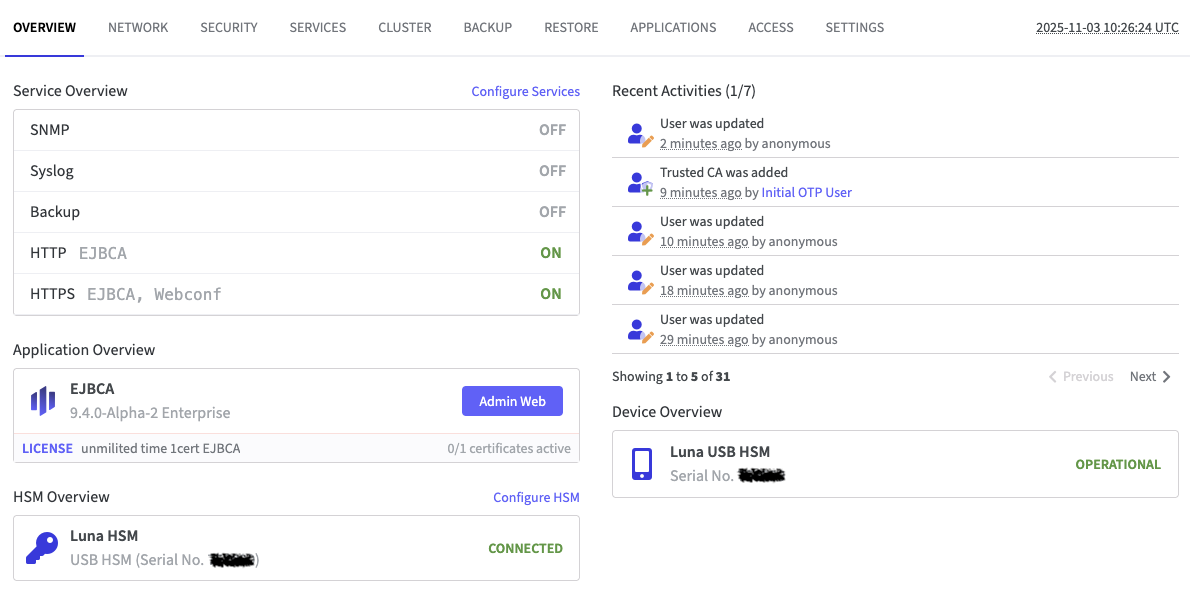
In the section Luna HSM Configuration under Luna HSM Devices the configured USB device will be listed. Please allow a few seconds for this process to complete.
In the State column Operational should be displayed.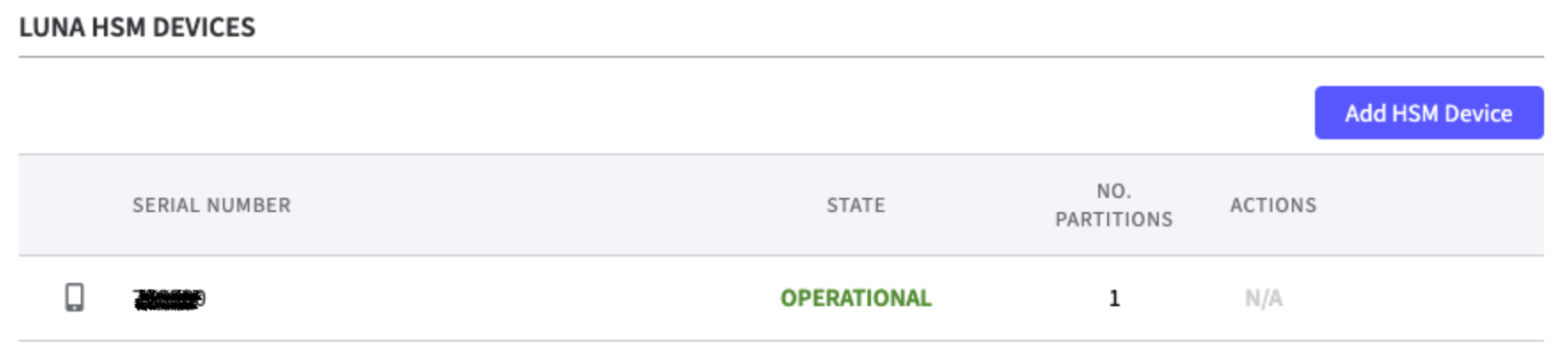
-
In Webconf on the Software Appliance on the Overview page:
The HSM Overview section lists the configured USB HSM with its (Serial No. xxxxxx).
The device should be displayed as Connected.
In the section Device Overview the device should be displayed as Operational.
If required, it is possible to add a second Luna USB HSM device.
Configure Luna USB HSM on KVM
The following describes how to configure a Luna USB HSM on KVM for the Software Appliance by registering the Software Appliance and connecting it to the USB HSM.
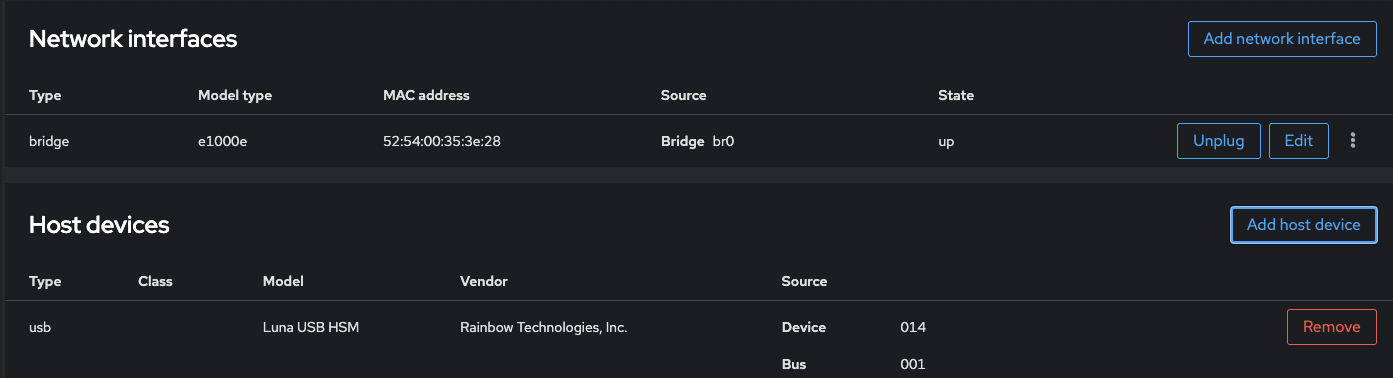
If there is only one USB device available, and another VM is already configured, no USB device will be shown in the KVM Network interfaces/Add host device.
Only USB devices that are not yet configured to a VM are displayed in the KVM Network interfaces/Add host device.
Either the other VM releases the USB device, or another USB device must be made available.
Two Luna USB HSM devices are permitted.
The Luna USB HSM can only be connected to one VM at a time.
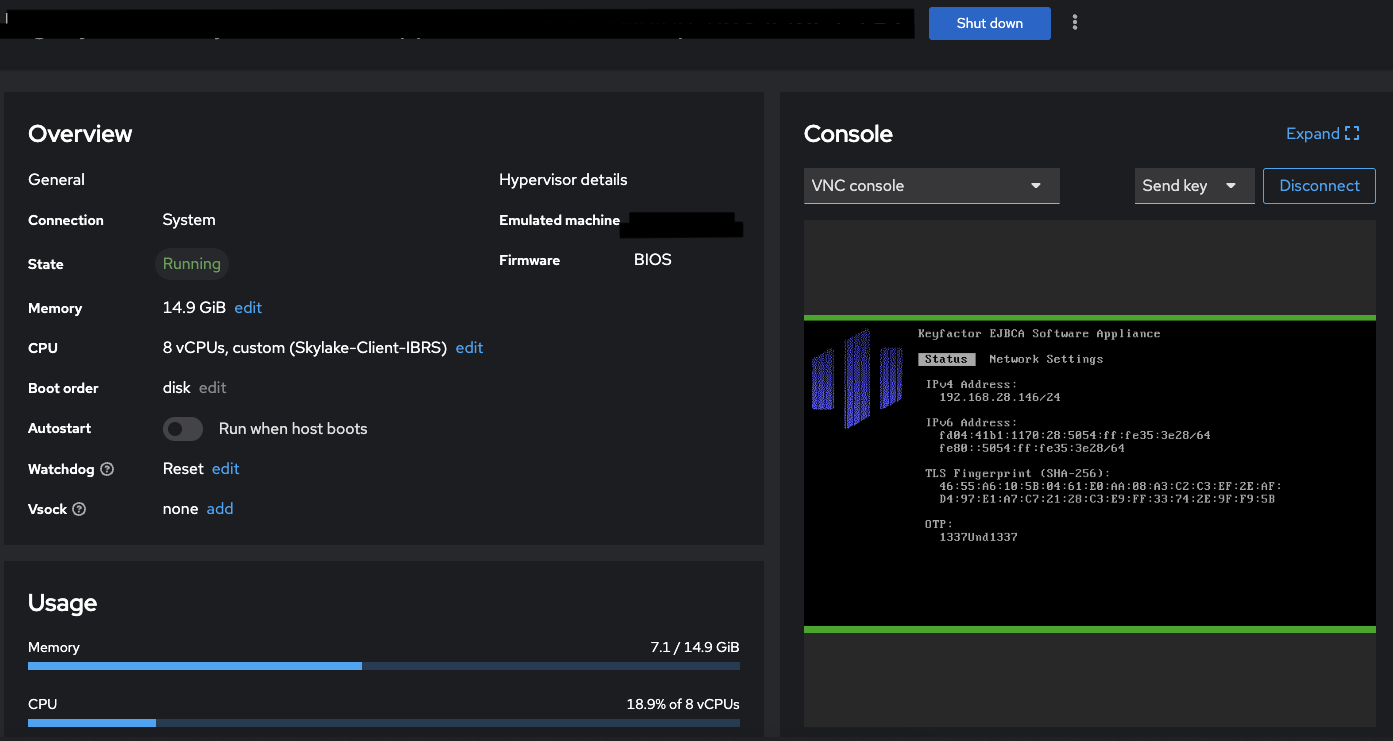
The VM must already be running!
Connecting the Luna USB HSM device to a VM that is not running will not work.
This is done via the KVM web interface.
-
In KVM, navigate to the VM to which the Luna USB HSM device is to be connected.
-
Turn on the VM and wait until it has booted up completely.
-
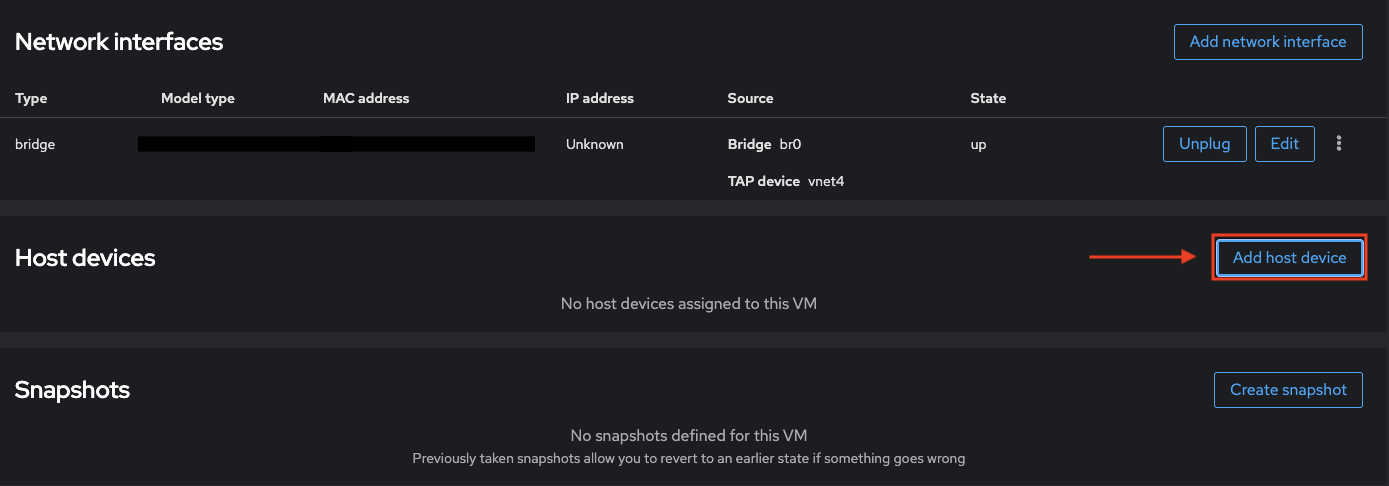
Scroll down to Host Device.
-
Click Add host device.
-
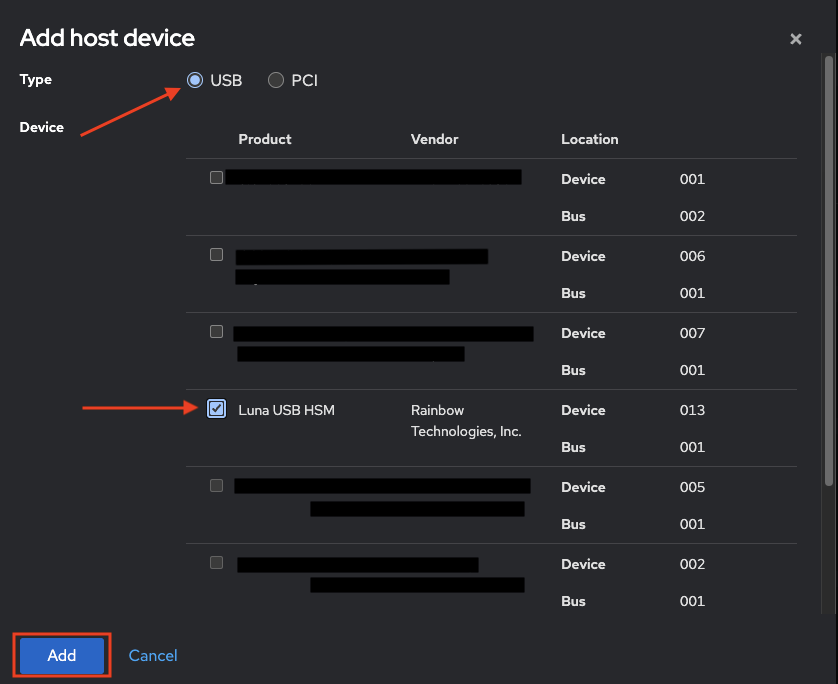
Select Rainbow Luna USB.
-
Click Add.
-
Log in to your Software Appliance and open the Security page or click Configure HSM in the Overview.
For more detailed information please see Connect Software Appliance with the Luna HSM. -
In the HSM Configuration section, select Luna HSM to access the Configuration fields.
-
HSM Client Version
Click on the HSM Client Version to be used. -
Save the Luna HSM configuration without configuring anything.
-
In Webconf on the Software Appliance on the Security page:
In the section Luna HSM Configuration under Luna HSM Devices the configured USB device will be listed. Please allow a few seconds for this process to complete.
In the State column Operational should be displayed.
-
In Webconf on the Software Appliance on the Overview page:
In the section HSM Overview the configured USB HSM with its (Serial No. xxxxxx) will be listed and displayed as Connected.
In the section Device Overview the device should be displayed as Operational.
If required, it is possible to add a second Luna USB HSM device.
Known Issue I:
When adding Luna USB, the error message shown in the image may appear.

In this case:
-
shut down the VM,
-
disconnect the device,
-
restart the VM,
-
wait until the startup process is complete, then reconnect the Luna USB device.
-
The Luna USB HSM should be functional again.
Note: This is not an error, but corresponds to the current status of the KVM hypervisor.
Known Issue II and III:
The Luna USB does not appear on the KVM.
The Luna USB does not appear Webconf as described above.
In this case, run the following on the KVM terminal:
Log in to the new KVM via SSH.
Go to the KVM terminal and run the following:
“virsh list” to determine the VM ID.
virsh attach-device X --file xxx.xml
virsh detach-device X --file xxx.xml (This file is the definition of the USB device.)
After a few minutes, Luna USB will appear in the Webconf.
Note: X is the ID of the VM. Adjust this accordingly.
Known Issue IV:
In general, Luna USB HSM works under Yocto.
The VM must be started before the USB device can be connected to the VM via the virsh CLI.
If the configuration is done before starting the VM in KVM, the USB device will not be displayed. Configuration via the Cockpit GUI also does not work.