.png)
The following outlines how to configure ACME Device Attestation in EJBCA and integrate it with a Mobile Device Management (MDM) solution such as Jamf for automated certificate enrollment of managed Apple devices.
For a conceptual overview of ACME Device Attestation and the underlying workflow, see ACME Device Attestation.
Prerequisites
Before you begin, you need:
-
An installed and running EJBCA infrastructure
-
We will be configuring an ACME Alias to allow device attestation
-
-
A JAMF Pro Instance
-
We will be enrolling a device and installing certificates using the ACME protocol
-
-
The Apple device(s) to manage
-
They must fulfill the requirements specified in https://support.apple.com/guide/security/managed-device-attestation-sec8a37b4cb2/web
-
They must have network access to the internet and to the EJBCA Server
-
Step 1 - Enable ACME Protocol
Before configuring device attestation, the ACME protocol must be enabled in EJBCA. This protocol is used by devices to request and retrieve certificates.
-
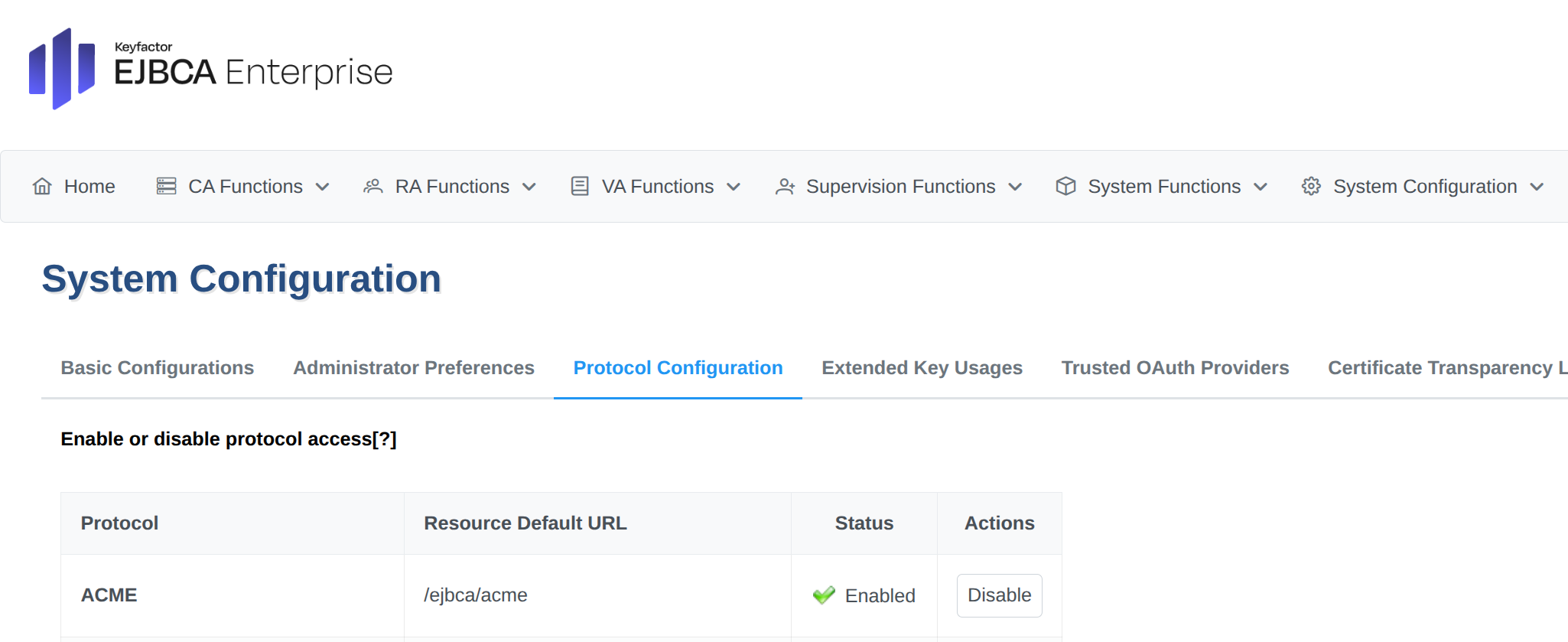
Go to System Configuration > Protocol Configuration.
-
Enable ACME Protocol.
Step 2 - Download and Import the Apple Enterprise Attestation Root CA
Before EJBCA can validate device attestation requests from Apple devices, it must trust the Apple attestation certificate chain. This is achieved by importing the Apple Enterprise Attestation Root CA as an external CA in EJBCA.
-
Navigate to the Apple Private CA Repository: Apple Private PKI.
-
Click the certificate named Apple Enterprise Attestation Root CA to download the PEM file.
-
In EJBCA, go to CA Functions > Certificate Authorities.
-
Click Import CA Certificates.
-
To import the downloaded Apple Enterprise Attestation Root CA:
-
For The name this CA will be given, specify a name.
-
Click Browse to upload the downloaded PEM file (Apple_Enterprise_Attestation_Root_CA.pem).
-
Click Import CA Certificate.
-
The Apple Enterprise Attestation Root CA is displayed in the Certification Authorities list as an external CA.
Step 3 - Create Certificate and End Entity Profiles
The certificate and end entity profiles will be used for generating the device certificates.
EJBCA uses certificate and end entity profiles to define how certificates are issued and what identity information they contain. These profiles must be prepared to support device attestation-specific attributes according to the following:
The configuration can be customized freely but the following conditions should be met:
Certificate Profile Requirements
-
Extended Key Usage must be set to Client Authentication.
End Entity Profile Requirements
-
Other Subject Attributes must include Permanent Identifier.
The Permanent Identifier is required for device attestation and is defined in the ACME device attestation specification. It uniquely binds the issued certificate to the attested device. For more information, refer to Section 3 of the draft Automated Certificate Management Environment (ACME) Device Attestation Extension.
Step 4 - Configure the ACME alias
ACME aliases define how incoming ACME requests are handled. Because device attestation relies on a specialized challenge type, a dedicated alias must be configured.
-
Go to System Configuration > ACME Configuration.
-
Click Add and update the following required settings:
-
For Certificate Type, select Device Attestation.

-
For End Entity Profile, select the profile created in Step 2.
-
For Challenge Types, any type or device-attest-01 selected.
-
For Device attestation ACA root , select the imported “Apple Enterprise Attestation” certificate

-
NB! At the moment of the Root CA Certificate update or renewal the alias must be updated also.
-
-
-
Configure remaining fields as required for your environment.
-
Save the alias.
Step 5 - Enroll Devices in Jamf
Devices must be enrolled in your MDM before they can receive configuration profiles or request certificates. This step ensures the device is trusted and managed.
-
Enroll devices using standard Jamf enrollment methods, refer to the Jamf documentation about Device Enrollment for Mobile Devices.
-
Verify enrollment:
-
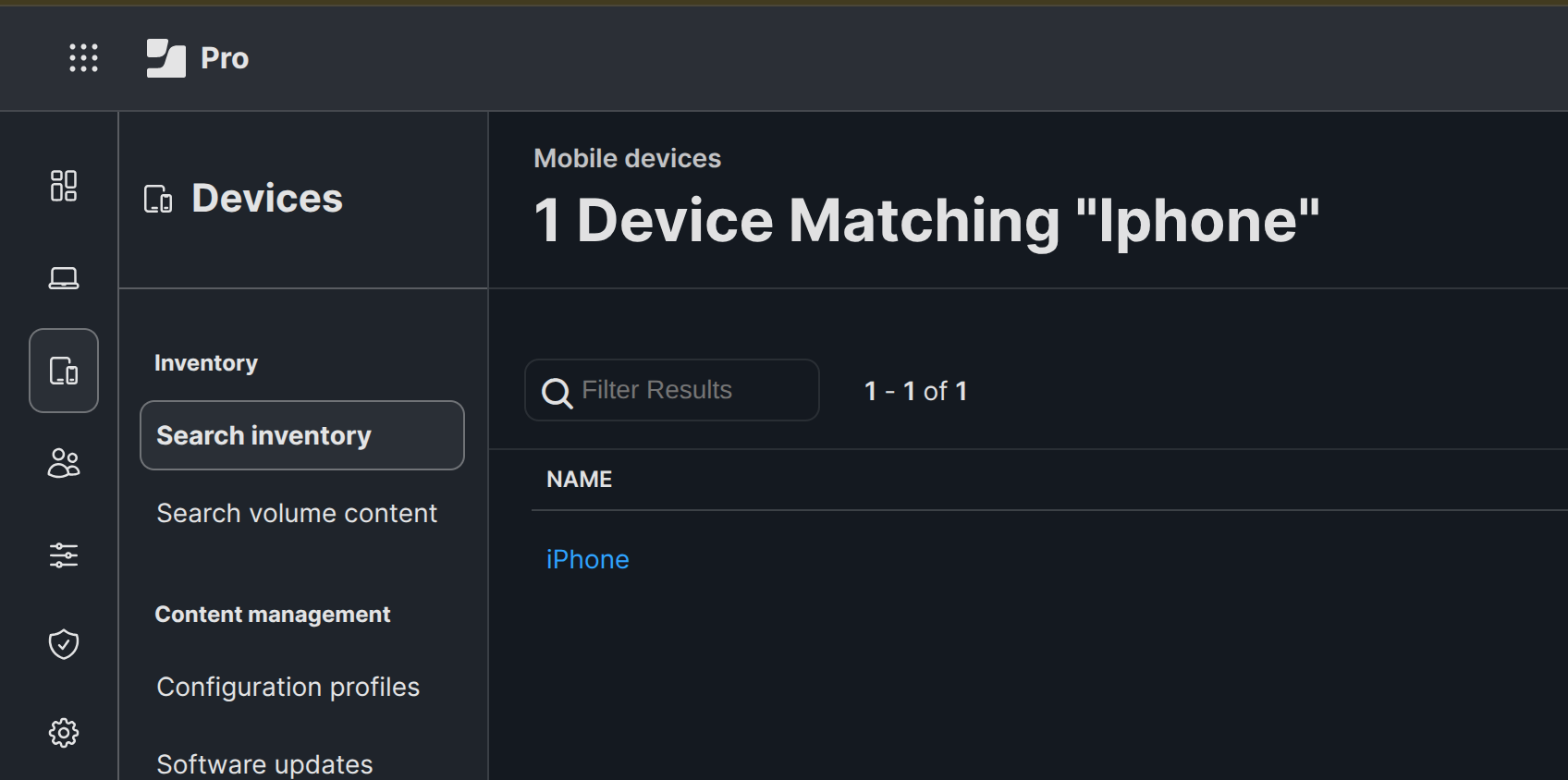
In Jamf, go to Devices > Search Inventory.
-
Search for your device name to locate the target device.
-
Step 6 - Create ACME Configuration Profile in Jamf
The ACME configuration profile instructs the device to request a certificate from EJBCA using device attestation. This is where the integration between Jamf and EJBCA is defined.
-
Go to Devices > Configuration profiles > New.
-
For Options, select ACME Certificate and click +Add.
-
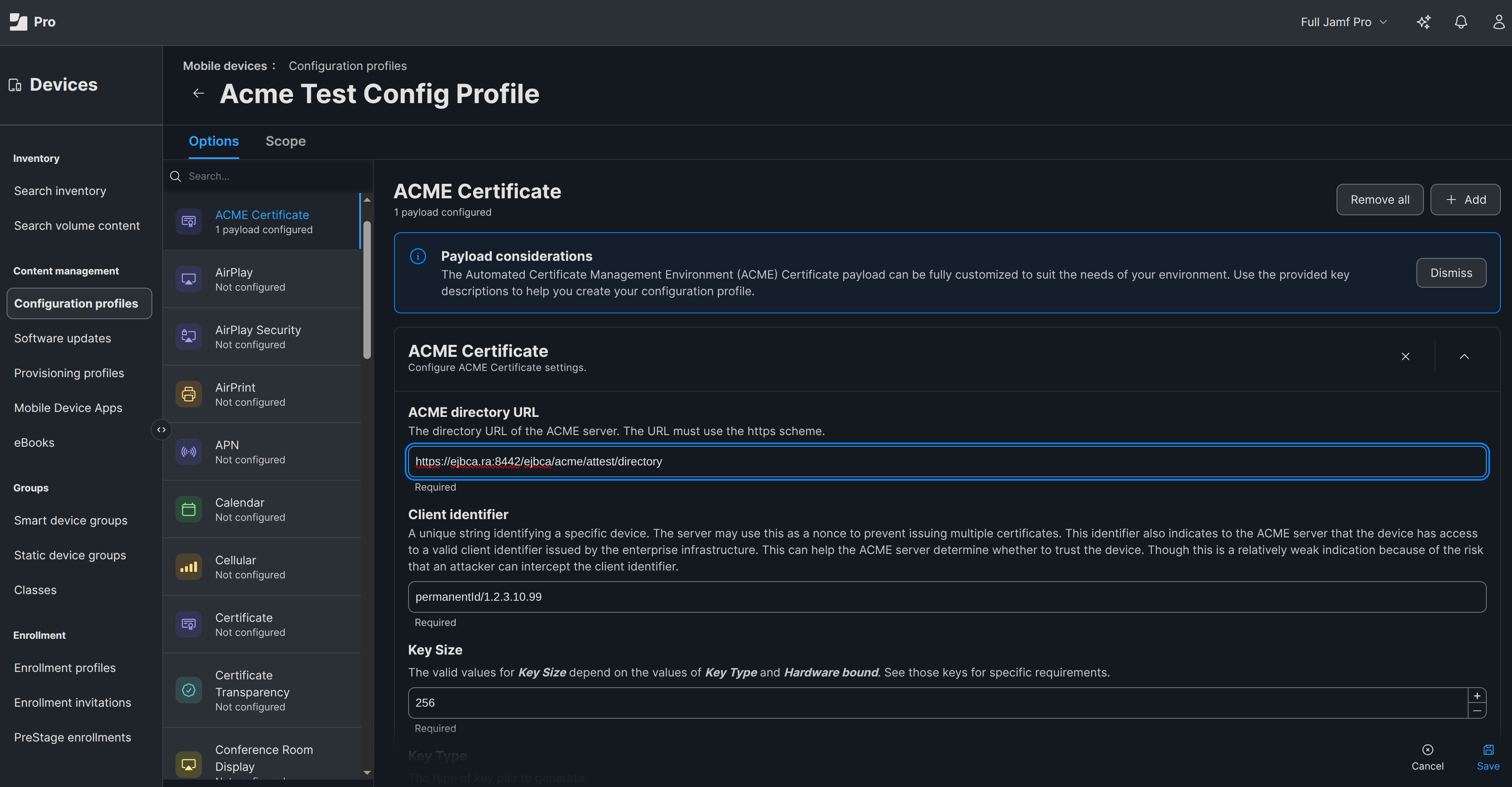
Specify the following required options:
-
ACME directory URL: specify the path in the following format:
<https://<ejbca-host>>:8442/ejbca/acme/<alias>/directory
For example, where the alias name created in Step 3 is “attest”:
https://ejbca.ra:8442/ejbca/acme/attest/directory -
Client identifier adds a permanent identifier to the request. Specify in the following format:
”permanentId/1.2.3.10.99” -
Key Size, specify 256.
-
For Key Type, select ECSECPrimeRandom.
-
Set Hardware Bound to True.
-
For Redistribute Profile, leave it set to Never.
-
For Subject, specify the generated certificate subject other than the CN value, for example:
/C=SE/O=Keyfactor -
Set Attest to True. This setting ensures the device performs attestation during enrollment.
-
-
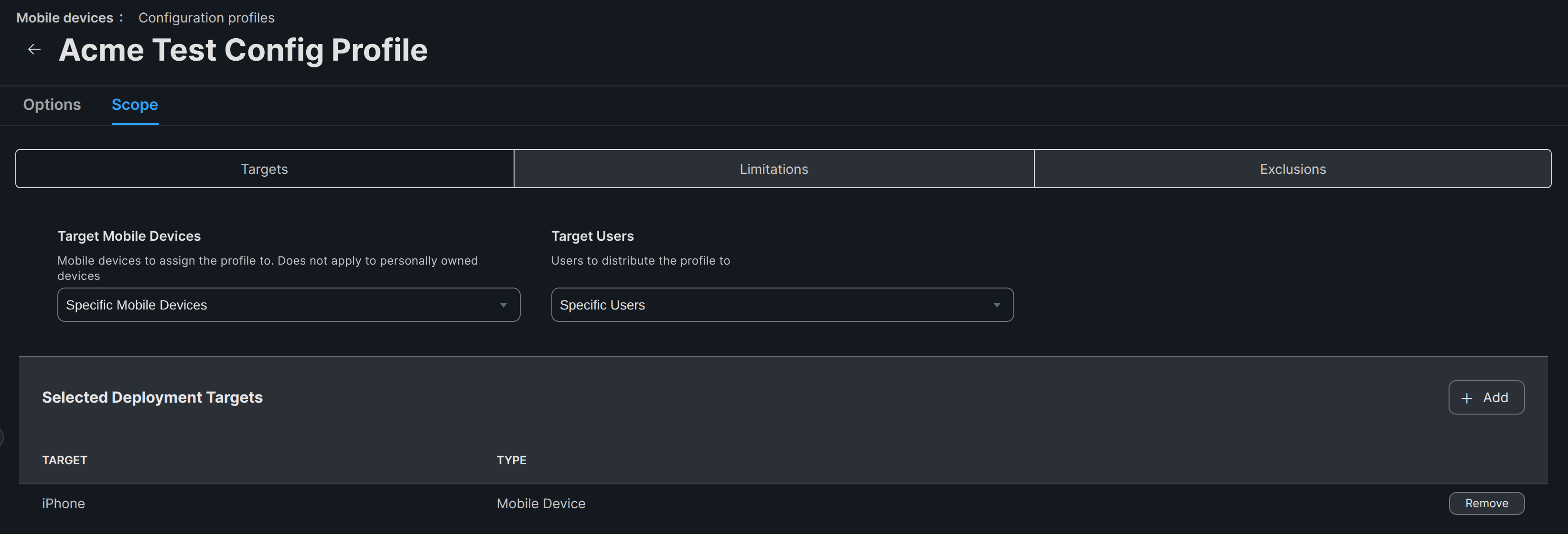
To configure the scope, that is, assigning the defined profile to devices so that it can be deployed, do the following:
-
Go to the Scope tab and select:
-
For Target Mobile Devices, select Specific Mobile Devices.
-
Under Selected Deployment Targets, add your enrolled device(s).
-
-
Save the profile.
Step 7 - Configuration Profile Execution
Once the configuration profile is saved, the enrollment process is triggered automatically. Understanding this flow helps when troubleshooting.
-
The JAMF Server sends the payload to the device as soon as the device is seen as available.
-
The device receives the payload and sends an ACME request to the EJBCA Server
-
EJBCA will provide a device attestation challenge for the device, requesting the attestation certificate.
-
The device receives the challenge and requests the Apple attestation server the attestation certificate.
-
The device constructs the challenge response and provides it to EJBCA.
-
The EJBCA Instance receiving the request will validate the challenge and issue a certificate.
-
The device installs the certificate.
Step 8 - Verify ACME Configuration Profile status
After deployment, verify that the certificate was successfully issued and installed.
-
In Jamf, open the device record.
-
Go to the Management tab.
-
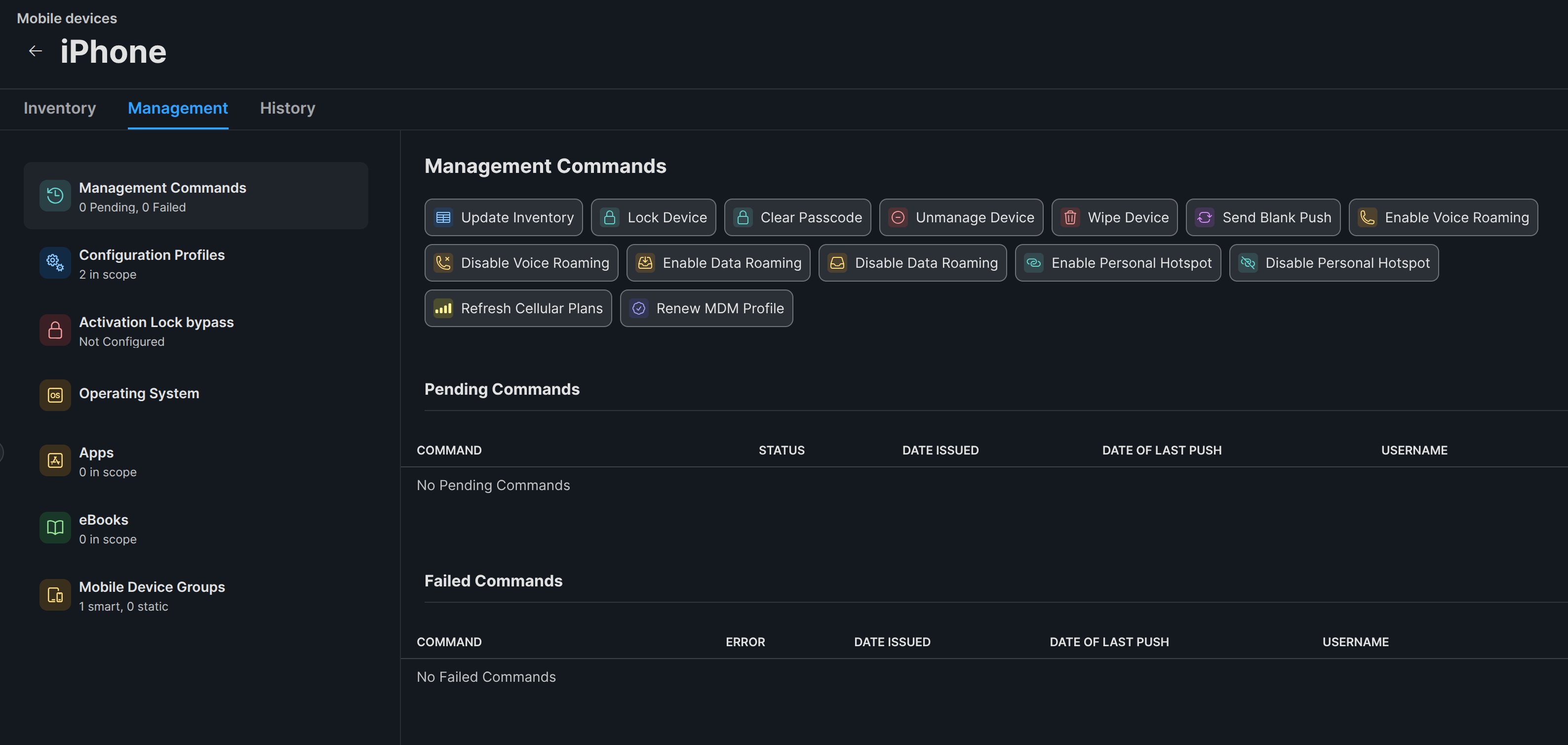
To verify the ACME Configuration Profile status, confirm there are:
-
No pending commands.
-
No failed commands.
-
-
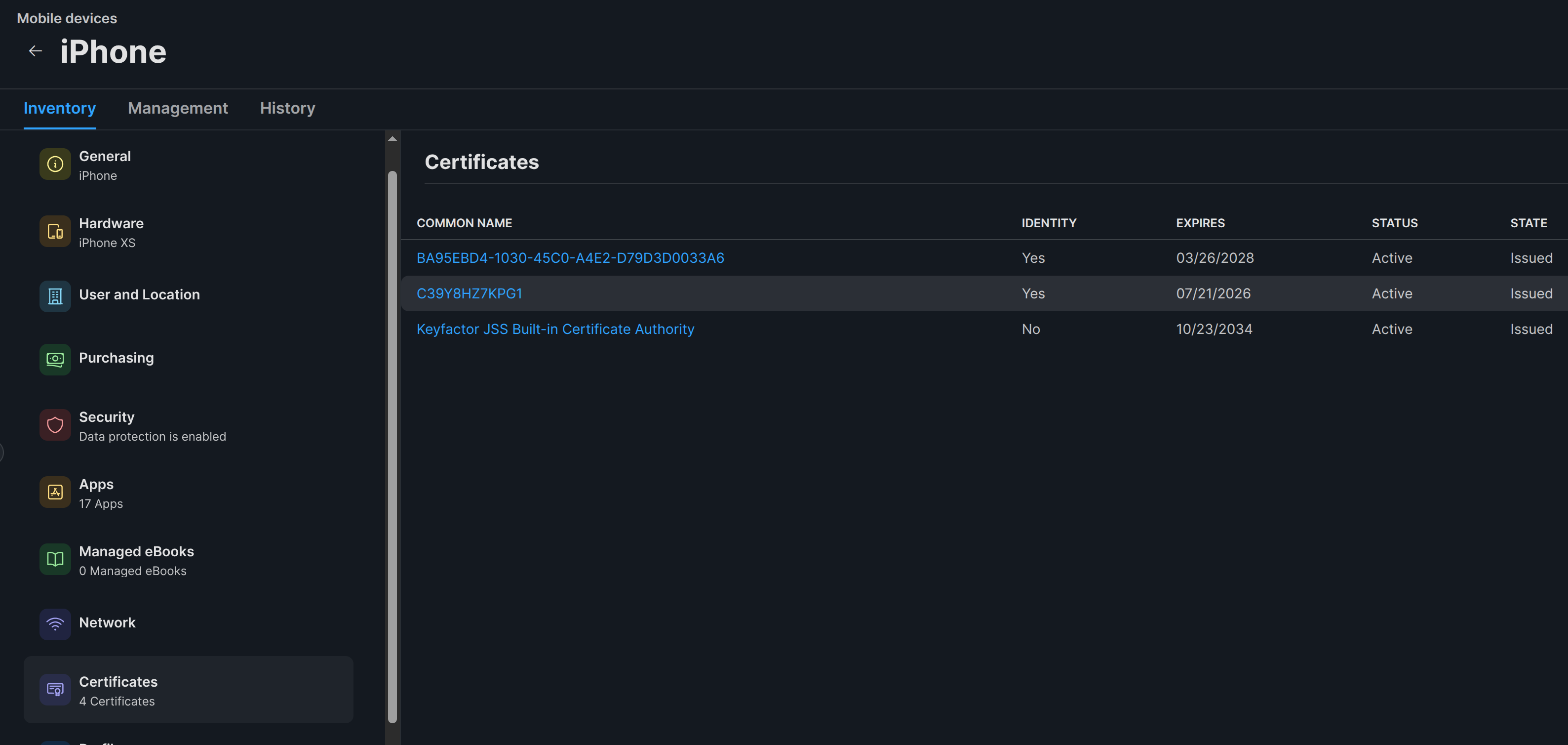
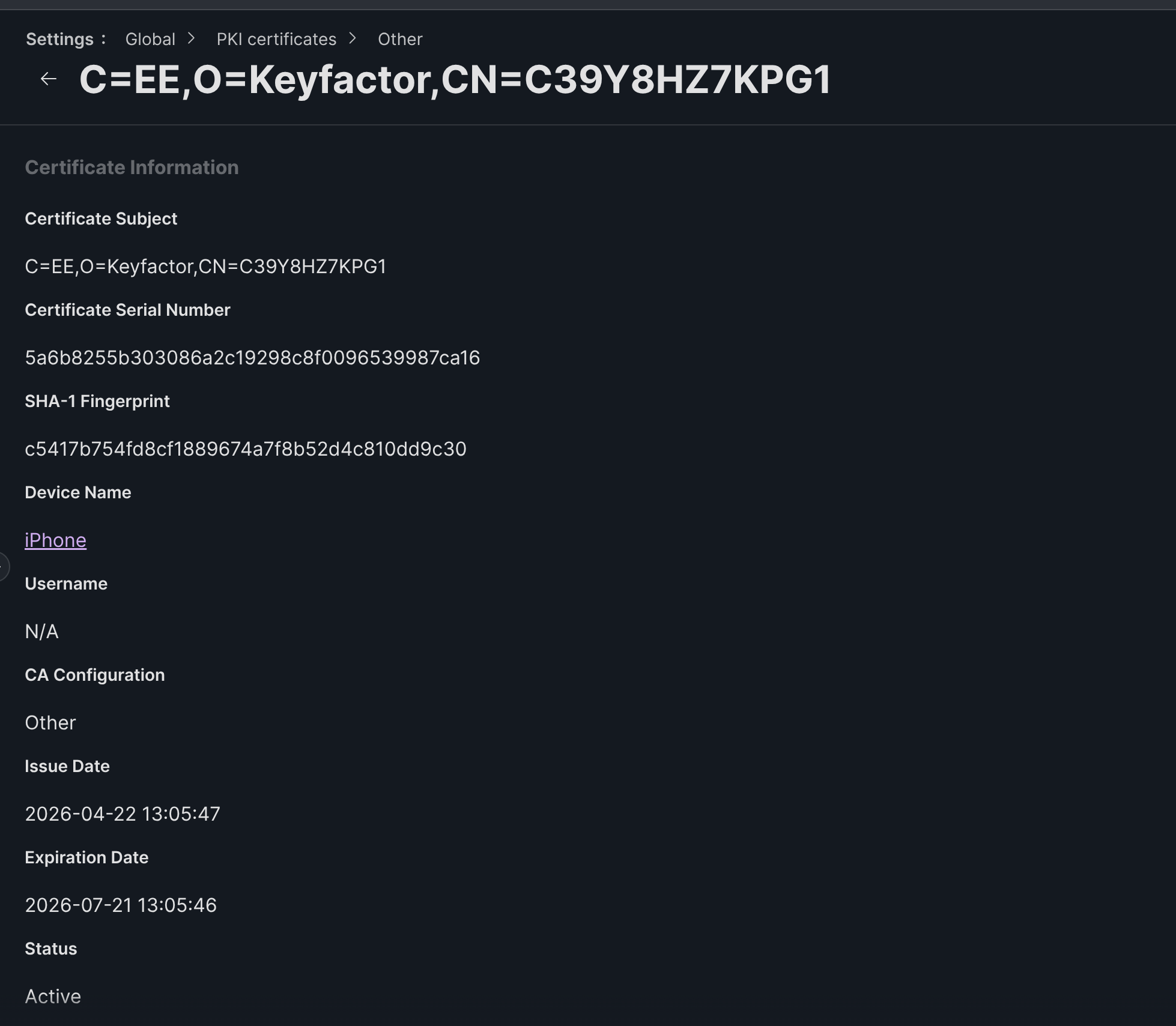
To verify the certificate installation:
-
Go to the Inventory tab and select Certificates.
-
Confirm that the EJBCA Enrolled Certificate is listed.
Troubleshooting Configuration Profile Execution
If enrollment fails or needs to be repeated, Jamf allows re-triggering of the Configuration Profile Execution process.
-
Modify and save the configuration profile to trigger redeployment.
-
Jamf will prompt before pushing configuration profile updates to the device.
Related content
For a conceptual overview of ACME Device Attestation and the underlying workflow, see ACME Device Attestation.