.png)
When you have downloaded the ManagementCA certificate, the next step is to add it to your browser’s certificate store.
Firefox is used in the examples below and is simple to user, since it has its own keystore.
If you are using another browser, you must import the CA certificate into your local system's keystore and restart your browser.
-
In the Firefox address bar, type
about:preferences. Select the Preferences menu and go to Settings. -
Click the Privacy and Security menu option on the left. Scroll down and click the View Certificates button.
-
In the View Certificates dialog, click the Authorities tab and click Import. Navigate to the location where the downloaded ManagementCA PEM file was saved and click Open. The ManagementCA certificate will be imported into the Firefox trust store.
-
In the dialog box, select the option Trust this CA to identify websites and then click OK.
You can now view the ManagementCA certificate under Authorities. -
Next, navigate to the Servers tab and look for entries linked to the Test Drive instance, i.e. such that include the Test Drive URL e.g. “eastus2.cloudapp.azure.com”.
These exceptions were generated by Firefox when ‘Accept the Risk and Continue’ was selected previously. Delete these entries now that we have the CA certificate of the Trusted Root added.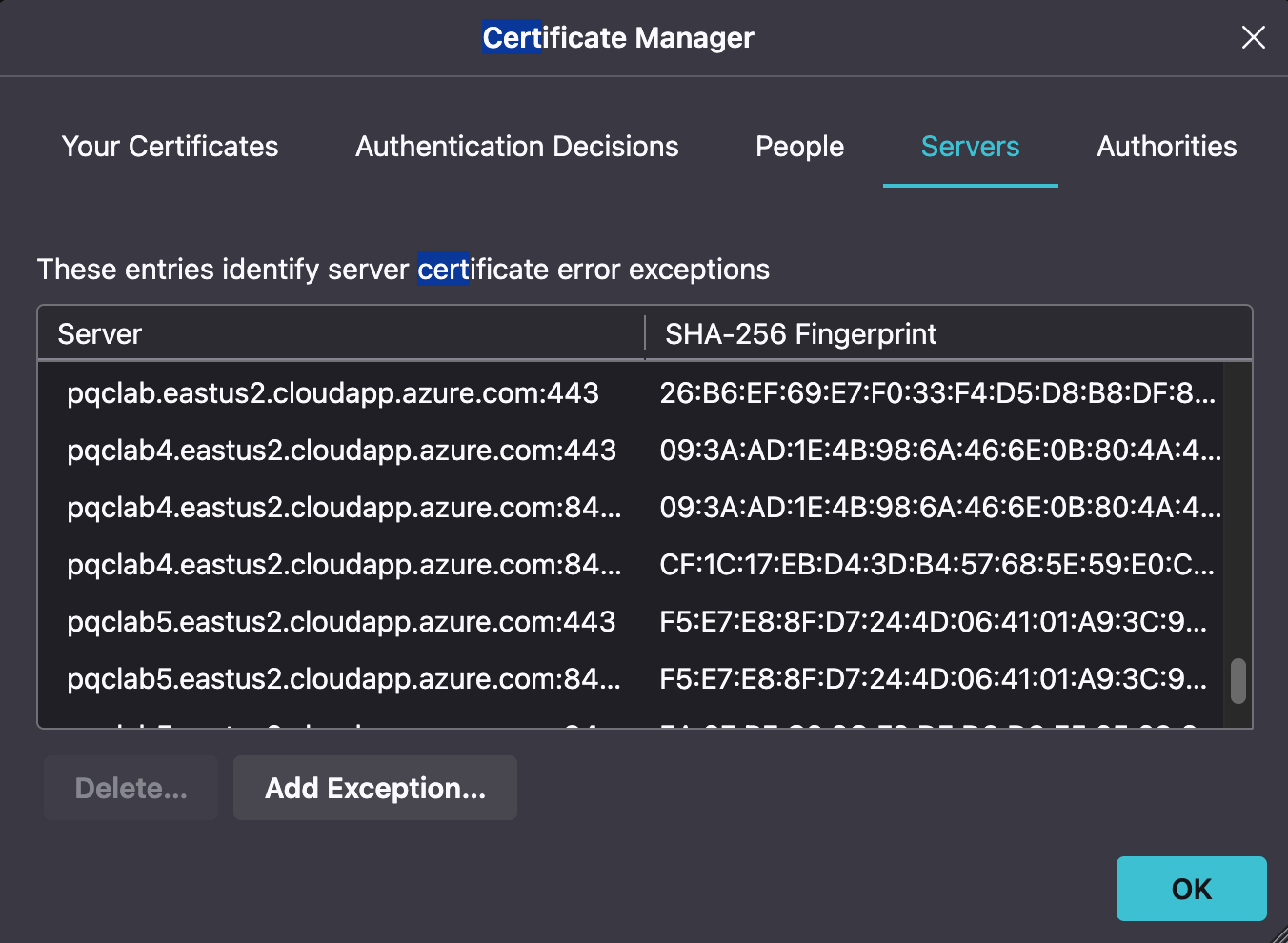
-
Refresh the EJBCA page. A verified lock icon will appear in the browser URL bar. If the lock icon does not appear, restart the browser. If the lock still doesn't show correctly after adding the certificates, try to refresh the page.
Once the Test Drive has ended, you may delete the Test Drive certificates if desired.
Next Steps
When the PQC Lab Test Drive is set up, you can explore the PKI and signing use cases:
Contact us
Schedule a live demo with one of our experts to discuss your environment, integration options, and how we can help you move from test drive to production.