.png)
To access EJBCA with the SuperAdmin credential, you can download the PKCS12 (P12) file and add it to your browser. Since EJBCA uses OAuth to access the web interfaces, these steps are optional.
Download the SuperAdmin Certificate
The following describes how to download the EJBCA SuperAdmin certificate.
-
Go to EJBCA Registration Authority Web. If you are not directed to the Enrollment with Enrollment code page, click Enroll > Use Username to log in and retrieve the
superadmincredential. -
Log in with the Test Drive Username and the Test Drive Password as the Enrollment code. Click Check.
-
In the Key algorithm list, ECDSA-P256 will be selected by default. Click Download PKCS#12. Save the PKCS#12 (P12) file to your computer.
This enrollment can only be done once. Ensure you pick a strong enough Key Specification that modern browsers support.
Add the Certificate to Your Browser
Access the browser’s certificate store and add the downloaded P12 keystore.
Firefox is used in the examples below and is simple to use, since it has its own keystore.
If you are using another browser, you must import the CA certificate into your local system's keystore and restart your browser.
-
In the Firefox address bar, type
about:preferences. Select the Preferences menu and go to Settings. -
Click the Privacy and Security menu option on the left. Scroll down and click the View Certificates button.
-
In the View Certificates dialog, click the Your Certificates tab and click Import. Navigate to the location where the downloaded SuperAdmin certificate was saved and click Open.
-
In the password dialog, type in the same password (enrollment code / Test Drive password), click Sign in, then click OK.
-
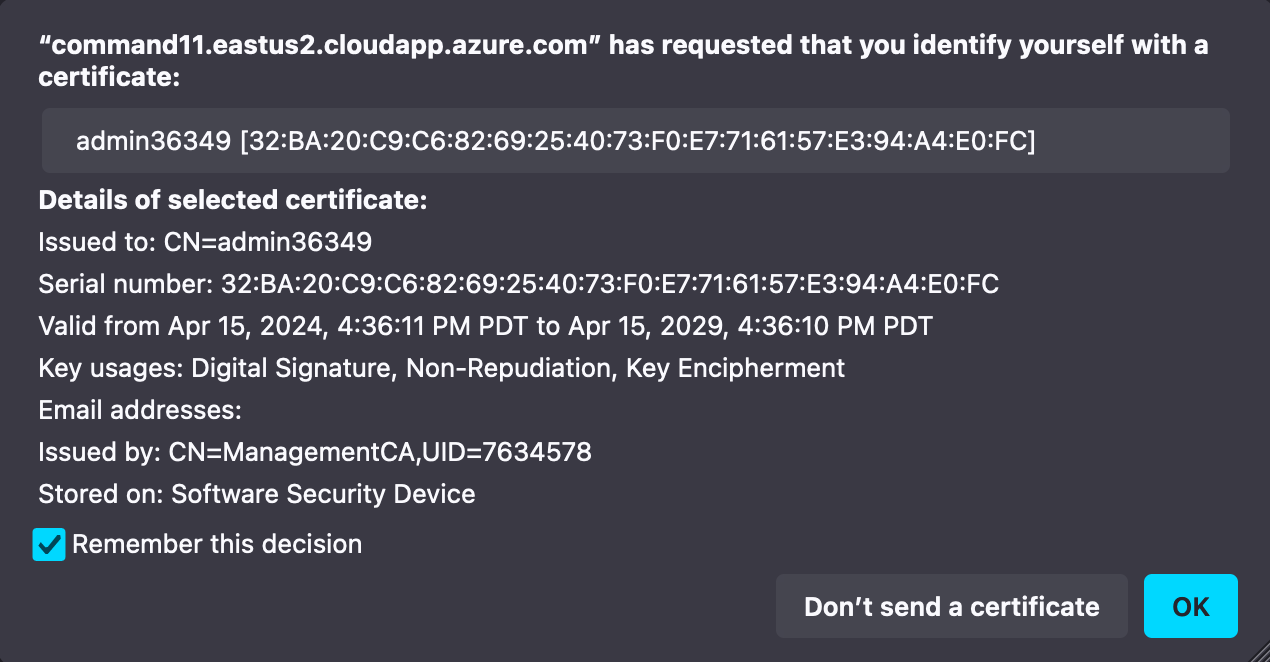
Return to the EJBCA Enterprise page, click the EJBCA Administration Web link to access the EJBCA Administration Web Interface. You should be prompted with a request for your browser to use the imported certificate; click OK. If you are not prompted with the request and instead have an "Authorization Denied” error, please restart your browser or try holding shift while you click refresh.
Once completed, you will have access to the EJBCA Administration Web interface.