.png)
Follow the instructions to sign a file with OpenSSL CMS.
Download Signing Certificate
-
Log in to the Signum Admin Web Console.
-
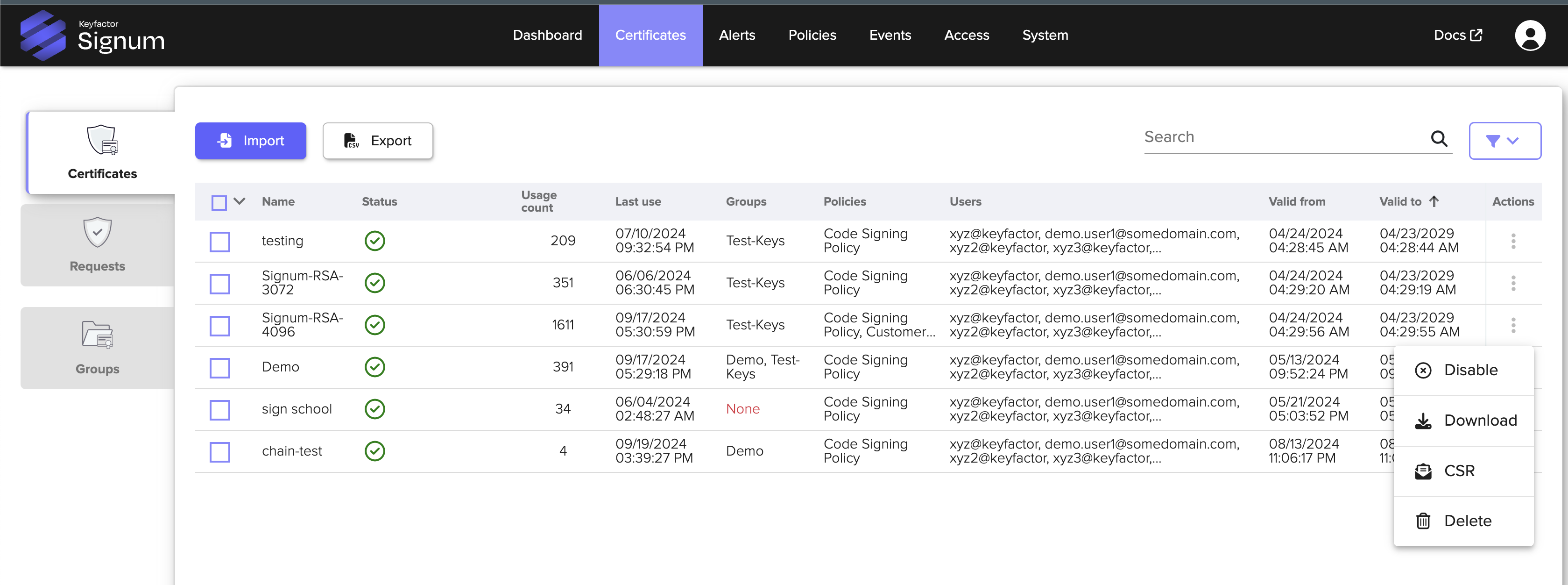
Download the certificate you want to sign with by clicking the Actions menu on the Certificates table.
-
Use the
signum-utiltool to list certificates:
signum-util lc
Subject CN     : Signum-RSA-3072
    Issuer CN      : DemoRoot-G2
    Valid Until    : 2029-04-23
    Valid From     : 2024-04-24
    Thumbprint     : 170570A1D56FBB5A4CC780B69ACAEF94010D5DAA
Subject CN     : Signum-RSA-4096
    Issuer CN      : DemoRoot-G2
    Valid Until    : 2029-04-23
    Valid From     : 2024-04-24
    Thumbprint     : 3AB5BFB91DFBB46CF765D5BEE51429618C4857DD
Subject CN     : Signum-RSA-2048
    Issuer CN      : DemoRoot-G2
    Valid Until    : 2030-02-05
    Valid From     : 2025-02-06
    Thumbprint     : F78AE7871FEF1D0CF3EFFB58E9CC85F261438D2B
Sign
-
Create a test file to sign:
echo "Some Data to Sign" >> somefile.txt
-
Run the following command, including the thumbprint of the certificate you want to sign with:
openssl cms -sign -in somefile.txt -out signed_message.p7s -signer Signum-4096-Cert.pem -inkey 3AB5BFB91DFBB46CF765D5BEE51429618C4857DD -engine pkcs11 -keyform engine
Engine "pkcs11" set.
Verify
Run the following command to verify the signature:
openssl cms -verify -in signed_message.p7s -content somefile.txt -certfile Signum-4096-Cert.pem -purpose any -CAfile BenDemoRootG2-chain.pem
The command should return the following verification:
Some Data to Sign
CMS Verification successful