.png)
The Agent binaries are available from the Signum SaaS Portal.
Prerequisites
-
Outbound access to port 443 on the Signum server instance.
-
A firewall rule permitting this outbound connection (if applicable).
-
-
Administrator privileges during install
-
Microsoft Windows 11 (64 bits or ARM)
-
Windows Server 2019 and later (64 bits or ARM)
-
Microsoft Visual C++ 14.29.30133
-
-
Interactive install: If this redistributable is not already present, the installer opens a window with two download links. You must download and install both before continuing:
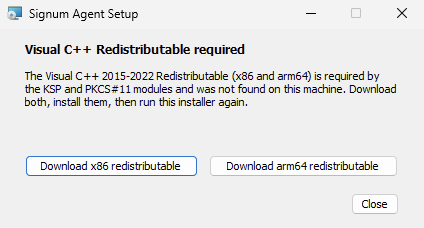
-
Silent install (
/quiet): The installer cannot prompt you, so it will not install the redistributable for you. Install it yourself beforehand. If you skip this, the installation fails with no error message.
-
-
macOS Sonoma 14.0 or later.
-
Supports ARM architecture.
-
To access certificates with the Signum PKCS#11 library, install OpenSSL and RapidJSON using Homebrew. To install, run the following commands in the terminal:
brew install openssl brew install rapidjson -
Signum user needs to be a member of a policy configured to support macOS signatures. For more information on policy configuration, see Policies.
For signing macOS and iOS type binaries, Apple uses Apple Developer to manage certificates. Specific types of certificates need to be used depending on the type of file that is being signed. For more information, consult the Apple documentation.
-
.NET 10 runtime installed on the host (Standard installations only)
Agent Installation
The Agent binaries are available from the Signum SaaS Portal.
-
Click the relevant Agent version to download.
-
Click on the package to install.
-
For the Linux Agent, see Linux Dependencies.
-
For the legacy Windows Agent, follow the installation steps in Legacy Windows Agent.
-
-
Follow the installer guide to complete the Agent installation.
Note for Windows: During installation, the installer generates a temporary instance of signum-service in C:\Program Files\Keyfactor\Signum. After installation, you need to sign out and sign back in for the signum-service to run as a Windows service.
After installation, proceed to Configure & Authenticate Agent.
Install Linux Dependencies
The Signum Linux Agent is available as either a .deb or as an .rpm package. All packages have a Standalone version that bundles the necessary .NET runtime.
-
Standard: Relies on the .NET 10 runtime installed on the host. The
dotnet-runtime-10.0andaspnetcore-runtime-10.0packages are pulled in as dependencies, so the Microsoft / .NET repository must be enabled before installing the Agent. -
Standalone (self-contained): Bundles the .NET 10 runtime alongside the Agent binaries. No .NET repository or runtime package is needed on the host.
The following provides the .NET repository setup and the runtime dependencies for the Standard package based on distribution. When using the Standalone package, skip the .NET repository step and omit dotnet-runtime-10.0 / aspnetcore-runtime-10.0 from the install command. For the latest information about configuring the repositories for your distribution, see Microsoft’s official page: Install .NET on Linux distributions.
Debian & Ubuntu Installation
Download the relevant package:
# Standard package only: enable the Microsoft .NET repository
wget https://packages.microsoft.com/config/debian/12/packages-microsoft-prod.deb -O packages-microsoft-prod.deb
sudo dpkg -i packages-microsoft-prod.deb
rm packages-microsoft-prod.deb
sudo apt-get update

# Runtime dependencies (omit dotnet-runtime-10.0 and aspnetcore-runtime-10.0 if using the Standalone package)
sudo apt install -y libcurl4 libssl3 libsqlite3-0 dotnet-runtime-10.0 aspnetcore-runtime-10.0
# Standard package only: enable the Microsoft .NET repository
wget https://packages.microsoft.com/config/debian/13/packages-microsoft-prod.deb -O packages-microsoft-prod.deb
sudo dpkg -i packages-microsoft-prod.deb
rm packages-microsoft-prod.deb
sudo apt-get update

# Runtime dependencies (omit dotnet-runtime-10.0 and aspnetcore-runtime-10.0 if using the Standalone package)
sudo apt install -y libcurl4 libssl3 libsqlite3-0 dotnet-runtime-10.0 aspnetcore-runtime-10.0
# Standard package only: enable the .NET backports PPA
sudo add-apt-repository ppa:dotnet/backports
sudo apt update

# Runtime dependencies (omit dotnet-runtime-10.0 and aspnetcore-runtime-10.0 if using the Standalone package)
sudo apt install -y libcurl4 libssl3 libsqlite3-0 dotnet-runtime-10.0 aspnetcore-runtime-10.0
sudo apt update

# Runtime dependencies (omit dotnet-runtime-10.0 and aspnetcore-runtime-10.0 if using the Standalone package)
sudo apt install -y libcurl4 libssl3 libsqlite3-0 dotnet-runtime-10.0 aspnetcore-runtime-10.0
Modify to match the agent .deb being installed:
sudo apt install ./amd64_ubuntu22.04_keyfactor-agent-4.60.2-5435da7-Trust.deb
Check the Agent version:
dpkg --list keyfactor-agent
Desired=Unknown/Install/Remove/Purge/Hold
| Status=Not/Inst/Conf-files/Unpacked/halF-conf/Half-inst/trig-aWait/Trig-pend
|/ Err?=(none)/Reinst-required (Status,Err: uppercase=bad)
||/ Name            Version      Architecture Description
+++-===============-============-============-=================================
ii  keyfactor-agent 4.60.2       amd64        Keyfactor Agent
RHEL & Alma Installation
Download the relevant package:
# Standard package only: enable EPEL (provides some of the runtime libraries)
sudo dnf install -y https://dl.fedoraproject.org/pub/epel/epel-release-latest-9.noarch.rpm

# Runtime dependencies (omit dotnet-runtime-10.0 and aspnetcore-runtime-10.0 if using the Standalone package)
sudo dnf install -y libcurl sqlite-libs libstdc++ libicu openssl-libs dotnet-runtime-10.0 aspnetcore-runtime-10.0
# Standard package only: enable Microsoft's .NET repo IF dotnet-runtime-10.0 is not yet
# available in your RHEL 8 AppStream.
sudo rpm -Uvh https://packages.microsoft.com/config/rhel/8/packages-microsoft-prod.rpm

# Runtime dependencies (omit dotnet-runtime-10.0 and aspnetcore-runtime-10.0 if using the Standalone package)
sudo dnf install -y libcurl sqlite-libs libstdc++ libicu openssl-libs dotnet-runtime-10.0 aspnetcore-runtime-10.0
# Runtime dependencies (omit dotnet-runtime-10.0 and aspnetcore-runtime-10.0 if using the Standalone package)
sudo dnf install -y libcurl sqlite-libs libstdc++ libicu openssl-libs dotnet-runtime-10.0 aspnetcore-runtime-10.0
Modify to match the agent .rpm being installed. Use the standalone Agent versions if .Net 10 is not yet available in the App stream.
Example for installing RHEL 9:
sudo dnf install ./amd64_rhel9_keyfactor-agent-4.60.2-5435da7-Trust.rpm
Check the Agent version:
rpm -qa keyfactor-agent
keyfactor-agent-4.60.2
After installing, you can verify the agent service is running:
systemctl status SignumService.service
● SignumService.service - Long running SignumService service/daemon created by Keyfactor.
     Loaded: loaded (/etc/systemd/system/SignumService.service; enabled; preset: disabled)
     Active: active (running) since Tue 2025-11-04 11:22:24 EST; 2min 52s ago