.png)
After configuring your Signum deployment, the Signum SaaS portal provides navigation of the Signum SaaS application and information regarding the Signum SaaS installation.
Access the portal at any time through the by navigating to https://portal.az.keyfactorsaas.com/login and logging in with the appropriate credentials.
Profile Settings
Your profile gives you access to switch options such as color and profile changes and light/dark mode of the SaaS Portal.
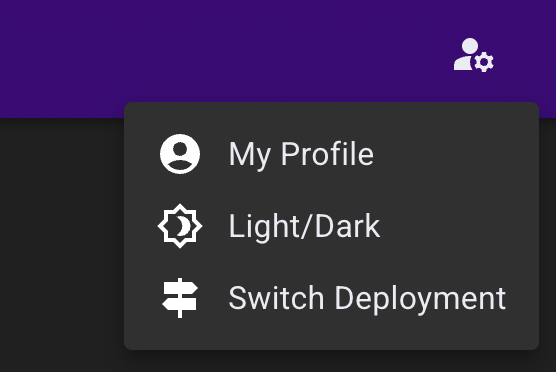
Clicking My Profile takes you to a screen where you can edit your name and email address, change your password, or view your current privileges.
Changing your email address generates a confirmation email to the new address.
Switching from light mode to dark mode gives you an alternate view of the dashboard, should you prefer darker user interfaces.
By default, the Signum SaaS Portal will display an alert on this icon. This alert is providing a notification that 2FA has not been setup on this account and that the password should be rotated. To remove this alert, click the setup button and add 2FA to your account.
In This Section
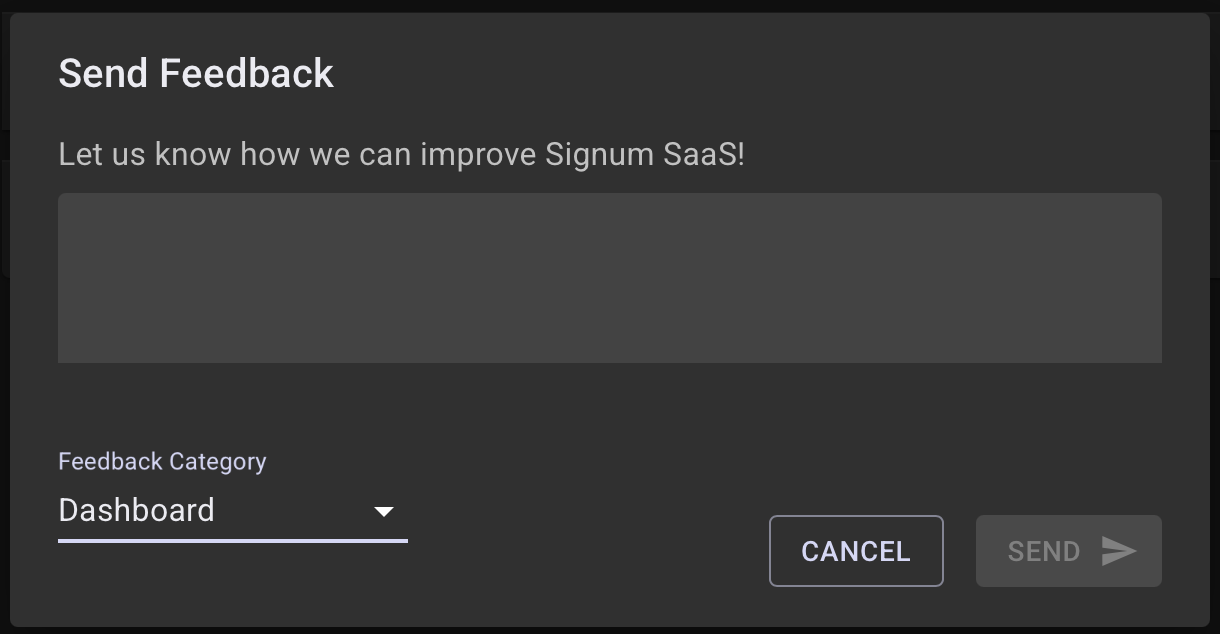
Providing Feedback
Let us know how we can improve Signum SaaS.
To send feedback, click the Feedback button at the bottom-right corner of the Portal. The feedback category should automatically populate based on your current screen, but you can select a different screen in the Feedback Category list.