.png)
The Dashboard of the Signum SaaS Portal displays information relating to the installation and shows essential information about the overall health of the Signum SaaS system.
The Dashboard displays the following graphs and indicators:
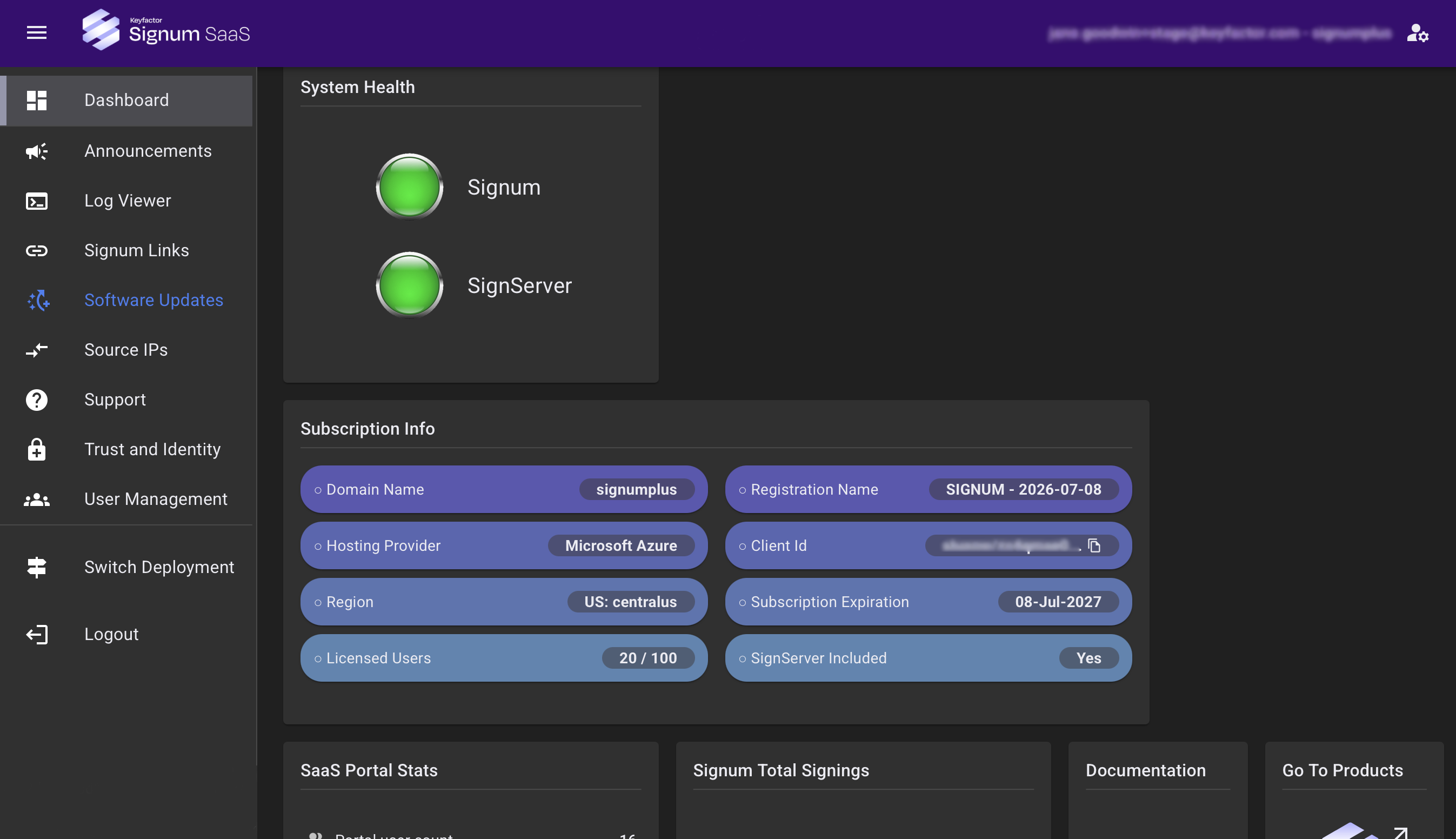
System Health
Displays the system health status of Signum and SignServer for the issuing CA cluster. The colors indicate the following:
-
Green: Indicates good system health, such as the healthcheck with HSM passed.
-
Red: Indicates a problem with the system health. Possible causes include an outage or a triggered internal alarm. Contact Keyfactor Support.
Subscription Info
Displays following information about your subscription:
|
Info |
Description |
|---|---|
|
Domain Name |
Domain name of your subscription. |
|
Hosting Provider |
Hosting provider of your subscription. |
|
Region |
Region your subscription is set to. |
|
Licensed Users |
Number of users added from your organization. |
|
Registration Name |
Registration name of your subscription. |
|
Client ID |
Contains the Client ID that is needed for certain Signum Admin tasks. |
|
Subscription Expiration |
Date your Signum SaaS Subscription renews. |
|
SignServer Included |
Indicates if SignServer is included with Signum. All new deployments will have SignServer included. |
SaaS Portal Stats
Displays following information about your portal:
|
Info |
Description |
|---|---|
|
Portal user count |
Provides the number of users registered in the portal. To view and manage the users, go to User Management. |
|
Logging level |
Shows the logging level. Info is the default. To change the logging level, go to Log Viewer. |
|
IPs last updated |
Shows the date of the last IP update. To view and manage IPs, go to Source IPs. |
Signum Total Signings
Displays the total signatures made by certificates in Signum.
The total signings does not include certificates used by SignServer.
Go To Products
The following links take you to the admin console of your chosen product:
-
Go To Signum: Links to the Signum Admin Web Console.
-
Go To SignServer: Links to the SignServer Admin Web.
With the introduction of Signum+, SignServer is included in your subscription. For more information, see Using SignServer with Signum.
Signings by Certificate
Displays the certificates by Common Name (CN) used by Signum to sign artifacts. Additionally, displays how many times the certificate was used, how long ago, what percentage of the signings are performed by that certificate, and when it expires.
Use the Show expired certificates toggle to filter only for expiring certificates.
Certificates Expiring Soon
Shows the quantity and names of expiring certificates over the next 30, 60, and 90 days.