.png)
User Mode, also referred to as Attended Mode, is the interactive deployment of the legacy Windows Agent, for end users signing on their own machine. It supports Local Users, SAML, and OAuth authentication.
The legacy Windows Agent will be deprecated in future releases.
With the Agent installed in User Mode, certificates are stored in the Personal certificate store under the current user.
Install the User Agent
-
Download the Signum Windows Agent MSI installer.
-
In the same directory as the MSI installer, create a new plain text file with the extension
.bat, for examplesignum-agent-config.bat. -
Copy and paste the text below, modifying the properties as needed to match the environment. See Installation Parameters. Ensure the file name of the Agent matches the file name of the
.msithat was downloaded.
msiexec /i kf-agent-x64-4.30.1-456b2f45-MS-WO_Trust.msi ^
RTPRIMARY="Deployment URL" RTSECONDARY="Deployment URL" ^
CLIENTID="The ClientID from the SaaS Portal" ^
AuthMode="SAML2" AGENTMODE="USER" DefaultDomain="somedomain.com" ^
Language="en-US" ^
echo Exit Code is %errorlevel%
-
With both the
.batfile and.msiin the same directory, run the.batfile by double clicking in Windows Explorer and this will launch the Installer.
The agent installed with AGENTMODE="USER" includes an interactive User Interface. A Windows process named “RTTrayApp” runs. An icon for the Keyfactor Signum Agent is available in the System tray:
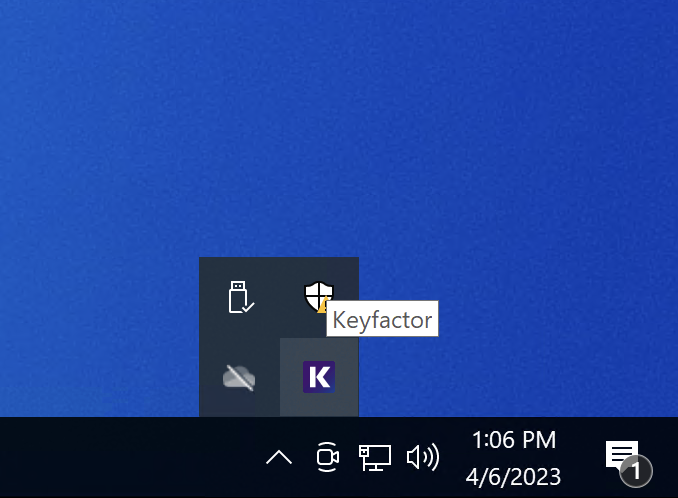
Right-click on the tray icon to bring up an options menu including About, Settings, Certificates, Login, and Logout.
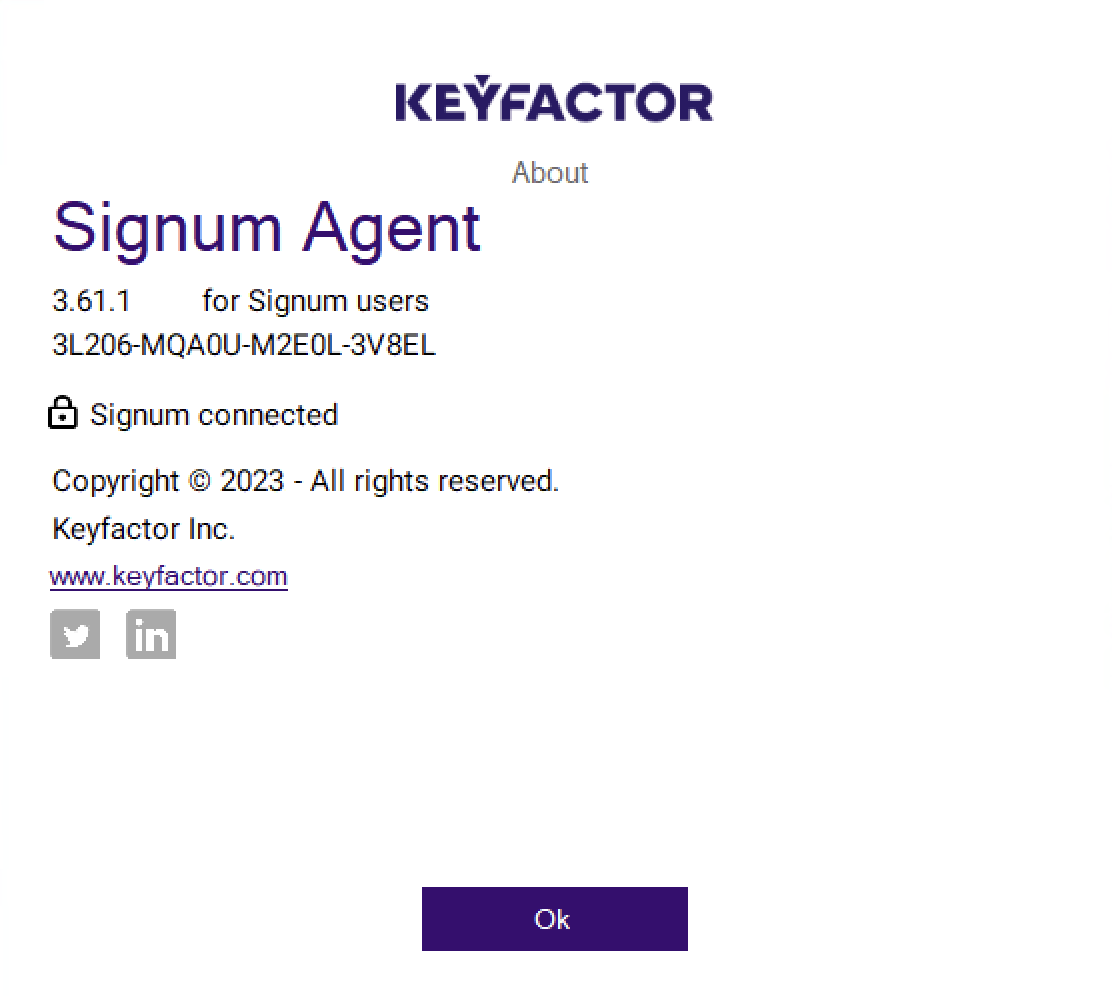
About
Go to the About section for information about the Agent:
Settings
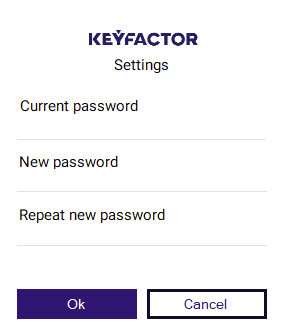
The Settings section allows a user assigned to a Local Users Domain to update their credentials to the service.
This option is only present if the AuthMode is LocalUsers.
Certificates
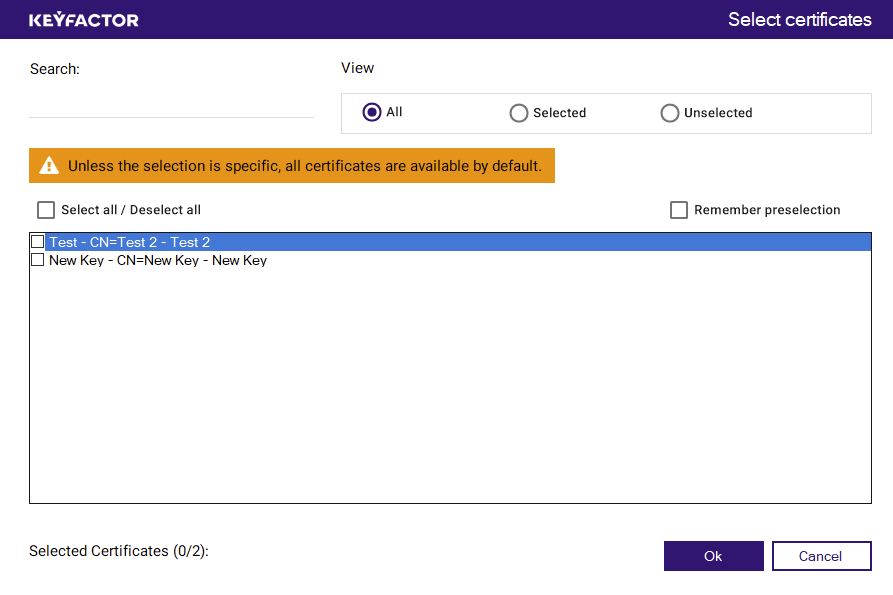
The Certificates section of the Agent displays the certificates that are available to the authenticated user, as determined by the defined access policies.
If multiple certificates are listed and no selection is made, all listed certificates are made available by default. Selecting specific certificates restricts availability to only the chosen certificates.
The certificates that are made available through the Agent are also visible in the authenticated user’s Personal Store (MY) in Windows.
Login
Selecting Login on the Agent brings up a login window where a LocalUser can enter their credentials.
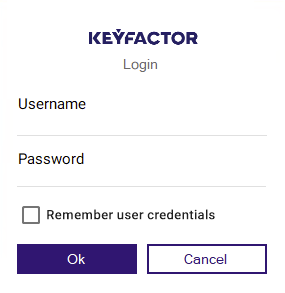
By default, the option to Remember user credentials is disabled. If enabled, the user is automatically logged in after restarting the machine. Logging out of the Agent would again prompt for the credentials. To enable the feature, reach out to Keyfactor.
Logging into a SAML or OAuth Domain
For SAML and OAuth authentication, Signum validates the user session with the IdP at login, and then converts it to a Signum-owned session. This session lifetime is managed by Signum and follows the normal session lifetime.
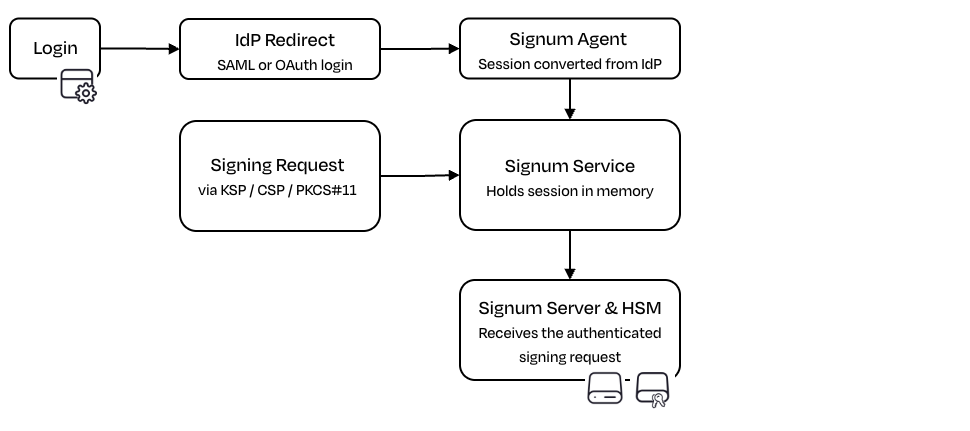
When using SAML, the session has the same expiration time defined in the SessionNotOnOtAfter attribute in the AuthnStatement in the SAML assertion. For more information, see SAML2 Domain | IdP-side Configuration.
To configure the domain in the Admin Web Console, see the following guides:
When installing the Agent, provide the same domain in the DefaultDomain parameter.
After the identity provider is configured in both the Admin Web Console and the Agent, click Login. The default browser opens to the IdP login page.
Upon successful authentication, a user session is established on the local machine, tied to the local user context.
Logout
Selecting Logout terminates the Signum session and requires the user to re-authenticate to connect.