.png)
After configuring your Signum deployment, the Signum SaaS portal provides navigation of the Signum SaaS application and information regarding the Signum SaaS installation.
Access the portal at any time through the by navigating to https://portal.az.keyfactorsaas.com/login and logging in with the appropriate credentials.
Dashboard
The Dashboard of the Signum SaaS Portal displays information relating to the installation and shows essential information about the overall health of the Signum SaaS system.
The Dashboard displays the following graphs and indicators:
-
System Health: Displays the system health status of Signum for the issuing CA cluster.
-
Subscription Info: Contains the Client ID that is needed for certain Signum Admin tasks, Subscription expiration date (date the Signum SaaS Subscription will renew), cloud provider, and the deployment name.
-
License Usage: Total licenses used in the system. Licenses are used in Signum when users are logged into the Signum admin interface or a client agent.
-
Signings by Certificate: Shows the certificates used (by Common Name (CN)) that were used to sign artifacts. Also shows how many times they were used, how long ago it was used and when it expires.
-
Certificates Expiring Soon: Shows the quantity and names of expiring certificates over the next 30, 60, and 90 days.
-
Total Signings: Total signings performed by the system.
-
Go To Signum: A link to the Signum Admin Web Console.
Announcements
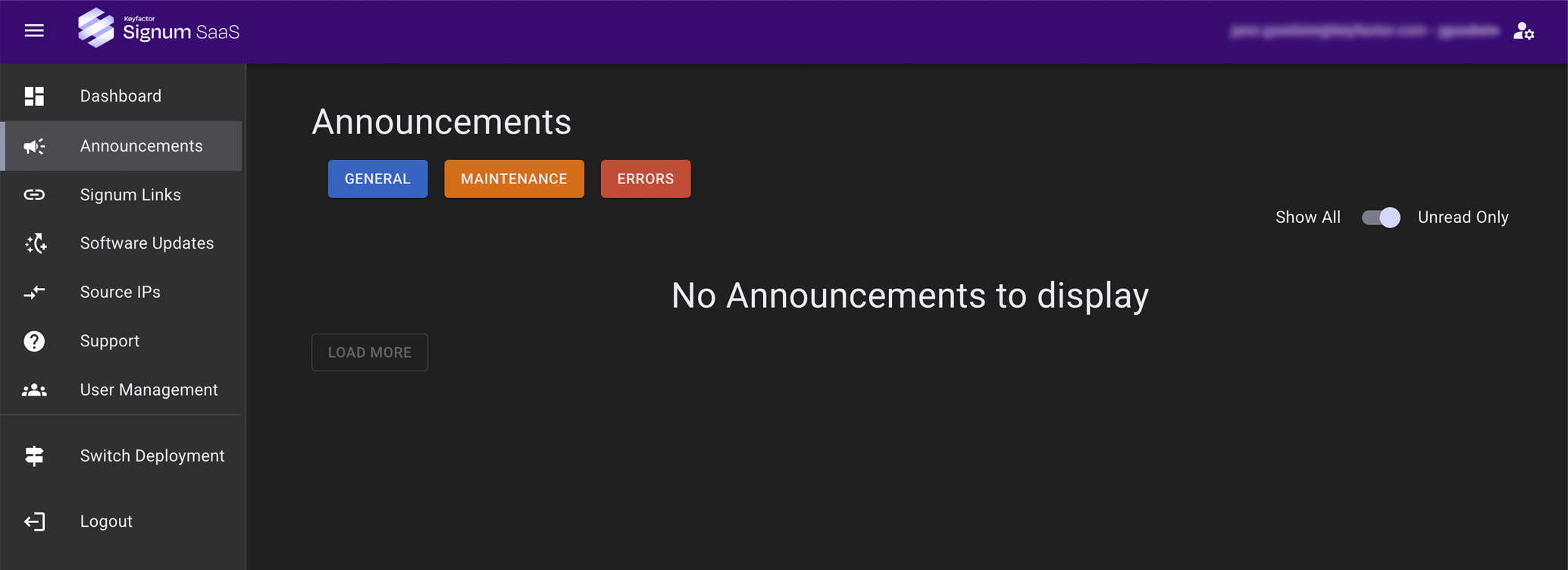
The Announcements screen shows notifications that are sent to Portal users by the Keyfactor team. Announcements can be sent for events such as maintenance notifications, errors that have happened within the deployment, or product upgrades that might be made available.
Signum Links
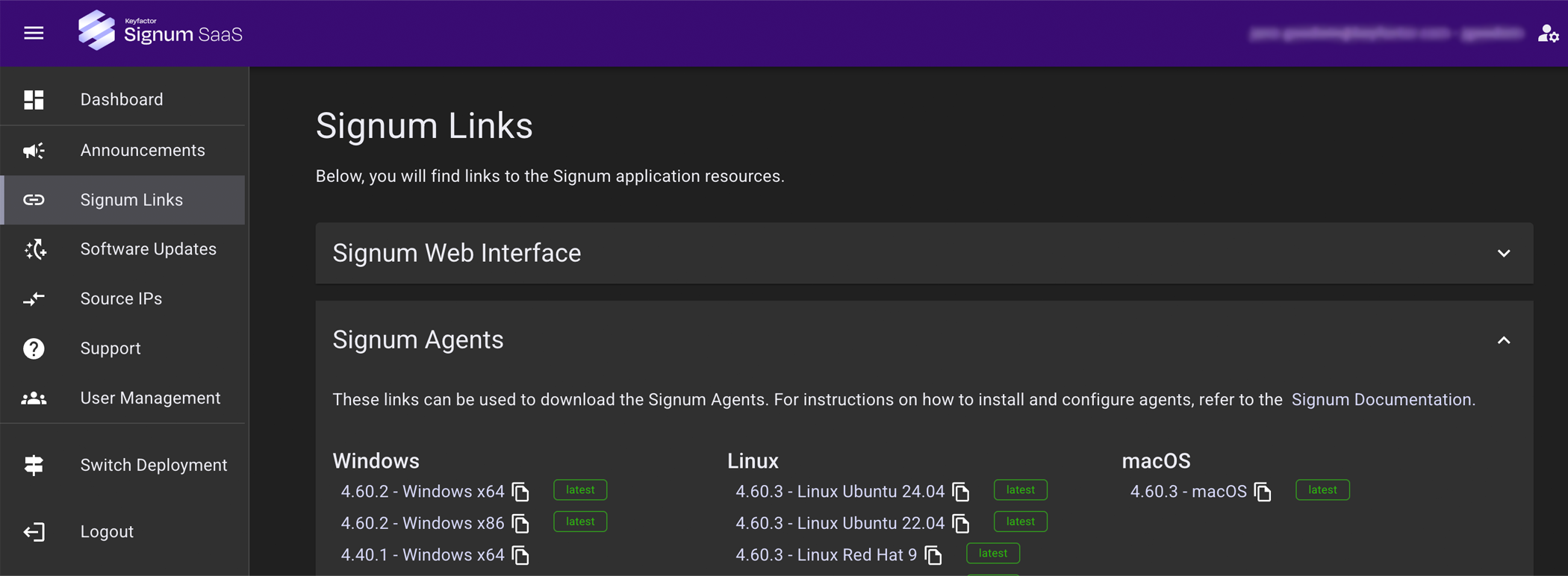
The Signum Links page provides access to links to the Signum application resources.
-
Signum Web Interface: Access the Signum Web Interface at any time by bookmarking the link to the web interface in your web browser. The Signum Links page can also be used to access the Signum service and list relevant links.
-
Signum Agents: These links can be used to download the Signum Agents. For instructions on how to install and configure Agents, refer to the Signum Agents.
Software Updates
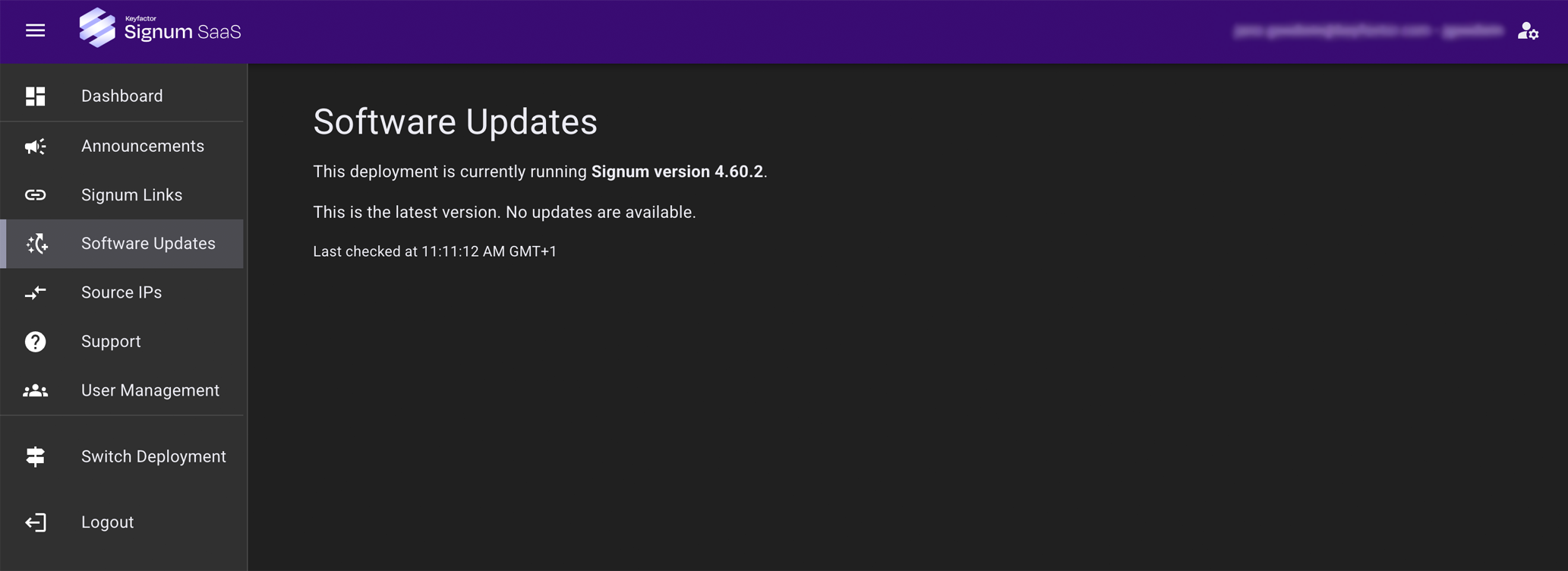
The Software Updates screen displays the latest update, if it is available, and allows the option to update now or to schedule an update. A blue navigation link indicates that an update is available.
If there is no update available, the screen displays the software version that you are currently running:
Source IPs
The Source IPs page allows control over what IPs can access the Signum deployment.
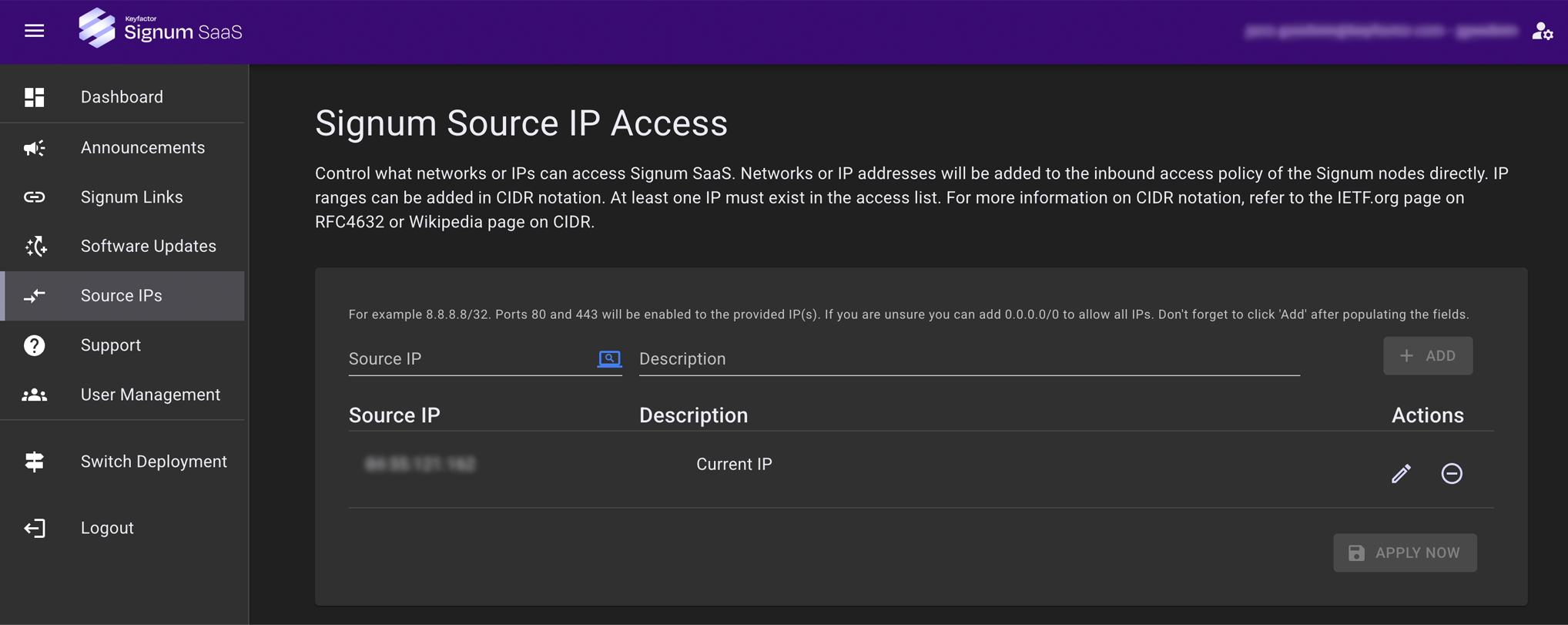
IP addresses here will be added to the inbound access to the Signum application directly, and need to be added in the CIDR notation. For more information on CIDR notation, refer to the IETF.org page on RFC4632 or Wikipedia page on CIDR. This page will be disabled during the provisioning process.
Adding a single IP without a CIDR notation will result in it being added with /32 (single IP).
Click the Get Current IP icon to populate the current IP address that the Signum SaaS Portal detects. This button will also populate your name in the Description field. At least one IP must be added to the access list. A description can be added to the IP so that it can be referenced by something meaningful.
Support
The Support page provides resources for users to gain help while using Signum SaaS.
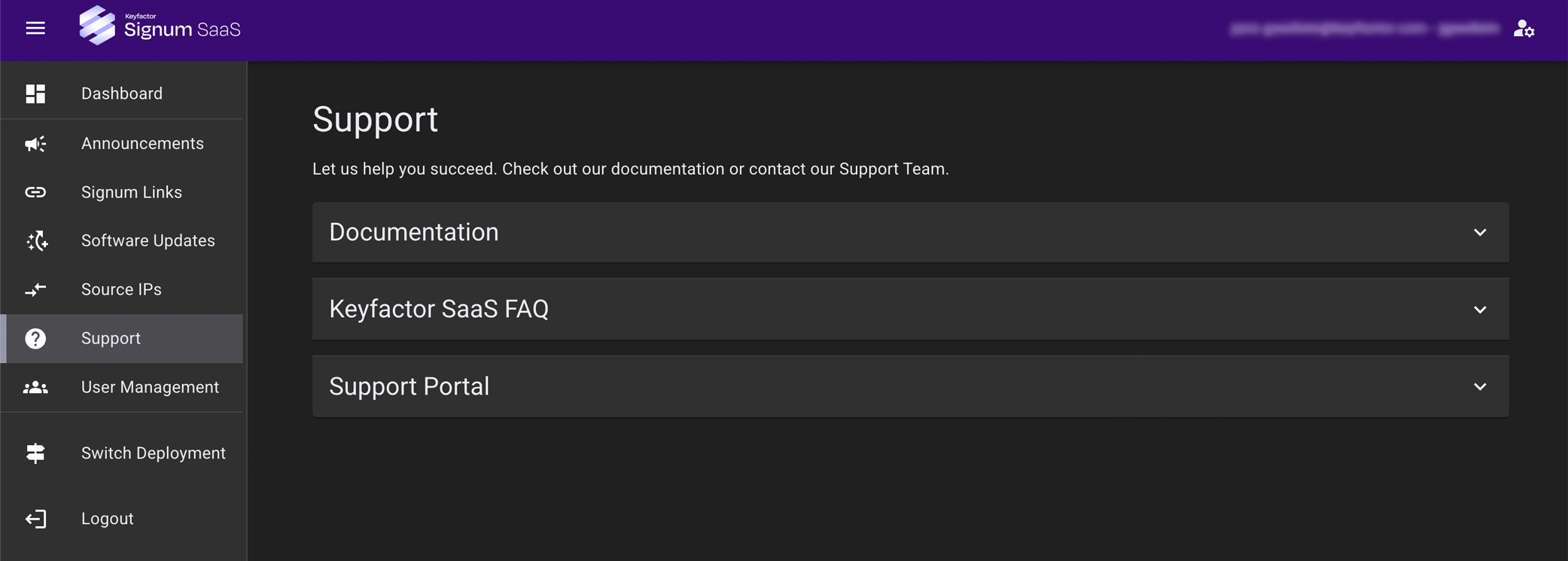
For the link to the Signum documentation, expand the Documentation section.
The Keyfactor SaaS FAQ section provides solutions to questions regarding Signum SaaS use.
To contact support, expand the Contact Support section and use the links provided to access support.
User Management
The User Management screen allows for the management of users that have access to and can perform actions in the Signum SaaS Portal.
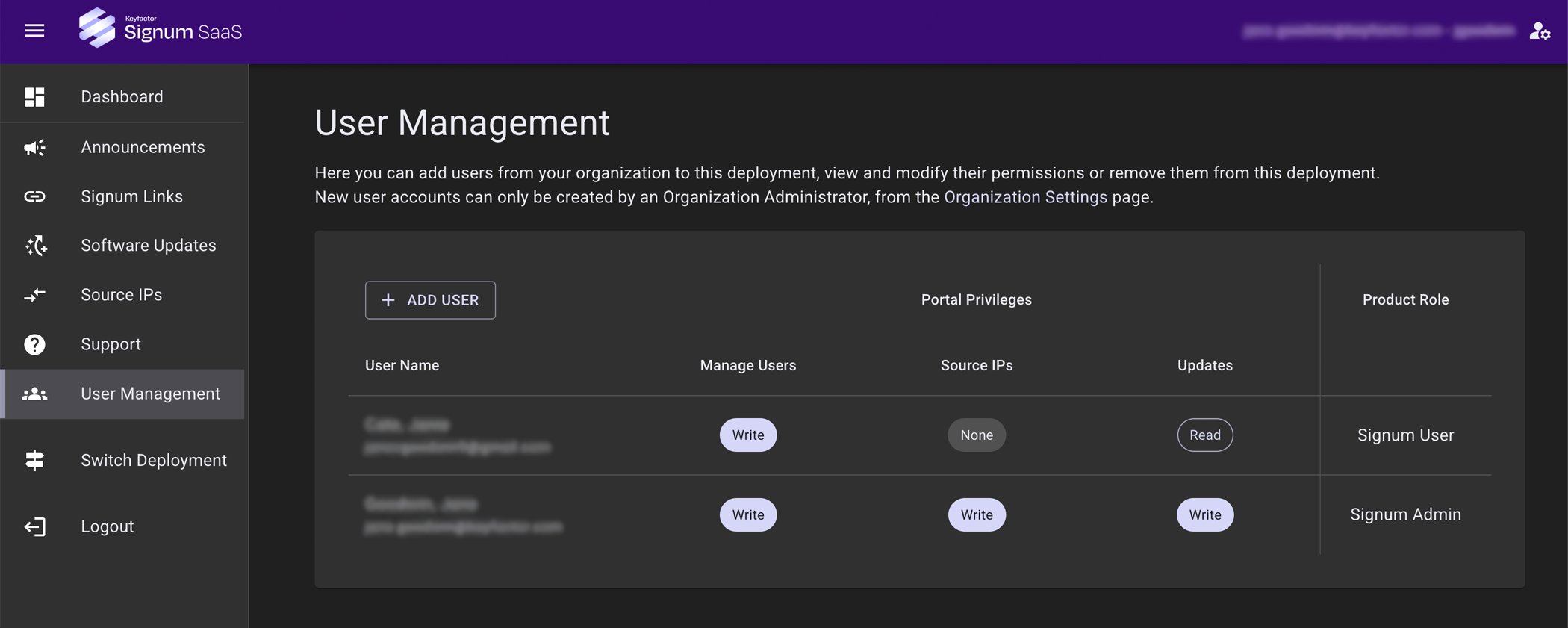
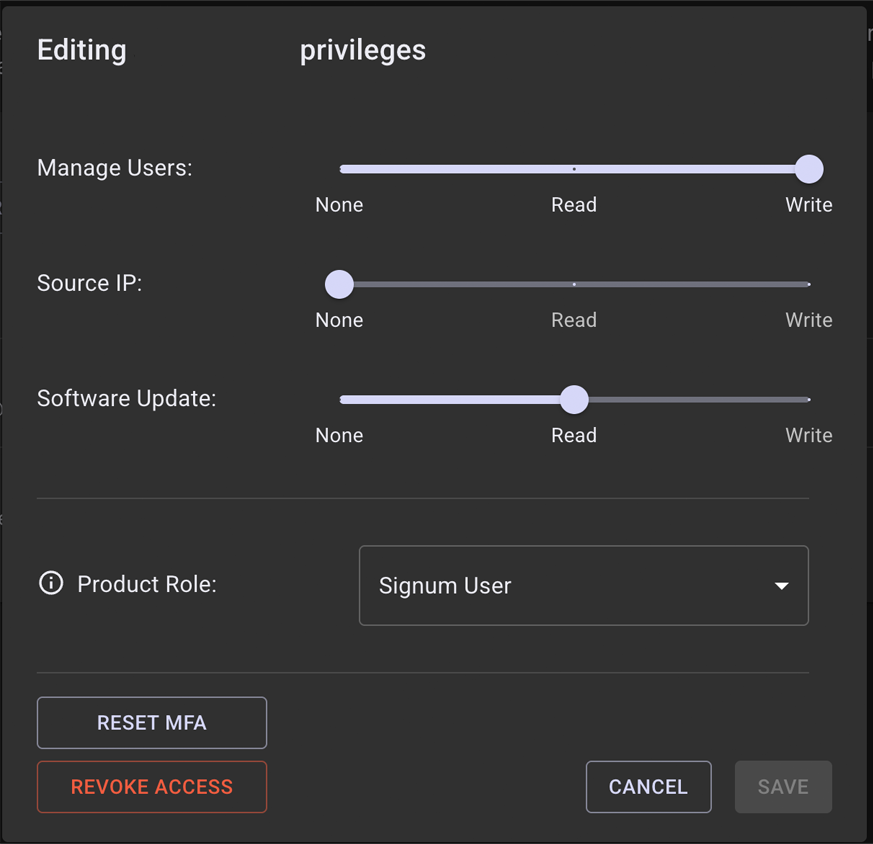
Permissions can be granted to view, edit or restrict access to Manage Users, Source IP, and Software Update. Users appear here only after being added at the Organization level. For adding users and for a description of the product roles, see Using the the Organizations Feature.
Profile Changes
Your profile gives you access to switch options such as color and profile changes and light/dark mode of the SaaS Portal.
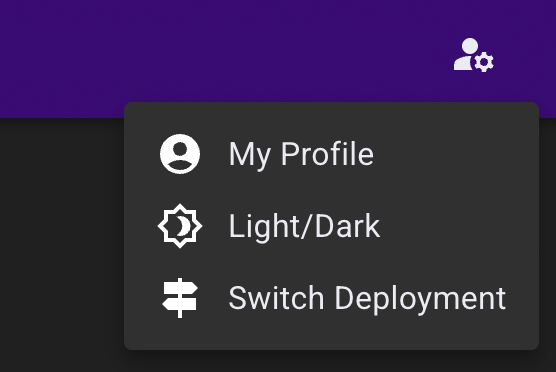
Clicking My Profile takes you to a screen where you can edit your name and email address, change your password, or view your current privileges.
Changing your email address generates a confirmation email to the new address.
Switching from light mode to dark mode gives you an alternate view of the dashboard, should you prefer darker user interfaces.
By default, the Signum SaaS Portal will display an alert on this icon. This alert is providing a notification that 2FA has not been setup on this account and that the password should be rotated. To remove this alert, click the setup button and add 2FA to your account.