.png)
This guide provides an end-to-end workflow, spanning the SaaS Portal, Admin Web Console, and Agent.
You can use certificate-based authentication when logging in to Signum using a certificate. Instead of authenticating with a username and password, you prove your identity using a cryptographic credential. Certificate authentication enables stronger security, automation, and integration.
To use certificate-based authentication in Signum, the Signum Administrator configures the users with a public key, certificate (.cer) file, and the users authenticate with a private key, PKCS#12 (.p12), file.
|
Step |
Performed by |
Occurrence |
|---|---|---|
|
Add CA to Truststore |
Admin |
Once |
|
Configure users with certificate |
Admin |
Per user |
|
Install private key to local machine |
User |
Once |
|
Configure the Agent to use certificate authentication |
User |
Per agent |
For outbound access, port 443 is used for standard Agent communication. When using certificate-based authentication, port 8443 is required as this is the port through which the WAF passes client certificates to the application.
Admin Setup
To perform these steps, you must have the Signum Adminstrator role.
Upload a certificate (.cer) file to the Admin Console and configure users with the certificate.
Step 1 - Add Certificate to Truststore
When using certificate-based authentication, adding the CA to the Truststore is required. In the SaaS Portal, navigate to the Trust and Identity section.
-
Click Add.
-
In the pop-up, provide a name for the certificate.
-
Upload the certificate file. Accepted file types are .pem, .crt, and .cer.
-
Click Add.
Step 2 - Configure User Access with the Certificate
After uploading the file to the console, configure the users.
-
In the Admin Web, go to the Access page.
-
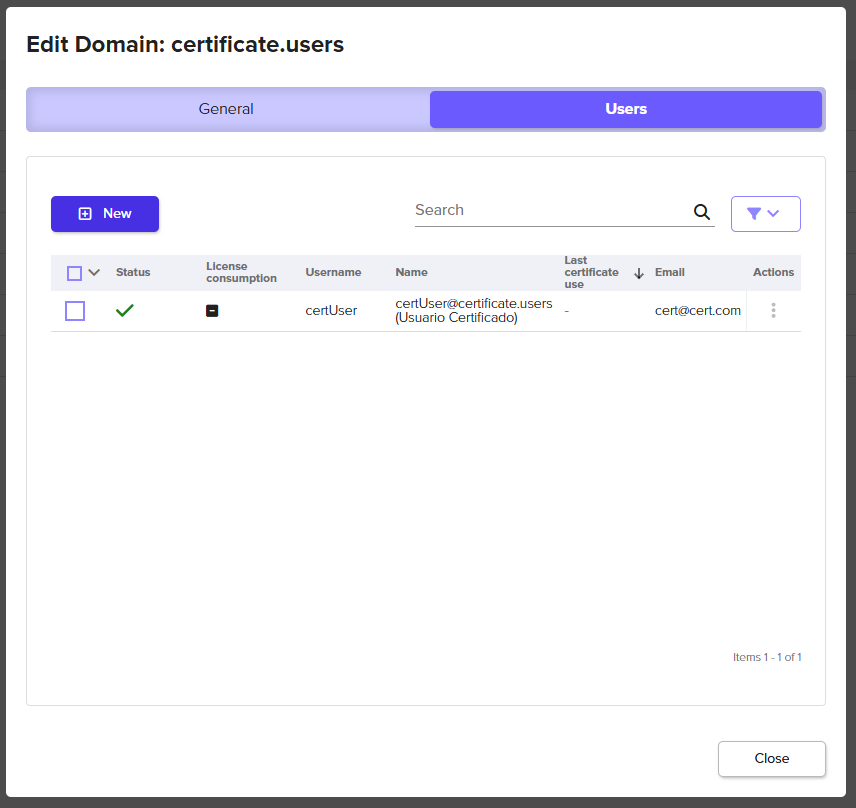
Under the Domain tab, click on the Domain Type Certificate users. If you do not already have this domain type created, click New to create.
-
In the Edit Domain popup window, go to the Users tab:
-
Click New.
-
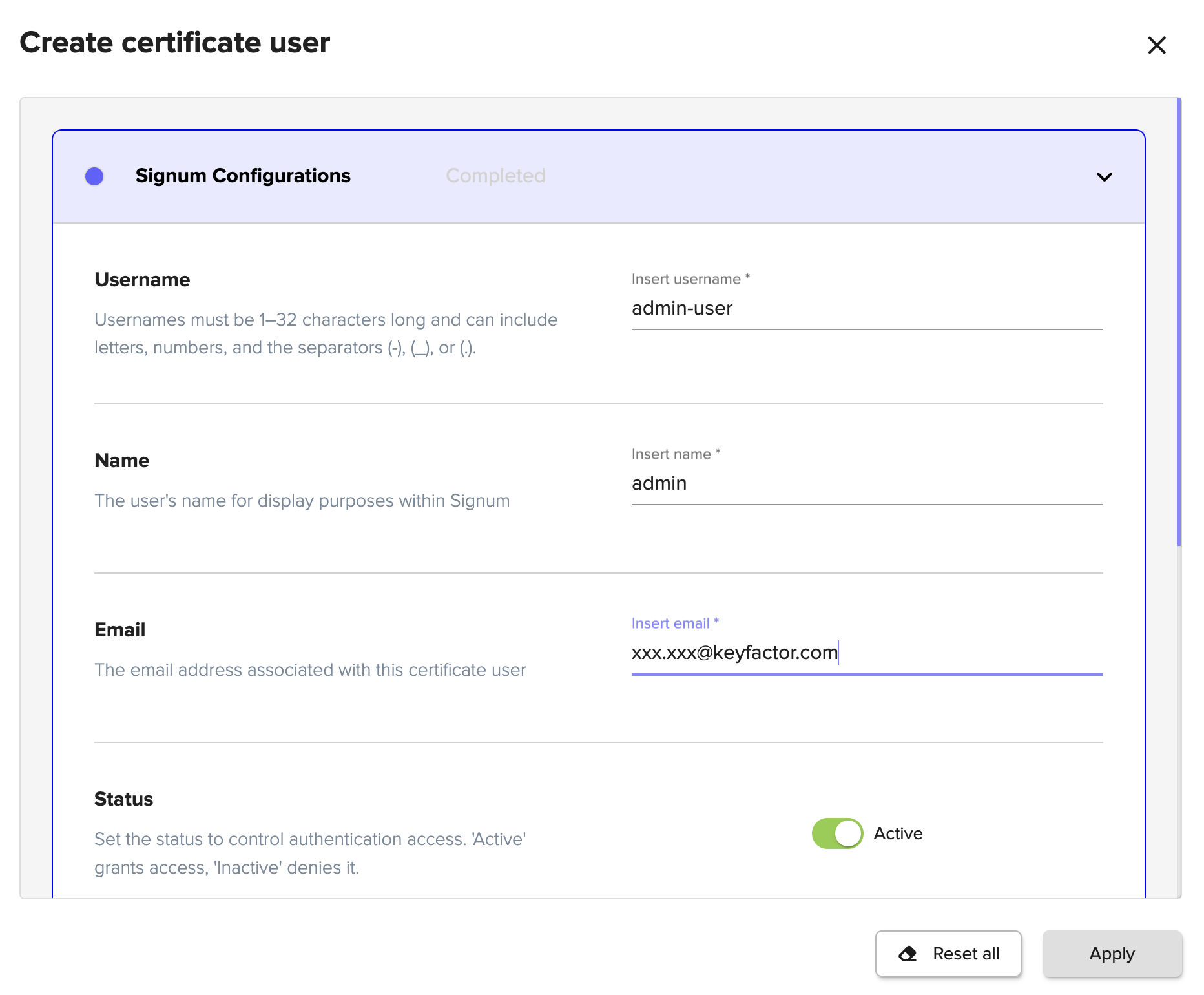
Under Signum Configurations, fill in username, name, and email:
-
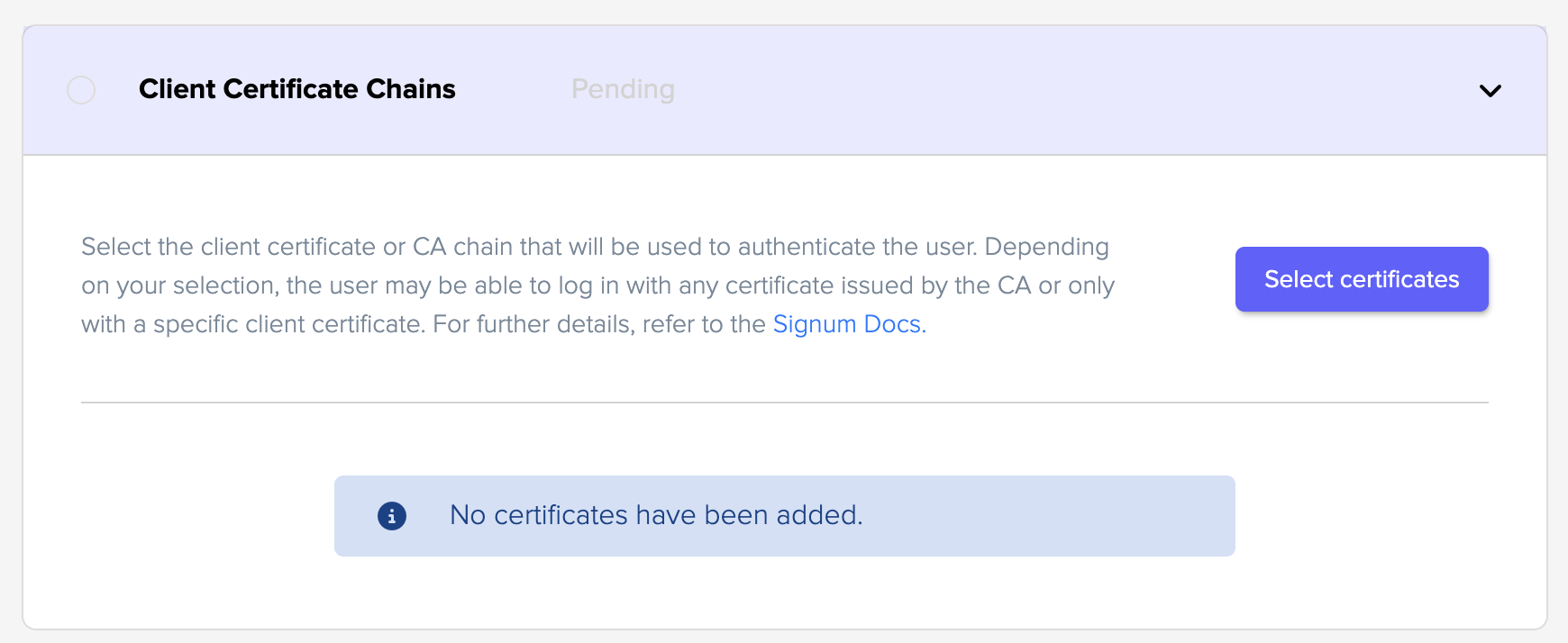
Under Client Certificate Chains, click Select Certificates:
-
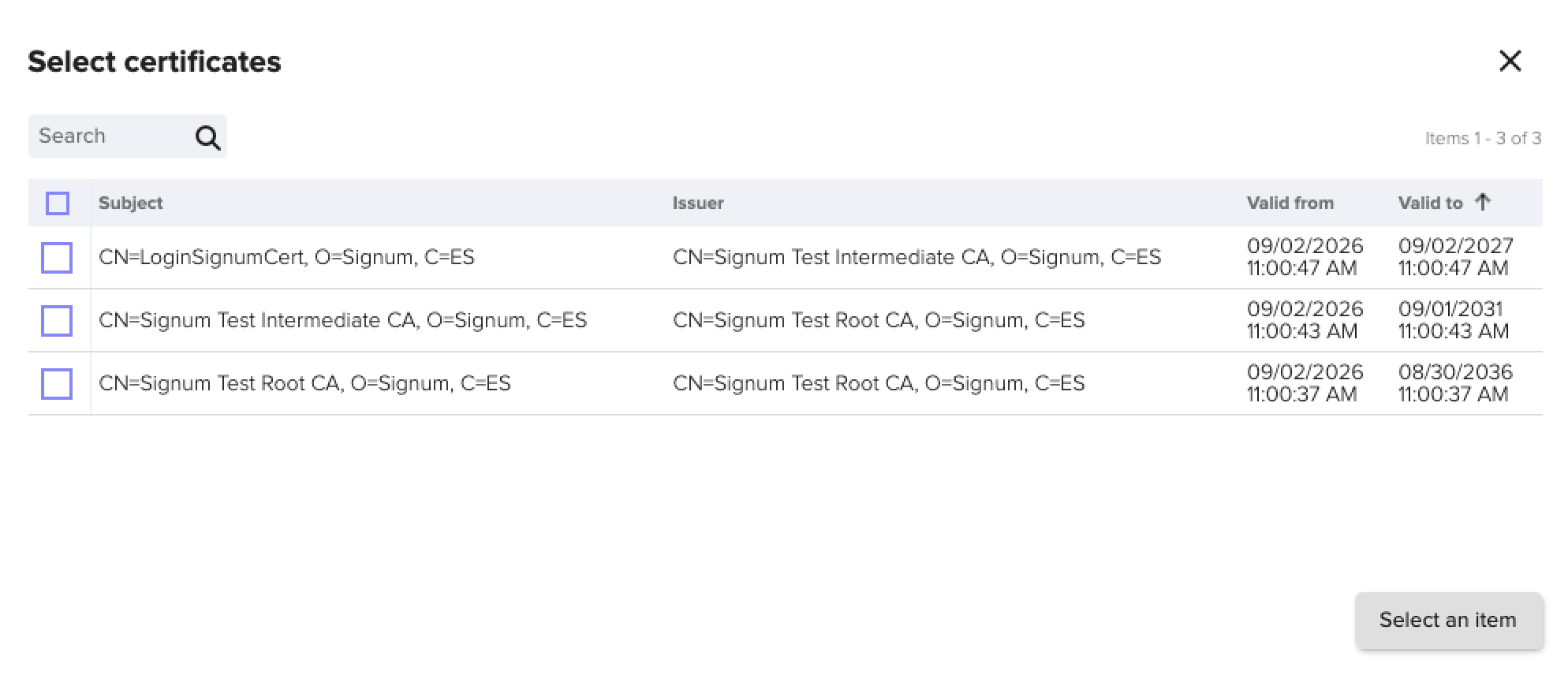
Choose the certificate to use for user authentication:
-
Client certificate: The user will be able to log in only with this specific certificate.
-
CA chain (root or intermediate): The user will be able to log in with any certificate generated by the CA that is also uploaded to Signum.
-
For multi-user authentication and matching criteria, see Certificate User Domain.
-
Complete the user configuration as needed.
-
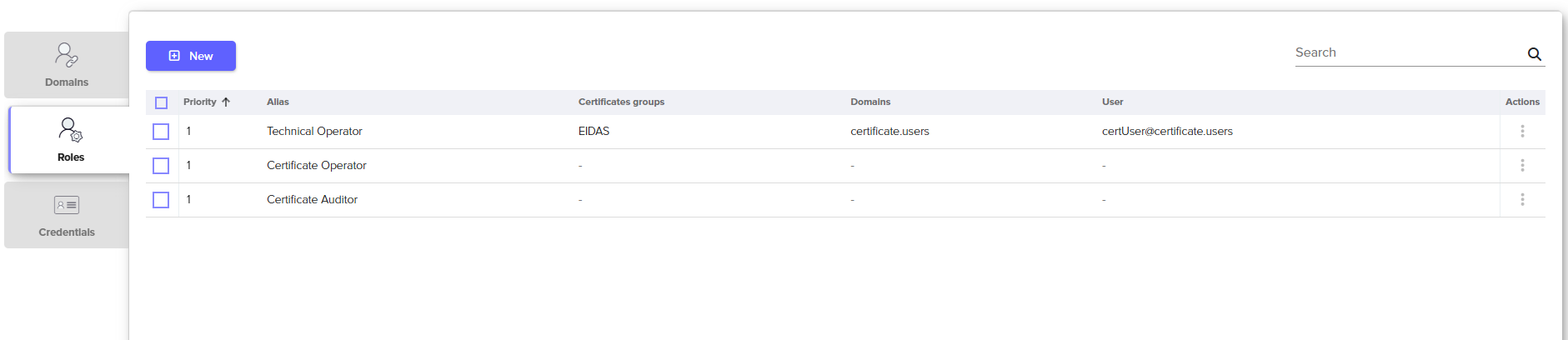
If the user needs access to the Admin Web Console, make sure the user is assigned to the appropriate Role:
User Setup
To authenticate as a user, you need to install the private key, PKCS#12 (.p12) file, to your local machine, and configure the Agent with the file.
Step 1 - Install PKCS#12 File on the Local Machine
Put the certificate on the local disk, accessible by SignumService. It is recommend to put the certificate either in /tmp/ or /etc/keyfactor/.
The following example is using the Microsoft Current User Certificates store. For macOS, a similar process can be done for importing certificate to the keychain. See Add certificates to a keychain using Keychain Access on Mac. For Linux users, you must install the certificate directly to your browser. For an example with Firefox, see Import Certificate to Mozilla Firefox.
-
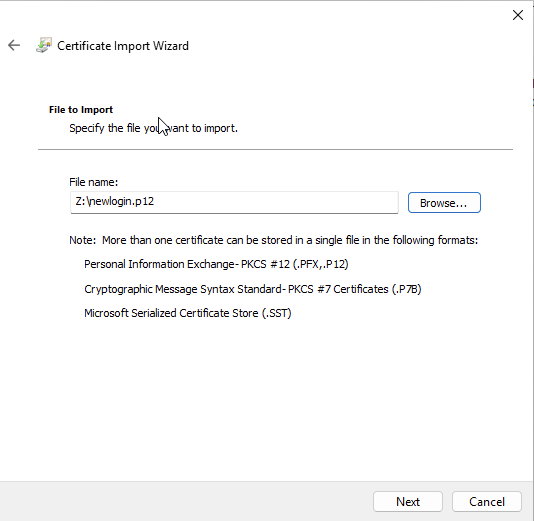
On your local machine, locate the .p12 file.
-
Open your certificates store or double-click on the certificate to open.
-
Click Import Certificate:
-
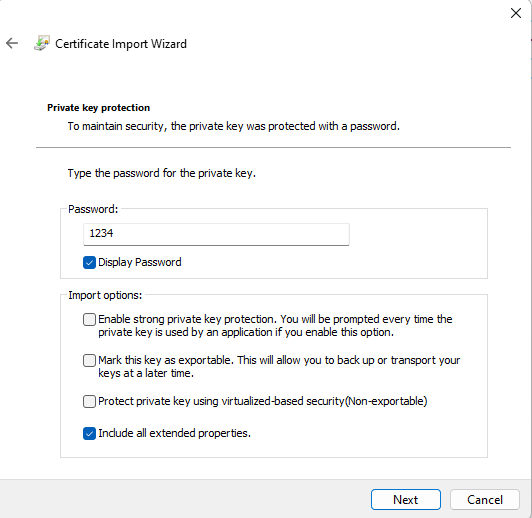
Create a password:
-
Click Next.
-
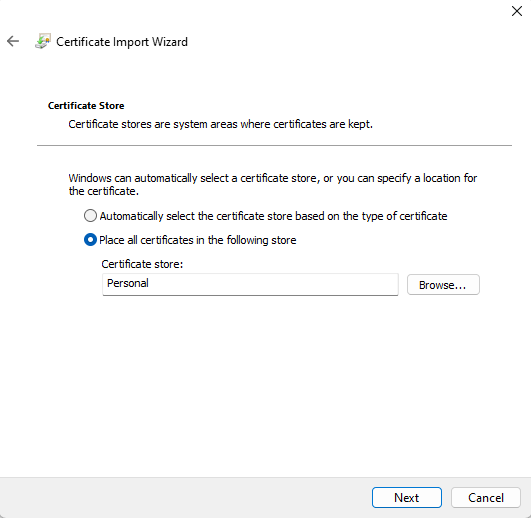
Select the Certificate store to place your certificate:
-
Click Next.
-
Click OK.
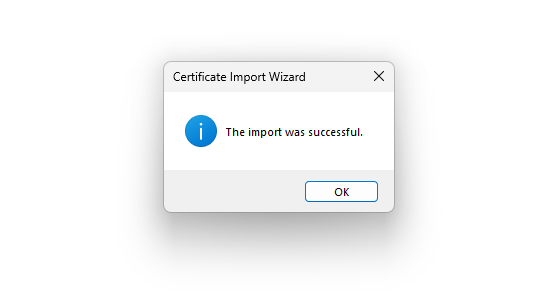
After installation, you should see the certificate in your certificate store.
Step 2 - Set up Agent to Use Certificate
After making the certificate available on your local machine, configure your Signum Agent to use the certificate.
To authenticate with a certificate, you need the Signum Server URL which can be found in the Signum Links and the .p12 file of the certificate used for login.
When using client certificate authentication, you must specify WAF port 8443 using the -w flag.
-
Run the following command:
signum-util setup -h [HOSTNAME] -c [CERTIFICATE PATH] -w 8443Example:
signum-util setup -h signum.mydeployment.us.s.az.keyfactorsaas.com -c example.p12 -p "password" -w 8443 -
Enter the certificate password when prompted:
password: ***************** -
The command returns the following:
Instance [URL] successfuly reached .
User [mac@keyfactor] successfuly logged in URL.
New configuration saved successfully, some changes to system settings might require restarting SignumService.
For more information, see Configure & Authenticate Agent.