.png)
Follow the steps to register in the Keyfactor Portal and log in for the first time.
Registering in the Keyfactor Customer Portal
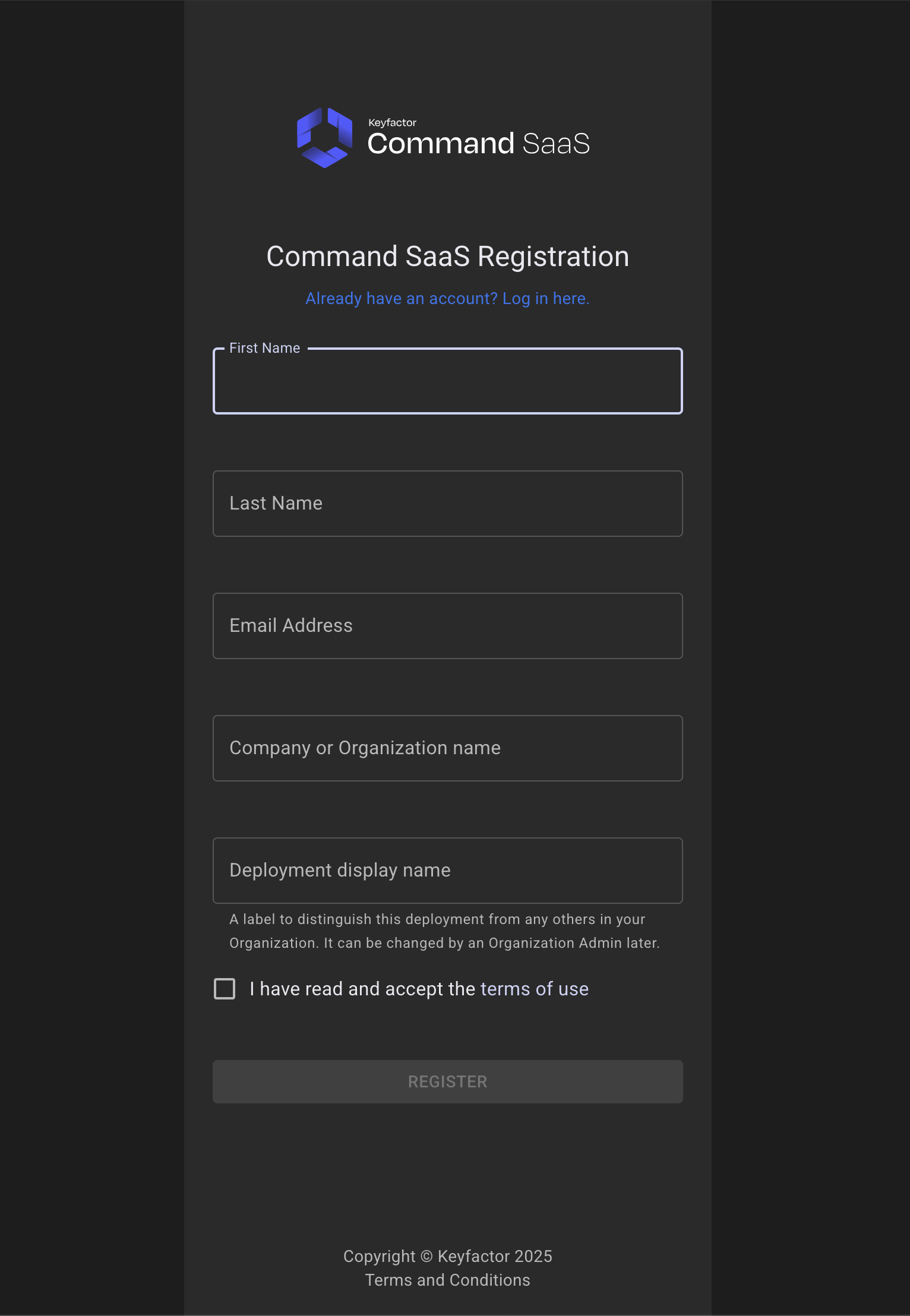
To register to Keyfactor Customer Portal, specify your organization details on the Registration page.
If your organization has an existing SaaS deployment, you can add this deployment to the same Organization by logging in with the Already have an account? link.
-
Enter the following information:
-
First Name
-
Last Name
-
Email Address
-
Organization Name
-
Deployment Display Name: This name will appear on the tile for accessing the deployment. It is only cosmetic and can be changed later.
-
-
Read through the Terms of Use.
-
Click the check box next to I have read and accept the terms of use, and then click Register.
-
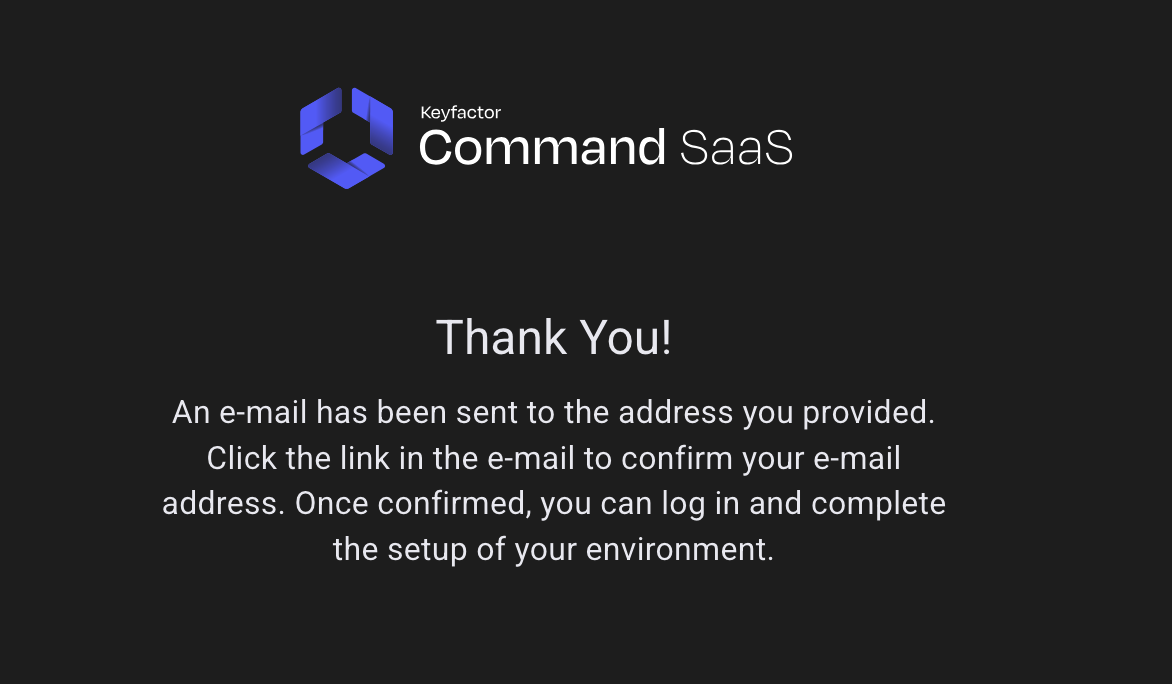
Confirm your email address through the email sent from <support@az.keyfactorsaas.com> to the account specified in the Email Address field. You can add the email address to your address book to prevent the message from being accidentally categorized into the junk folder.
-
A confirmation page for successful registration is displayed.
-
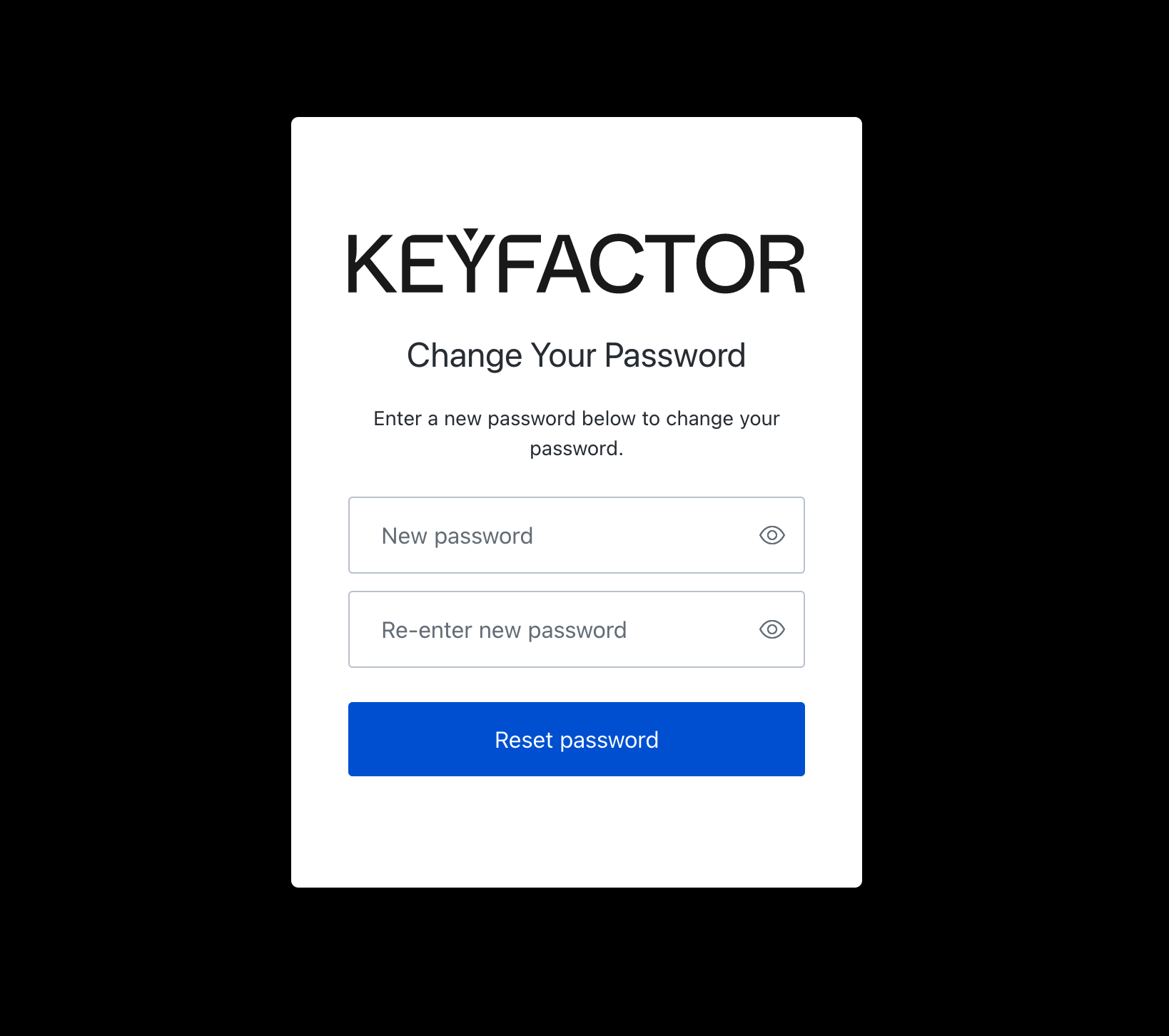
Sign back into the Keyfactor Portal to set your password and finish the registration process.
-
Enter a password.
-
Click Reset Password.
-
Click Back to Keyfactor SaaS Portal.
Logging in for the first time
To log in for the first time:
-
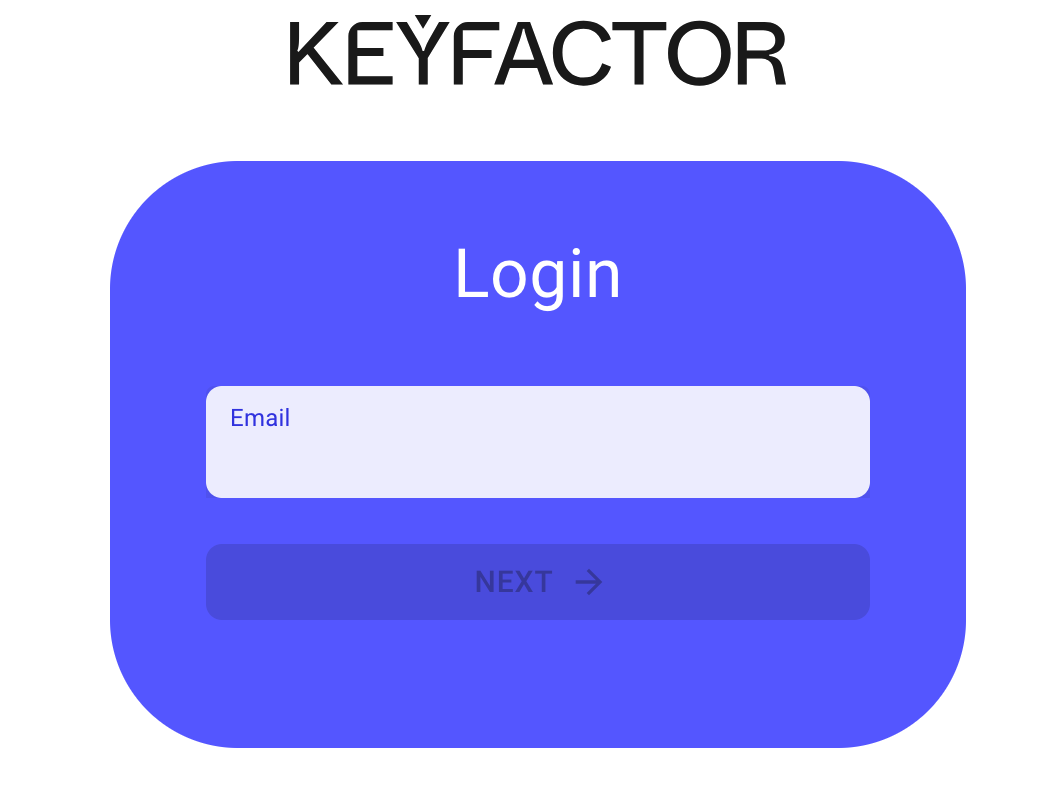
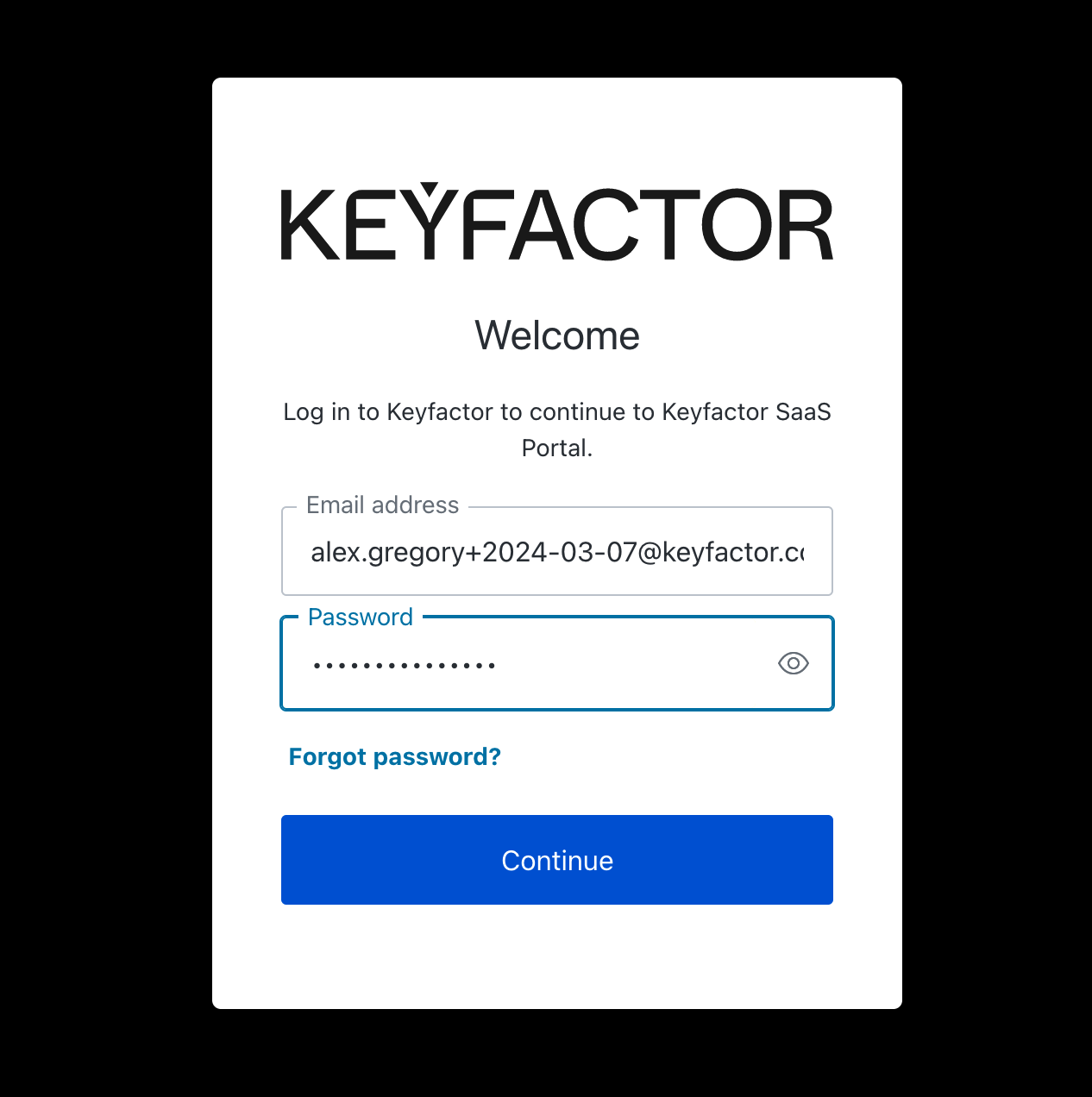
After registering, enter your email address in the Email field.
-
Click Next.
-
Enter the password that you set, and then click Continue.
Using Multi-Factor Authentication (MFA)
The Keyfactor SaaS Portal leverages adaptive MFA as standard for all users. Adaptive MFA is a flexible, extensible MFA policy that can help you protect your tenant from bad actors without increasing friction for real users. It assesses potential risk during every login transaction, and then prompts the user for additional verification if appropriate.
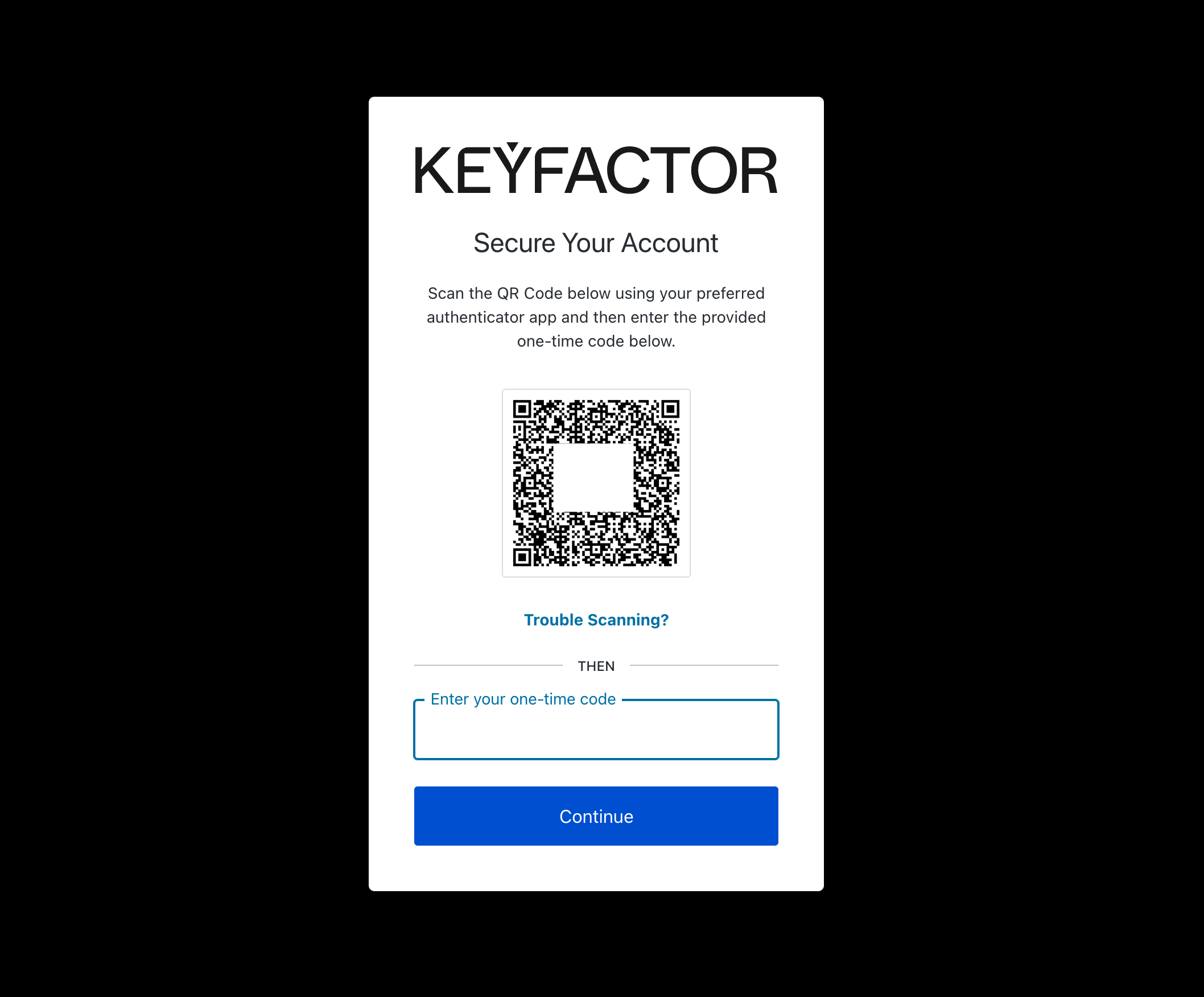
Use an MFA app (such as Google Authenticator, Microsoft Authenticator, or Last Pass Authenticator) to enroll the MFA token.
If you would like to have “Always Prompt” MFA, contact Keyfactor support and request to have this enabled within your organization as part of the enrollment process.
-
Click the + icon in your MFA app to add a token.
-
Choose the camera option to scan a QR code.
-
Once the codes are generated, enter the six-digit code in the Enter your one-time code field.
-
Click Continue.
The deployment selection screen appears, which shows a tile with the name of the deployment you selected in the registration screen.
-
Click the icon for your product, then click Configure to begin configuring your deployment options. See Configure Signum Deployment.
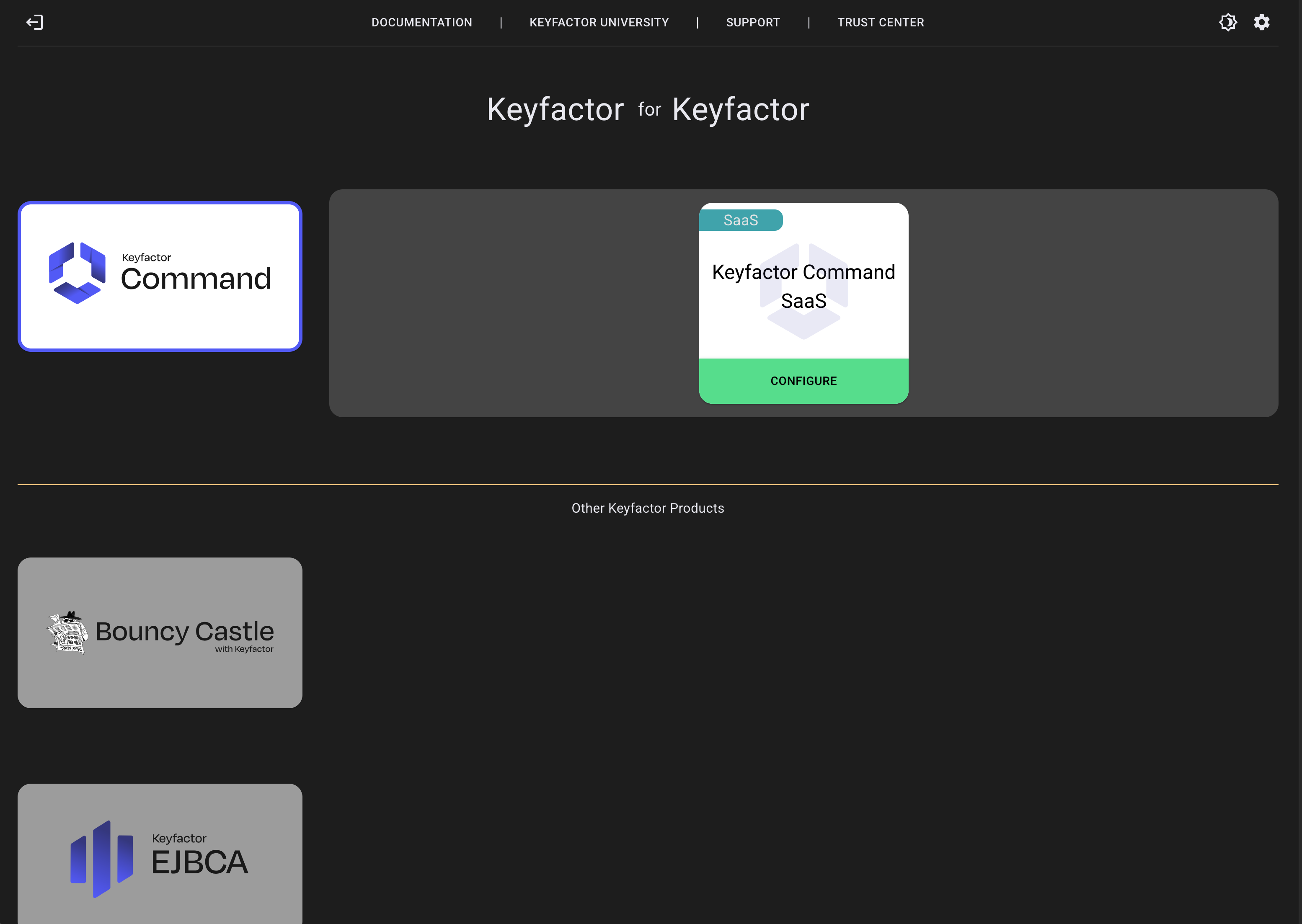
The tiles below are other products available from Keyfactor and are informational only. For additional resources and information about the products, click on the corresponding tile.