.png)
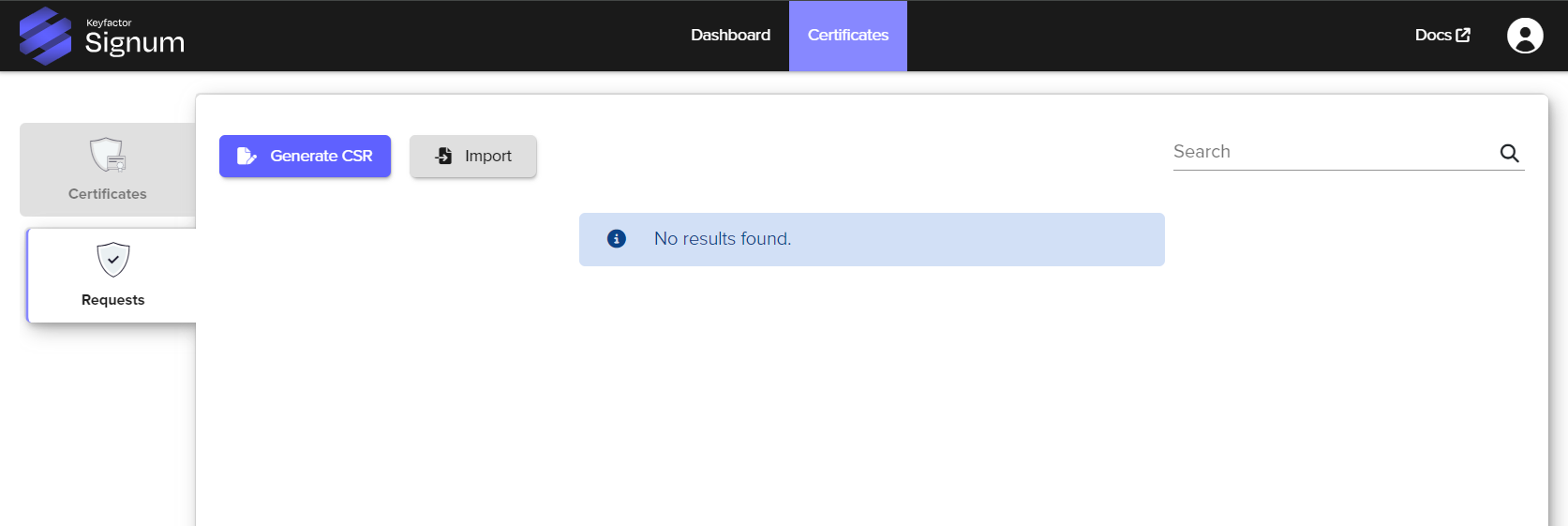
The Requests tab is for generating new Certificate Signing Requests (CSRs).
The process of generating a CSR involves filling out the identifying information for the X.509 certificate being requested and generating a public and private key pair where the private key is non-exportable from the HSM. As part of the standard CSR generation process, the private key is also used to digitally sign the CSR proving possession of the private key. Once generated, the CSR can be copied or downloaded and then sent to a CA to have a certificate issued.
How to Generate a Certificate Signing Request (CSR)
Before starting this process, make sure you have at least one certificate group created. The Signum Administrator is the only user capable of creating certificate groups.
To generate a new CSR, navigate to the Requests tab and select Generate CSR. This brings up a wizard that walks you through the steps of generating the request, with the following fields:
-
Crypto Token
-
Distinguished Name
-
Subject Alternative Names
-
Signum Configurations
Step 1 - Crypto Token
The Crypto Token generates the keys for the CSR request.
Enter the following values in the Crypto Token field:
|
Value |
Description |
|---|---|
|
Crypto Token |
The Crypto Token to generate the key with. Additional configured Crypto Tokens are available in the dropdown. Default: HSM (hardcoded option) To configure your own Crypto Token, see Configure an External HSM. |
|
Key Configuration |
The type of key and desired key size. For information on supported key types, see Interoperability. |
|
Hashing Algorithm |
The hashing algorithm to use for the CSR. Default: SHA-256 For information on supported algorithms, see Interoperability. |
Step 2 - Distinguished Name
Enter the following values in the Distinguished Name field:
|
Value |
Description |
Example |
|---|---|---|
|
Distinguished Name (DN) |
Optionally input the entire DN in this field or individually below |
|
|
Common Name (CN) |
Often copies the organization name, but varies for signing use cases |
|
|
Organization (O) |
Legal name of organization |
|
|
Department (OU) |
Internal organization department/division name |
|
|
City (L) |
Town, city, village, etc. name |
|
|
State (S) |
Province, region, county, or state |
|
|
Country (C) |
Select from the country drop-down |
|
Step 3 - Subject Alternative Names (SAN)
You can optionally include Subject Alternative Names (SAN) in the CSR. An rfc822Name in the SAN field is the standard format for embedding email addresses in X.509 certificates, formatted as local@domain.
Formatting rules:
-
Format:
local@domain -
Local part: alphanumerics + `!#$%&'*+/=?^_{|}~-.`` (quoted strings are also valid)
-
No spaces (unless in quoted local part)
If the email provided for the first SAN entry is in the wrong format, use the Refresh button to reset the entry. When several entries are present, use the Delete (-) to remove a SAN entry.
Step 4- Set Signum Configurations
|
Assign Groups and Owners |
Description |
|---|---|
|
Assigning Certificate Groups |
Signum requires that every certificate be part of a certificate group, even if it is only a group of one. The request can be assigned to one or more groups. When the certificate associated with this request is imported, the certificate is available to the groups defined here. The groups can be changed later. Adding a certificate to a group automatically assigns it to the policy of that group. |
|
Owner |
(Optional) Configure an Owner. The Owner of a certificate is able to access the certificate superseding any configured policies. |
After assigning a Certificate Group, click Apply. The CSR will be available to copy or download. It will also be available to copy or download from the Requests tab until a certificate for the request has been imported.
Request Operations
The Actions menu (⋮) of a CSR includes the following options:
-
Download key attestation (if supported)
-
View CSR
-
Delete a request
Deleting a request permanently deletes the private key associated with the request.
Key Attestations
Key attestations provide cryptographically verifiable proof that a cryptographic key was generated, stored, and managed within an HSM. When using a Certificate Authority (CA), the key attestation is sent directly to the CA as part of the certificate request process, typically through an online enrollment portal or API. The attestation proves that your private key was generated within a HSM.
The Download attestation operation is available for Fortanix and Thales DPoD HSMs.
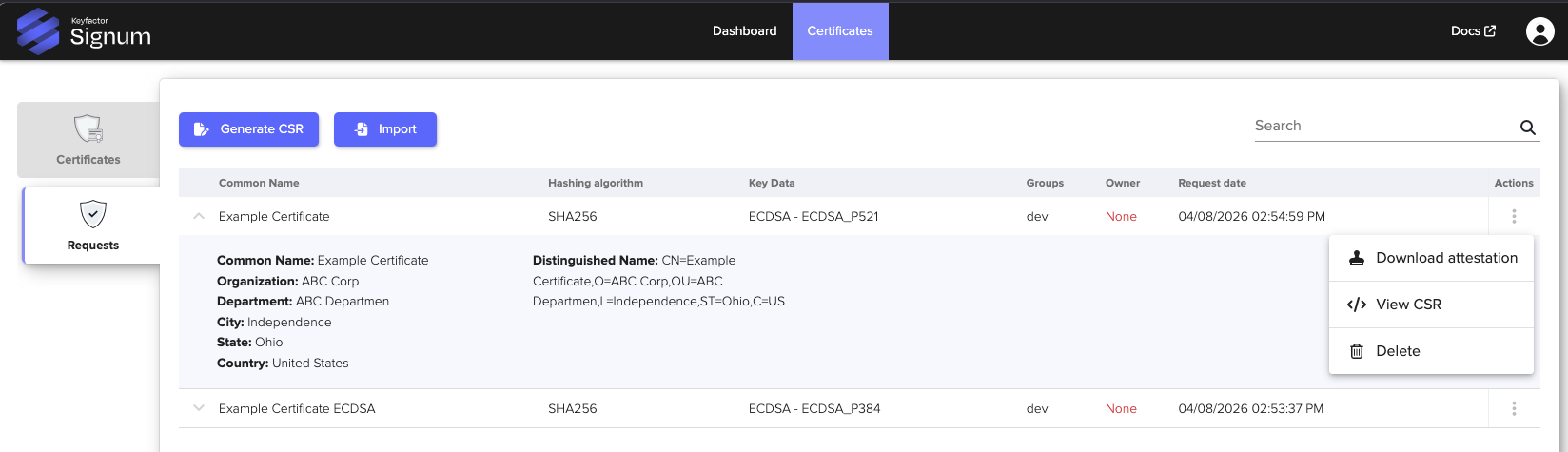
After generating the CSR, you can download the attestation:
To generate a key attestation:
-
Click on the Actions menu (⋮) of the CSR you want to use.
-
Click Download attestation.
-
The file containing the CSR key attestation is downloaded.
Next Steps
Send the attestation to a CA to issue a certificate.
For instructions to use EJBCA to issue the certificate, based on file type:
-
.p12 file: Request Certificate
-
.der/.pem file: Issue a New Server Certificate from a CSR
Upload the certificate to the Certificate List to make it available for signing.