.png)
The Certificate page lists the available certificates, and provides certificate importing and exporting capability:

To use Signum with certificates, the certifications must be issued by a Certificate Authority (CA) using a certificate signing request (CSR). This ensures that the private key that is generated when a new CSR is created only exists within the FIPs boundary of the HSM. To issue a CSR, see Requests.
The private key is non-exportable from the HSM. This method ensures a high level of security for the private signing key and provides for mechanisms to generate attestation in the future, to prove that the key was created within an HSM.
Import a Certificate
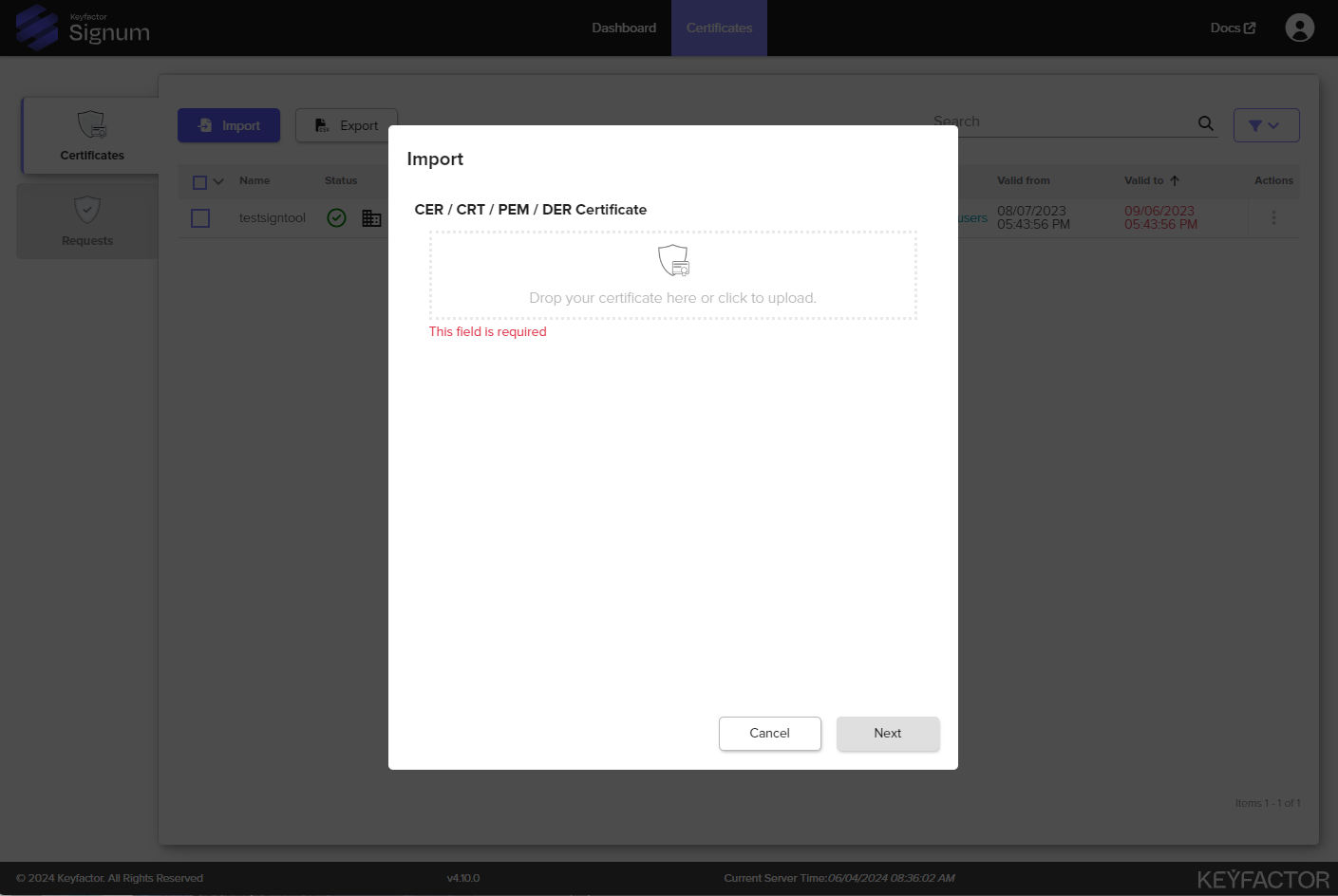
Once a certificate has been issued for a given request, you can import the certificate to the console:
-
Open either the Certificates or Requests tab.
-
Click the Import button.
-
In the Import pop-up, upload the certificate. Acceptable formats are .cer, .crt, .der, and .pem.
-
Click Next.
Certificate Data
After importing a certificate, you can view and edit certificate data and complete quick actions.
Users assigned to the Signum Viewer role can only view the certificate data.
|
Item |
Description |
|---|---|
|
Name |
The alias of the Certificate. |
|
Status |
Information regarding the status of the following:
|
|
Usage Count |
The number of times the certificate has been used for signing. |
|
Last Use |
The last time and date of use (in UTC). |
|
Groups |
The certificate groups this certificate is associated with. |
|
Policies |
The policies this certificate has been assigned to. |
|
Valid To |
Certificate Expiration Date. |
Quick Action Options
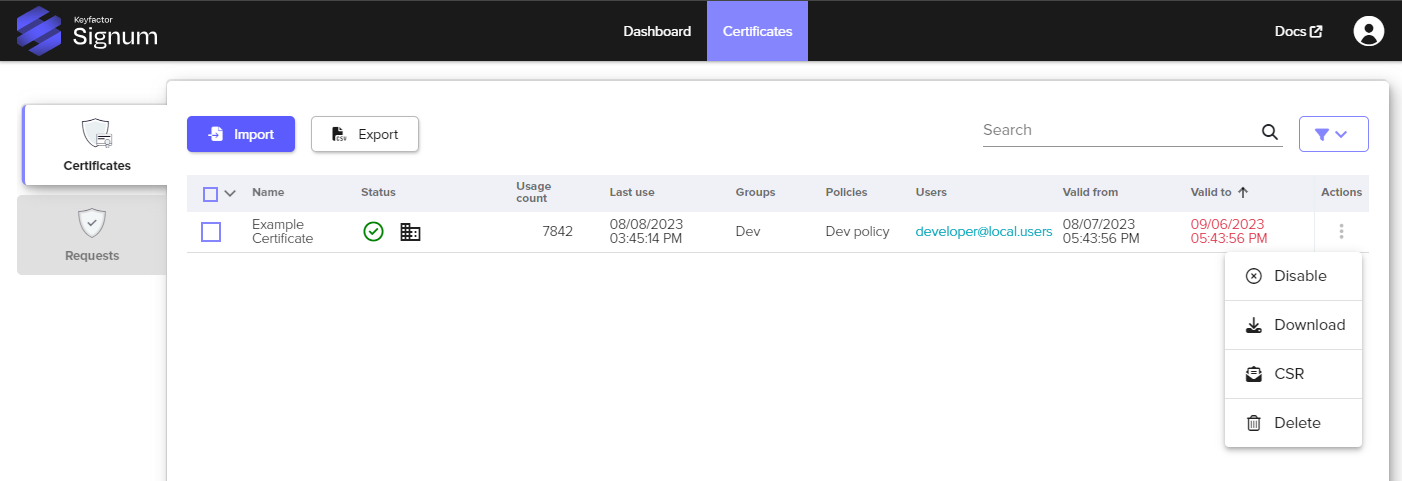
Access the Quick Actions by clicking on the actions menu of the certificate and selecting the appropriate option:
|
Quick Action |
Description |
|---|---|
|
Enable / Disable |
An enabled certificate is available to be used by owners or based on assigned policies. A disabled certificate cannot be used regardless of any policies or ownership. |
|
Download |
Downloads the certificate as a .cer file. |
|
CSR / Renew |
Choosing to renew a certificate brings up the Generate CSR Wizard. See Generating a Request. The old certificate will continue to be available for use until the new certificate is imported against the new request. This method allows for easy mapping of existing policies and configurations when keys need to be renewed. |
|
Delete |
Permanently deletes the certificate and associated private key material. |
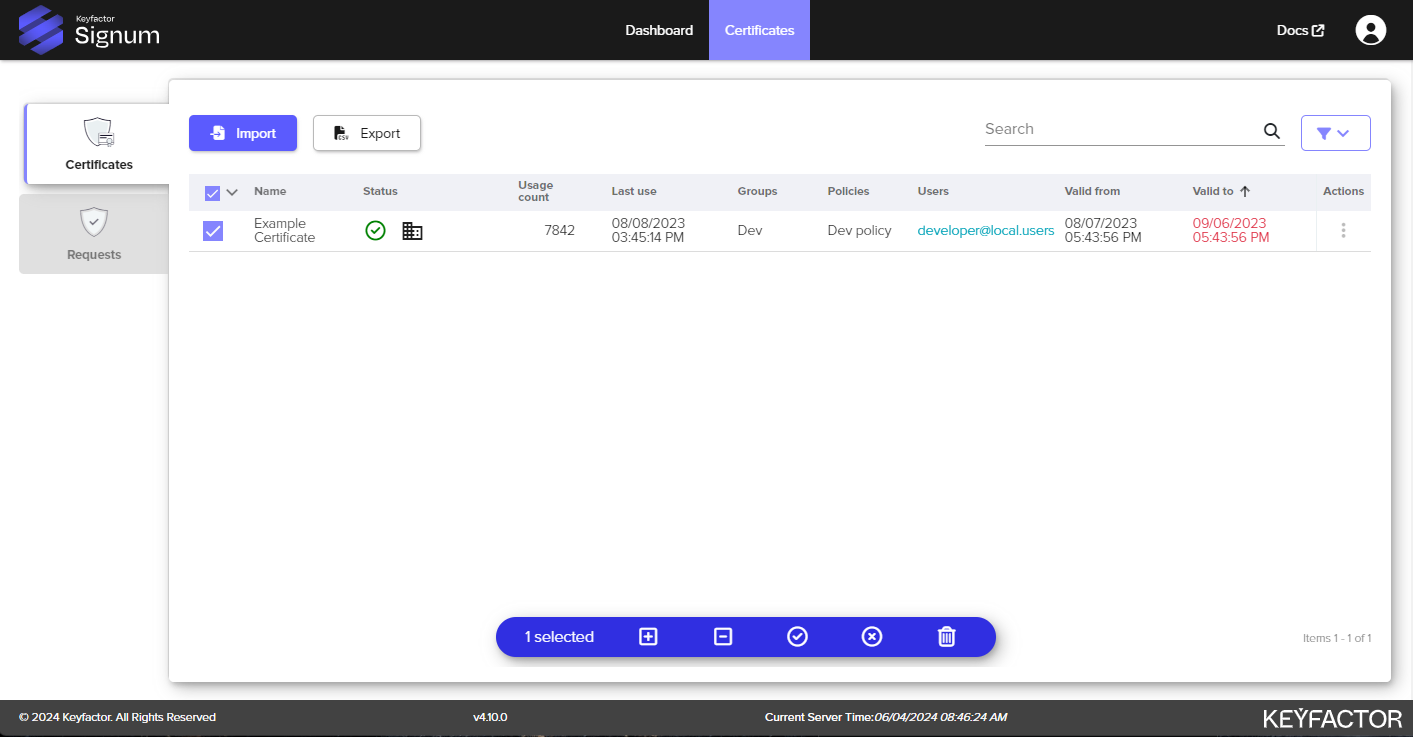
From the Certificates view, you can also perform actions on individual or multiple certificates by selecting the checkbox either next to the certificate or on the table header.
|
Action |
Icon |
Description |
|---|---|---|
|
Add Groups |
|
Adds a certificate to the selected certificate groups. To perform this function, the user needs to have the role permission assigned to add to certificate groups. See Creating a Role for more information. Adding a certificate to a group automatically assigns it to the policy of that group. |
|
Remove Groups |
|
Removes a certificate from the selected certificate groups. To perform this function, the user needs to have the role permission assigned to remove certificates from groups. See Creating a Role for more information. Only the Signum Administrator can remove all group assignments from a certificate. |
|
Enable Certificates |
|
An enabled certificate is available to be used by owners or based on assigned policies. |
|
Disable Certificates |
|
A disabled certificate is inaccessible to the Signum Agents for signing. Even if the authenticated user is the “Owner” of the certificate, none of the remote Agents can access the certificate. |
|
Delete Certificates |
|
Permanently deletes the certificate and associated private key material. |


Certificate Detail View
Additional options for managing and viewing details about individual certificates can be found by selecting the certificate from the Certificates tab.
Overview
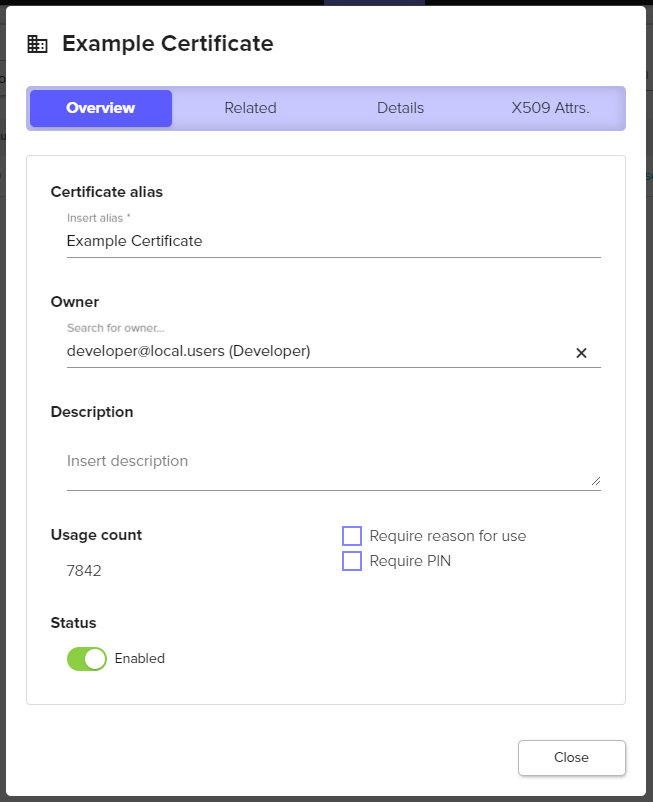
The Overview tab provides information such as the alias, owner, and status:
|
Overview Field |
Description |
|---|---|
|
Certificate Alias |
The “name” of the certificate in Signum, can be different from the certificate CN value. |
|
Owner |
The Owner of a certificate will be able to access the certificate superseding any configured policies. |
|
Usage Count |
The total number of times the certificate has been used for signing. |
|
Status |
The current status of the certificate (enabled vs disabled). |
|
Description |
Optional field to enter additional metadata information about the certificate. |
|
Ask for a reason when used |
Will prompt desktop users with a pop-up of the Signum Windows Agent to enter a reason when using a certificate to sign something. |
|
Always ask for PIN |
Will prompt desktop users with a pop-up of the Signum Windows Agent to enter a PIN to use the certificate to sign something. Checking this box will bring up a field to enter the PIN for the certificate. Currently PINs can only be set per certificate. |
Related
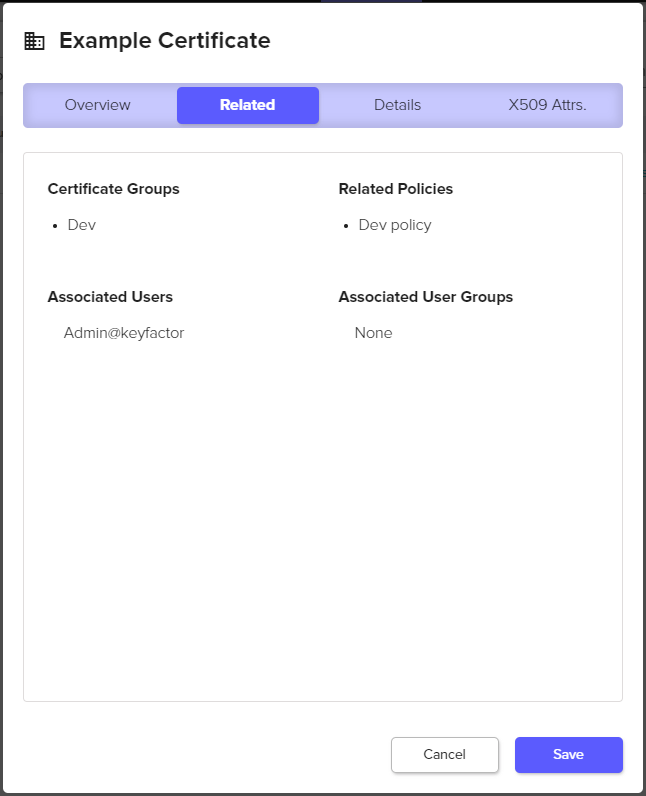
The Related tab provides information such as the certificate groups and related policies:
|
Related Field |
Description |
|---|---|
|
Certificate Groups |
Which certificate groups this certificate is in. |
|
Related Policies |
What policies are assigned to this certificate. |
|
Associated Users |
Users that are associated with this certificate because they are included in a policy with this certificate. |
|
Associated User Groups |
User groups (locally in Signum or from an IDP) that are associated with this certificate because they are included in a policy with this certificate. |
Details
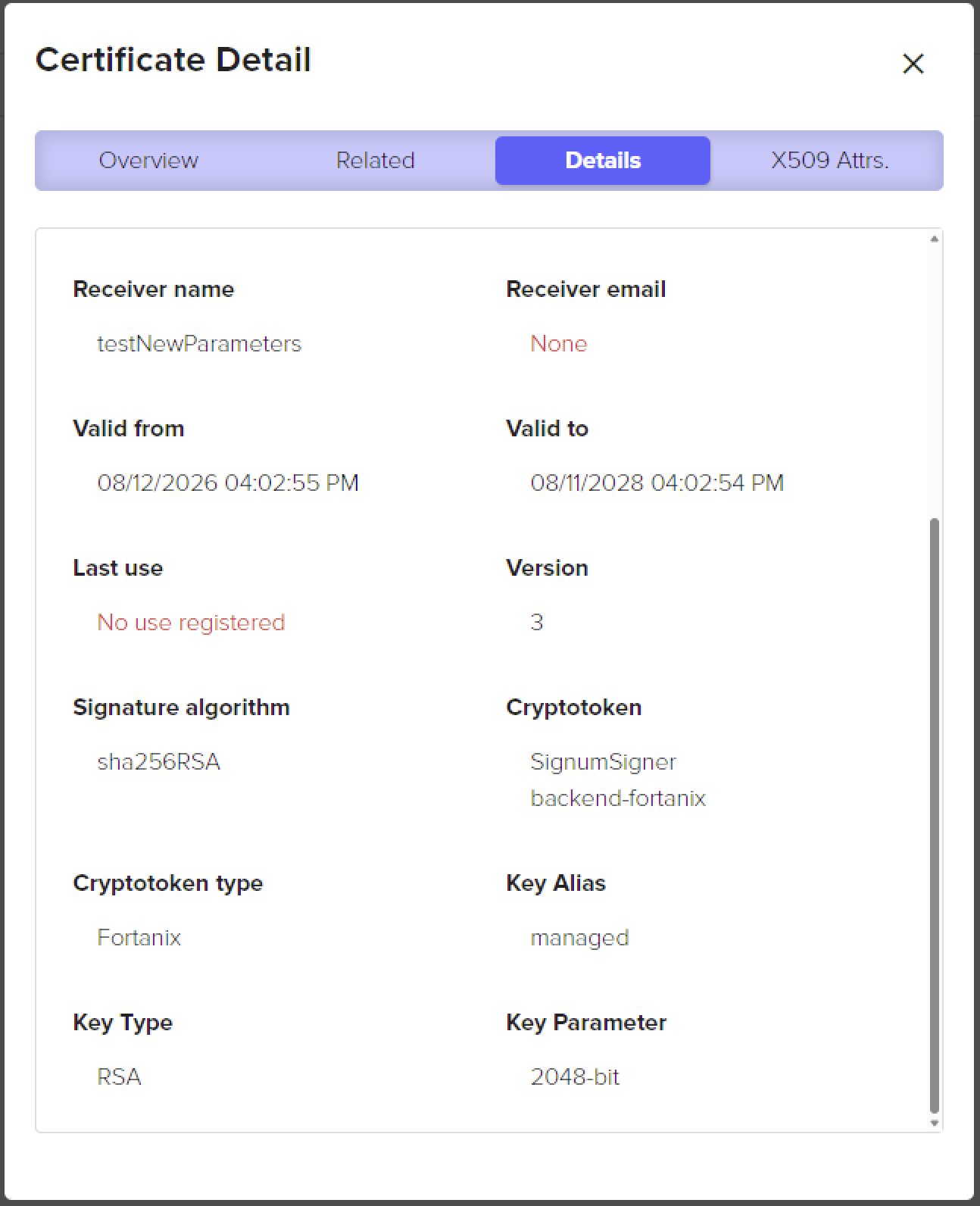
The Details tab includes detailed information about the certificate properties:
|
Detail Field |
Description |
|---|---|
|
Serial number |
The serial number assigned by the Certificate Authority (CA). |
|
Thumbprint |
The certificate thumbprint. |
|
Issuer name |
The name of the CA. |
|
Issuer email |
Email address associated with the certificate authority (CA), if defined. |
|
Receiver name |
The name of the Subject. |
|
Receiver email |
Email address associated with the certificate's subject, if defined. |
|
Valid from |
The certificate creation date. |
|
Valid to |
The certificate expiry date. |
|
Last use |
The last time the certificate was used. |
|
Version |
Indicates the X.509 certificate format used (V1, V2, or V3). V3 is the current standard and supports extensions, such as Key Usage and SAN. |
|
Signature algorithm |
The cryptographic algorithm linked to the public key. |
|
Cryptotoken |
The Crypto Token used to create the certificate. |
|
Cryptotoken type |
The HSM behind the Crypto Token. |
|
Key Alias |
The name of the cryptographic object stored in the HSM. When Signum is calling the HSM directly, the HSM generates a random name for the key. When a key is generated by SignServer using the managed API, the keys are named managed-XXXXXX. For more information, see Using SignServer with Signum. |
|
Key Type |
The algorithm type of the public key. |
|
Key Parameter |
Algorithm-specific details for the key, such as bit size for RSA or curve used for ECDSA. |
X.509 Attributes
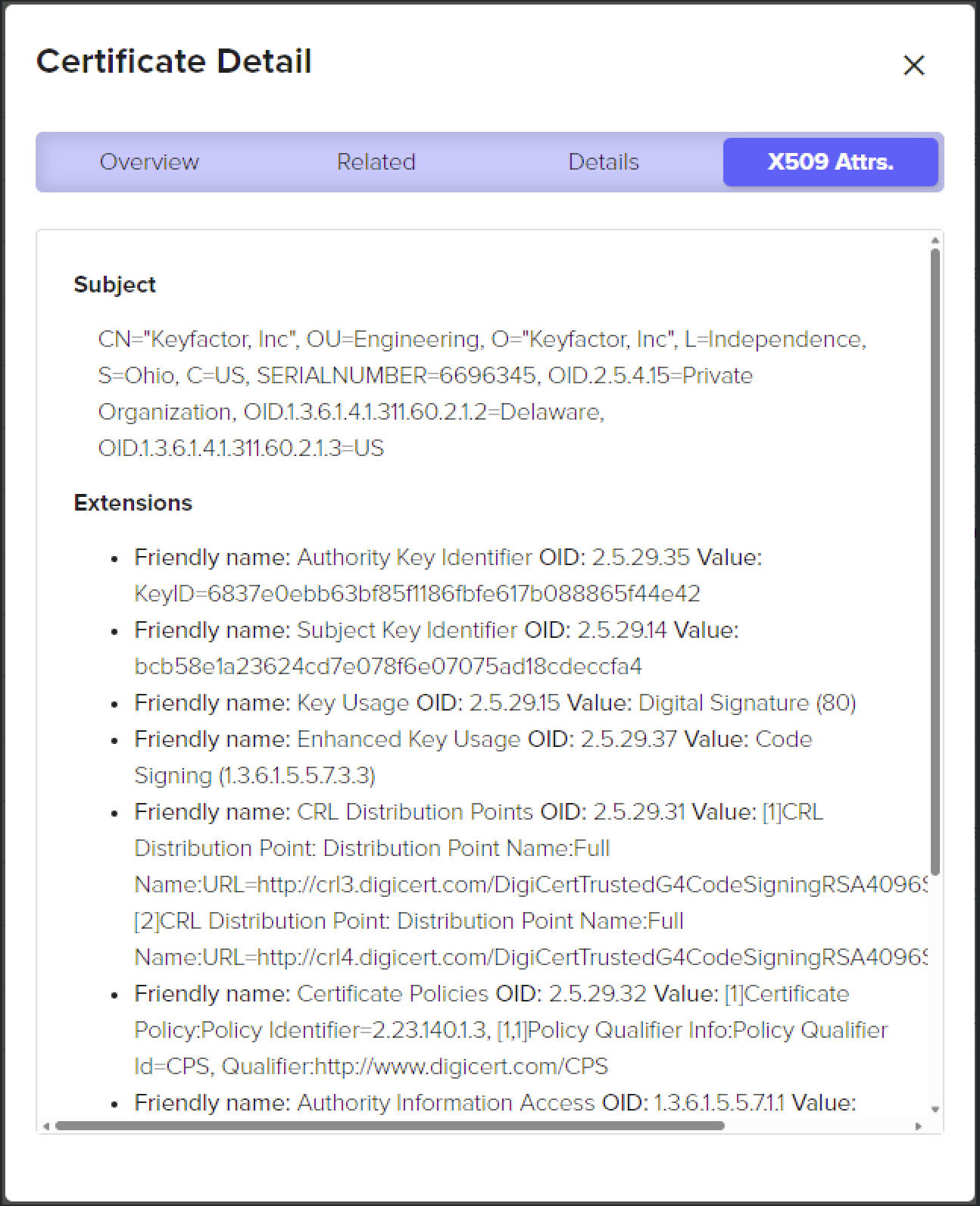
The X.509 Attributes tab includes:
|
Attribute Field |
Description |
|---|---|
|
Subject |
Identifies the specific entity, like an organization (O), locality/city (L), or common name (CN), that owns the public key. |
|
Extensions |
Additional fields in the certificate that define specific properties or constraints:
|