.png)
Instructions for deploying the GCP KMS Connector to scan for cryptographic assets and deliver findings to the AgileSec Platform for processing and analysis.
Overview
The GCP KMS Connector integrates Google Cloud Platform Key Management Service (GCP KMS) with Keyfactor's AgileSec Platform. This Connector allows you to discover, inventory, and analyze cryptographic assets across global GCP KMS regions.
What Gets Scanned
The GCP KMS Connector can discover the following cryptographic asset types:
-
KMS Keys: All customer-managed and GCP-managed public asymmetric (RSA, ECC) KMS keys in a GCP project. Either scan the entire project or only specific regions.
-
Key Locations: Locations of all public keys.
Note: Symmetric, ML-DSA (PQC), and HMAC key types are not currently supported. Support for these key types are planned for future releases.
Prerequisites
Ensure you meet the following requirements to enable scanning.
Network Access
Ensure HTTPS network connectivity from AgileSec platform or remote execution machine to GCP KMS endpoints.
Supported Authentication Methods
GCP KMS Connector supports authentication using a json key auth.json:
-
Create a GCP Project Service Account
-
Go to https://console.cloud.google.com/iam-admin/serviceaccounts
-
Select the desired Project
-
Click + Create Service Account
-
-
Create JSON key
-
Under the Service Account, go to Keys
-
Click Add Key->Create New Key
-
Create JSON Key
-
-
Save the resulting
auth.jsonkey file securely.
GCP KMS Required Access Rights
The GCP Service Account requires the following minimum permissions.
|
Role Permission |
Details |
|---|---|
|
Cloud KMS Viewer |
Enables Get and List operations |
|
Cloud KMS CryptoKey Public Key Viewer |
Enables GetPublicKey operations |
Remote Execution Requirements
If running the Connector remotely using CLI, the remote execution machine must meet these requirements:
|
Component |
Requirement |
|---|---|
|
Operating System |
|
|
RAM |
Minimum 500 mb (0.5 GB) to enable API calls and data streaming. |
|
Disk Space |
Minimal; scans are API-driven and findings are streamed to the AgileSec platform. No data is stored on disk. |
|
Permissions |
Read/write access to remote sensor working directory (remote sensor install location) |
Running the Connector
AgileSec GCP KMS scans can be executed using the following methods:
-
Platform Scan Execution: Configure and execute scans directly through the Keyfactor AgileSec web UI with on-demand or scheduled execution options.
-
API Scan Execution: Programmatically trigger scans through REST API calls, enabling integration with CI/CD pipelines and automation workflows.
-
Remote Scan Execution: Deploy and run the connector via CLI on customer-managed infrastructure for scenarios such as:
-
Scanning air-gapped or internal instances the platform cannot directly reach
-
Customers wanting to manage their own scheduling and execution environment.
-
Refer to Scan Execution Flows for additional scan execution information.
Connectors/Sensors Note: Connectors are considered a subset of Sensors. Sensors and Connectors utilize the same Unified Sensor Framework, but Sensors use the Host Sensor for additional scanning depth.
“Sensor”-labeled variables for API and Remote execution are common to both Sensors and Connectors. Unless specified, do NOT update these with “Connector”.
Configuration Fields
The following parameters are used to configure AgileSec GCP KMS scans.
|
Field Name |
UI Display Name |
Type |
Required |
Description |
|---|---|---|---|---|
|
|
Auth JSON |
String |
✅ Yes |
Copy and paste the json key For Remote Scans, the path to Example:
|
|
|
Project |
String |
✅ Yes |
Project id to scan. This can be pulled from a service account json key. |
|
|
Regions |
List |
❌ No |
Optional list of regions to scan in the project. Defaults to scanning all GCP KMS regions for the project. |
|
|
Incremental Scan |
Boolean |
✅ Yes Note: for Platform Scan Executions via UI, incremental scan defaults to Yes. |
Enable to scan only updates since last run. See Incremental Scanning. |
|
|
Auto-Resolution Interval |
Number |
✅ Yes
|
Only used when |
Platform Scan Execution
Running scans through the user interface is the simplest and fastest way to get started. The platform enables running on-demand or scheduled scans in a dedicated environment.
Platform Scan Configuration
-
Open your browser and navigate to the Keyfactor AgileSec Platform Web URL
-
Log in with your credentials
-
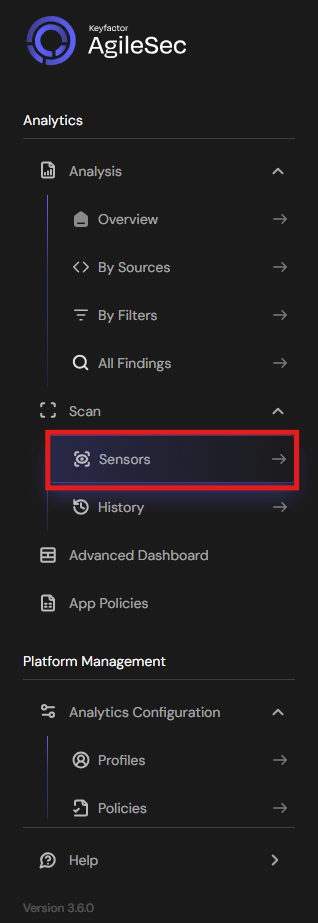
Click on "Sensors" in the left navigation menu under Scan
-
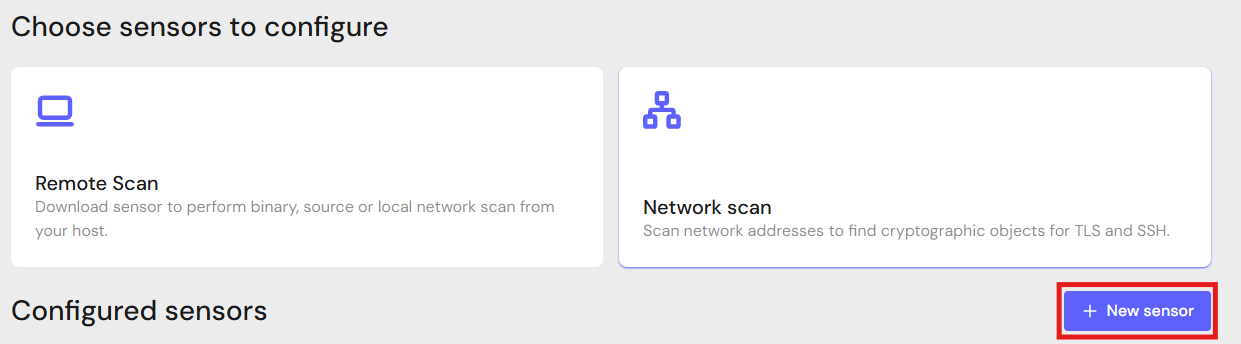
Click "+ New Sensor".
-
Click on the correct card to open the configuration interface.
Configure Parameters and Start Scan
-
Fill in the required configuration parameters.
-
Click Save.
-
Click Action then Scan to begin a scan.
Note: Click Edit to reconfigure parameters.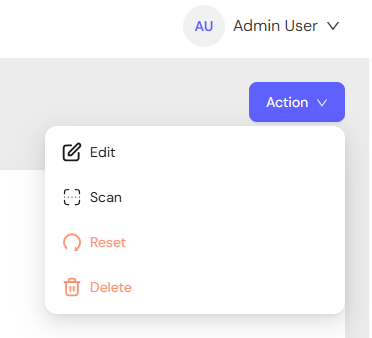
API Scan Execution
Scans may be programmatically triggered through REST API calls, enabling seamless integration with CI/CD pipelines, automation workflows, and custom applications. API execution provides flexibility for developers to incorporate cryptographic scanning into their existing development and deployment processes.
Note: For complete API reference, see API.
Generate AgileSec API Access Token
-
Open your browser and navigate to AgileSec Platform UI
-
Log in with your Keyfactor credentials
-
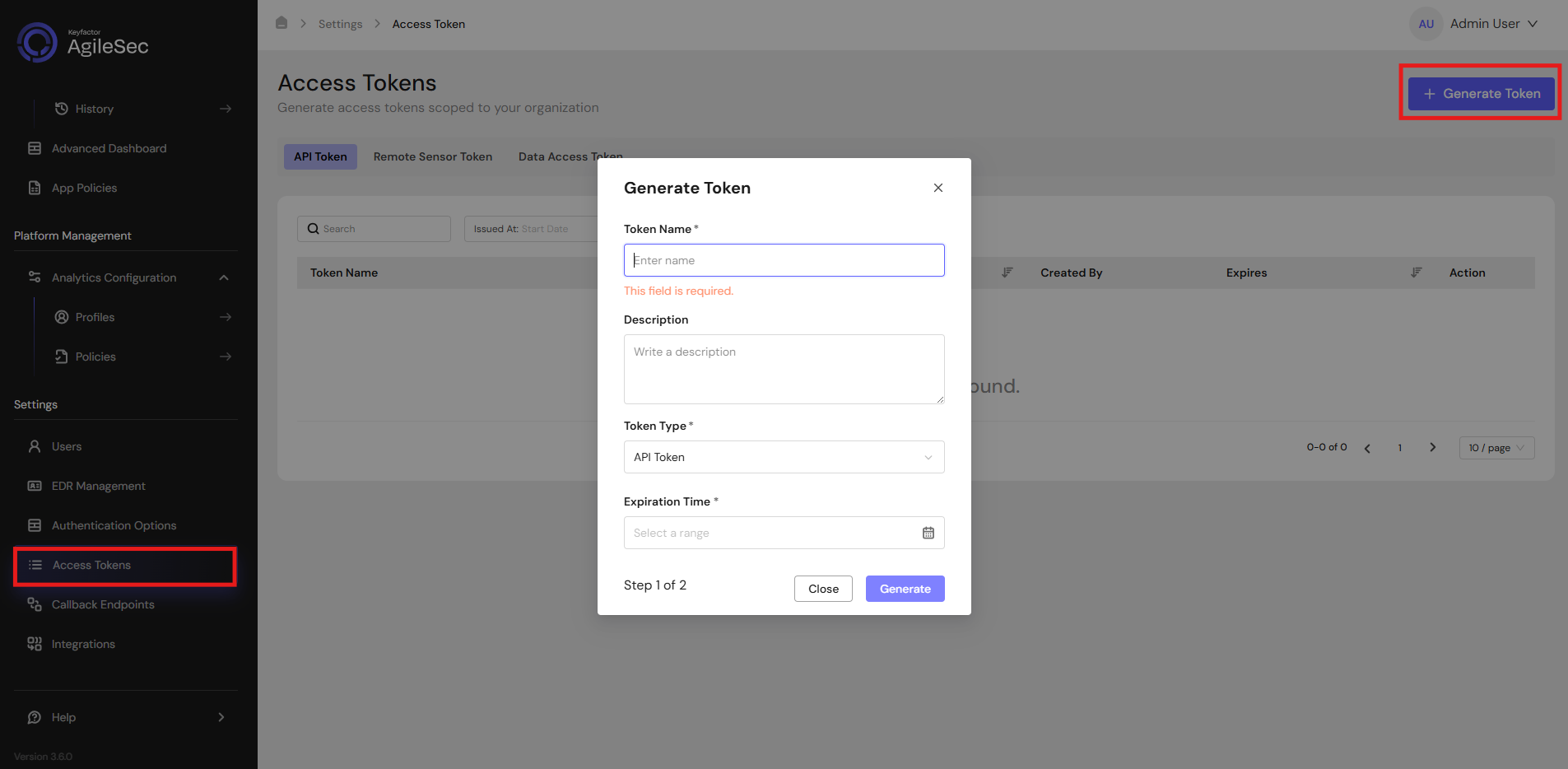
Click "Access Tokens" in the main navigation menu
-
Click "Generate Token" button
-
Set Token Type to API Token and provide the required details
-
Click "Generate" and copy the generated token
AgileSec API Endpoint
POST https://<platform-url>/v3/scan/create/
Request Format
Headers
Content-Type: application/json
isg-api-token: <your-api-token>
Request Body
  {
    "sensorName": "<sensor name>",
    "sensorType": "GCP KMS",
    "sensorConfig": {
       "auth_json": "<GCP auth json>",
       "project": "<GCP project>",
       "regions": [<project regions list>]
    },
    "callbackId": "<callback id>",
    "labels": [
        {
            "<label name>": "<label value>"
        }
    ],
    "priority": "<priority>",
    "incrementalScan": true,
    "autoResolutionInterval": 5
  }
Remote Scan Execution
Scans may be run on remote host machines with the AgileSec Remote Sensor Package.
Download Remote Sensor Package
-
Open your browser and navigate to the Keyfactor AgileSec Platform Web URL
-
Log in with your credentials
-
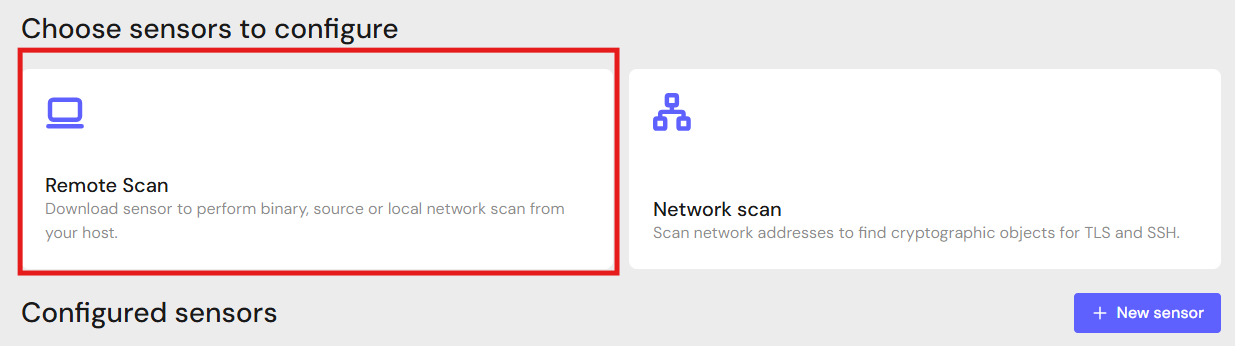
Click on "Sensors" in the left navigation menu under Scan
-
Click Remote Scan.
-
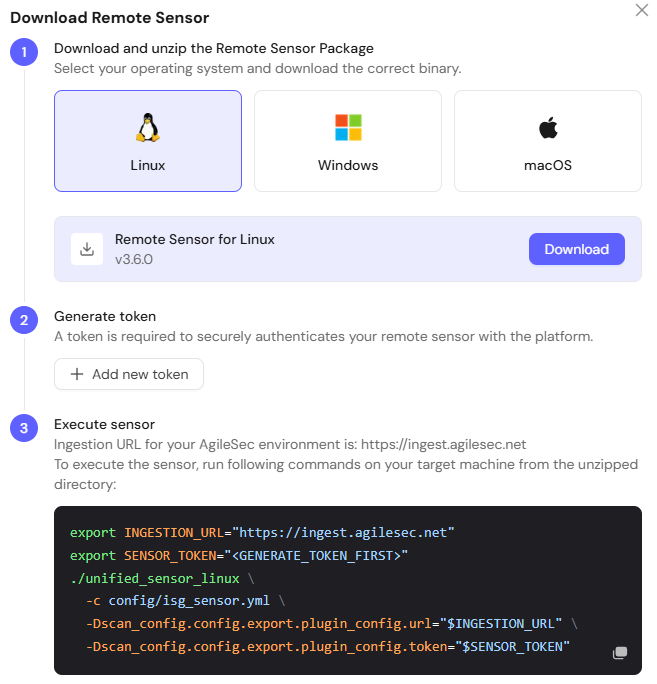
Click + Download Remote Sensor.

-
Download the sensor binary for your remote machine’s operating system
Generate Platform Token
-
In the Download Remote UI, click "Generate Token"
-
Copy the generated token
-
Store securely in an environment variable such as
SENSOR_TOKEN:export SENSOR_TOKEN="your-generated-token"
Create Configuration File
Create a YAML configuration file (e.g., gcpkms-config.yml) with your scan settings. An example configuration can be found in config/sample-configs/gcpkms.yml.
Step 4: Run the Connector
Execute the Connector with your configuration file:
-
Linux/macOS
Bash# Set environment variables export SENSOR_TOKEN="your-sensor-token" # Run Connector ./unified_sensor_linux -c gcpkms-config.yml -
Windows (PowerShell)
PowerShell# Set environment variables $env:SENSOR_TOKEN = "your-sensor-token" # Run Connector .\\unified_sensor_windows.exe -c .\\gcpkms-config.yml
Note: If auth_json is not specific in a remote scan execution call, Application Default Credentials (ADC) will be used.
Remote Scan Execution Configuration Examples
-
Scan All Regions in a GCP Project
YAMLscan_config: plugins: - gcpkms_import - trigger_discover - export config: gcpkms_import: name: gcpkms plugin_config: auth_json: "${file:/path/to/auth.json}" project: "${file:/path/to/auth.json:project_id}" -
Scan Specific Regions in a GCP Project
YAMLscan_config: plugins: - gcpkms_import - trigger_discover - export config: gcpkms_import: name: gcpkms plugin_config: auth_json: "${file:/path/to/auth.json}" project: "${file:/path/to/auth.json:project_id}" regions: ["global"]
Known Limitations
Disabled Keys
GCP KMS does not allow disabled keys to be scanned. Only enabled keys may be scanned by the GCP KMS Connector.
Incremental Scanning
Currently incremental scanning must still visit all key rings.
Troubleshooting
To assist with troubleshooting, see the GCP KMS error library: https://docs.cloud.google.com/kms/docs/reference/ekm_errors
Getting Support
Collect diagnostic information:
-
Connector version
-
Configuration file (redact tokens)
-
Log output
Contact Support
-
Portal: https://support.keyfactor.com