.png)
Universal Orchestrator Configuration
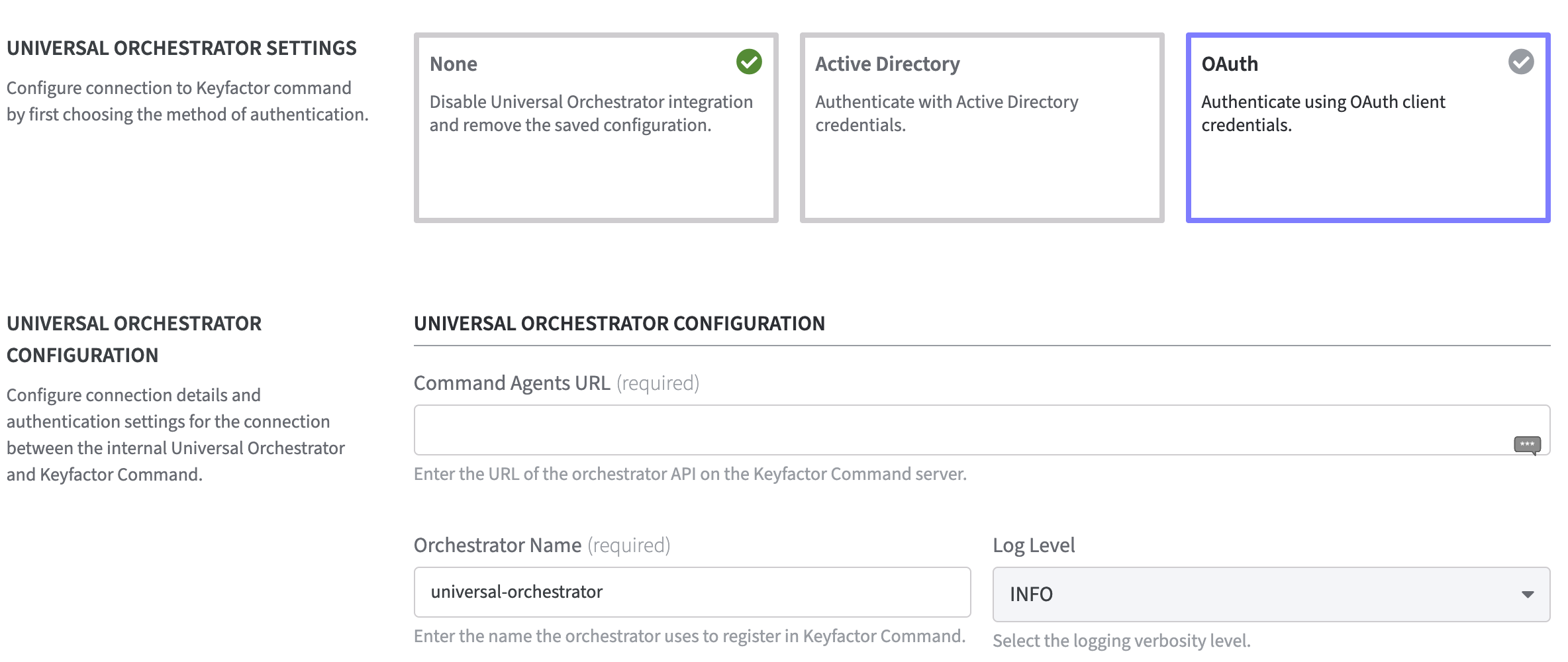
By choosing OAuth the window expands and the Universal Orchestrator Configuration opens.
-
Command Agents URL (required):
Enter the URL of the orchestrator API on the Keyfactor Command server.
Keyfactor/Agents endpoint e.g.: https://your-server.example.com/Keyfactor/Agents -
Orchestrator Name (required):
Enter the name the orchestrator uses to register in Keyfactor Command. -
Log Level:
Select from the drop down menu the logging verbosity level. Logging verbosity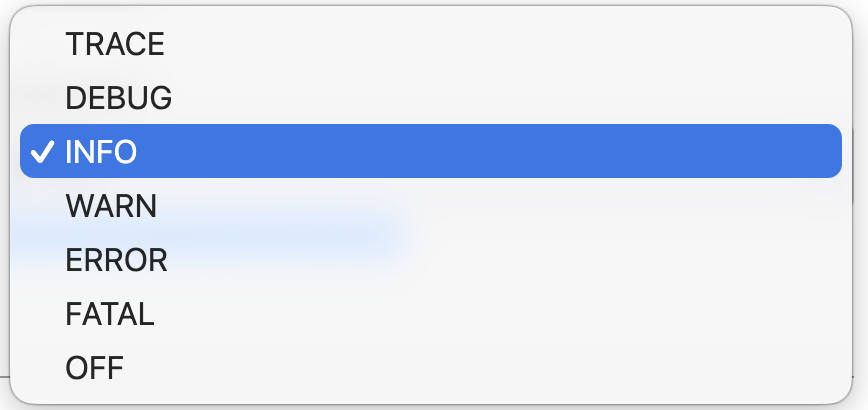
OAuth Configuration
-
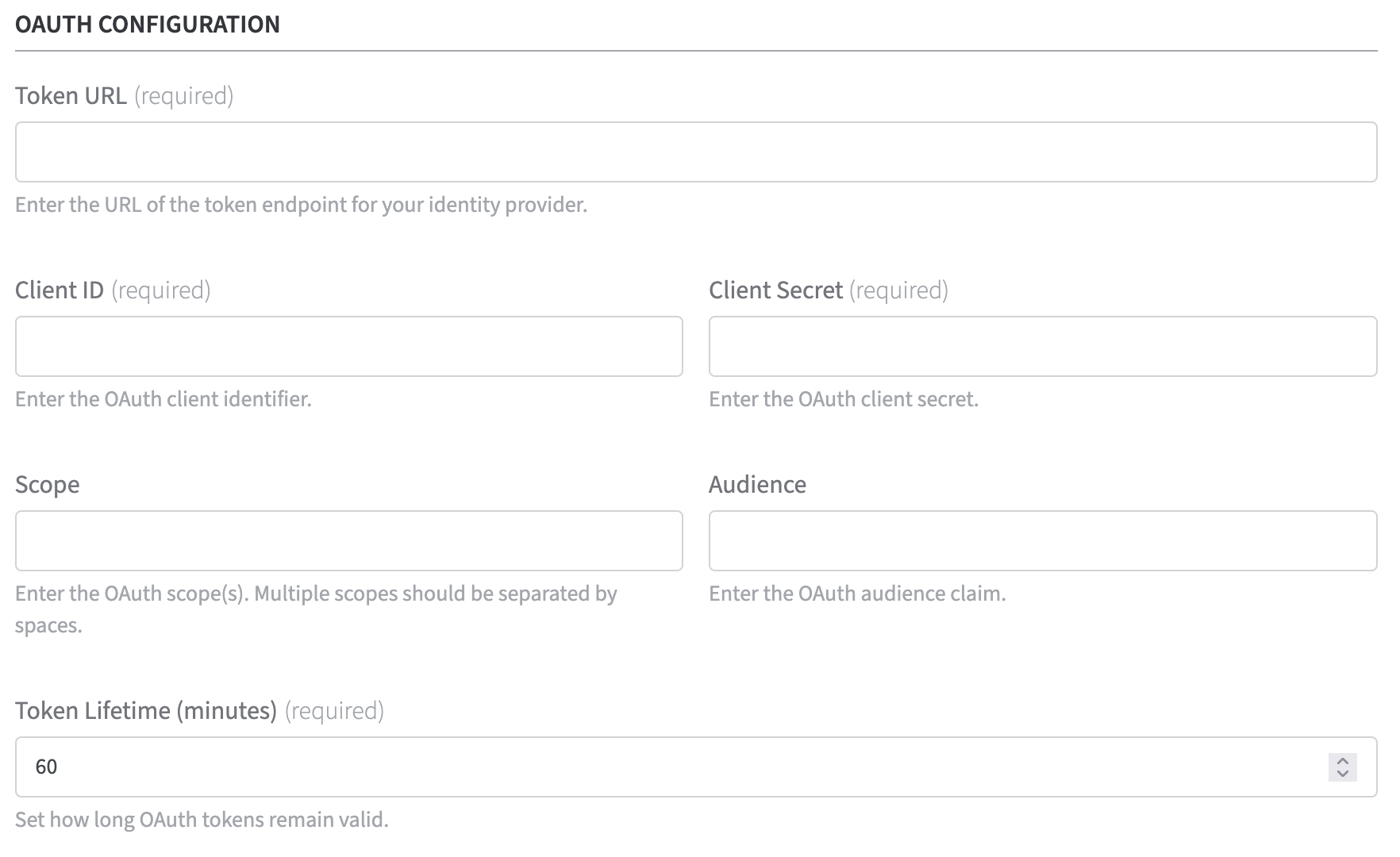
Token URL (required):
Enter the URL of the token endpoint for your identity provider. -
Client ID (required):
Enter the OAuth client identifier. -
Client Secret (required):
Enter the OAuth client secret. -
Scope:
Restrict the scope(s) of access if required by the Command configuration.
Multiple scopes should be separated by spaces. -
Audience:
Specify the token recipient if required by the Command configuration -
Token Lifetime minutes (required):
Set how long OAuth tokens remain valid (default: 60)
Universal Orchestrator Truststore
The orchestrator uses HTTPS to communicate with Keyfactor Command.
By default, the orchestrator does not trust any certificates, not even those
issued by public certificate authorities.
To use TLS, it is necessary to explicitly upload the certificate from the certificate authority
that issued the Command Server's TLS certificate.
Configuring the Truststore:
-
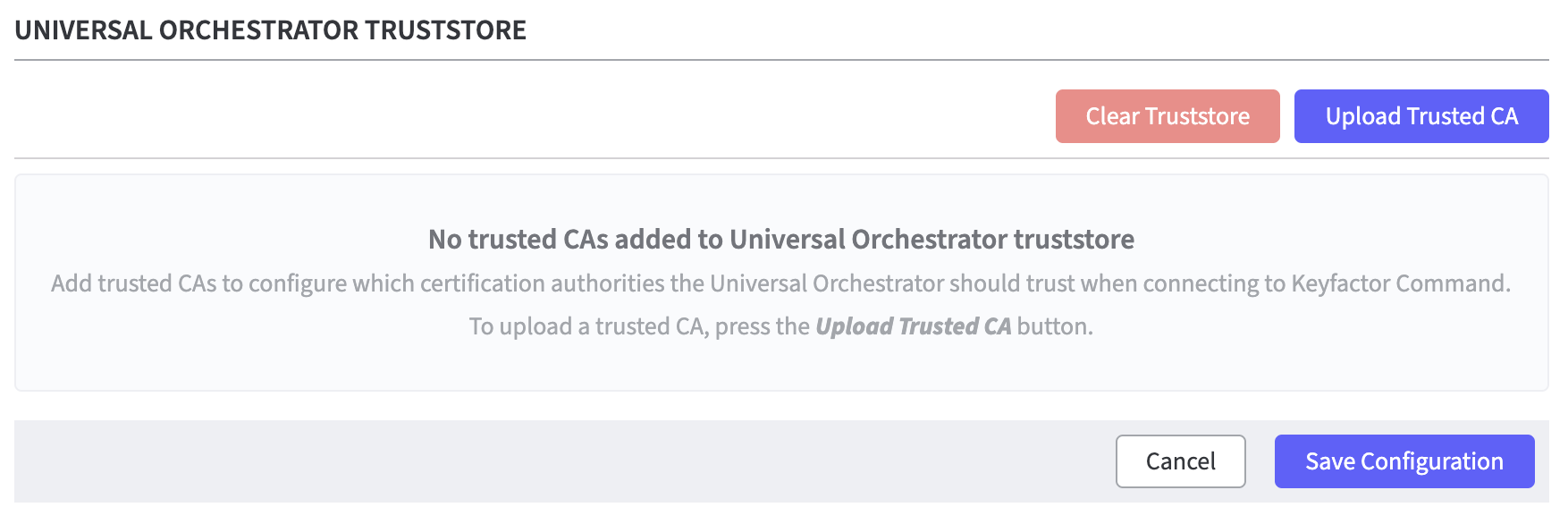
Add trusted certificate authorities to specify which certificate authorities the Universal Orchestrator should trust when connecting to Keyfactor Command.
-
Click Upload Trusted CA.
-
Upload the CA certificate(s) that signed the Command server’s TLS certificate in PEM format.
If using an intermediate certificate authority, upload all certificates in the chain. -
Click Save to apply the configuration.
-
The Orchestrator is automatically registered in Command.
-
Verify the connection in Command by checking the orchestrator status.